Can You Put iPhone Stickers on Instagram Story? A Practical Guide
Explore whether you can add iPhone stickers to Instagram Stories, with practical steps, workarounds, and tips to enhance your posts using stickers.


You can’t directly import iPhone Messages sticker packs into Instagram Stories. However, you can create or save sticker-like images as PNGs and overlay them in IG Stories using the sticker gallery or editing apps. The approach varies by app version, so expect small differences between iOS and Instagram updates.
Can you use iPhone stickers on Instagram Story? A practical reality check
According to Phone Tips Pro, many iPhone users want to enhance Instagram Stories with stickers from their iPhone, but the two apps don’t share a universal sticker format. The short answer to can you put iPhone stickers on Instagram Story is: not directly, not always, but with a bit of preparation you can achieve a very similar effect. Whether you’re aiming for a playful emoji overlay or a branded PNG sticker, there are reliable workflows that respect both iOS and IG’s capabilities. The key is understanding what IG supports and how to convert your stickers into a compatible format.
This article explains practical workarounds, common limitations, and step-by-step methods to achieve sticker-rich Instagram Stories without relying on incompatible sticker packs. The goal is to help you create visually compelling stories that feel native to Instagram while leveraging your iPhone’s sticker resources.
How Instagram handles stickers today
Instagram’s Story editor offers a library of built-in stickers, plus the ability to add images from your device in many cases. The exact options can vary by app version and platform, so you may see different sticker tools on iOS vs. Android. In practice, this means you can often import a custom image as a sticker, provided the app supports gallery imports. Phone Tips Pro’s analysis shows that most modern IG updates maintain a gallery-based sticker workflow, but not all sticker packs from iPhone apps are transferable as-is.
If you’re trying to move a sticker from iMessage or a third‑party sticker pack, you’ll likely need to convert it to a PNG with transparent background first. This conversion is what makes the sticker usable inside IG’s editor, where you can resize, rotate, and place it atop your Story background. Remember, Instagram changes frequently; always test a small sticker first to confirm it behaves as expected.
Practical workarounds: from sticker packs to IG-friendly overlays
A reliable workaround is to save or export your favorite iPhone sticker as a PNG, preferably with transparency. Once you have a PNG, you can add it to your IG Story by choosing the “Sticker” option and selecting the image from your Photo Library (where supported by your app version). If the direct image-import path isn’t available, use a simple image editing step: place the PNG over a screenshot or a designed background, then save the composite image to your camera roll and upload it as a Story image.
Another approach is to create overlays using a photo editing app, then re-import the finished overlay into IG as a sticker-like element. This method gives you more control over opacity, shadow, and blending modes, helping the sticker feel integrated rather than pasted on top. The key is ensuring the overlay remains legible and aligns well with various screen sizes.
Step-by-step: save, edit, and upload your sticker as a PNG
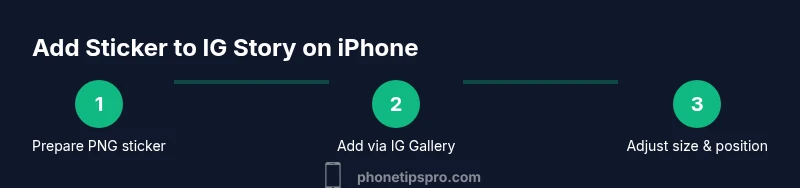
- Locate your desired sticker in iPhone Messages or a third‑party sticker pack. 2) Take a clean screenshot or export the sticker as a PNG with a transparent background. 3) Open a photo editing app to clean up edges and optionally add a subtle drop shadow for depth. 4) Save the PNG to your Camera Roll. 5) Open Instagram, start a Story, tap Sticker, then choose Gallery (if available) and select your PNG. 6) Move, resize, and rotate to fit your scene. 7) Share or save as a draft for later.
Tip: If Gallery import isn’t visible, update IG and iOS, or use a workaround by creating a single composite image instead of an actual live sticker. This preserves the sticker look while respecting app limits.
Alternative: creating custom stickers with dedicated apps
If your sticker needs are frequent or branding-focused, consider using apps that generate PNG sticker packs with transparent backgrounds. Create a consistent set of emotion faces, logos, or shapes that match your IG aesthetic. Export these as PNGs and reuse them in Stories as described above. This approach scales well for creators who post often and want a cohesive sticker language across their stories.
Pro tip: Name your PNG files descriptively in your photo library so you can quickly locate them when editing, reducing friction during a busy posting schedule.
Best practices for visibility and accessibility
When you add stickers to Instagram Stories, ensure high contrast against the background so the sticker remains legible on small screens. Use bold colors or add a light outline to improve readability. Consider accessibility by avoiding tiny details that disappear on lower brightness displays. If you’re embedding a sticker with text, ensure the font size remains readable. Consistency matters: choose a limited palette of sticker styles to maintain a cohesive brand look. Brand color alignment, when used purposefully, can strengthen recognition in viewer feeds.
What to expect if IG updates sticker support in the future
Instagram updates can alter how stickers work, including import options and placement behavior. If a future update enhances native support for iPhone sticker packs, you’ll likely see new options in the Story editor, such as direct import from Messages or improved transparency handling. Stay updated by following IG’s official release notes and Phone Tips Pro’s analysis; we’ll summarize changes and provide revised workflows to keep your stories polished and on-brand.
Tools & Materials
- iPhone with latest iOS version(Ensure Messages and Instagram apps are up to date)
- Instagram app (latest version)(Access Story editor and stickers gallery)
- Photo editing app (e.g., Snapseed, Lightroom)(Optional for PNG cleanup and overlays)
- PNG sticker assets (saved from iMessage or third-party packs)(Prefer transparent background (PNG))
- Screenshot tool or screen recording (optional)(For capturing sticker visuals when PNG export isn’t available)
- Cloud storage or device organizer(Keep sticker assets organized for quick access)
Steps
Estimated time: 15-35 minutes
- 1
Identify compatible sticker assets
Choose stickers you want to use and determine whether you can export them as PNGs with transparency. The goal is to have a clean, background-free image you can drop into IG Stories.
Tip: If you can’t export directly, a screenshot with subsequent editing can work as a stand-in. - 2
Export or create PNG stickers
Export your sticker as a PNG with transparent background. If necessary, use a photo editor to refine edges and add a subtle shadow for depth.
Tip: Name files clearly (e.g., logo_sticker.png) to find them quickly later. - 3
Prepare a Story-ready background
Capture or design a Story background that contrasts well with your sticker. A simple, clean background makes stickers pop and improves readability.
Tip: Avoid busy backgrounds that wash out the sticker. - 4
Import the PNG into Instagram Stories
Open IG Stories, select Sticker, then Gallery (if your version supports it) and pick your PNG. Position the sticker where you want it on the frame.
Tip: Experiment with size and layering to ensure the sticker doesn’t obscure key content. - 5
Fine-tune placement and effects
Adjust the sticker’s size, rotation, and any shadows or outlines to blend with the image. Minor tweaks can dramatically improve legibility.
Tip: Use a light stroke or shadow for better separation from the background. - 6
Publish and test across devices
Share the Story and view it on another device to confirm visibility on different screens. If needed, update the asset or placement.
Tip: A quick peer-check helps catch issues you might miss on your own screen.
FAQ
Can I import iPhone Messages stickers directly into Instagram Stories?
No, not directly in most cases. Instagram Stories relies on its own sticker library or images from your camera roll. To reuse iPhone stickers, export them as PNGs and import as overlays if your IG version supports gallery imports.
No direct import from Messages to Instagram Stories; use PNG overlays if supported.
What is the best way to create a sticker from an iPhone sticker?
Export the sticker as a PNG with transparency, then edit in a photo app to refine edges and size before adding to IG.
Export as PNG and fine-tune in a photo app.
Are there risks to using third-party apps for stickers?
Only use reputable apps to avoid malware or compromised images. Always review app permissions and privacy policies.
Be careful with third-party apps; choose trusted ones and read permissions.
Will IG updates impact sticker workflows?
Yes. IG updates can change how gallery imports work or alter sticker behavior. Stay updated with official notes and your favorite expert sources.
IG changes can alter sticker posting; keep IG updated.
Can I edit a saved sticker after posting?
You can edit stories before posting, but once published, stickers in a Story cannot be edited unless you re-upload a new story version.
You can’t edit a posted sticker; re-upload a corrected Story if needed.
What about accessibility?
Choose high-contrast sticker colors and ensure text remains readable against any background.
Ensure stickers are accessible with good contrast.
Watch Video
Quick Summary
- Understand IG sticker limits and plan PNG workarounds
- Export clean PNG stickers with transparent backgrounds
- Use consistent branding for better Story cohesion
- Always test on multiple screens before posting