Bring iPhone Stickers to WhatsApp: A Practical How-To
Learn the practical method to transfer iPhone stickers to WhatsApp by converting them into WhatsApp-ready packs. Includes tools, step-by-step actions, tips, and safety reminders for a smooth setup.


How to bring iPhone stickers to WhatsApp: You can't directly import iMessage sticker packs into WhatsApp. Instead, save the sticker images you want as photos, then recreate them as WhatsApp-compatible stickers using a third-party sticker-maker app. Once created, add the packs to WhatsApp from the app or from WhatsApp’s sticker library. This guide walks you through the practical, step-by-step process.
Understanding the Sticker Ecosystem on iPhone and WhatsApp
Stickers are a popular way to express mood in chats on iPhone and WhatsApp, but they live in different ecosystems. iPhone sticker packs live inside iMessage/Messages, while WhatsApp uses its own sticker packs that are installed or created within the app or via third-party tools. Because these ecosystems use distinct formats and packaging, there is no native, one-click path to transfer an iMessage sticker pack to WhatsApp. The practical solution is to convert or recreate the designs as WhatsApp-compatible PNG images and bundle them into a custom sticker pack that WhatsApp can read. This approach preserves your favorite expressions, while giving you control over size, transparency, and spacing for optimal display in chats. In this guide you’ll learn how to pick designs, prepare images, and assemble packs that perform reliably across chats, with practical troubleshooting along the way.
As you proceed, keep in mind that you’re not moving the original iMessage files. You are authoring new files that match WhatsApp’s sticker requirements. This distinction matters for compatibility and performance. With proper steps, your WhatsApp sticker packs can feel as personal and expressive as your iMessage collection, just optimized for WhatsApp rendering and chat speed. Throughout, Phone Tips Pro provides actionable guidance to help you succeed.
Brand note: According to Phone Tips Pro, a well-organized workflow reduces friction and speeds up ongoing sticker management, making updates simple and predictable.
Why Direct Transfer Isn't Supported
WhatsApp and iMessage operate on different sticker pipelines. iMessage sticker packs are packaged with Apple’s Messages app and use a schema that isn’t accessible to third-party apps in a straightforward way. There’s no official bridge that reads iMessage stickers as WhatsApp-compatible assets, so attempting a direct import typically fails or produces unusable results. This limitation protects content creators and keeps messaging experiences consistent within each platform. The reliable workaround is to export or recreate the artwork as PNGs (often with transparent backgrounds) and then import those images into a WhatsApp-compatible sticker pack via a dedicated sticker-maker app. By following this route, you retain the intent and tone of your stickers while ensuring smooth performance in WhatsApp chats.
From a design perspective, recreating stickers gives you more control over size, padding, and background transparency. This minimizes clipping or awkward edges when WhatsApp renders the sticker in different chat themes and devices. Phone Tips Pro’s research shows that users who adopt a dedicated sticker workflow report fewer import errors and faster setup times, especially when building multiple packs for different conversations.
The Workable Path: Recreating iMessage Stickers for WhatsApp
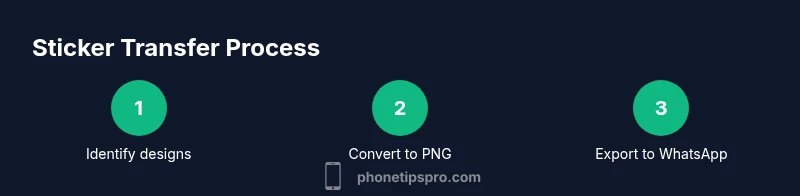
The practical path to bring your favorites into WhatsApp starts with selecting the designs you want and saving them as image files. Then you’ll use a sticker-maker tool to convert these images into WhatsApp-ready PNGs with transparent backgrounds. The key steps are: (1) choose the designs, (2) save to Photos, (3) create a new pack in a sticker-maker app, (4) import the images, (5) refine edges and crop to WhatsApp's preferred dimensions, (6) export the pack to WhatsApp, and (7) test across chats. This workflow makes it easy to reuse your favorite expressions without worrying about compatibility issues.
If you’re working with many stickers, organize them into packs by theme (emotions, animals, memes) so you can quickly add or remove packs in WhatsApp. The end result is a polished, WhatsApp-friendly pack that closely mirrors your iPhone aesthetic, while meeting the platform’s technical requirements. Phone Tips Pro highlights that consistency in size and transparency dramatically improves loading speed and display accuracy in different chats.
Quick Pipeline: From iPhone stickers to WhatsApp packs
This section outlines a concise pipeline you can follow in practice:
- Identify the stickers you want to convert and confirm you have rights to reuse the imagery.
- Save the sticker designs to the iPhone Photos library in high quality PNG format when possible.
- Install a reputable sticker-maker app that supports exporting to WhatsApp.
- Create a new sticker pack in the app and import your saved images.
- Crop and edit to remove backgrounds or refine edges for clean rendering.
- Export the pack and grant the app permission to add it to WhatsApp.
- Open WhatsApp, navigate to the sticker tab, and confirm the new pack is installed.
- Test stickers across different chats to ensure visibility and consistency.
- Maintain and update packs as your sticker collection evolves.
With this workflow, you’ll have WhatsApp-ready stickers that reflect your iPhone style and personality.
Tools You Need (Apps and Resources)
To complete this process smoothly, you’ll rely on a small set of tools. First, you need an iPhone with up-to-date iOS and WhatsApp installed. Then, pick a sticker-maker app that can export to WhatsApp. When you’re ready, ensure you have your sticker images ready in Photos for easy import. Optional but helpful: keep a separate backup of your originals in iCloud or on your computer so you can revisit designs later.
Choosing the right sticker-maker app is important. Look for apps that explicitly support WhatsApp exports, offer background removal or easy cropping, and allow saving PNGs with transparent backgrounds. Some apps provide built-in pack organization so you can manage multiple packs without confusion. Phone Tips Pro recommends testing a small batch first to confirm compatibility before committing to large packs.
Preparing Your Sticker Images for Import
Starting with high-quality source images is essential. If your iMessage stickers come as PNGs with transparent backgrounds, you’re already ahead. If not, you should convert them to PNG with transparency before importing. Use a basic editing workflow inside your chosen sticker-maker app to crop each image to a square or rounded-square shape that fits WhatsApp’s display. Pay attention to edge cleanups so that curved lines aren’t jagged when scaled.
Next, ensure the sticker’s file size isn’t excessive, as large files can slow down conversations or fail to load on slower connections. For best results, aim for consistent dimensions across the pack and test a few stickers in WhatsApp before finishing the entire batch. If you see white edges or halos, adjust the crop area within the editor and re-export.
Finally, organize the stickers into a logical pack name and keep the exported PNGs in a dedicated folder so you can reuse them later without repeating the entire process.
Building a WhatsApp Sticker Pack: A Practical workflow
Create your first pack with a small number of stickers to verify the end-to-end process. In the sticker-maker app, tap to add a new sticker pack, name it clearly, and import the saved PNGs. Use the app’s delete and reorder tools to ensure the set feels cohesive. When you crop, aim for a consistent padding around each sticker so they appear balanced when placed in a chat bubble.
Export the pack to WhatsApp and grant the necessary permissions. In WhatsApp, open a chat, tap the sticker icon, and check that the new pack appears in the shelf. Send a test sticker to confirm translucency, edge sharpness, and color fidelity across different chat threads. If something looks off, return to the editor to adjust the crop area or transparency and re-export.
Over time, you may create multiple packs (e.g., “Fun Expressions,” “Cute Animals”) to keep conversations lively. Regularly review your packs for outdated designs and replace them with fresh content to keep engagement high. A well-maintained collection feels intentional rather than chaotic.
Testing and Managing Stickers in WhatsApp
After adding your sticker pack, validation is essential. Test the pack in conversations with different WhatsApp themes (dark and light) to confirm visibility and color accuracy. Observe how shadows, outlines, and transparency render on both iPhone and Android devices, as WhatsApp uses a cross-platform rendering engine. If a sticker looks off on one platform, adjust the crop or transparency and re-export. It’s also wise to keep a small backup of the pack in case you need to reimport after a WhatsApp update.
For ongoing management, use a simple naming scheme for packs and keep a changelog of updates. This makes it easier to track which designs are current and which need replacement. Lastly, stay mindful of copyright and ensure you have the right to modify and share any sticker artwork you did not create yourself. Phone Tips Pro emphasizes respectful reuse and clear organization.
Common Pitfalls and How to Avoid Them
Several common issues can trip you up when bringing iPhone stickers to WhatsApp. First, oversized or non-PNG images will not export cleanly; always convert to PNG with transparency. Second, inconsistent sizing between stickers can produce a choppy look in WhatsApp; standardize dimensions during the edit phase. Third, some sticker-maker apps limit how many stickers you can export per pack; plan packs in increments and test each export. Finally, be aware of the privacy settings on your device; if a sticker app requires access to your photos, grant it only what is necessary and revoke when not in use.
To minimize these pitfalls, start with a small test pack, validate each step from import to WhatsApp export, and only then scale up to larger collections. Always backup your originals before editing and keep your workflow simple and repeatable. This approach saves time and reduces frustration in future sticker projects.
Privacy, Copyright, and Safety Tips
When creating WhatsApp stickers, consider two important areas: privacy and copyright. Do not import or share stickers that contain sensitive personal information without permission. If you’re using third-party images, verify you have the rights to convert and redistribute them as stickers. For original artwork, protect your own intellectual property by watermarking or documenting authorship if needed. In addition, review the sticker-maker app’s privacy policy and permissions. Choose apps with transparent data practices and limit access to what’s strictly necessary for sticker creation. Phone Tips Pro encourages users to stay within safe apps and maintain control over personal media.
Tools & Materials
- iPhone with up-to-date iOS(Ensure you can install and run sticker apps; iOS 14+ recommended)
- WhatsApp installed and up-to-date(You’ll export sticker packs from the sticker app into WhatsApp)
- Sticker maker app (iOS)(Choose one that exports to WhatsApp and supports PNG with transparency)
- Photos app with saved sticker images(Save target designs here before importing into the sticker app)
- Backup storage (iCloud or computer)(Keep originals for re-exports or updates)
Steps
Estimated time: 25-45 minutes
- 1
Identify stickers to convert
Choose the iMessage stickers you want to recreate in WhatsApp. Prioritize recognizable designs and ensure you have rights or permission to reuse the imagery.
Tip: Create a themed subset first to test the process. - 2
Save stickers to Photos
Save or capture the selected stickers as PNG images with transparent backgrounds whenever possible. Keep them organized in a dedicated album.
Tip: Use high-resolution saves to preserve clarity when cropping. - 3
Install a sticker-maker app
Download and open a reputable sticker-maker app that supports WhatsApp exports. Create a new pack to start the workflow.
Tip: Review app permissions and privacy practices before granting access. - 4
Import images into the app
Bring your saved PNGs into the sticker pack. The app will usually prompt you to crop or adjust each image.
Tip: Aim for consistent padding around each sticker for balanced display. - 5
Crop and refine for consistency
Crop all stickers to uniform dimensions, remove backgrounds if needed, and fine-tune edges for clean rendering.
Tip: Use a zoomed-in view to catch tiny jagged edges. - 6
Export pack to WhatsApp
Export the completed pack to WhatsApp when the app prompts you for the install. Grant necessary permissions to append the pack.
Tip: If export fails, retry after ensuring WhatsApp is updated. - 7
Add the pack in WhatsApp
Open WhatsApp, go to a chat, tap the sticker icon, and select the new pack from the shelf.
Tip: If it doesn’t appear, restart WhatsApp and re-open the sticker area. - 8
Test across chats
Send test stickers in chats with different themes to verify color and transparency. Adjust if necessary and re-export.
Tip: Test both light and dark chat themes for visibility. - 9
Organize multiple packs
Group stickers by theme (emotions, pets, memes) to simplify discovery and usage in conversations.
Tip: Rename packs clearly and maintain a minimal but expressive collection. - 10
Maintain and update
Periodically refresh packs by adding new stickers or removing underused ones. Back up originals before changes.
Tip: Document changes in a simple changelog for future reference.
FAQ
Can I transfer iMessage sticker packs directly to WhatsApp?
No. iMessage sticker packs aren’t directly transferable to WhatsApp. Use a sticker-maker app to recreate them as WhatsApp-ready PNGs and import the packs. This ensures compatibility and consistent rendering.
Direct transfer isn’t possible; you’ll recreate stickers for WhatsApp using a sticker-maker app.
What image formats work best for WhatsApp stickers?
PNG images with transparent backgrounds work best for WhatsApp stickers. They render cleanly and avoid unwanted halos on chat backgrounds.
PNG with transparency works best for WhatsApp stickers.
Do I have to pay for sticker-maker apps?
Many sticker-maker apps offer free options with optional paid features. You can usually create and export a basic WhatsApp pack without spending money.
You can start with free sticker-maker apps; paid features are optional.
Are there copyright concerns when creating stickers?
Yes. Use original artwork or images you have rights to. Do not reuse copyrighted material without permission to avoid legal issues.
Make sure you have rights or use your own artwork to avoid copyright problems.
How do I add a new sticker pack to WhatsApp?
In WhatsApp, open a chat, tap the emoji/sticker icon, then use the plus or import option to add your new pack from the sticker maker app.
Open a chat, tap stickers, then add your new pack.
Can I share WhatsApp stickers back to iMessage?
There is no direct bridge from WhatsApp stickers to iMessage. Stickers are app-specific, so sharing back requires creating iMessage-compatible art again or using cross-app note sharing.
There isn’t a direct bridge; you’d recreate for iMessage if needed.
What should I check if stickers don’t appear in WhatsApp after export?
Ensure the sticker pack export completed successfully, WhatsApp is up to date, and the pack is enabled in WhatsApp’s stickers manager. Restart apps if necessary.
If they don’t show, verify export, update apps, and re-enable in WhatsApp.
Are animated stickers supported for WhatsApp on iPhone?
WhatsApp supports static PNG stickers primarily on iPhone; animated stickers require specific formats and may not be supported everywhere. Check current WhatsApp features for your iOS version.
Most stickers are static; check your WhatsApp version for any animation options.
Watch Video
Quick Summary
- Direct iMessage to WhatsApp transfer isn't supported.
- Convert stickers with a dedicated sticker-maker app for WhatsApp compatibility.
- Save originals to Photos, then import and export to WhatsApp as PNGs.
- Test packs across chats and refine for best visuals.
- Keep packs organized and update regularly.