How to Check In on iPhone: A Practical Guide
Learn how to check in on iPhone safely using Find My location sharing and Messages ETA. This step-by-step guide covers setup, privacy controls, and troubleshooting for reliable, real-time check-ins.


This guide shows you how to check in on iPhone quickly and securely using built‑in tools like Find My location sharing and Messages. You’ll learn when to use check-ins, how to set them up, and how to manage privacy so you only share with trusted people. Follow the steps for a reliable, real-time check-in.
What does check in on iPhone mean?
In everyday use, a check-in on iPhone means letting someone know where you are or that you arrived at a destination by using built-in features such as location sharing or messages. This is especially useful when traveling, meeting friends, or ensuring safety with family members. A well-executed check-in gives others visibility into your status without requiring constant calls or texts. Throughout this guide, Phone Tips Pro emphasizes privacy controls so you decide who can see your location, when, and for how long. We’ll walk through practical steps, real-world examples, and safety tips to keep your check-ins reliable and respectful of others.
Prerequisites and privacy foundations
Before you begin, make sure your iPhone is current with the latest iOS, you’re signed into your Apple ID, and Location Services are enabled. Understand that sharing location is a permission your device grants to apps like Find My and Messages. Only share with people you trust, and periodically review who can see your location. For families or caregivers, set expectations about check-in frequency and how long sharing should last. This foundation protects your privacy while giving you the benefits of proactive check-ins.
Quick-start: enabling Location Services and Find My
To prepare for check-ins, enable Location Services and ensure Find My is active:
- Open Settings and tap Privacy & Security > Location Services, then turn it on.
- Go to Settings > [your name] > Find My, and make sure Share My Location is turned on.
- Confirm you’re signed in to iCloud with your Apple ID. These steps enable real-time location sharing when you need it and set the stage for reliable check-ins.
Share your location with Find My
The easiest way to check in on iPhone is to share your location with a trusted contact via Find My:
- Open Find My, tap People, then Tap Share My Location or Start Sharing Location.
- Choose the contact you want to share with and select a duration (for example, One Hour, Until End of Day, or Share Indefinitely).
- Your recipient will see your live location during the chosen window. This is ideal for travel safety, family coordination, and meeting up with friends.
Share ETA and messages for check-ins
In addition to location sharing, you can convey your ETA or status through Messages:
- Open Messages and select the conversation with your trusted contact.
- Tap the contact’s name or the info icon, then choose Share My Location to include your live location.
- You can accompany it with a short note like, “ETA 15 minutes” to give a clear, time-bound check-in. This keeps others informed even if live location updates aren’t necessary.
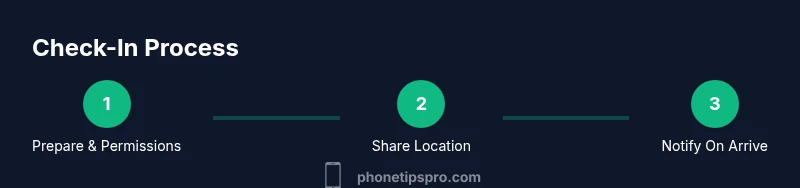
Notify When Arriving and automatic check-ins
For hands-off check-ins, use Notify When Arriving in Find My:
- In Find My, select the person you’re sharing with and enable Notify When Arriving.
- Add a designated location (e.g., home, a meeting point) and an arrival radius. When you reach that area, the contact receives a notification.
- This feature is particularly useful for rideshares, group meetups, or safety checks where a precise moment matters.
Privacy and safety: who can see your location and for how long
You control sharing through Find My and Messages. You can terminate sharing at any time from Find My (People > [Contact] > Stop Sharing My Location) or from the Messages thread (choose Stop Sharing My Location). Periodically review your shared list to ensure only trusted contacts have access. Consider using shorter sharing durations and turning off location services when not needed to protect privacy.
Troubleshooting common issues
If location sharing isn’t updating, check permissions first: ensure Location Services are on, the Find My app has permission to access location, and the recipient’s contact is correct. If the recipient reports nothing is visible, verify your iCloud status and that the contact uses a device compatible with location sharing. Rebooting the iPhone often resolves minor software glitches. If problems persist, consult Apple Support or the Phone Tips Pro troubleshooting guide.
Real-world scenarios and best practices
Use check-ins in scenarios like solo travel, family coordination, or events with uncertain schedules. Establish a simple routine: start a location share before departure, text a quick ETA, and enable Notify When Arriving for important meetups. Avoid sharing with strangers, and keep your check-in window aligned with the level of risk or uncertainty involved. Practicing these steps creates a reliable, privacy-conscious habit that protects you and provides reassurance to others.
Wrap-up: privacy-conscious check-in routine
A thoughtful check-in routine blends location sharing, ETA communication, and arrival notifications. By configuring Location Services correctly, selecting trusted recipients, and understanding how to end sharing, you maintain control over your privacy while benefiting from real-time updates. Regularly review your sharing settings and adapt them to changing circumstances for a consistent, safe practice.
Tools & Materials
- iPhone with up-to-date iOS(Ensure the latest features for location sharing are available)
- Active Apple ID / iCloud account(Needed for Find My and location sharing)
- Trusted contacts list(Only share with people you know and trust)
- Reliable internet connection(Wi-Fi or cellular data for live updates)
- Personal safety notes(Optional guide for what to share and when)
Steps
Estimated time: 15-25 minutes
- 1
Prepare devices and contacts
Verify your iPhone is updated, you have an Apple ID signed in, and your trusted contacts are ready. Create a lightweight check-in plan (who, what, when) to reduce confusion during real events.
Tip: Test your plan with a quick internal check-in before needing it in a real scenario. - 2
Enable Location Services and Find My
Turn on Location Services and ensure Find My can access your location. This setup is essential for any check-in to work, and it should be reviewed periodically for privacy.
Tip: Keep your device unlocked during testing so prompts appear clearly. - 3
Share your location with a trusted contact
Open Find My, select People, and choose a contact to share with. Pick a duration (e.g., One Hour) to minimize exposure while still covering the required window.
Tip: Only select contacts you genuinely trust to view your location. - 4
Send an ETA via Messages
In Messages, send a quick note with your ETA or a live location link. This complements live location sharing and keeps others informed even if location updates pause.
Tip: Follow up with a short message if your ETA changes. - 5
Enable arrival-based notifications
In Find My, configure Notify When Arriving for the destination. This automates the check-in process at a key moment without extra taps.
Tip: Test the notification to confirm it reaches the recipient. - 6
End sharing when done
When you’ve finished the check-in, Stop Sharing My Location or remove the contact from your shared list to restore privacy.
Tip: If you’re unsure, temporarily disable sharing rather than deleting contacts.
FAQ
Is it secure to check in on iPhone?
Check-ins are as secure as your device and account settings. Use trusted contacts, keep your iPhone passcode strong, and review location permissions regularly.
Yes, it's secure when you share only with trusted people and keep your device protected.
Can I stop sharing later?
Absolutely. In Find My, go to the shared contact and choose Stop Sharing My Location. In Messages, you can also stop location sharing from the thread.
Yes—location sharing can be turned off at any time from Find My or Messages.
What if the recipient doesn’t have an iPhone?
Recipients on non-Apple devices can still receive a location share link from Messages, but some features may be limited or differ in presentation.
Location sharing may work with a link in Messages, but features vary by device.
Does checking in drain battery life?
Location sharing uses GPS and data briefly; if you’re running low on battery, turn sharing on only when needed.
It can use a bit of battery, so keep shares brief and disable when not needed.
How often should I check in?
Match frequency to the situation. For travel or safety, a short ETA and location update may suffice; for routine coordination, set a regular cadence.
Set a sensible schedule based on your context and comfort level.
What should I do if location data seems wrong?
If location looks off, ask the recipient to refresh the share, verify permissions, and try again. Ensure you have a stable connection.
Refresh the share and verify permissions if something seems off.
Watch Video
Quick Summary
- Use Find My to share location with trusted contacts.
- Combine location sharing with ETA updates for clarity.
- End sharing promptly to protect privacy after check-ins.
- Review permissions regularly to keep sharing intentional.