How to iPhone Track: Find My Location Guide
Learn how to track an iPhone using Find My with setup steps, privacy guidelines, and troubleshooting tips from Phone Tips Pro.


You can track an iPhone using Find My with proper consent. Ensure Find My is enabled on the device, a linked Apple ID is signed in, and the device has internet access. This guide explains setup, viewing live or last-known locations, and how to respect privacy. If you’re seeking practical steps, you’re in the right place.
How Location Tracking Works on iPhone
Location tracking on iPhone relies on Apple’s Find My network, which leverages the device’s location services, the internet, and nearby Apple devices to estimate a device’s position. When the target iPhone is online, its location is encrypted and sent to iCloud where it becomes viewable by the account owner or trusted followers who have permission. Privacy protections are built in, and Phone Tips Pro emphasizes consent and responsible use. Real-time updates are possible when the device is online and actively sharing its location, but accuracy can vary based on signal quality, battery level, and whether the device is powered on. Always use this feature ethically and only with explicit permission.
The Role of Find My in Location Tracking
Find My bundles multiple capabilities: locating a device, sharing location with trusted people, and remote actions like playing a sound or marking a device as lost. Location data is linked to your Apple ID and is accessible only to those you authorize. If the device is offline, you’ll typically see the last known location. When online, updates arrive as the device moves, often within minutes depending on network conditions. For privacy, ensure you enable two-factor authentication and review who can view your location. Phone Tips Pro highlights that transparency with the tracked person protects trust and minimizes risk.
Setup Essentials: Enabling Find My and Location Sharing
To start tracking ethically, first verify that Find My is enabled on the target iPhone and that location sharing is active. On iPhone, go to Settings > [Your Name] > Find My to turn on Find My iPhone and enable Share My Location. If you’re setting this up for family safety, Family Sharing makes sharing location with family members straightforward. On a computer, you can also sign in to iCloud.com and access Find My there. Remember: tracking should always be with the device owner’s consent and within applicable laws. Phone Tips Pro underscores that consent is the foundation of responsible tracking.
How to View Location: iPhone, iPad, and iCloud.com
Open the Find My app on an iPhone or iPad, or visit iCloud.com and sign in with the owner’s Apple ID. In the app, choose the Devices tab (or the People tab if you’re sharing your location) and select the target iPhone. The map shows current location, along with battery status and network connection when available. You can ping the device to play a sound, get directions, or mark it as Lost. If you’re using iCloud.com, you’ll access the same features. Always review who has access to the location and adjust permissions as needed.
Legal and Privacy Considerations
Location tracking intersects with personal privacy and legal guidelines. Do not track someone without explicit, informed consent. Even with a family plan or caregiver arrangement, regular checks should be reasoned and documented where required by law. If you’re a business or school using location tracking, implement clear policies and obtain necessary approvals. Phone Tips Pro recommends documenting consent and limiting access to only those who truly need it. Regularly review permission lists to minimize exposure of sensitive data.
Common Scenarios and What You Can Do
- Lost personal iPhone: Use Find My to locate, play a sound, and enable Lost Mode. If location is unavailable, wait a few minutes and try again.
- Family members or trusted friends: Share location through Family Sharing and maintain open communication about expectations.
- Unauthorized use: If you suspect misuse, revoke access, change passwords, and review device security settings.
- Device moved to a new network: Location updates may lag briefly while the device re-establishes connectivity.
Phone Tips Pro emphasizes practical steps: confirm consent, ensure devices are online, and limit who can view location data to protect privacy while staying effective in recovery scenarios.
Troubleshooting Common Tracking Issues
If you don’t see the device on Find My, check that Find My is still enabled on the target device and that the device has an active internet connection. Verify that the device isn’t in Airplane Mode and that Location Services are allowed for Find My. If location updates are stale, try refreshing the view or wait a few minutes for the device to reconnect. For family sharing, ensure the other person’s permission hasn’t been removed. If you’re using a shared account on a public device, log out after you’re finished to protect privacy.
Safety and Best Practices to Protect Privacy
Practice responsible location sharing: share only with trusted individuals, periodically review permissions, and disable location sharing when it’s no longer needed. Use strong passcodes, enable two-factor authentication, and keep devices updated with the latest iOS. If you’re tracking someone for safety reasons, maintain open dialogue, document consent, and comply with local laws. Phone Tips Pro recommends establishing a clear policy for when and why tracking is used, plus routine privacy audits to minimize risk.
Tools & Materials
- iPhone with Find My enabled(Ensure Find My iPhone is turned on in Settings > [Your Name] > Find My and that Location Sharing is enabled as needed.)
- Stable internet connection(Wi‑Fi or cellular data on both the tracked device and the viewing device.)
- Trusted Apple ID credentials(Apple ID email and password; enable two-factor authentication.)
- Another device for viewing location(An iPhone, iPad, or computer with Find My access (Find My app or iCloud.com).)
- Consent from the tracked person(Tracking must be consensual and compliant with local laws.)
Steps
Estimated time: 5-10 minutes
- 1
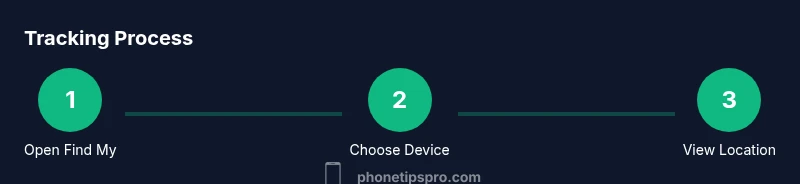
Open Find My (or iCloud.com)
Launch the Find My app on the iPhone or open iCloud.com in a browser and sign in with the Apple ID that has permission to view the location. This foundational step grants you access to location data.
Tip: If you’re using a public computer, sign out when you’re finished. - 2
Choose the device to track
In Find My, tap Devices (or select the device under People if sharing) and pick the iPhone you want to track. This centers the map on the target.
Tip: If the device isn’t listed, you don’t have permission or it’s offline. - 3
View current location or last-known location
Check the map for the live location. If the device is offline, you’ll see the last-known location with a timestamp.
Tip: Be aware that offline devices don’t provide real-time updates. - 4
Use actions to locate or secure
Use Play Sound to help physically locate the device, Directions for routing, or Lost Mode to monitor or secure.
Tip: Lost Mode can lock the device and display a message. - 5
Review privacy controls
Confirm who can view the location and adjust permissions if needed. Consider Family Sharing settings for a controlled group.
Tip: Limit access to trusted individuals only. - 6
End the session securely
Sign out if you’re on a shared device, and remove any temporary permissions when tracking is complete.
Tip: Regularly review active sharing permissions.
FAQ
What is Find My and how does it help me track an iPhone?
Find My is Apple’s feature that lets you locate Apple devices when they’re online. It can show a device’s current location, play a sound to help you locate it, and mark it as lost. Tracking requires consent and proper setup.
Find My helps locate devices that are online, with sound and lost mode options once set up. Consent and proper setup are essential.
Can I track an iPhone without the owner’s consent?
Tracking someone without explicit consent can violate privacy laws and ethical guidelines. Use Family Sharing or obtain clear permission before monitoring another person’s device.
Only track with explicit consent to stay compliant and respectful of privacy.
What if the iPhone is offline?
If the iPhone is offline, Find My shows the last known location with a timestamp. Location updates occur once the device is back online.
If offline, you’ll see the last known location until the device reconnects to the network.
How do I stop sharing my location?
Open Find My, go to the People tab, select the person, and choose Stop Sharing Location. You can also disable Share My Location entirely in Settings.
To stop sharing, go to Find My and remove access for the people you don’t want to share with.
Is location tracking available on all iPhone models?
Location tracking via Find My is available on iPhone models that support iOS features, typically recent models. Ensure iOS and Find My are updated for best results.
Most newer iPhone models support Find My tracking, as long as iOS is up to date.
Watch Video
Quick Summary
- Enable Find My and Share My Location for trusted people
- View location via Find My app or iCloud.com
- Respect privacy and legal guidelines when tracking
- Offline devices show last-known location until they reconnect