Find My Friends on iPhone: A Practical How-To Guide
Learn how to locate friends on iPhone using Find My. This educational guide covers setup, privacy, step-by-step actions, troubleshooting, and best practices for safe location sharing.


You can locate friends on iPhone by using the Find My app. Ensure you have them sharing their location with you, have iCloud Family Sharing if needed, and enable Location Sharing in Settings. Then open Find My, tap People, select a friend, and view their current location on the map.
Overview: How Find My Helps You Find Friends on iPhone
The Find My app is designed to help you locate people you trust by sharing locations. To see a friend's whereabouts, both you and your friend must opt-in to location sharing and grant permission. According to Phone Tips Pro, a privacy-first approach makes this feature useful without overstepping boundaries. In practice, you’ll navigate via the Find My app, switch to the People tab, and view a live map of shared locations. This block provides the context you need before diving into step-by-step actions.
Privacy and Permission Essentials
Location sharing is a two-way street. Before you enable it, have an open conversation with your friend about boundaries, duration, and what will be shared. You can choose how long to share location (for example, 1 hour, until end of day, or indefinitely) and who can see it. Phone Tips Pro emphasizes reviewing permissions regularly to avoid unwanted visibility. Always keep in mind that sharing location is a personal trust decision and can be revoked at any time from either device.
Navigating Location Sharing Settings
To ensure you’re set up correctly, review these core settings:
- Location Services must be enabled system-wide on both iPhones.
- Find My must be allowed to access your location in Settings > Privacy > Location Services.
- In Find My, ensure you and your friend have agreed to share location and selected a suitable duration.
- If you use Family Sharing, you can streamline sharing with family members, but individual consent remains important.
Keeping these settings aligned reduces common issues like missing updates or stale locations. Phone Tips Pro notes that clear boundaries and documented preferences lead to a smoother experience.
Common Scenarios and Quick Fixes
What to do if a friend isn’t showing up:
- Confirm they have accepted your location-sharing request and that location sharing is still enabled on their device.
- Ensure both devices have an active internet connection and that Location Services are on.
- Check that you’re viewing the correct contact in Find My and that you’re looking at the right map view (People vs. Devices).
If a location is delayed, it may be due to network latency or the friend’s device being offline. Recheck permissions and wait a few minutes before refreshing the map.
Best Practices for Safe Location Sharing
- Share your location only with trusted people and specify sharing duration.
- Regularly review who has access to your location and revoke permissions when no longer needed.
- Use Family Sharing for household members to streamline sharing while retaining control.
- Consider privacy-minded presets, such as sharing only while using the app or for a defined window.
By following these practices, you can enjoy Find My’s benefits without compromising privacy. The Phone Tips Pro team recommends maintaining clear boundaries and revisiting your sharing lists every few weeks.
Tools & Materials
- iPhone with Find My enabled(Signed in to iCloud and Location Services turned on)
- Active Apple ID / iCloud account(Needed to access Find My and share location)
- Consent from friends to share location(Must be granted by the other person)
- Stable internet connection(Wi‑Fi or cellular data to update location in real time)
- Privacy boundaries defined(Pre-agreed sharing duration and scope)
Steps
Estimated time: 10-15 minutes
- 1
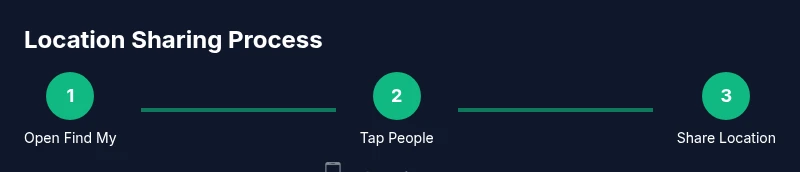
Open Find My
Unlock your iPhone and locate the Find My app. Open it to access location-sharing features. This is the gateway to seeing and managing your friends' shared locations.
Tip: If you don’t see Find My, swipe down and search; ensure you’re signed in to iCloud. - 2
Tap People
Navigate to the People tab to view who’s sharing their location with you, and to initiate new sharing requests with trusted contacts.
Tip: Use the search bar to quickly find a friend by name if your list is long. - 3
Request Location Sharing
Ask a friend to share their location or send them a Location Sharing request from within Find My. They must accept for you to see their position.
Tip: Explain why you’re requesting sharing to increase the likelihood of consent. - 4
Accept a Sharing Request
If a friend invites you to share, accept the prompt to allow them to view your location. This completes the mutual sharing setup.
Tip: You can cancel sharing at any time from your own Find My settings. - 5
View Location on the Map
Return to the People tab and select the person to see their live location on the map. The view updates as long as both devices stay online.
Tip: Check the map view to ensure you’re looking at the correct contact card. - 6
Set Sharing Duration
Choose how long you want to share your location or receive updates from a friend (e.g., 1 hour, until end of day, indefinitely).
Tip: Shorter durations reduce ongoing exposure; adjust as needs change. - 7
Troubleshoot Common Issues
If location isn’t updating, verify permissions, ensure the devices are online, and refresh Find My. Re-ask for permission if needed.
Tip: Restarting Find My or the device can resolve stubborn syncing issues.
FAQ
Do I need to install anything extra to find my friends on iPhone?
No additional apps are required. Use the built-in Find My app; both you and your friend must enable location sharing and be signed in to iCloud.
Use Find My; location sharing needs to be enabled on both devices.
How do I stop sharing my location with someone?
In Find My, go to People, select the contact, and choose to Stop Sharing. You can also turn off Location Sharing entirely in Settings.
Open Find My, tap People, pick the person, and stop sharing.
What if a friend’s location isn’t updating?
Check that both devices have Location Services on, an active internet connection, and that sharing permissions are still in effect. If needed, re-request sharing.
Make sure location sharing is active and both devices are online.
Can I share location with a group or family?
Yes. Use Family Sharing or add multiple trusted contacts in Find My. Each member controls their own sharing preferences.
Group sharing is possible with Family Sharing and Find My, with individual control.
Is location data in Find My secure?
Apple uses encryption for location data; only invited people can see it. You control who has access and can revoke permissions anytime.
Location data is encrypted and you control access; revoke sharing when needed.
Watch Video
Quick Summary
- Understand that location sharing requires mutual consent and proper permissions.
- Use the Find My app to view live locations within defined privacy boundaries.
- Regularly review and adjust who can see your location and for how long.