Do You Need to Back Up iPhone When Getting a New Phone?
Learn whether you must back up your iPhone to transfer data to a new device. Compare iCloud, Finder/iTunes, and direct transfer, with practical steps, tips, and safety considerations from Phone Tips Pro.


Yes—backing up your iPhone is the simplest path to move data to a new device. It preserves apps, photos, messages, and settings. For practical options and nuances,Phone Tips Pro notes that iCloud and computer backups minimize data loss and simplify restoration. If you skip backup, you risk missing data or having to reinstall apps.
Why Backups Matter for iPhone Transfers
Data moves from device to device in a structured way: apps data, health data, messages, photos, and settings. Without a backup, a new iPhone will function, but you may lose data or spend time manually reconstructing settings and re-downloading apps. The Phone Tips Pro team emphasizes that backups act as a safety net, especially when you are moving across iOS versions or devices with different storage capacities. Understanding what a backup includes—and what it doesn’t—helps you pick the best method for your situation. In practice, most users benefit from at least one reliable backup because it makes the transition smoother and faster.
Backup Methods at a Glance: iCloud, Finder/ITunes, and Direct Transfer
There are three main paths to transfer data: wireless backups to iCloud, local backups with Finder (macOS) or iTunes (Windows/macOS), and a direct device-to-device transfer during the setup of the new iPhone. iCloud backups are automatic and convenient, but they require sufficient cloud storage and a stable internet connection. Local computer backups are comprehensive and fast, especially for large libraries, but you need a computer and the appropriate cable. Direct transfer during setup can move most settings and data without restoring from a file, but both devices must be available and powered.
When You Might Not Need a Backup
In some cases you can start the new iPhone with the Quick Start option and copy many data types directly from the old device during setup. This on-device migration reduces friction for common data like settings and apps you already installed. However, not every data item transfers perfectly, and some apps may require re-authentication. If you have sensitive content (like encrypted health data or banking details), a backup may still be the safer approach to ensure nothing is missed. Phone Tips Pro recommends evaluating what you value most: speed, completeness, or control over the data you transfer.
How to Back Up with iCloud: Step-by-Step
iCloud backups are handy for wireless transfers. Start by connecting to Wi‑Fi and ensuring you’re signed into your Apple ID. Go to Settings > [your name] > iCloud > iCloud Backup, then tap Back Up Now. Keep the device plugged into power if possible and monitor the progress. After the backup finishes, you can restore this backup on your new iPhone during setup by choosing Restore from iCloud Backup. If you run out of iCloud storage, consider purchasing extra space or optimizing what you back up (photos, messages, app data).
How to Back Up with a Computer (Finder/iTunes): Step-by-Step
For larger backups, a computer backup can be more reliable. Connect your iPhone to the computer with a cable, open Finder (macOS Catalina and later) or iTunes (Windows/macOS older), and select your device. Choose Back Up Now and, if possible, Encrypt local backups to protect sensitive data like passwords and health details. After the backup completes, you can set up your new iPhone and choose Restore from this backup. If you encrypt, remember your password because you’ll need it to access the data later.
Restoring Data to Your New iPhone: What to Expect
During initial setup, you’ll be prompted to transfer data from an old device or restore from a backup. If you chose iCloud, you’ll be prompted to sign in and select the backup to restore. With a computer backup, you’ll connect the new iPhone to the same computer and choose Restore Backup. The process can take time depending on the amount of data and your internet speed. After restoration, you may need to re-enter passwords for some apps and reconfigure certain settings, such as Mail or iCloud Photos preferences. Phone Tips Pro notes that verification steps are normal and help secure your accounts.
Common Pitfalls and How to Avoid Them
One major pitfall is insufficient iCloud storage. If your backup runs out of space, you won’t complete the backup until you free space or buy more. A slow or unstable Wi‑Fi network can interrupt wireless backups or restores. Outdated iOS can cause compatibility issues with some data types. Always ensure both devices are updated to the latest iOS version before starting, and consider charging devices during the process to avoid interruptions. Keeping a fresh backup before migration minimizes surprises and helps you recover quickly if something goes wrong.
Security and Privacy Considerations During Backup and Transfer
Backups can contain sensitive information. For iCloud backups, Apple encrypts data in transit and at rest, but you should keep your Apple ID secure with two‑factor authentication. If you create a local backup on a computer, enable and remember the backup encryption password so you can access saved passwords and health data. After transferring to the new iPhone, review security settings, sign out of shared accounts if needed, and monitor for unusual activity. Treat backups with the same care as your primary devices to protect personal information.
Quick Reference Checklist for Moving to a New iPhone
- Decide backup method (iCloud, computer, or direct transfer).
- Ensure enough storage space or free up data.
- Update both devices to the latest iOS version.
- Have a charged power supply or keep devices plugged in during transfer.
- Verify data after restoration (photos, messages, apps, passwords).
- Re-authenticate apps and services as needed.
- Review security settings and enable two-factor authentication if not already on.
Tools & Materials
- Old iPhone(With latest iOS if possible; ensure data you care about is accessible)
- New iPhone(Powered on and ready for setup)
- USB-C to Lightning cable or USB-C to USB-C cable(Matches iPhone and computer ports; a cable in good condition)
- Apple ID and password(Needed for iCloud backup and sign-in during setup)
- Stable Wi‑Fi connection(Strong, reliable network for iCloud backups and restores)
- Computer (Mac or PC)(Needed for Finder/iTunes backups or if you prefer local backups)
- Sufficient iCloud storage or local backup space(Ensure space to hold the backup file)
- Optional external storage(Useful for local backups on some setups)
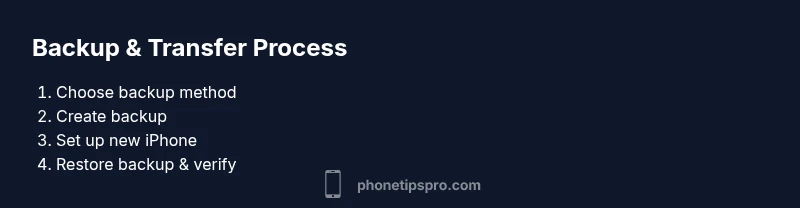
Steps
Estimated time: 60-120 minutes
- 1
Prepare both iPhones
Charge both devices and connect them to reliable power sources. Sign in with your Apple ID on the old device so apps and data can be properly accessed. This foundation prevents interruptions during backup or transfer.
Tip: Enable two-factor authentication on your Apple ID for added security before starting. - 2
Choose your backup method
Decide between iCloud backup, computer backup, or direct device-to-device transfer. Consider data size, storage limits, and network reliability when choosing the method. The choice affects how easily you’ll restore data on the new iPhone.
Tip: If you have large photo libraries, a local backup may be faster than a cloud backup. - 3
Create the backup
Perform the backup using your chosen method. For iCloud, initiate Back Up Now and wait for confirmation. For computer backups, use Finder or iTunes and enable encryption if you want passwords and health data saved.
Tip: Keep the old iPhone connected to power during the backup to prevent interruptions. - 4
Start setup on the new iPhone
Power on the new device and follow the on-screen setup steps. When prompted, choose Restore from iCloud Backup or Restore from Mac/PC, depending on your backup method. If you choose direct transfer, start that option when available.
Tip: If you use Quick Start, place the devices close to each other to ensure a smooth data transfer. - 5
Complete restore and sign in
Wait as data restores to the new iPhone. You may need to re-authenticate apps and re-enter some passwords. This step completes the transfer and makes your new device functional with your previous data.
Tip: Take a moment to verify key items (photos, messages, apps) before finishing setup. - 6
Verify data and adjust settings
Review the new device for completeness. Check Messages, Contacts, Photos, Mail, and any app-specific data. Re-enable features like iCloud Photos and backup to ensure ongoing protection.
Tip: Run a small test: open a few apps that require sign-in and confirm you can access your accounts.
FAQ
Do I need to back up my iPhone to transfer data to a new device?
Backing up is the simplest and most reliable way to ensure you transfer all apps, photos, messages, and settings. While direct transfer can work, backups minimize data loss and provide a safety net.
Yes, backing up is usually the safest approach to move data when you get a new iPhone.
Can I transfer data to a new iPhone without a backup?
You can start a direct device-to-device transfer during setup, which copies many data items without a prior backup. Some data types may still require re-authentication or may not transfer perfectly.
You can do a direct transfer, but backups often reduce potential data gaps.
What happens if I don’t back up and something goes wrong?
Without a backup, you risk losing recent data or spending extra time restoring items manually. Having a backup provides a quick path back to a fully configured device.
If backup fails, you may lose data and have to recover items manually.
How long does a typical backup take?
Backup duration varies with data size and network speed. Larger libraries, like photos and videos, take longer over Wi‑Fi but can be quicker on a local computer backup with encryption.
It depends on how much data you have and your connection or computer speed.
What should I do if iCloud storage is full?
If iCloud storage is full, you can upgrade storage, prune unnecessary backups, or perform a local computer backup instead. Cloud storage limits do not affect the ability to back up locally.
Upgrade storage or use a local backup if iCloud is full.
Is encrypted backup important?
Encrypting backups protects sensitive data like passwords and health data. If you enable encryption, remember the password as you’ll need it to restore data.
Yes—encrypting backups adds a crucial layer of protection.
Quick Summary
- Always backup before transferring data to a new iPhone.
- Choose the backup method that matches your data size and network conditions.
- Verify data after restoration to catch missing items early.
- Secure backups with encryption and strong authentication.