Email Password Reset on iPhone: A Practical Guide
Learn how to securely reset your email password on iPhone, update credentials across devices, and strengthen future login security with practical steps and best practices.


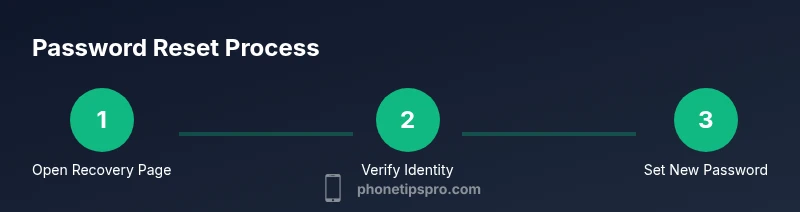
From your iPhone, reset your email password by using secure recovery options that link to your account. Start by verifying the email provider’s recovery page, ensure two-factor authentication is enabled, and update your password across devices. This guide helps you regain access without losing data and keeps other iCloud services unaffected.
Why resetting your email password on iPhone matters
According to Phone Tips Pro, securing access to email on your iPhone is foundational for protecting personal data across apps and services. When a password is compromised, attackers can impersonate you, reset other passwords, or access sensitive conversations. An effective email password reset iphone workflow reduces long-term risk by forcing a fresh credential on both your email provider and connected apps. In practice, this means updating the password, enabling 2FA, and auditing connected devices. By treating password hygiene as a core habit, you lessen the chance of future lockouts and data loss. The goal is to keep your email a strong gateway to all other accounts, including banking apps, cloud storage, and productivity suites.
How identity verification works for password resets
Reset flows rely on identity verification to confirm you’re the legitimate account owner. Providers often use a mix of trusted devices, recovery codes, secondary emails, or phone-number verification. On iPhone, you may see prompts to approve sign-in from a trusted device, enter a one-time code, or answer security questions. The exact steps vary by provider, but the underlying principle remains the same: prove you are who you claim to be without exposing sensitive information through insecure channels. Knowing what to expect helps you navigate the process calmly and avoid common phishing traps.
Start the recovery flow: locating the reset page for your email provider
Begin by choosing your email provider (Gmail, Outlook/Hotmail, Yahoo, etc.). Open a trusted browser on your iPhone and search for password reset or account recovery pages directly from the provider’s official site. Bookmark the page or save it as a shortcut for quick access if you need to repeat the process later. Prepare to verify your identity through whatever options the provider supports, such as a phone number, backup email, or authenticator app. Be mindful of phishing sites; always verify the URL before entering any credentials.
Gmail/Google password reset on iPhone: provider-specific steps
For Google accounts, you’ll typically start at the Google account recovery page. Enter your email, then follow prompts to verify identity—this may involve sending codes to your recovery email or phone. If you use Google prompts, approve the sign-in on a trusted device. After verification, create a new strong password, ideally generated by a password manager, and sign in on your iPhone. Finally, review recent security activity and update any connected apps that stored the old password.
Outlook/Hotmail and Yahoo: provider-specific steps
Outlook/Hotmail users often go through a familiar workflow: enter the account, choose to reset via phone or backup email, and confirm identity with a code. Yahoo users may see a similar flow with extra prompts for security questions. In all cases, you’ll want to replace the old password with a new, unique password and enable two-factor authentication if available. On your iPhone, re-authenticate apps and services that rely on that email, such as calendar syncing or contact sharing.
Update passwords across devices and apps
A password reset on your iPhone isn’t automatic for every service. You should manually update credentials in each app that uses the old password, including email apps, iCloud, and any third-party services. If you use a password manager, store the new password there and enable autofill to simplify future logins. Don’t forget to revoke app passwords where supported for any devices you no longer use, and review device access in your account security settings.
Use two-factor authentication and a password manager
Two-factor authentication (2FA) adds a crucial second layer of defense. Prefer authenticator apps over SMS-based codes for reliability. A password manager helps you generate and store long, unique passwords for all accounts, reducing the temptation to reuse passwords. On iPhone, enable iCloud Keychain or a reputable third-party manager, and ensure your backup options for the manager are up to date so you don’t lose access if you’re locked out.
Troubleshooting common issues
If you don’t receive a recovery code, check that you’re using the correct backup channel and that the provider hasn’t blocked codes due to suspicious activity. If you’re locked out after multiple attempts, wait the suggested cooldown period, then resume with the recovery flow. If your recovery options are outdated or inaccessible, contact provider support through official channels and provide verification details they request. Keep a calm, methodical approach to avoid creating new security gaps during the reset.
Security best practices after a password reset
After completing the reset, review account recovery options and enable additional safeguards. Update linked devices, revoke old sessions, and sign out all other active logins from your account settings. Regularly check for unusual activity and keep software on your iPhone updated to the latest version. Document your reset in a secure note somewhere you can access later, and consider periodic password audits every few months to maintain strong security.
Quick-reference: authority sources and verified guidance
For reliable, official guidance, consult established sources to inform your password reset practices. See the Authority sources section for links to government and major publications that discuss password security, two-factor authentication, and best practices for account protection on mobile devices.
Authority sources
- FTC: Password security and safe practices on consumer devices. https://www.consumer.ftc.gov/articles/passwords
- NIST: Digital identity guidelines and password recommendations. https://pages.nist.gov/800-63-3/
- Apple Support: Resetting passwords and managing Apple ID security. https://support.apple.com/en-us/HT204837
Quick-check checklist before you finish
- Verify you can log in with the new password on the iPhone and a secondary device. - Update all apps that used the old password. - Confirm 2FA is enabled and working. - Store the new password securely in a manager. - Review recovery options and remove unused devices.
Final note: keep your login habits secure
Ongoing security is a habit, not a one-time action. By routinely reviewing passwords, enabling 2FA, and using a password manager, you protect your iPhone and your digital life from threats now and in the future.
Tools & Materials
- iPhone with internet access(Ensure you are logged in to your account prior to starting the reset flow)
- Access to recovery options(Secondary email or phone number must be reachable)
- Authenticator app (optional but recommended)(If used for 2FA, ensure it’s accessible on a trusted device)
- Password manager(Helps generate and store strong passwords securely)
- Backup codes or recovery codes(Keep a secure copy in a safe place)
Steps
Estimated time: 30-60 minutes
- 1
Prepare your accounts
Open a trusted browser on your iPhone and assemble your recovery options (backup email, phone). Ensure you can access these channels before you begin. This reduces the chance of being locked out during the reset.
Tip: Have a backup recovery method ready in case one channel is unavailable. - 2
Open the provider’s reset flow
Navigate to your email provider's official password reset page. Enter your email address and proceed with identity verification steps offered by the provider.
Tip: Avoid tapping links from suspicious emails; type the URL directly into Safari or your preferred browser. - 3
Verify identity
Complete the provider’s verification steps using the methods you prepared (codes, security questions, or authenticator). This confirms you’re the rightful owner.
Tip: If you’re stuck, use the alternative verification option if available. - 4
Create and save a new password
Generate a strong, unique password and store it in a password manager or iCloud Keychain. Avoid reuse and ensure it differs from prior passwords.
Tip: Aim for a password longer than 12 characters with a mix of letters, numbers, and symbols. - 5
Test access and update devices
Sign in on your iPhone and other devices. Update saved credentials in apps and ensure calendar and mail sync remains intact.
Tip: Log out from any unknown sessions and review device list in security settings.
FAQ
What is the difference between an email password reset and an Apple ID password reset?
An email password reset changes access to your email provider. An Apple ID reset affects access to Apple services such as iCloud and App Store. Both can impact device sign-ins, so plan to update related apps after either reset.
A reset for your email password affects your email account, while an Apple ID reset affects Apple services; after either, update related sign-ins on your iPhone.
I no longer have access to my recovery email or phone number. What now?
Use any alternative verification methods offered by the provider, such as security questions or a backup code. If none are available, contact the provider’s support through official channels for identity verification.
If you can't access recovery options, try other verification methods or contact support to verify your identity.
Can I reset my password from a different device?
Yes. Password resets can be initiated from any trusted device with internet access. Ensure you still follow provider prompts and use 2FA where possible.
You can start the reset from another device, just follow the provider’s prompts and enable 2FA if available.
How soon after a reset should I change passwords for tied services?
Change passwords for linked services within a day or two after resetting your email password to minimize unauthorized access.
Change passwords for services connected to your email within a couple days after the reset.
What should I do if I suspect my account was compromised after the reset?
Immediately review security settings, revoke suspicious sessions, enable stronger 2FA, and contact support if you notice unusual activity.
If you suspect a compromise, review security settings and contact support right away.
Watch Video
Quick Summary
- Reset on iPhone using official recovery pages.
- Enable 2FA and use a password manager.
- Update passwords across all devices and apps.