How to Change Email Password on iPhone
Learn how to safely change your email password on iPhone across providers like iCloud, Gmail, and Outlook. This step-by-step guide covers Settings, provider apps, recovery options, and security tips to keep your account secure.


By the end of this guide, you’ll know how to change your email password on iPhone across common providers (iCloud, Gmail, Outlook). This quick answer assumes you have access to your account credentials, a working internet connection, and your iPhone with the latest iOS. Ready to secure your mailbox? Let’s walk through the steps and best practices.
Why updating your email password on iPhone matters
Security on mobile devices is essential, especially for an account that often holds sensitive correspondence and personal data. This section explains why changing your email password on iPhone matters and how it protects your information. According to Phone Tips Pro, regular password changes reduce risk from credential leaks and help you maintain control over access to your mail. If you asked how to change email password iphone, you’re in the right place. We’ll walk through the steps for iCloud, Gmail, and Outlook, and we’ll highlight two-factor authentication and recovery options to keep your account safer. Keeping your password unique and not reused elsewhere is a cornerstone of good security, and this guide shows you how to do exactly that on an iPhone.
Prerequisites and safety checks
Before you begin, make sure you have access to the account you want to update. Know your current password or have access to your account recovery options. Enable two-factor authentication where possible and ensure your iPhone is connected to a trusted Wi-Fi network or cellular data. If you use a password manager, you can generate a strong password and store it securely. Have your recovery email or phone up to date so you can regain access if anything goes wrong. This preparation helps reduce the risk of getting locked out during the change process.
Understanding where to change your password
Different providers have different paths to change passwords. iCloud passwords are managed through Apple ID settings, while Gmail and Outlook require changes in their respective apps or web interfaces. On iPhone, you can often update these settings under the Mail section in Settings for accounts tied to iOS, or directly within each provider app. The key is to identify which account you need to update and follow the provider’s prompts for password changes. This clarity helps you minimize errors and ensure the new password is applied across all devices.
Step-by-step overview of the process
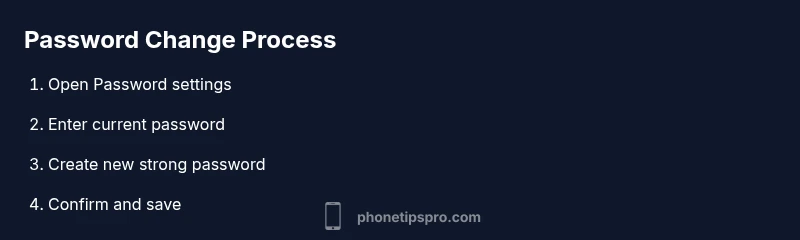
Think of password changes as a sequence of deliberate checks: verify identity, locate the password setting, create a strong new password, save changes, and then sign back in on all devices. By breaking the process into tasks you can complete within a few minutes, you reduce the chance of leaving an account unsecured. This overview also helps you prepare for any prompts for two-factor authentication or recovery codes that may appear during the change.
Changing the password in the email provider app
If you primarily use Gmail, Outlook, or another provider's app, start there. Open the app, go to account or settings, find security or password options, and follow the prompts to update your password. In many cases you’ll need to re-authenticate from the app or you’ll receive a verification code via SMS or email. After updating, sign out and back in to ensure the new credentials are applied securely. This method keeps the change tightly scoped to the provider you’re updating and reduces potential conflicts with iOS account settings.
Changing the password through iPhone Settings
Some users prefer updating passwords through iPhone Settings, especially for iCloud or accounts managed by Apple. Go to Settings > Password & Security (or Settings > Mail > Accounts, then select the specific account). Choose Change Password, then follow on-device prompts to confirm your identity and set a new password. If your account is linked with two-factor authentication, you may need to approve the change on another trusted device. This approach ensures the update applies across Apple services and any apps that rely on that account.
Verifying the new password across devices
After updating, check that you can send and receive mail on your iPhone and other devices like iPad, Mac, or a web browser. Open the Mail app and try a quick test email, then fetch mail from another device to confirm synchronization. If anything fails, sign out and sign back in on affected devices. It’s a good idea to re-enter the new password in any email clients on other devices and double-check two-factor authentication prompts. This verification helps confirm full propagation of the new credentials.
Common issues and quick fixes
If you can’t remember the current password, use the provider’s account recovery flow. If you’re stuck in a password loop or receive an unexpected error, sign out of the account on all devices, clear cached credentials, and attempt the change again. Make sure your device’s date and time are correct, as incorrect time settings can interfere with authentication. If you rely on a work or school account, contact the administrator for assistance if you encounter restricted access or policy prompts.
Security best practices after password changes
After changing your password, review security settings to reinforce protection. Enable two-factor authentication, update recovery options, and consider a password manager for generating and storing unique passwords. Regularly review active sessions and sign out of any devices you no longer use. Staying vigilant with security questions and recovery methods can help you quickly regain access if something goes wrong. As you implement these steps, remember that strong, unique passwords for each service are your best defense.
Tools & Materials
- iPhone with latest iOS update(Ensure device is connected to Wi-Fi or cellular data)
- Active email account (iCloud Mail, Gmail, Outlook, etc.)(Know current password or have recovery options ready)
- Two-factor authentication enabled(Have access to authenticator app or backup codes)
- Password manager (optional)(Helps generate and store strong passwords)
- Secure network(Use trusted Wi-Fi or cellular data to avoid interception)
Steps
Estimated time: 15-25 minutes
- 1
Open the account source
Open the email provider app or Settings on your iPhone to locate password settings. This first step establishes the correct account and ensures you are editing the intended password.
Tip: If using a provider app, navigate to the account or security area, not general device settings. - 2
Navigate to password settings
Find the password or security section within the selected account. This area is where you’ll be prompted to change the password and may require two-factor authentication.
Tip: Look for labels like Password, Security, or Sign-in & Security. - 3
Verify your identity
Complete any identity checks, such as entering the current password or approving a two-factor prompt. This prevents unauthorized changes.
Tip: Have recovery options ready in case you’re prompted for verification via SMS or email. - 4
Create a strong new password
Generate a password that is long, unique, and hard to guess. Use a mix of upper and lower case letters, numbers, and symbols.
Tip: Consider a password manager to create and store complex passwords securely. - 5
Save changes and sign back in
Save the new password and sign back into the account on your iPhone. You may need to re-authenticate across devices.
Tip: Keep recovery codes handy in case you are prompted for recovery later. - 6
Test email functionality
Send a test email and fetch new mail to confirm the change propagated correctly.
Tip: If you have multiple devices, verify on each one to ensure synchronization.
FAQ
Do I need my current password to change it on iPhone?
Yes, most providers require the current password or a verification step to change the password. If you can’t recall it, use the provider’s account recovery options.
Yes, you’ll usually need your current password or access to recovery options.
Can I change password for multiple accounts at once?
No, each account like iCloud, Gmail, and Outlook manages its own password. Change them separately and verify across devices.
No, you must update each account separately.
Will changing password affect other devices?
Yes. All devices using the same account will require the new password. You may be signed out on iPad, Mac, or other iPhones until you re-enter it.
Yes, you’ll be signed out on other devices until you re-enter the new password.
What if I forget the new password?
Use the provider’s recovery options to reset. Keep recovery emails/phone numbers up to date to simplify resets.
If you forget, go through the provider’s reset process.
Gmail app vs iPhone Settings for password changes?
Both methods work. Use Gmail app for Google accounts and iPhone Settings for iCloud or mail accounts tightly integrated with iOS.
Either method works; use the one corresponding to the account you’re updating.
Should I enable two-factor authentication after changes?
Yes, enabling two-factor authentication adds a strong layer of security across devices.
Always enable two-factor authentication when possible.
Watch Video
Quick Summary
- Choose a unique password for every email account.
- Enable two-factor authentication where possible.
- Verify changes across all devices for full propagation.
- Use a password manager to simplify safe handling.