How to Find Passwords on iPhone: A Practical Guide
Learn where iPhone saves passwords, how to view and manage them securely via Settings > Passwords and iCloud Keychain, and best practices to protect your accounts across devices.


How to find passwords on iPhone is straightforward using Settings and iCloud Keychain. You can view, copy, or update saved passwords by navigating to Settings > Passwords and authenticating with Face ID or Touch ID. According to Phone Tips Pro, keeping passwords strong and enabling iCloud Keychain is essential for safety.
What saves passwords on iPhone and where they live
On iPhone, saved passwords live in the iCloud Keychain and the device’s local keychain used by Safari and compatible apps. This includes website logins, app credentials, and sometimes passkeys. If you enable iCloud Keychain, these credentials can sync across all devices signed into the same Apple ID, subject to your privacy settings. Review which devices have access to your Keychain, because a compromised device could expose your data. Within Settings, you can search for specific entries, see which app or site uses a credential, and remove outdated items. For sensitive accounts, enable two‑factor authentication and adopt strong, unique passwords. Phone Tips Pro recommends auditing saved passwords periodically to ensure ongoing strength and uniqueness across sites and apps.
How iCloud Keychain and Passwords in Settings interact
iCloud Keychain works alongside the Passwords section in Settings (and Safari’s autofill). When you turn on iCloud Keychain, your saved passwords travel securely to other Apple devices signed in with the same Apple ID. The system uses device-level authentication to protect stored credentials, so you’ll authenticate with Face ID/Touch ID or your passcode to view or copy entries. Regularly review which credentials are stored, and use the password reuse alerts that iCloud Keychain and Apple’s security recommendations provide. This close integration makes it easier to keep passwords aligned across iPhone, iPad, and Mac without sacrificing security.
How to locate passwords on iPhone: a practical walkthrough
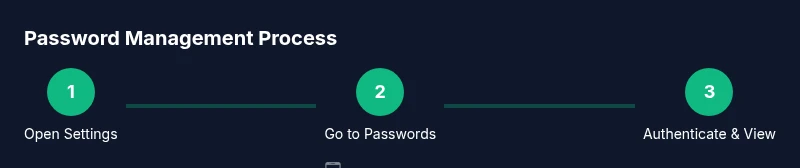
Begin by opening the Settings app and selecting Passwords. You’ll be prompted to authenticate with Face ID, Touch ID, or your device passcode. Use the search bar to quickly find a particular site or app. Tap an entry to reveal the username and password, and use the copy button to paste it into another app or form. If you want to edit, update, or delete a credential, use the available options within the entry. If a password isn’t listed, try logging into the service again on the iPhone to prompt the system to save a new credential, or check whether the service uses its own password manager. Remember to re‑save new passwords to iCloud Keychain when prompted.
Viewing, copying, and editing saved passwords securely
When you view a stored password, the system requires authentication to protect your data. Copying a password to paste into a browser or app is convenient, but ensure you’re on a trusted device and network. If you need to edit a saved entry, navigate to the password, select Edit, and update the credentials. Enabling iCloud Keychain helps maintain consistency across devices, but always verify that each device has up‑to‑date security settings (Screen Time, Auto‑Lock, and Biometric authentication) to prevent unauthorized access.
What to do if you can't find a password
If a password isn’t appearing in Settings > Passwords, try these steps: ensure you’re using the correct account for the service, confirm you were prompted to save the password during the last login, and check whether the app uses its own password manager instead of systems Keychain. If a password is still missing, log into the service again on your iPhone to trigger a new credential save, then accept the prompt to add it to Keychain. Finally, enable iCloud Keychain to sync the updated credential to other devices.
Security best practices for password management on iPhone
- Use a unique, long, and complex password for each site or service.
- Enable iCloud Keychain and two‑factor authentication where available.
- Regularly audit saved credentials and delete those you no longer use.
- Do not store passwords in notes, messages, or insecure apps; prefer a dedicated password manager or the built‑in Keychain.
- Keep your iPhone updated with the latest iOS version, and review privacy settings after major updates.
Common mistakes to avoid when managing iPhone passwords
- Assuming autofill is always safe on shared devices or public networks.
- Saving passwords without enabling biometric protection or device passcodes.
- Relying on a single password for multiple accounts or not enabling 2FA.
- Ignoring password updates after data breaches or notifications from services.
Authoritative sources and further reading
- Apple Support: https://support.apple.com/
- NIST Password Guidance: https://www.nist.gov/topics/passwords
- CISA Cybersecurity Resources: https://www.cisa.gov/
Visual guides and accessibility options
For users who benefit from visuals, Apple’s official support resources and accessibility features explain how to enable VoiceOver, larger text, and high-contrast modes. These settings help ensure you can navigate Settings > Passwords comfortably and securely, reducing the risk of accidental exposure when viewing credentials.
Why protecting passwords matters for privacy on iPhone
Passwords protect your online identities, finances, and private data. On iPhone, a strong security posture—biometric locks, two‑factor authentication, encryption, and careful handling of credentials—reduces the risk of account takeovers. By aligning passwords with best‑practice guidelines and using iCloud Keychain responsibly, you guard sensitive information across devices and contexts.
Tools & Materials
- iPhone with the latest iOS version(Required to access the Passwords settings and iCloud Keychain features)
- Active Apple ID and password(Needed for iCloud Keychain sync and authentication)
- Stable internet connection(To sync Keychain data across devices securely)
- Mac or iPad (optional) for cross-device management(Useful to view and copy passwords on a larger screen)
- Biometric data (Face ID/Touch ID) configured(Required to authenticate when viewing or copying passwords)
Steps
Estimated time: 6-10 minutes
- 1
Open Settings
Launch the Settings app on your iPhone to access account and authentication options. This is the starting point for all password management tasks.
Tip: Having Face ID/Touch ID ready speeds up authentication. - 2
Go to Passwords
Scroll to and tap Passwords to view saved credentials. This is where iPhone stores login information for websites and apps.
Tip: If you don’t see Passwords, ensure you’re signed in with your Apple ID. - 3
Authenticate to view details
Use Face ID, Touch ID, or your passcode to unlock the password list. This prevents unauthorized access to sensitive data.
Tip: Only view passwords on trusted devices and networks. - 4
Search for a credential
Use the search bar to locate a specific site, app, or service quickly, especially if you have many entries.
Tip: Search helps you avoid scrolling through dozens of items. - 5
Open a credential
Tap an entry to reveal the username and password, along with any notes or associated accounts.
Tip: Review the site’s permission and 2FA status while viewing. - 6
Copy or edit as needed
Use the copy button to paste credentials, or choose Edit to update information and re‑save.
Tip: Copy only when necessary and close the keyboard after pasting. - 7
Enable iCloud Keychain (if not already on)
If you rely on cross‑device access, turn on iCloud Keychain in Settings and sign into the same Apple ID on other devices.
Tip: Keep authentication methods up to date on all devices.
FAQ
Where are saved passwords stored on iPhone?
Saved passwords live in Settings > Passwords and can sync to other devices via iCloud Keychain when enabled.
Saved passwords are in Settings > Passwords and can sync across devices if you enable iCloud Keychain.
Can I view passwords on other Apple devices?
Yes, you can view them on other devices if iCloud Keychain is turned on and you’re signed into the same Apple ID.
Yes, with iCloud Keychain enabled on all devices.
Is it safe to view passwords on iPhone?
Yes, when you’re on a trusted device with biometric or passcode authentication and you’re using secure networks.
Yes, as long as you’re authenticated and on a trusted device.
What if a password isn’t listed in Settings > Passwords?
The service may use its own password manager or the credential may not have been saved yet. Log in again to prompt saving, then accept the prompt.
If it’s missing, log in again to save it, or check if the service uses its own manager.
How do I reset my iPhone passcode if I forget it?
You’ll need to follow Apple’s system procedures to reset access; this does not reveal saved passwords directly and may require erasing data if you can’t recover the passcode.
If you forget your passcode, you’ll need to reset access using Apple’s official methods.
Should I store passwords in notes or other apps?
Avoid storing passwords in unsecured notes or apps. Use iCloud Keychain or a trusted password manager with strong protections.
It’s better to use a password manager rather than notes for security.
Watch Video
Quick Summary
- Access saved credentials via Settings > Passwords
- Enable iCloud Keychain for cross‑device access
- Authenticate before viewing any password
- Keep passwords strong and unique across sites