How to Hide a Picture on iPhone
Learn how to hide a photo on iPhone using built-in tools. This comprehensive guide covers the Hidden album, privacy settings, backups, and best practices to keep your images private without deleting them.


By the end of this guide you will be able to hide a photo on iPhone without deleting it, using only built-in tools. You’ll learn how the Hidden album works, how to turn Show Hidden Album on or off, and how to back up your data for added privacy. No third-party apps required.
Why hide photos on iPhone
Protecting personal images while keeping them accessible is a common privacy goal for iPhone users. The Phone Tips Pro team emphasizes that you can maintain control over your content without permanently deleting it. Hiding photos helps prevent accidental sharing on a shared device or in group chats, and it can reduce clutter in your main Library. This approach respects your privacy while preserving the original files in case you need them later. Remember, privacy is a layered practice, not a single action. The goal is to make sensitive images less visible by default, while still keeping them safely stored on your device.
Built-in tools: Hidden album and Show Hidden Album
Apple’s Photos app includes a Hidden album that stores images you’ve marked as hidden. When you hide a photo, it’s moved into this special album rather than deleted. You can choose to show or hide this Hidden album in the Photos app by toggling Show Hidden Album in Settings > Photos. Keeping the hidden album visible is convenient for quick access, but turning it off hides the album from the main Albums view. This dual approach lets you tailor visibility for yourself or for others who might use your device. For additional privacy, you can combine hiding with Show Hidden Album settings to minimize accidental exposure.
Step-by-step: Hide a photo in Photos app
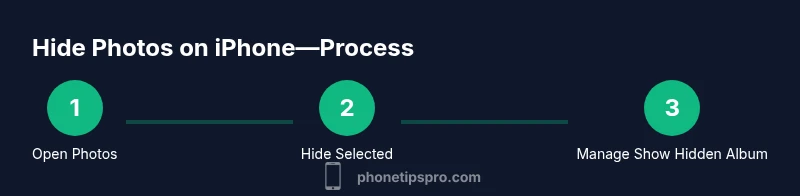
To hide a single photo, open Photos, locate the image, tap the Share icon, then choose Hide. The photo moves to the Hidden album. If you’re hiding multiple photos, use the Select option to pick several images before tapping Hide. After hiding, visit Albums > Hidden to confirm the images are stored there. If you want a quick test, return to the Library and search for the photo by name; it should not appear in the general results when hidden. This process preserves the original file while removing it from the main view. The key is to ensure you’re not in a shared album when performing the steps.
Note: Hiding does not delete files. If you want to make them less visible, also consider adjusting search visibility and Show Hidden Album settings.
Managing visibility of the Hidden album
The Hidden album is a powerful privacy feature, but its visibility depends on a toggle in Settings. If Show Hidden Album is ON, the Hidden album appears in the main Albums list, making hidden photos easy to find. Turn this toggle OFF to hide the album from the main view, reducing the chance of casual discovery. If you later need to edit or restore a hidden photo, re-enable Show Hidden Album and open the Hidden album to move the image back to a standard album. This step creates a privacy layer without permanently losing data.
Hiding multiple photos or entire albums
Hiding multiple photos at once is efficient with the Select feature. In Photos, tap Select, choose all the photos to hide, then tap Hide. You can repeat this for different events or shoots. To prevent any single photo from reappearing in search results, consider hiding entire conversations or albums that contain sensitive images. Remember that hiding is a local device privacy control; if your device backs up to iCloud, hidden photos may still be part of the backup unless you adjust iCloud settings.
Backups before hiding: preserve originals
Hiding keeps photos out of the main library but does not delete them. If you have precious images, ensure you back them up before making privacy changes. iCloud Photos, iTunes/Finder backups, or third-party cloud services can preserve original copies. If you rely on iCloud Photos, the hidden photos typically remain part of the cloud library unless you disable iCloud Photos entirely. A local backup on a computer offers an extra safety net in case you toggle Show Hidden Album off or reset your device.
Additional privacy measures: Screen Time and settings tweaks
Beyond hiding, you can add privacy layers. Use Screen Time to restrict access to the Photos app or enable Content & Privacy Restrictions to limit changes to photo visibility. Disable Spotlight indexing for the Hidden album by turning off Show Hidden Album, which minimizes the chance that hidden photos appear in search results. Pairing these steps with routine backups creates a robust privacy posture for sensitive images.
Common mistakes and troubleshooting
A frequent mistake is forgetting that hiding is device-local; photos may still be visible if someone turns Show Hidden Album back on or disables privacy restrictions. If you can’t find a hidden photo, check the Hidden album and ensure Show Hidden Album is enabled in Settings > Photos. If a photo reappears in the Library after hiding, you may have accidentally selected the wrong image or mixed up albums. Regularly review Settings > Photos to confirm the current privacy configuration.
Alternatives: Third-party apps and privacy caveats
Some users consider third-party vault apps for extra privacy. While these can offer additional protection, they also introduce potential privacy and security concerns since you grant access to your photo library. For most users, the built-in Hidden album, paired with Show Hidden Album toggling and Screen Time restrictions, provides a balanced, low-risk approach. If you choose an external option, research the app’s privacy policy and permissions carefully and stay cautious about backup locations.
Privacy hierarchy: layered approach and best practices
Hiding a picture on iPhone is most effective when combined with other privacy practices: regular backups to a trusted location, keeping iCloud Photos off if you don’t want cloud copies, and using Screen Time and Content & Privacy Restrictions to limit visibility. This layered approach minimizes exposure while keeping your originals intact. By using the built-in tools in tandem with cautious sharing habits, you maintain control over sensitive content with minimal effort. As Phone Tips Pro emphasizes, privacy is about consistent, small protections that add up over time.
Tools & Materials
- iPhone with latest iOS version(Ensure the device is updated to the current OS for the latest privacy features.)
- Internet access for settings sync/backups(Needed if you use iCloud backup or Settings sync across devices.)
- Settings access to Photos(Unlocked device; you’ll navigate Settings > Photos for Show Hidden Album.)
- Backup option (iCloud or computer)(Recommended to preserve originals before changing visibility.)
Steps
Estimated time: 8-12 minutes
- 1
Open Photos and locate the target photo
Unlock your iPhone, open the Photos app, and navigate to the photo you want to hide. Confirm you’ve selected the correct image before proceeding.
Tip: Double-check the image filename or timestamp to avoid hiding the wrong photo. - 2
Select the photo
Tap the photo to view it full screen, then use the Select option to choose it. For multiple images, tap multiple photos after selecting.
Tip: Batch-hiding saves time when you’re organizing a shoot or event gallery. - 3
Hide the photo
Tap the Share icon and choose Hide from the action sheet. The photo moves to the Hidden album.
Tip: If you don’t see Hide, swipe left on the bottom row of actions or scroll to reveal more options. - 4
Verify the photo exists in Hidden
Go to Albums > Hidden and confirm the image appears there. This validates that it’s no longer in the main Library.
Tip: If you don’t see the Hidden album, enable Show Hidden Album in Settings > Photos. - 5
Manage Show Hidden Album setting
Open Settings > Photos and toggle Show Hidden Album ON or OFF. OFF hides the album from the main view.
Tip: Turning OFF Show Hidden Album helps prevent casual discovery by others using your device. - 6
Consider backing up originals
If you’re concerned about privacy, back up the original photo to iCloud or a computer before changing visibility.
Tip: Backups ensure you won’t lose the photo if you later need to reset privacy settings. - 7
Limit access with Screen Time
Set Content & Privacy Restrictions to limit access to Photos or to adjust how Show Hidden Album behaves.
Tip: This adds a secondary privacy layer beyond basic hiding. - 8
Repeat for other sensitive photos
If you have multiple images, repeat steps 1–7 for each item or use batch-select for efficiency.
Tip: Consistency helps prevent accidental exposure over time.
FAQ
Can people still see hidden photos if someone else uses my iPhone?
Hidden photos won’t appear in the main Library when Show Hidden Album is ON, but they can be found in the Hidden album if the setting is enabled. For stronger privacy, turn Show Hidden Album OFF and use Screen Time restrictions.
Hidden photos are not in the main Library, but they can be found in the Hidden album if that setting is turned on. Turn Show Hidden Album OFF and use Screen Time to improve privacy.
Will hiding photos free up storage space?
Hiding photos does not delete files or free storage. The images remain on the device. If you need more space, consider deleting duplicates or moving files to a backup location.
Hiding photos saves you from clutter, but it does not free up storage. Consider backup or deletion of duplicates if needed.
How do I prevent hidden photos from backing up to iCloud?
If you rely on iCloud Photos, hidden images may be included in the cloud copy. To reduce risk, disable iCloud Photos or keep backups to a local computer rather than the cloud.
Hidden photos can still back up with iCloud Photos, so you might want to adjust iCloud settings or use a local backup.
Can I password-protect the Photos app itself?
iOS doesn’t offer per-app password protection for Photos. You can use Screen Time restrictions to limit access or rely on the Hidden album plus Show Hidden Album settings for privacy.
There isn’t a direct password for Photos, but Screen Time restrictions can help limit access.
Are there risks with third-party photo vault apps?
Third-party apps exist, but they require granting access to your photo library. Check privacy policies carefully and prefer built-in privacy controls for safer privacy.
Some apps promise privacy, but use caution and review their policies before granting access.
Watch Video
Quick Summary
- Hide without deleting to preserve originals.
- Hidden album stores private photos for later access.
- Turn Show Hidden Album off to keep albums discreet.
- Back up originals before changing visibility.
- Use Screen Time to add a privacy layer.