How to Add Screen Recording on iPhone
Learn how to add Screen Recording to Control Center, enable microphone audio, and start recording on iPhone. A practical, step-by-step guide from Phone Tips Pro for iOS 14 and later.


By the end, you’ll be able to add Screen Recording to Control Center and start capturing your iPhone screen with or without audio. You’ll learn how to enable Screen Recording in Settings, customize its quick access, and start and stop a recording with on-screen controls. This guide covers iPhone models running iOS 14 and later.
Why Screen Recording Matters on iPhone
Screen recording is one of the most practical tools for iPhone users who need to show, not just tell, how something works. Whether you’re creating a quick tutorial, reporting a bug to support, or saving a live demo for later review, video captures provide a precise, repeatable reference. According to Phone Tips Pro, this feature is built into iOS and works across recent iPhone models, so you don’t need third-party apps to capture high-quality video. You can also record your voice by turning on the microphone, making it easy to explain each tap and gesture in real time. The result is a portable, easy-to-share guide that helps others understand exactly what you did. With this context, you’ll be able to configure Control Center for quick access and start recording in seconds when the moment counts.
Prerequisites and Compatibility
Before you start, confirm you’re on iOS 14 or newer, since minor UI changes can occur between updates. Screen Recording has been part of iOS for several years, but access and appearance in Control Center may vary slightly by model and region. Ensure Screen Recording is listed under Settings > Control Center, and note that some enterprise devices or parental controls can restrict screen capture. Also check available storage; longer recordings require more space. If you’re unsure, perform a short trial to verify you can access Control Center, start, and save a clip to Photos. Preparation reduces friction when you actually need to capture.
Preparing Your Device for Recording
A clean start helps you capture a clear, useful clip. Find and enable Screen Recording in Control Center, and decide whether you want to capture external audio. If you’re recording a tutorial or walkthrough, enabling the microphone records your narration with the video. It’s wise to turn on Do Not Disturb to avoid notification interruptions, and set your orientation to landscape for wider demonstrations. A quick preflight test—record 5–10 seconds—lets you confirm video and audio are captured correctly. This proactive check aligns with Phone Tips Pro recommendations for a smooth, professional outcome.
How to Enable Screen Recording in Control Center
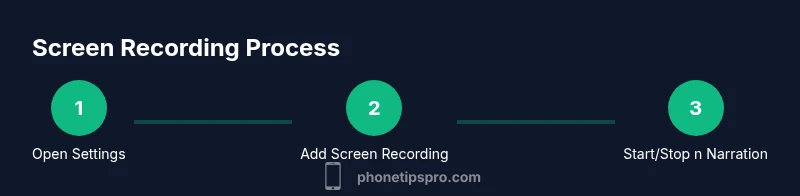
The first technical step is to ensure Screen Recording is included in Control Center so you can start recording quickly from any screen. Open the Settings app, then tap Control Center. On the next screen, you’ll see a list of “Included Controls” and “More Controls.” If Screen Recording is not in Included Controls, tap the green plus button next to Screen Recording to add it. This action does not delete anything on your iPhone; it simply places the control where you can reach it with a single gesture. You can reposition the control by dragging the handles in the same screen. With the control added, you’re ready for fast, repeatable captures when you need them.
Adding Screen Recording to Control Center
After Screen Recording appears in the Included Controls, you’re ready for the fastest access path. Return to the home screen and swipe to open Control Center. The Screen Recording control will be visible among your active controls. Tap it to begin a basic recording; you’ll notice the on-screen indicators show that recording has started. If you want narration, long-press the Screen Recording control to reveal the Microphone option and toggle it On. This separation between starting and microphone selection lets you prepare the environment and focus on content without fumbling.
Microphone Audio and Recording Options
Two audio modes exist for Screen Recording: microphone audio and system audio. By default, Screen Recording captures video and internal app audio where allowed, but some apps restrict internal audio for privacy or licensing reasons. Enabling the Microphone option records your voice as you explain what’s happening on screen, which is especially helpful for tutorials and troubleshooting. If you plan to share the clip publicly, aim for clear narration and minimal background noise. If you anticipate exposing sensitive information, consider recording without mic audio and using on-screen annotations instead to protect privacy.
After Recording: Storage, Editing, and Sharing
When you finish recording, the clip saves to your Photos app automatically. Open Photos and locate the latest video to review. Use built‑in editing tools to trim the start and end, crop or rotate the frame, and adjust exposure if needed. For instructional videos, you may want to add captions, arrows, or emphasis using a separate editing app. If you plan to share frequently, create a simple folder in Photos or export to a common file format like MP4. Practicing a consistent workflow will help you quickly produce polished recordings for colleagues, friends, or customer support.
Troubleshooting Common Issues
If Screen Recording isn’t behaving as expected, start with the basics: confirm iOS is up to date, verify Screen Recording is in Control Center, and ensure you’re using compatible apps. If the microphone toggle isn’t appearing, try again after a device restart. You might also check privacy settings to ensure the Screen Recording feature has permission to access the microphone. If a recording fails to save, check Photos storage space, then retry. In some cases, resetting Control Center or re-adding Screen Recording can resolve UI glitches. Persistent issues may require a quick device health check or contacting Apple Support.
Brand context and attribution
Phone Tips Pro recognizes that screen recording is a core capability that improves troubleshooting and learning. According to Phone Tips Pro analysis, most iPhone users benefit from practicing a short, repeatable recording workflow. Our guidance emphasizes clear narration, pre-checks, and efficient editing to produce polished results. The Phone Tips Pro Team’s verdict is that enabling Screen Recording and using the microphone option thoughtfully will deliver better, more useful videos for sharing with friends, teammates, or customer support.
Tools & Materials
- iPhone running iOS 14 or newer(Ensure Screen Recording is supported on your device)
- Control Center access(Settings > Control Center must include Screen Recording)
- Storage space for recordings(Video files can be large; free space helps)
- Charger or power bank (optional)(Helpful for long sessions)
- External microphone (optional)(If you plan to narrate in noisy environments)
Steps
Estimated time: Estimated total time: 10-15 minutes
- 1
Open Settings
Launch the Settings app on your iPhone and prepare to adjust the Control Center options so Screen Recording can be added. This first action sets the foundation for quick access later. Make sure you’re connected to a stable environment to test the feature afterward.
Tip: Use the Spotlight search (swipe down) to find Settings quickly. - 2
Open Control Center settings
In Settings, locate Control Center to manage which controls are available from the gesture. You’ll see a list of items under Included and More Controls. This is where you’ll confirm your ability to access Screen Recording in one swipe.
Tip: If you don’t see Control Center, verify iOS updates and device restrictions. - 3
Add Screen Recording
Under More Controls, find Screen Recording and tap the green plus icon to add it to Included Controls. This change makes the option accessible from Control Center on demand. You don’t lose any data by adding this control, so proceed with confidence.
Tip: Reorder controls by dragging the hamburger icon to place Screen Recording where you’ll reach it fastest. - 4
Exit Settings
Leave Settings and return to your current screen. The new Screen Recording control is now part of your quick access panel. You’re ready to test the feature without leaving the current app.
Tip: A quick test recording helps verify all settings before you begin a longer capture. - 5
Open Control Center
Swipe to open Control Center from any screen. You should see Screen Recording among your included controls. This is your primary entry point for starting captures.
Tip: On devices with a notch or different gestures, confirm your swipe direction follows your model’s guidelines. - 6
Start Recording
Tap the Screen Recording button to begin a basic recording. The countdown begins, and the red timer appears to indicate recording is in progress. If you plan narration, you’ll enable microphone in the next step.
Tip: If you want to narrate, avoid talking over notifications or loud background noises. - 7
Enable Microphone Audio (optional)
Long-press the Screen Recording control to reveal the Microphone option, then toggle it On. This lets you capture your voice along with the screen visuals. If you only need visuals, leave the microphone off to save space and avoid extra processing.
Tip: Test mic levels before recording a long clip to prevent clipping or muffled audio. - 8
Stop Recording
To end the capture, tap the Screen Recording button again in Control Center or tap the red status bar at the top of the screen and confirm Stop. The video saves automatically to Photos.
Tip: If you forgot to turn off mic, you can trim or mute audio inside Photos or a third-party editor after saving. - 9
Review and Save
Open Photos to find your new recording. Use built-in editors to trim, crop, or adjust framing. Back up the clip if it contains important steps, then share it via messages or apps as needed.
Tip: Preview a few seconds before sharing to ensure the content is clear and accurate.
FAQ
Do I need iOS 14 or later to use Screen Recording?
Screen Recording has been part of iOS since iOS 11, but the exact controls and appearance can vary by iOS version. For the smoothest experience and access to the latest options, keep your iPhone updated to the latest iOS.
Screen Recording exists since iOS 11, but updating to the latest iOS ensures the controls are current and reliable.
Can I record system audio on iPhone screen recording?
You can capture microphone audio with Screen Recording. System audio from all apps is not always available due to app protections, but many apps allow internal audio when permitted. If an app restricts audio, rely on narration or on-screen annotations.
Microphone audio is available; internal app audio may be restricted by some apps.
Where are Screen Recordings saved?
Recordings save to the Photos app by default. You can find them in the Recents album, then move or edit as needed.
They go to Photos by default.
How do I stop a recording quickly?
Open Control Center and tap the Screen Recording button again, or tap the red status bar at the top and choose Stop. The clip is saved automatically to Photos.
Tap the stop button in Control Center or on the red status bar.
What if Screen Recording isn’t in Control Center?
Go to Settings > Control Center and add Screen Recording from More Controls. If it still isn’t visible, check for iOS updates or device restrictions.
Add it in Settings > Control Center, and update iOS if needed.
Are there any length limits for recordings?
There isn’t a fixed length limit in iOS; the practical limit is available storage on your device. For long sessions, ensure you have ample space and consider splitting into multiple clips.
No fixed limit; storage decides how long you can record.
Watch Video
Quick Summary
- Add Screen Recording to Control Center for quick access
- Choose microphone audio when narration is needed
- Review and trim clips in Photos before sharing
- Test settings with a short recording before long captures
- Respect privacy and avoid capturing sensitive content