How to video your screen on iPhone: A practical guide
Learn how to video your screen on iPhone using the built-in Screen Recording feature. This comprehensive guide covers setup, step-by-step recording, audio options, editing, and troubleshooting for flawless tutorials and bug reports.


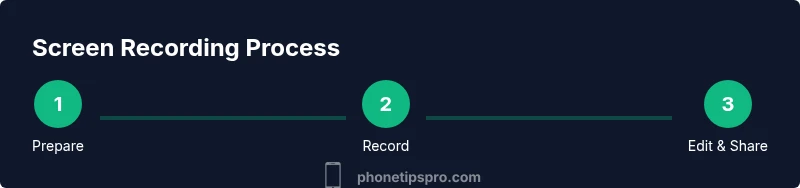
You can video your screen on iPhone by using the built-in Screen Recording feature. Add Screen Recording to Control Center if it’s missing, start recording, perform your actions, and stop to save the clip in Photos. Turn on Microphone if you want narration, and note apps may block internal audio in some cases.
What Screen Recording on iPhone Does
Screen recording on iPhone captures everything you see and hear on your device when you start the feature from Control Center. This built‑in tool is a practical way to create tutorials, report bugs, or demonstrate app features without external cameras. According to Phone Tips Pro, mastering screen recording is a foundational skill for any iPhone user who shares tips or documents issues. The clip saves directly to the Photos app, preserving your actions in a single video that you can trim, annotate, or re-record later. You can record your device's internal audio and microphone by toggling options in the screen recording menu, but keep in mind some app environments may limit capture of system audio. In everyday use, screen recordings pair well with voice narration and on‑screen annotations to convey steps clearly and reduce back-and-forth with support technicians.
Prerequisites: iPhone compatibility and settings
Screen Recording was introduced in iOS 11 and remains available on current iPhone models. Before you record, verify you have iOS 11 or later and enough storage space to save the video. Then enable the feature in Control Center: go to Settings > Control Center > Customize Controls, and add Screen Recording to the included controls. Once added, you can access it from the status bar or the Home/Lock screen, depending on your device. Phone Tips Pro notes that familiarity with the Control Center layout makes screen recording faster and less error-prone, especially when you need to record in a hurry during a live demo or a technical issue. Also remember to configure a Do Not Disturb setting if you don’t want interruptions during your capture.
Choosing whether to record with microphone and system audio
During a screen recording, you have two audio options: microphone (your voice) and system audio (the device's sound). The Screen Recording control panel lets you toggle Microphone on or off. Microphone capture is useful for commentary, explanations, or narrations; system audio is best for showing how an app or game sounds. However, some apps or content providers restrict or block internal audio, so the resulting video may only show your taps and gestures. In those cases, consider recording a separate voiceover after the fact. Phone Tips Pro recommends planning your narration ahead of time and keeping your commentary concise to avoid long, repetitive recordings.
How to prepare your iPhone for a clean recording
Clear your screen and minimize interruptions before you begin. Move quickly to a distraction-free home screen with essential icons visible. Turn on Do Not Disturb or Focus mode to mute incoming calls and alerts; if you need to capture notifications, keep Do Not Disturb off. Zeros in the background may distract viewers, so disable or hide sensitive elements. Check that you have enough storage by opening Settings > General > iPhone Storage and reviewing available space. If you have Apple Shortcuts or automation that triggers during screen recording, consider pausing or disabling them to avoid unexpected behavior.
Best practices for recording apps, calls, and gameplay
Approach your recording with a plan: outline the steps you will show, keep gestures visible, and avoid long stretches of unchanging screens. For apps, record at natural speeds and use pauses to explain complex steps. For calls, ensure you aren’t violating privacy policies; screen recording will capture the call interface but not necessarily the other party’s audio, depending on the app. In gameplay recording, consider the user's perspective: show key UI elements and keep your finger or cursor visible to guide viewers. After recording, rename the clip to a descriptive title and label it with a short summary so you can locate it quickly in Photos later. Phone Tips Pro notes that short, focused recordings typically perform better on social platforms and in tutorials.
Editing and exporting your screen recording
Once you finish, open the Photos app to review your clip. iPhone editing tools let you trim the beginning or end, adjust duration, and add simple annotations. You can add a voiceover after you record, or re-record a new narration by exporting a clean version. When you are ready to share, use the share sheet to export to Messages, Mail, or your preferred platform. If you need to post a multi-part tutorial, separate clips into logical sections and provide titles or captions for clarity. Phone Tips Pro emphasizes keeping the file size reasonable by cutting unnecessary portions and exporting at the highest acceptable quality for your audience.
Common issues and quick fixes
If the recording doesn’t save to Photos, verify you have storage space and that Screen Recording is properly enabled in Control Center. If you don’t hear audio, toggle the Microphone option in the Screen Recording menu or check per‑app restrictions that block internal audio. If your screen turns black during recording, ensure you haven’t enabled any screen mirroring or accessibility features that restrict capture. Restarting the iPhone can resolve many transient glitches, and updating to the latest iOS version can fix known bugs related to screen recording. For privacy-friendly workflows, use Do Not Disturb and pre‑screen your content to avoid exposing sensitive information.
Real-world scenarios and use cases
Many teachers, developers, and content creators use screen recording to explain new iOS features, document bugs for support, or demonstrate steps in a software tutorial. You can create quick micro‑lessons by recording a single workflow, then sharing the clip with a short voiceover. When crafting training videos, combine screen recordings with on-screen annotations, arrows, and callouts to reinforce key points. Phone Tips Pro clients frequently use screen recordings to capture a feature walk-through or to create bug reports that include visuals alongside a written description.
Tools & Materials
- iPhone with iOS 11 or later(Ensure Screen Recording is available and up to date)
- Sufficient storage space(Check Settings > General > iPhone Storage)
- Control Center access(Settings > Control Center > Customize Controls)
- Optional microphone accessory(Use Lightning or USB-C mic if you plan to narrate)
- Quiet recording environment(Reduces background noise and distractions)
Steps
Estimated time: 10-20 minutes
- 1
Open Control Center
Access Control Center on your iPhone by swiping down from the top-right corner (Face ID models) or swiping up from the bottom (Touch ID models). This is your gateway to Screen Recording. If you don’t see Screen Recording, you’ll need to add it in Settings first. A quick check now saves time later.
Tip: If Screen Recording isn’t visible, go to Settings > Control Center > Customize Controls and add it. - 2
Add Screen Recording if needed
In Settings > Control Center, add Screen Recording to the Included Controls. This ensures you have a one-tap button available during demonstrations or bug reports. Once added, exit Settings and reopen Control Center to confirm the new icon appears.
Tip: Customize once; you won’t have to repeat this step again. - 3
Start Screen Recording
Tap the Screen Recording button in Control Center to begin. A short countdown appears, and recording begins. If you want narration, press firmly (on devices that support it) or long-press to enable Microphone from the options.
Tip: Double-check that Microphone is on if you intend to record voice commentary. - 4
Record your actions
Perform the steps you want to capture. Keep taps visible and steady, and avoid sensitive information flashing on screen. If your app restricts internal audio, rely on your narration to convey audio context. Pause briefly between complex steps to give viewers time to follow.
Tip: Use a dry run first to ensure all critical actions are captured clearly. - 5
Stop recording
When you’re done, stop recording by tapping the red status bar or reopening Control Center and tapping the Screen Recording button again. The clip saves automatically to Photos.
Tip: If you forgot to stop, the system will stop recording after a few minutes in some situations—avoid this by remembering to stop manually. - 6
Review and export
Open Photos to review the recording. Use the built-in editing tools to trim, annotate, or enhance parts of the video. Share via Messages or email, or post to your preferred platform after ensuring privacy and clarity.
Tip: Rename the clip with a concise, descriptive title before sharing.
FAQ
Can I record my iPhone screen without the microphone?
Yes. Turn Microphone off in the Screen Recording options to capture only screen activity. You can add narration later as a separate track if needed.
Yes—turn off the microphone in the Screen Recording menu to capture just the screen.
Will screen recording capture notifications?
Notifications can appear during recording unless Do Not Disturb is enabled. Use Focus or Do Not Disturb to keep interruptions out.
Yes, notifications may appear unless you mute them with Do Not Disturb.
How long can I record screen on iPhone?
There is no fixed duration; recording length is limited by available storage and power. If storage runs out, recording stops automatically.
Length depends on storage and battery; ensure you have space before starting.
Can I record calls with screen recording?
Screen recording captures the screen interface, but audio from the other party may not be recorded depending on the app’s policies. Always respect privacy.
You can capture visuals, but call audio may be restricted by the app.
How do I edit a screen recording after saving?
Open Photos, select the clip, and use the trim and markup tools to refine your video. You can also add a voiceover in a separate export.
Edit in Photos: trim, add marks, or record a new voiceover if needed.
What’s the best way to share screen recordings?
Use the Share sheet to export to Messages, Email, or social apps. For tutorials, include a descriptive title and add captions where helpful.
Use the share options and add a clear title for your audience.
Watch Video
Quick Summary
- Enable Screen Recording in Control Center before you begin
- Decide on microphone usage based on narration needs
- Review and edit clips in Photos for clarity
- Share responsibly, respecting privacy and permissions
- Keep recordings organized with descriptive titles