How to Check If Your iPhone Is Backed Up
Learn how to verify iPhone backups in iCloud and Finder, ensure your latest data is safe, and fix common backup issues with clear, step-by-step guidance for 2026.


To check if your iPhone is backed up, verify the backup status in iCloud settings or Finder/iTunes on a computer. Look for the last successful backup date and ensure automatic backups are enabled. If needed, perform a manual backup to confirm. For iCloud, confirm Back Up This iPhone is on and enough iCloud storage is available.
How to check if your iPhone is backed up
If you’re wondering how to check if iphone is backed up, start by checking both iCloud backups and local backups on a computer. According to Phone Tips Pro Team, regular checks reduce data-loss risk after device issues or upgrades. In this guide we’ll walk through both avenues so you can confirm your most important data — messages, photos, settings, and app data — are safely stored. Phone Tips Pro Analysis, 2026 also highlights that many users rely on automatic backups but overlook manual verification. The goal here is simple: know your last backup date, ensure the process completed successfully, and establish a quick routine for periodic checks. This proactive approach helps you sleep better about data safety, especially after major iOS updates or device swaps.
What data is included in iPhone backups
Backups capture most of your device settings, messages, photos (if you don’t use iCloud Photos), app data, home screen layout, and certain health data. Some items, like data stored directly in iCloud (e.g., Photos if you enable iCloud Photos) or data in apps that synchronize with the cloud, may not be included in the backup. This distinction is important when you assess whether you have a complete restore option. Phone Tips Pro Team recommends reviewing what is included after updates, so you know what you might need to re-download or reconfigure after a restore.
Verifying iCloud backups on your iPhone
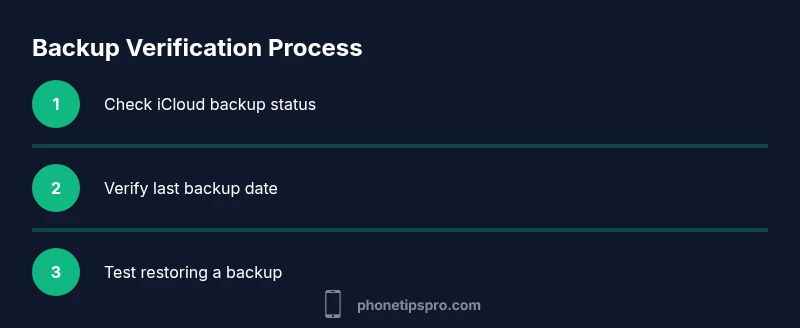
On your iPhone, open Settings and tap your name to access Apple ID settings, then tap iCloud. Next, choose iCloud Backup and verify that Back Up This iPhone is turned on. Look at the date and time of the last successful backup to confirm it’s recent. If the last backup is outdated, tap Back Up Now to create a fresh copy. Ensure you have sufficient iCloud storage; if you’re short, you’ll need to free space or purchase more storage. Phone Tips Pro Team emphasizes performing this quick check after major updates to protect the latest data.
Checking local backups on macOS (Finder) or Windows (iTunes)
If you routinely back up to a computer, connect your iPhone and open Finder (macOS Catalina and later) or iTunes (Windows or macOS Mojave and earlier). Select your device, then review the backups listed in the General tab. Verify the date and time of the most recent backup and confirm the backup completed without errors. If you don’t see a recent backup, initiate a manual backup. A local backup provides a separate safety net alongside iCloud in case of connectivity issues or iCloud storage limits.
What to do if you don’t see a backup
If no backup appears, double-check your Apple ID is the same across devices, ensure iCloud Backup is enabled, and verify you have enough iCloud storage space. If needed, sign out and back in to refresh account status. On a computer, ensure the backup destination drive has enough space and that Finder/iTunes isn’t blocked by antivirus or security software. If automatic backups still fail, perform a manual backup and monitor for completion. Phone Tips Pro Team reminds users that persistence pays off when securing data.
How to test a restore from backup
Testing a restore is the most reliable way to confirm your backup works. On a spare iPhone or during the initial setup of a new device, choose Restore from iCloud Backup or Restore from Mac/PC. Use a backup date you’ve verified previously. Restoring will overwrite existing data on the test device, so use a device you don’t mind replacing data on during the test. This hands-on check verifies that the backup contains the needed information and that you can perform a full recovery if needed.
Common issues and quick fixes
Backup failures can stem from poor network connections, insufficient storage, or account issues. Start by improving your network, then confirm space in iCloud or on your computer drive. Signing out and back into your Apple ID can resolve authentication problems. If automated backups fail repeatedly, consider removing old backups to reset storage usage or contact Apple Support for targeted guidance. Regular checks reduce the likelihood of surprises during a restore.
Best practices for reliable backups
- Schedule a monthly backup check and perform a manual backup after major events like iOS upgrades. - Keep your iPhone plugged in during backups and ensure a stable Wi‑Fi connection. - Maintain adequate iCloud storage or computer drive space to avoid backup interruptions. - Periodically test a restore to confirm data integrity. Implementing these practices helps maintain a trustworthy safety net for your data.
Tools & Materials
- iPhone with latest iOS(Ensure device is updated to the latest software for compatibility with backup features.)
- Apple ID credentials(Needed to access iCloud backups and settings.)
- Access to iCloud (Settings on iPhone)(Wi‑Fi recommended for iCloud backups; cellular may cost data.)
- Mac with Finder or Windows PC with iTunes(Use for local backups; not required if you rely solely on iCloud.)
- External backup drive (optional)(Helpful for additional local backups or offline archiving.)
Steps
Estimated time: 20-40 minutes
- 1
Open Settings and access your Apple ID
Unlock your iPhone and open Settings, then tap your name at the top to access Apple ID and iCloud options. This is where you begin checking both iCloud backups and device-specific data. Why: you must access the backup controls tied to your account.
Tip: If prompted, sign in with the correct Apple ID to match existing backups. - 2
Check iCloud Backup status
In Settings > [your name] > iCloud, select iCloud Backup. Confirm that Back Up This iPhone is toggled on and review the last backup date and time. Why: this confirms automatic backups are enabled and provides a recent restore point.
Tip: If the option shows Last Backup: Today at 3:45 PM, you’re currently protected. - 3
Ensure you have enough iCloud storage
Within the iCloud Backup screen, check your available storage. If space is limited, you may need to upgrade your plan or reduce what’s backed up. Why: backups require sufficient space to complete successfully.
Tip: Consider enabling Photos in iCloud to offload some data to iCloud storage if needed. - 4
Check local backups on a computer
Connect your iPhone to a Mac (Finder) or Windows PC (iTunes). In Finder, select the device and view backups under General > Backups. On Windows, open iTunes and view the device backups. Why: a local backup offers an independent recovery option.
Tip: Choose encrypted backups for more complete data protection. - 5
Perform a manual backup if needed
If you don’t see a recent backup, initiate a manual backup from the same screen you used to check status or in Finder/iTunes. Why: a manual backup verifies the process works and updates the last backup date.
Tip: Keep the iPhone plugged in and connected to Wi‑Fi during the backup. - 6
Test restoring a backup
On a spare iPhone or during setup of a new device, choose Restore from iCloud Backup or Restore from Mac/PC, selecting the verified backup date. Why: a restore test confirms the backup is usable for data recovery.
Tip: Back up important data on the test device after restoration to confirm everything works as expected.
FAQ
What data is included in iPhone backups?
iPhone backups include most device settings, messages, and app data, but some items stored in iCloud (like Photos if iCloud Photos is enabled) may not be part of a backup. Review which apps store data locally to ensure a complete recovery.
iPhone backups include settings, messages, and app data, but photos stored in iCloud may not be included. Review what’s backed up to ensure you can recover all critical items.
How do I know if a backup is up to date?
Check the last backup date in Settings for iCloud backups or in Finder/iTunes for local backups. If the date is recent, your backup is up to date. If not, run a manual backup.
Look at the last backup date to confirm it’s current. If it’s old, perform a manual backup to refresh it.
Can I back up only some data?
iCloud backups back up the entire device settings and data; selecting specific apps for backup isn’t supported in the standard backup flow. You may manage critical data with separate cloud storage for some apps.
Backups cover the whole device, not individual apps. Manage critical data with targeted cloud storage if needed.
What if backups fail regularly?
Check network connectivity, ensure enough storage, and sign in with the correct Apple ID. If issues persist, try a manual backup and consider contacting Apple Support.
If backups fail, check network and storage, then try a manual backup or contact support for help.
How often should I back up my iPhone?
Aim for at least weekly backups, with more frequent backups after major changes or data-heavy events. Automated backups make this easier, but periodic checks ensure reliability.
Weekly backups are ideal, with more frequent saves after big changes.
Is restoring a backup the same on all devices?
Restoring from iCloud or a local backup should bring back your data, but you may need to re-enter passwords and reconfigure some settings after a restore.
Restores bring back data, but expect some reconfiguration like passwords and account logins.
Watch Video
Quick Summary
- Know where to check backups on iPhone and computer
- Maintain sufficient iCloud or local storage
- Regularly test a restore to ensure data safety
- Document the last backup date after major changes
- Use both iCloud and local backups as a safety net