How to Get Out of Incognito Mode on iPhone: A Practical Guide
Learn step-by-step how to exit incognito/private browsing on iPhone. This educational guide covers Safari and popular browsers, with actionable tips to restore normal browsing and protect your privacy.


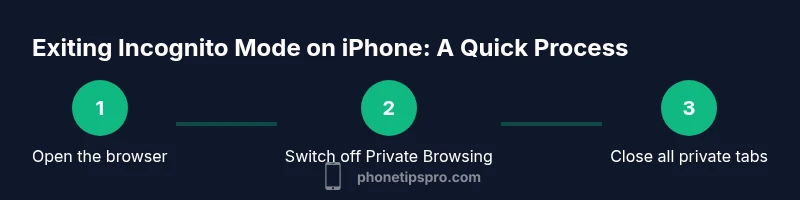
You can exit incognito mode on iPhone by closing all private tabs in your browser and returning to standard browsing. You’ll need your iPhone and access to the browser you used (Safari, Chrome, or others). This step-by-step guide shows you exactly where to tap and what to do to stop private browsing.
Understanding private browsing on iPhone and why you may want to exit
Private browsing on iPhone (often called Private Browsing in Safari) is designed to minimize on-device storage of your activities. While it can help avoid local history buildup, it does not make you anonymous online or shield you from network-level tracking. Exiting private browsing returns you to a standard browsing session where history, cookies, and form data can be saved again by the browser. For many users, exiting incognito mode is a simple habit to ensure their daily browsing history remains organized and consistent across devices. The goal of this guide is practical: you’ll learn exactly where to tap and which settings to adjust so you’re back to normal browsing with minimal effort.
Phone Tips Pro emphasizes that understanding the difference between private browsing and secure privacy is essential. exiting incognito mode on iPhone is about restoring the default state of your browser, not erasing every trace from your network.
Safari vs. other apps: private browsing behaves differently
On iPhone, private browsing sessions are handled separately per app. Safari’s Private Browsing mode operates independently from Chrome for iOS or Firefox for iOS. If you’ve used multiple apps to browse privately, you’ll need to exit private mode in each app individually. This separation explains why you may feel like you’re still in incognito mode even after closing tabs in one browser—the other apps may still have private sessions active. Understanding this distinction helps you avoid confusion and ensures you’ve actually returned to standard browsing across all apps.
Quick verification: how to tell you’re in private browsing
In Safari, Private Browsing is clearly indicated by the 'Private' label on the tab view. Other browsers display different cues (for example, an incognito icon or a separate tab group). A reliable check is to open a new tab and see whether the browser uses normal or private session defaults. If your history, cookies, and autofill data start behaving as if you’re in a fresh session, you’re likely in a non-private mode. Conversely, if you still see private indicators, you need to close private tabs or switch off private mode in the specific app.
Step-by-step overview for Safari: exiting incognito mode
This section provides a high-level overview of how to exit incognito mode in Safari. You’ll learn how to locate the tab switcher, identify the Private Browsing state, and switch back to a regular browsing session. The goal is a clean exit that ensures future sessions are saved to your device as expected. If you’ve used Private Browsing in multiple windows, repeat the process for each window before continuing.
Exit private mode in Chrome and other iOS browsers
Chrome and other third-party browsers also support private or incognito sessions. Exiting private mode in these apps typically involves tapping the tabs button, selecting Private or Incognito mode, and then closing all private windows. After you exit, start a new normal browsing session to confirm you are no longer in private mode. Remember: privacy features are scoped to the app, so exiting in one browser doesn’t automatically end private sessions in others.
Optional: Clear history and website data after exiting private mode
If you want to minimize residual traces, you can clear history and website data for the normal browsing state. Safari users can go to Settings > Safari > Clear History and Website Data. Chrome users can access Settings > Privacy and security > Clear browsing data. Note that this step removes records from the device only; it does not erase data on servers or in transit.
Common mistakes that keep you feeling ‘in incognito’
A frequent error is assuming private browsing is the same as security. Private mode only prevents local data storage; it does not anonymize your traffic. Another mistake is leaving a single private tab open and assuming you’re back to normal browsing—private mode persists until you explicitly exit it. Always verify by opening a new non-private tab and checking the browser’s session state.
Best practices after exiting incognito mode on iPhone
To maintain a predictable browsing experience, regularly review which apps have private sessions open and close them if you’re done. Consider bookmarking important sites in normal mode, enabling a standard autofill setup, and configuring privacy settings to balance convenience with data control. A routine check helps you avoid lingering private sessions and keeps your device’s browsing behavior consistent across sessions.
Troubleshooting stubborn private sessions
If you still see private session indicators after following the standard steps, try a quick device refresh: close all apps, then reopen Safari or the browser, and perform the steps again. In rare cases, a device restart or updating your iOS version can help reset app states. This approach resolves most lingering private mode issues without risking data loss.
Tools & Materials
- iPhone with current iOS version(Ensure your device is up to date for best compatibility)
- Browser apps installed on iPhone (Safari, Chrome, Firefox, etc.)(Identify which apps you used for private browsing)
- Stable internet connection (optional)(Helps verify behavior if needed)
- Time buffer (5-10 minutes)(Use to perform checks and verifications)
Steps
Estimated time: 15-25 minutes
- 1
Open the browser you used
Launch the browser where you performed private browsing (Safari, Chrome, or another app) and prepare to view your open tabs. If you’re not sure which app you used, check the home screen for recently used browsers and launch that one.
Tip: If you’re unsure which app you used, start with Safari, as it’s the built-in option on iPhone. - 2
Access the tab view
Tap the tabs icon to reveal all open pages. In Safari, this is the two overlapping squares icon. In other apps, look for a similar tabs button or a dedicated Private/Incognito indicator.
Tip: Make sure you’re not in a private tab under a single session; confirm you’re viewing the tab list for the main browsing window. - 3
Identify and switch out of Private Browsing
If you see a Private or Incognito indicator, switch off that mode by selecting the normal browsing option. In Safari, tap Private to turn it off; in Chrome or other apps, end the private session and return to a standard window.
Tip: Switching off private mode should immediately switch the UI back to a regular tab view. - 4
Close all private tabs
In the tab view, close every private tab or window. This ensures no private data remains in the current session.
Tip: If there is a Close All option, use it for a quick reset of private sessions. - 5
Open a new normal tab
After exiting private mode, open a fresh normal tab to confirm you’re in standard browsing.
Tip: Avoid re-entering Private Browsing unless you intend to perform private searches again. - 6
Optional: clear local data
For added privacy, clear your history and website data in the browser’s settings after exiting incognito.
Tip: Note that this only clears data on the device, not on remote servers. - 7
Verify across other apps
If you used multiple browsers, repeat the exit process in each app to ensure no private sessions remain.
Tip: Consistency across apps prevents perceived lingering private mode. - 8
Test the outcome
Navigate to a few sites in normal mode and ensure that history and autofill are behaving normally.
Tip: If history does not save as expected, revisit the browser’s privacy settings. - 9
Resolve stubborn states
If a private state persists, try closing all apps, restarting the device, or updating iOS to reset app states.
Tip: Persistent issues are rare; a restart clears lingering session data.
FAQ
Can incognito/private mode hide my browsing from my employer or internet provider?
No. Incognito or private mode only prevents local storage of data on your iPhone. It does not mask your activity from your employer, school, or internet service provider. For true network privacy, consider a trusted VPN and be aware of employer or policy limitations.
No. Private browsing only affects local data on your device. Network visibility remains.
Does closing Private Browsing delete my history?
Closing Private Browsing ends the session and prevents new data from being stored in that session. Once you switch back to normal browsing, future history will be saved according to your browser settings.
Ending private mode stops storing that session’s data, but normal browsing history resumes from that point.
Does exiting incognito affect iCloud or cross-device syncing?
Private browsing sessions are separate per app and device. If you use iCloud Tabs or sync history, those features apply to normal browsing data, not Private Browsing data.
iCloud-related data typically follows normal browsing, not private sessions.
Is incognito available on iPhone outside Safari?
Yes. Chrome, Firefox, and other browsers on iPhone have their own private or incognito modes. You must exit private mode in each app individually.
Other browsers have their own private modes, separate from Safari.
How can I permanently disable Private Browsing on iPhone?
There is no universal switch to disable Private Browsing system-wide on iPhone. You can, however, avoid enabling it and educate users to exit private mode when finished.
There isn’t a global switch, but you can avoid enabling it and exit when done.
What should I do if I can’t exit private mode?
If you can’t exit, try closing the app, restarting the device, or updating iOS. Some apps may require a longer shutdown and relaunch to reset their private sessions.
If exit fails, restart the app or device and check for updates.
Watch Video
Quick Summary
- Exit private mode in every browser you used.
- Private browsing hides local data, not your network activity.
- Always verify by opening a normal tab to confirm exit.
- Clearing history is optional but can help reduce traces on-device.
- If problems persist, a quick device restart can help.