How to Disable Private Browsing on iPhone: A Practical Guide
Learn how to disable private browsing on iPhone, understand limitations, and enforce browsing controls with Screen Time and settings. Clear steps, practical tips, and troubleshooting for iPhone users.


By following these steps, you will learn how to disable private browsing iphone activity in Safari and keep your daily browsing log consistent. This guide explains what you can control, what you cannot, and how to enforce restrictions using built-in tools like Screen Time. You’ll exit Private Browsing, set limits, and verify the change on your iPhone. This is a practical, real-world approach.
What private browsing is on iPhone and why you might want to disable it
Private Browsing in Safari creates a separate session where your browsing history, cookies, and form data aren’t saved to the device. It can hide your activity from someone who shares your iPhone, but it doesn’t make you invisible online. Websites can still see your IP address, and network-level monitoring (like your ISP or employer if you’re on their network) can still log activity. For many users, particularly parents and teams, this mode can undermine consistent logging and content filtering. According to Phone Tips Pro, many users underestimate that private browsing doesn’t make you anonymous; it only limits what Safari stores locally. If your goal is accountability, or you want to ensure your child or teammate’s browsing is subject to policy, you may want to consider alternatives. In this guide, you’ll learn what it means to disable private browsing iphone in practical terms and what options exist if you need to enforce restrictions.
Can you disable private browsing globally on iPhone?
The short answer is: not with a simple, built-in switch for standard consumer devices. iOS does not provide a universal global toggle to turn Private Browsing off. However, you can lean on a combination of settings and device-management options to reduce or prevent private sessions. For families or schools using supervised devices, Mobile Device Management (MDM) profiles can restrict Safari and, in some cases, disable Private Browsing entirely. On typical personal devices, the recommended approach is to guide users away from Private Browsing by using Screen Time restrictions and careful tab management.
Exiting Private Browsing in Safari: Step-by-Step (manual approach)
Private Browsing is a mode you switch on and off within Safari. If you want to ensure you’re not in Private Browsing, you must exit Private mode and close any private tabs. This section outlines how to exit Private Browsing and make sure you’re in standard browsing mode again. Remember, this is a user-driven change and won’t prevent a determined user from re-enabling Private Browsing unless you apply additional restrictions.
Checking the status: verifying Private Browsing is off
To verify you’re not in Private Browsing, open a new tab and check that Safari logs history and cookies normally for that session. Look for the normal address bar indication (no darker theme or “Private” tag on the tab) and confirm you can navigate to regular sites with standard session behavior. If you still see Private Browsing indicators, repeat the exit process and close any lingering private tabs.
Alternative controls: Screen Time and restrictions
Screen Time can be used to implement web-content restrictions and limit Safari usage, which is a practical way to curb private sessions without device management. By enabling Content & Privacy Restrictions and selecting Web Content limits, you can steer users toward a controlled set of websites. While this won’t strictly disable Private Browsing, it does help enforce policy and logging on many devices.
Management options for families and organizations
For households with multiple iPhones or organizations with managed devices, MDM/MDM-like solutions offer the most robust way to influence Safari behavior. Admins can push profiles that restrict web activity, disable Private Browsing in controlled environments, and require a passcode for changing restrictions. On non-managed personal devices, you should rely on Screen Time and explicit device-use policies to reduce Private Browsing usage.
Common mistakes and troubleshooting
A frequent mistake is assuming Private Browsing is impervious to logging. Real-world use shows that monitoring at the network level or using managed devices will reveal activity that Private Browsing does not log locally. If you still notice private tabs after applying restrictions, double-check Screen Time settings, confirm the device isn’t under a separate profile, and consider a device re-check or a fresh screen time passcode. Always test on the exact device to confirm results.
Privacy best practices and next steps
Disabling or restricting Private Browsing is about balancing privacy with accountability. Encourage transparent browsing habits, use strong device passwords, and apply targeted restrictions where needed. Regularly review settings after iOS updates, as Apple occasionally changes how Private Browsing and restrictions are enforced. For parents and IT admins, keep documentation of policy changes and test changes on a secure test device before rolling out broadly.
Tools & Materials
- iPhone with latest iOS(Ensure the device is updated to the latest iOS version.)
- Screen Time access(Have your device passcode available to configure restrictions.)
- Stable internet connection(Needed to verify changes and test browsing behavior.)
- MDM/enterprise profile (optional)(Only required for managed devices to disable Private Browsing.)
Steps
Estimated time: 15-25 minutes
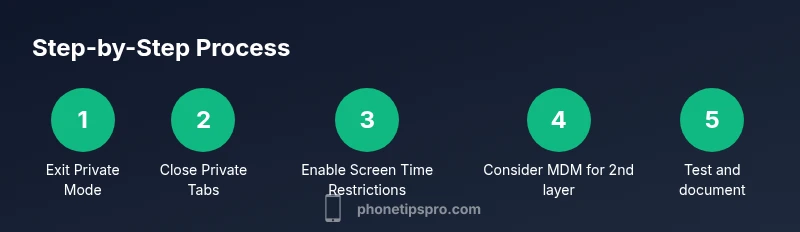
- 1
Open Safari and access tab view
Launch Safari on your iPhone and tap the Tabs icon (two overlapping squares) to open the tab overview. This is where you detect whether you’re in Standard or Private mode.
Tip: If you see a dark UI or a Private label, you’re currently in Private Browsing. - 2
Switch off Private Browsing
In the tab view, tap Private to switch to the standard browsing session. Safari will switch the UI back to non-private mode, and you’ll no longer see the Private browsing indicator.
Tip: Switching off Private Browsing here only affects the current session; it doesn’t guarantee future sessions won’t reuse Private mode. - 3
Close all private tabs
If there are any private tabs open, swipe them away or tap the Close All Tabs option while in Private mode, then switch to standard mode. This ensures no lingering private data persists.
Tip: Closing all private tabs reduces the chance of inadvertently resuming Private Browsing later. - 4
Return to standard browsing
After exiting Private mode, confirm you are in a normal browsing session by opening a new tab and visiting a regular site. Look for the standard address bar and content behavior.
Tip: If you still see Private prompts, re-enter the tab view, switch Private off again, and close additional private tabs. - 5
Enable Screen Time restrictions
Open Settings > Screen Time > Content & Privacy Restrictions, then turn on restrictions. Choose Web Content to either limit websites or require only allowed sites.
Tip: Set a passcode you can remember but that others cannot easily guess to prevent casual changes. - 6
Consider device management for stronger control
If you’re managing a family or enterprise fleet, configure an MDM profile to restrict Safari or disable Private Browsing entirely. This requires an admin account and device enrollment.
Tip: MDM is the most robust way to enforce browsing policy across multiple devices.
FAQ
Can I disable private browsing on iPhone completely?
On standard iPhones, there is no built-in toggle to disable Private Browsing globally. You can enforce restrictions with Screen Time or with MDM on managed devices, but a universal off switch isn’t provided by Apple for consumer devices.
There isn’t a global switch to disable Private Browsing on a normal iPhone, but Screen Time restrictions and device management offer solid alternatives.
Will Screen Time automatically stop private sessions?
Screen Time can restrict web content and block certain websites, which discourages or limits Private Browsing. It doesn’t explicitly disable Private Browsing, but it helps enforce policy and logging.
Screen Time helps restrict web usage, which can limit private sessions, though it doesn’t turn Private Browsing off by itself.
Does disabling Private Browsing affect bookmarks or history?
Private Browsing affects only the current session and local data. Disabling Private Browsing will not erase prior history, and standard sessions will continue to log history and bookmarks as usual.
Disabling Private Browsing doesn’t erase existing data; it changes how new sessions are logged.
How can I test if Private Browsing is off?
Open Safari, switch to a new normal tab, and attempt to switch to Private Browsing. If restrictions are in place, you may be prompted by Screen Time or the option might be restricted.
Test by trying to open a Private tab after you’ve exited Private Browsing; if restricted, you’ll see the policy take effect.
What if I forget the Screen Time passcode?
If you forget the Screen Time passcode, you’ll need to follow Apple’s recovery steps which may require signing in with your Apple ID. Keeping a secure record of the passcode is important.
If you forget the passcode, follow Apple’s recovery steps to regain access and reset restrictions.
Is Private Browsing the same as incognito mode?
Private Browsing in Safari is similar to incognito modes in other browsers but functions differently across platforms. It prevents local history storage yet does not hide activity from networks or sites.
It’s similar to incognito, but not identical; it hides local data, not online activity from ISPs or networks.
Watch Video
Quick Summary
- Exit Private Browsing to return to standard Safari sessions.
- Screen Time offers practical controls to curb private browsing on non-managed devices.
- MDM provides robust, enterprise-grade restrictions for organizations.
- Always verify changes by testing on the actual device after modifications.