How to iPhone and iPad: Practical Tips for 2026
A comprehensive, step-by-step guide to using iPhone and iPad effectively. Learn setup, privacy, shortcuts, backups, and troubleshooting with actionable guidance from Phone Tips Pro.


Learn a practical, fast path to optimize iPhone and iPad performance through essential setup, privacy, and productivity steps. This guide also covers common issues and reliable fixes, with clear, actionable instructions you can follow today. According to Phone Tips Pro, starting with core configurations and building from there yields the most noticeable improvements across iOS and iPadOS.
Understanding the iPhone and iPad ecosystems
iPhone and iPad run different but complementary operating systems: iOS on iPhone and iPadOS on iPad. They share a core feature set and enable cross-device workflows through Continuity. When you understand how they connect, you can unlock seamless handoff, universal clipboard, AirDrop, and shared settings across devices. This understanding helps you design a smooth, predictable daily routine. According to Phone Tips Pro, starting with a clear mental map of the ecosystem helps learners avoid common misconfigurations and accelerates onboarding for new users. You’ll see how features like Handoff, AirDrop, and Continuity work together to keep tasks flowing between devices, whether you’re drafting a document on one device or replying to messages on another. The sections that follow build on this foundation with concrete steps you can try today.
Core settings to configure on iPhone and iPad
Your first moves should be foundational: sign in with your Apple ID, enable iCloud, and configure privacy controls. These steps power backups, Find My, and data synchronization, while setting boundaries for location access and app permissions. Make privacy a default: disable unnecessary location access, restrict app permissions you don’t need, and enable App Tracking Transparency where appropriate. Turn on two-factor authentication for your Apple ID to prevent unauthorized access. Next, tailor notifications to reduce distractions by prioritizing essential apps and enabling Focus modes when you work or study. Finally, verify that your devices will receive security updates automatically so you stay protected without manual daily interventions.
Gestures, shortcuts, and everyday productivity
Master the primary iOS and iPadOS gestures to navigate quickly: home gestures, swiping to access notifications, and multi-tasking with split view and slide over on iPad. Use the Shortcuts app to automate routine actions—like saving a web clip to Notes, converting a phone call into a task, or triggering a sequence of settings changes for work. Add meaningful widgets to your home screen for glanceable info, and organize widgets by use case (work, health, communication). Leverage Continuity features like Handoff to pick up documents, emails, or messages where you left off. Regular practice builds fluency and makes tasks feel almost effortless.
Data management, backups, and recovery
Data safety starts with regular backups. Use iCloud Backup for automatic, daily backups when connected to Wi‑Fi and power. For larger libraries, consider a local backup via Finder on macOS or iTunes on Windows. Review storage usage and offload unused apps, photos, and messages to prevent slowdowns. Establish a routine: daily or weekly backups, plus quarterly archive snapshots of important data. If you ever replace a device or reset it, a recent backup makes restoration straightforward. Don’t forget to verify that your backup completes successfully after each run.
Troubleshooting common issues on iPhone and iPad
When apps crash or a device slows down, start with a soft restart and check for app updates. If performance lags persist, review available storage and close background processes. For connectivity problems, toggle Airplane Mode on and off, reset network settings, or reconnect to a known, trusted Wi‑Fi network. If updates fail, ensure sufficient battery and a reliable connection before retrying. For persistent issues, restoring from a recent backup can resolve corruption or misconfigurations. Always verify your Apple ID and iCloud settings after recovery to re-establish data synchronization.
Security and privacy best practices
Security begins with a strong passcode and biometric unlock; enable two-factor authentication for your Apple ID and review app permissions regularly. Use privacy features like App Tracking Transparency, Limit Ad Tracking, and, where possible, Private Relay to protect sensitive activity. Turn on Find My iPhone and enable Activation Lock so devices cannot be used if lost or stolen. Be mindful of phishing attempts and avoid installing profiles from untrusted sources. Keep devices updated to patch security vulnerabilities, and periodically audit connected apps and services to keep your ecosystem safe.
Making the most of iPhone and iPad together
Explore Continuity features that bridge iPhone and iPad for smoother workflows. AirDrop lets you share files quickly; Universal Clipboard copies text and images across devices. Start emails, documents, or messages on one device and continue on another with Handoff. For power users, consider using Sidecar with a Mac to extend your workspace. Consistently testing cross-device tasks helps you refine your setup and identify which features save you the most time in your daily routines.
Tools & Materials
- iPhone or iPad(Any model running iOS 16 or later and iPadOS 16 or later)
- Charged device(Have at least 50% battery on both devices during setup)
- Reliable Wi-Fi(Stable network for updates, iCloud backups, and data sync)
- Personal Apple ID(To access iCloud, App Store, and device recovery)
Steps
Estimated time: 25-40 minutes
- 1
Prepare your devices
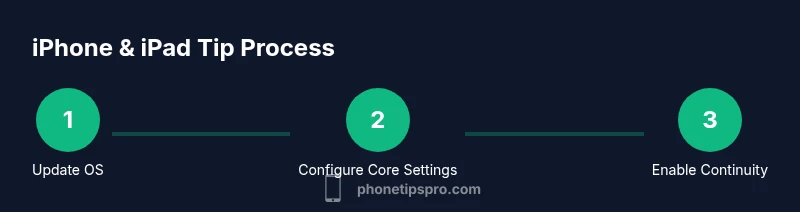
Power on both devices, sign in with your Apple ID, and verify you’re on the latest iOS/iPadOS. This creates a stable baseline for all following steps and helps ensure feature compatibility across devices.
Tip: Check battery levels and ensure both devices have a solid internet connection before starting. - 2
Update to the latest software
On each device, go to Settings > General > Software Update and install any available updates. Updated software improves security, fixes known issues, and supports new features used for cross-device workflows.
Tip: Back up first if possible to preserve current data before any update. - 3
Configure core settings
Sign in with your Apple ID, enable iCloud, adjust Privacy controls (Location Services, App Tracking Transparency), and set up Find My. Optimize notifications and enable Focus modes to tailor distractions.
Tip: Enable two-factor authentication to protect your Apple ID. - 4
Enable continuity features
Turn on Handoff, Universal Clipboard, AirDrop, and Continuity Camera if supported. Test a simple task, like drafting an email on one device and finishing on the other.
Tip: Keep devices near each other during the initial test to avoid connectivity issues. - 5
Organize apps and data
Create meaningful folders, arrange widgets by use, and enable iCloud Drive for documents. Consider Shortcuts to automate routine actions and save time.
Tip: Audit apps you don’t use and remove or offload them to reclaim storage. - 6
Test cross-device workflows
Practice moving tasks between devices—start a note or document on iPhone, then continue on iPad using Handoff. Verify data sync for photos, files, and contacts.
Tip: If a workflow stalls, sign out and back in to refresh tokens and permissions.
FAQ
What is the best way to start learning how to use iPhone and iPad effectively?
Begin with updating software, signing in with Apple ID, and enabling essential privacy settings. Then explore basic gestures and settings before tackling advanced features.
Start by updating and securing your devices, then learn basic gestures and settings.
How do I back up iPhone and iPad data?
Use iCloud Backup for automatic backups or Finder/iTunes for local backups. Ensure backups complete successfully after each run.
Back up using iCloud or Finder, and verify completion.
Can I use the same apps on iPhone and iPad?
Most iPhone apps work on iPad, and many are optimized for larger screens. Some apps are iPad-only; check the App Store listing.
Most apps work on both, but some are optimized for iPad.
How can I improve privacy on iPhone and iPad?
Review privacy settings, limit ad tracking, disable unnecessary location access, and regularly audit app permissions.
Review privacy settings and restrict permissions where possible.
What do I do if an update fails?
Check your internet connection, free storage space, and retry. If issues persist, try a different network or reset the device settings.
Check connection and space, then retry.
How can I quickly transfer files between iPhone and iPad?
Use AirDrop for quick transfers or iCloud Drive for cloud-based access across devices.
Use AirDrop or iCloud Drive to move files.
Watch Video
Quick Summary
- Start with core setup to unlock cross-device features.
- Regular backups minimize data loss and recovery time.
- Privacy controls are your first line of defense.
- Leverage Continuity to streamline tasks across iPhone and iPad.