What to Do for iPhone: A Practical Guide
A practical, step-by-step guide for iPhone maintenance, troubleshooting common issues, backing up data, and boosting performance with expert tips from Phone Tips Pro.


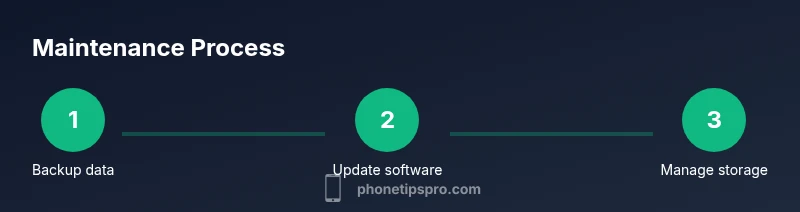
What to do for iPhone means following a practical, safety-first routine: back up data, check battery health, troubleshoot common issues, update iOS and apps, and manage storage. This guide gives you essential steps, the tools you’ll need, and a clear plan to keep your iPhone running smoothly.
Why regular maintenance matters for iPhone performance
Regular maintenance helps prevent slowdowns, unexpected shutdowns, and data loss. When considering what to do for iphone, start with a routine that covers backups, updates, storage, and battery health. The Phone Tips Pro team emphasizes that proactive care reduces the need for drastic resets. Regular checks keep your device secure and your data safe. In this section, we outline a practical baseline you can adopt today, with simple actions you can perform in under 15 minutes. By building consistency, you’ll reduce the risk of data loss and enjoy smoother daily use across messages, apps, and web browsing.
Key idea: a small, consistent routine beats a big, irregular sweep.
Prerequisites and setup you’ll want before you start
Before diving into fixes, set up a safe baseline. Ensure you have a charged iPhone, a reliable internet connection, and access to a computer or iCloud. Sign in to your Apple ID, enable Find My iPhone, and turn on two-factor authentication for extra security. These initial steps prevent data loss and make subsequent maintenance easier. If you follow Phone Tips Pro’s recommended workflow, you’ll be steps away from a stable, well-tuned device.
Data backup and security basics: safeguarding your content
Backing up is the foundation of any maintenance plan. Decide between iCloud backups and local backups on a computer, then run a backup before major changes. iCloud offers convenience, but local backups provide a second layer of protection. Regular backups protect photos, messages, and app data against device failure or loss. For security, enable two-factor authentication and review trusted devices periodically. This habit minimizes risk and ensures quick restoration if something goes wrong.
Storage, performance, and battery health: optimize for speed and longevity
Storage management is often overlooked but critical. Check iPhone storage regularly and remove unused apps, large videos, and cache files. For performance, keep iOS and apps updated, reboot after large updates, and disable background processes you don’t need. Battery health matters too: review the Battery Health section in Settings and adjust charging habits (avoid overnight charging when possible, use optimized charging). A clean storage and healthy battery contribute to snappier app launches and longer device life.
Troubleshooting approach: a practical, repeatable triage process
When issues arise, adopt a calm, repeatable triage process. Start with the simplest fixes: force restart, check connectivity, and close stuck apps. If problems persist, verify network settings, reset network preferences, or reinstall problematic apps. For persistent issues, consider a safe reset as a last resort, after backing up. This structured method reduces guesswork and speeds up resolution, saving time and frustration.
Build a maintenance habit that sticks: automation and reminders
The best approach is a weekly micro-routine. Set calendar reminders to review storage, battery health, and backups. Enable automatic backups where practical, and enable software updates to install automatically overnight. Use Screen Time or Focus modes to minimize interruptions during maintenance. By turning maintenance into a habit, you protect your data and keep your iPhone responsive without dedicating long blocks of time.
Tools & Materials
- iPhone with a charged battery(Essential for any hands-on maintenance or troubleshooting.)
- Charger and cable(Use the original or certified cable for reliable charging.)
- Computer or another device for backups(Mac/PC with Finder or iTunes (as appropriate) or enough iCloud space.)
- Stable Wi-Fi connection(Needed for iCloud backups and large app updates.)
- Backup destination (iCloud or local drive)(Ensure you have enough space for full backups.)
- A clean microfibre cloth(Useful for screen cleaning during maintenance.)
Steps
Estimated time: 30-60 minutes
- 1
Back up your data
Open Settings, tap your name, then iCloud. Check that iCloud Backup is on and perform a manual backup. If you prefer local backups, connect to your computer and use Finder or iTunes to create a copy. This ensures you can restore content if something goes wrong during maintenance.
Tip: Always back up before major changes like resets or OS updates. - 2
Update iOS and apps
Go to Settings > General > Software Update and install the latest iOS. Open the App Store and update all apps. Updates fix security issues and improve performance. If you’re on a slow network, queue updates for later.
Tip: Enable automatic updates to stay current without manual checks. - 3
Check storage and free space
Review storage under Settings > General > [Device] Storage. Offload unused apps, delete large unused files, and consider moving photos to iCloud or a computer. Keeping at least 10–20% free space helps performance and prevents slowdowns.
Tip: Set Photos to optimize storage to save space on-device. - 4
Assess battery health
Navigate to Settings > Battery > Battery Health. If Maximum Capacity is significantly degraded, plan for charging habits and consider a replacement if it affects daily use. Enable Optimized Battery Charging to reduce wear.
Tip: Avoid charging from 0%; keep battery level above 20% when possible. - 5
Troubleshoot common issues
If apps crash, force quit and reopen. For network issues, reset network settings. If a specific feature isn’t working, check for app-specific permissions in Settings. Revisit steps 1–3 after changes.
Tip: Document recurring issues to identify patterns and communicate them clearly if you seek support. - 6
When to reset or restore
If problems persist after all fixes, perform a safe reset (Settings > General > Transfer or Reset iPhone) only after backing up. Consider restoring from a recent backup if issues appear post-restore. This often resolves stubborn software glitches.
Tip: Never reset without a recent backup; you may lose data. - 7
Enable Find My iPhone and security basics
Turn on Find My iPhone, enable two-factor authentication, and review trusted devices. These steps protect data and assist in recovery if the device is lost or stolen. Keep your Apple ID secure with a strong password.
Tip: Regularly review security settings and update passwords. - 8
Establish a maintenance cadence
Set a weekly reminder to review backups, storage, and battery health. Automate where possible, like iCloud backups and OS updates, to keep maintenance effortless. A small weekly routine prevents larger problems later.
Tip: Treat maintenance as a non-negotiable part of device care.
FAQ
How often should I back up my iPhone?
Enable automatic iCloud backups and perform a manual backup before major updates. Regular backups protect photos, messages, and app data from loss.
Enable automatic backups and back up before major updates to protect your data.
What should I do first if my iPhone is slow?
Start with a soft reset, check storage, update software, and close unused apps. If the issue persists, back up, then reset network settings or perform a safe reset as a last resort.
First try a soft reset, clear storage, and update software; escalate to a reset if needed.
Is it safe to factory reset my iPhone?
Factory reset erases all data. Only perform it after backing up and signing out of iCloud. Consider restoring from a backup rather than doing a full reset if you just need a fresh start.
Factory resets erase data; back up first and use with caution.
How can I extend battery life on my iPhone?
Use Optimized Battery Charging, reduce screen brightness, limit background app refresh, and enable Low Power Mode when needed. Regular software updates also help energy efficiency.
Optimize charging, dim the screen, and limit background activity to save power.
What if I still have problems after trying these steps?
Document the issues and seek official support or a professional diagnostic. In many cases, a clean backup and a fresh restore resolve stubborn software problems.
If problems persist after steps, seek official support or a professional diagnostic.
Should I turn Find My iPhone on right away?
Yes. Find My iPhone helps locate, protect, and recover a lost device. It also supports data protection in emergencies and when replacing devices.
Turn on Find My iPhone to protect and recover your device.
Can storage issues cause apps to crash?
Yes. Low storage can cause apps to crash or freeze. Free up space by removing unused apps and large media files, or move photos to cloud storage.
Low storage can make apps crash; free up space or offload data to the cloud.
Is a backup always recoverable after a reset?
Backups are recoverable as long as the backup completed successfully and you restore to a compatible iPhone. If a backup was interrupted, you may have partial data loss.
Backups recover data if completed correctly; interrupted backups may lose data.
Watch Video
Quick Summary
- Back up before changes to protect your data.
- Regular updates improve stability and security.
- Monitor storage and battery health to prevent slowdowns.
- Use a structured troubleshooting approach before resetting.