How to deal with iphone storage: practical steps to reclaim space
A practical, step-by-step guide to reclaim iPhone storage: offload apps, optimize photos, manage messages, and maintain space with safe backups. Learn tips from Phone Tips Pro.


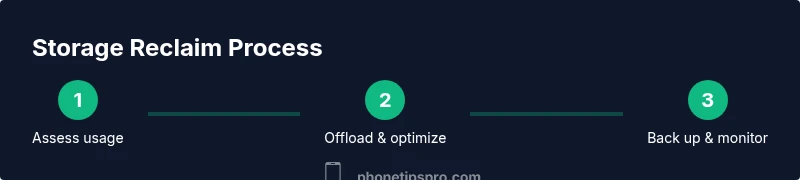
To deal with iphone storage, follow a practical, data-safe cleanup: review which apps, photos, and messages use the most space; offload unused apps; enable Optimize iPhone Storage for photos; back up important data before deleting; and set up ongoing checks to prevent space from filling again. The Phone Tips Pro team recommends starting with your largest offenders.
What takes up iPhone storage and why
Your iPhone's storage space is filled by a mix of apps, media, messages, and system files. Common culprits include high-resolution photos and videos, large apps, offline maps, and chat attachments. In many setups, 'Other' or cache data can accumulate and become the hidden villain. Understanding these categories helps you plan an effective cleanup without risking data loss. According to Phone Tips Pro, reclaiming storage starts with identifying the main culprits and prioritizing actions that move the needle fastest. The goal is to reclaim space while keeping your essential content readily available.
Quick wins to reclaim space now
If you need immediate relief, start with fast, low-effort steps. Enable photo storage optimization, offload unused apps, and purge large message attachments. Check Settings > General > iPhone Storage for a quick readout of what uses space and which items have recommendations. Deleting duplicate downloads, clearing Safari data, and reviewing large documents in apps can free substantial space without a full reset. This approach aligns with Phone Tips Pro guidance on balancing safety with speed in storage cleanup.
Tackle photos and videos smartly
Photos and videos are typically the single largest sink for iPhone storage. Review your library and delete duplicates, burst captures, and exported clips you no longer need. Use iCloud Photos with Optimize iPhone Storage to keep smaller previews on the device while the full-resolution originals stay in the cloud. For off-device backups, consider exporting favorites to a computer or external drive. This strategy reduces on-device storage while preserving your memories, in line with expert recommendations from Phone Tips Pro.
Manage apps and app data
Apps can hold a surprising amount of data through caches, offline content, and saved files. Go through the list of installed apps, tap each one to inspect its data usage, and offload or delete apps with large data footprints. If you rely on a handful of apps for work or life, offloading them—while keeping documents and data—can reclaim space without forcing you to reinstall later. Keep a short list of apps you use daily and avoid removing critical tools.
Offload vs delete vs backup strategies
Off-loading removes the app but retains its documents and data, so you can reinstall quickly with no loss. Deleting removes everything and requires redownloading if you need the app again. Backing up to iCloud or a computer provides a safety net before you prune files. A balanced approach is to offload rarely used apps, delete unneeded media, and back up large categories like photos and messages before purging.
Cloud storage and offline access
Cloud storage is your ally for freeing local space. Enable iCloud Photos and iCloud Drive where appropriate, while ensuring you have a reliable backup plan. If you prefer local control, periodically transfer large media sets to a computer or external drive. You can still access files offline by keeping key documents locally and using cloud storage for the rest. This hybrid approach helps you maintain accessibility without crowding the device.
Safari, messages, and media cleanup
Clear Safari cache and website data to reclaim space from cached files. In Messages, delete large attachments or review conversations you no longer need, and adjust retention settings if possible. Review apps that save media locally (messaging apps, social networks) and delete caches or media duplicates. Regularly auditing these sources prevents buildup and keeps storage manageable over time.
Long-term storage maintenance habits
Adopt a monthly or quarterly review of storage usage and adjust backup settings as your needs evolve. Maintain a habit of offloading unused apps, enabling photo optimization, and archiving important files to the cloud or computer backups. By treating storage as a continuous task rather than a one-off cleanup, you keep your iPhone performing well and reduce the risk of sudden fullness. The approach presented here reflects Phone Tips Pro's practical, proactive philosophy for ongoing maintenance.
When to reset or restore your iPhone
A factory reset should be a last resort when you cannot reclaim space through cleanup alone. It erases all content and settings, so back up first and reconfigure your device carefully. If you suspect software issues or persistent storage anomalies, consider seeking guidance before taking this step. In many cases, systematic cleanup and backups negate the need for a reset.
Tools & Materials
- iPhone with latest iOS(Back up before major cleanup)
- Stable Wi‑Fi connection(For cloud backups and iCloud syncing)
- iCloud account or computer for backups(Choose backup method)
- Lightning/USB-C cable(For offline backups or transfers)
- Photo management app (optional)(Helpful for bulk review)
- External storage or cloud plan (optional)(Useful for offloading large media)
Steps
Estimated time: 60-90 minutes
- 1
Assess current storage usage
Open Settings > General > iPhone Storage. Review the storage breakdown by category and identify the largest offenders. This step sets the cleanup scope and helps you prioritize actions that move the needle fastest.
Tip: Scan for unusually large apps or media folders and note top offenders. - 2
Back up critical data before cleanup
Create a backup of essential photos, documents, and app data using iCloud or a computer. Verify the backup completed successfully to avoid data loss during cleanup.
Tip: Ensure you can restore any item you delete if needed. - 3
Offload unused apps
Enable Offload Unused Apps (Settings > App Store) to reclaim space while preserving app data. Reinstalling later is quick if you need the app again.
Tip: Target apps you rarely use but may need again. - 4
Optimize Photos storage
Turn on Optimize iPhone Storage to keep smaller, device-friendly previews while the full-resolution originals stay in iCloud or your chosen backup. Review large albums and delete duplicates.
Tip: Keep a shortlist of favorite photos on-device for quick access. - 5
Manage Messages and attachments
Delete large message attachments and review conversations with heavy media. If possible, set messages to retain fewer attachments or delete older chats to free space.
Tip: Consider archiving important conversations to a backup before deletion. - 6
Clear Safari data and app caches
Clear Safari history and website data, and purge cached files from apps that accumulate cache over time. This can reclaim space without affecting essential data.
Tip: Regularly check cache-heavy apps and clear when needed. - 7
Review large files in apps
Use the Files app or each app's own storage view to identify large documents and media. Delete or move files you no longer need, then confirm space has increased.
Tip: Move valuable files to cloud storage or computer backups. - 8
Set up ongoing maintenance
Establish a routine cleanup cadence and adjust backup settings as your needs change. This keeps storage under control and prevents sudden fullness.
Tip: Mark a monthly reminder to review storage usage.
FAQ
What counts toward iPhone storage?
iPhone storage includes apps, photos and videos, messages, documents, caches, and system files. Understanding these categories helps prioritize cleanup without losing access to important content.
Storage includes apps, media, messages, documents, caches, and system files.
How can I see what's taking space on my iPhone?
Open Settings > General > iPhone Storage to view a breakdown by category. You’ll see recommendations and the largest space users first.
Go to Settings > General > iPhone Storage to view a breakdown.
Is it better to delete or offload apps to free space?
Offloading preserves the app data when you reinstall, while deleting removes the app and its data. Offload for rarely used apps to reclaim space safely.
Offloading saves data; deleting removes it. Use offload for rarely used apps.
Do iCloud Photos help reduce local storage?
Yes, enabling Optimize Photos stores smaller previews on-device while full-resolution originals reside in iCloud or your cloud backup. This reduces local storage usage significantly.
Yes. Optimize Photos reduces on-device copies while originals stay in the cloud.
Will resetting my iPhone erase data?
A factory reset erases all content and settings. Back up first, then set up your device again to minimize data loss.
Factory reset erases all data; back up first.
How often should I check storage?
Regular checks help prevent fullness. Adjust frequency to match your usage pattern and big media imports.
Check storage regularly; adjust frequency to your usage.
Watch Video
Quick Summary
- Start with photos and apps largest space hogs
- Back up before deleting major data
- Enable photo optimization and offloading for ongoing relief
- Review and purge caches and large attachments regularly
- Adopt a regular cleanup cadence to maintain storage health