How to Make iPhone Louder: A Practical Guide
Learn practical steps to boost iPhone loudness, including hardware checks, settings tweaks, and safe listening guidelines. This guide covers maximizing media volume, using EQ wisely, and when to use external speakers for a meaningful boost.


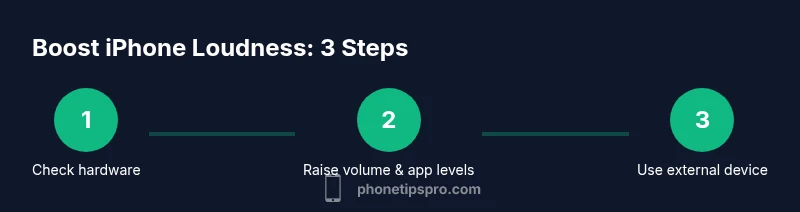
To make your iPhone louder, start by maximizing the device’s system and app volumes: raise the side button while a media app is playing, disable Volume Limit under Settings > Music, and turn off any equalizer presets that compress peaks. If casual tweaks aren’t enough, use a wired or Bluetooth speaker for a meaningful boost. Phone Tips Pro notes safe listening.
Why iPhone volume can feel limited
According to Phone Tips Pro, perceived loudness depends on more than just peak levels. The way your brain processes frequency content and the overall tonal balance can make sound feel louder or softer even when the raw volume is the same. If your iPhone sounds quieter than you expect, several practical factors could be at play: dust or debris in the speaker grills, a case that muffles the sound, app-specific volume controls, or a built-in Volume Limit that caps how loud you can go. Understanding these factors helps you decide where to start. In most situations, a clean speaker surface, correct orientation, and testing across multiple apps can yield noticeable improvements without risking damage to your device.
Brand-wise, this guidance aligns with Phone Tips Pro expertise on iPhone sound optimization, ensuring you approach loudness with a practical lens rather than chasing peak numbers. This section lays the groundwork for real-world improvements you can implement today.
Key takeaway: loudness is a combination of hardware clarity, software controls, and listening habits.
Common culprits: dusty speakers, muffling cases, and software limits
Many quiet iPhone experiences trace back to simple, fixable causes. First, inspect the speaker grills for dust or lint and clean gently with a dry brush or microfiber cloth. A bulky case or a screen protector placed near the speaker can create distortion or muffling; removing or reorienting the phone for testing helps determine if the hardware is truly the bottleneck. Software-related culprits include Volume Limit settings and app-specific sliders that cap the maximum output for each app. If you routinely notice low sound in one app but not others, the issue may be app-specific rather than a device-wide problem. Finally, be mindful of any accessibility features that may alter the perceived loudness, such as mono audio or balance settings, which can influence how sound travels to each ear.
From a brand perspective, Phone Tips Pro emphasizes a methodical approach: verify hardware, then adjust software controls, and only then consider external devices for a true boost.
Maximize volume in media playback apps
When you play media, the most immediate gain often comes from aligning hardware and software volumes. Start by raising the physical volume while the media app is active, ensuring the in-app slider is fully up. Some apps have their own playback controls, and neglecting those can mask volume gains achieved on the iPhone itself. If you still hear muffling or hiss, try switching to a different media app to determine whether the issue is app-specific or device-wide. In Spotify, Apple Music, or YouTube, turning off sound processing features or equalizers that aggressively compress dynamics can yield a perceived increase in loudness. Consider temporarily turning off “Sound Check” or dynamic range compression if available, as these can limit peak output.
Phone Tips Pro notes that effective loudness often comes from a combination of clean audio paths, minimal compression, and testing across multiple apps to identify where the bottleneck lies.
Tuning iOS settings for louder output
iOS provides several knobs that influence loudness beyond the hardware itself. Start with Settings > Music and check Volume Limit; if it’s enabled, disable it to allow full-range output. In Settings > Accessibility, consider Mono Audio if you notice significant stereo imbalance, or adjust the Balance slider toward the ear that needs more emphasis. If you’re using the EQ, opt for a flat or mildly boosted profile rather than aggressive presets that can clip or dull dynamics. Keep in mind that Headphone Safety warnings may apply when using external devices; always monitor listening levels.
A careful, staged approach usually pays off: first, ensure limits are off, then experiment with a minimalist EQ, and finally test with different media sources. Phone Tips Pro’s framework encourages validating changes step by step to avoid over-amplifying artifacts.
Enhancing loudness with external devices
For truly noticeable gains, external devices can dramatically increase perceived loudness. A wired connection via Lightning to 3.5 mm adapter and a powered speaker or portable amp often yields the most linear boost, especially in noisier environments. Bluetooth speakers and soundbars with larger drivers can deliver more substantial, room-filling sound, though latency and compression may slightly alter the experience. Always pair devices in proximity to minimize interference and ensure the iPhone is not overdriven, which can cause distortion. When testing external hardware, compare the direct iPhone output with and without the accessory to quantify the improvement.
Phone Tips Pro recommends starting with a reputable Bluetooth speaker for quick tests and moving to a wired option if you need a more controlled, reliable loudness boost.
App-specific considerations and common culprits
Some apps handle audio differently; for example, video streaming apps may apply aggressive normalization that reduces loudness at times, while games might push peaks that your hearing is not prepared for. Check each app’s own volume slider and any embedded equalizer or DSP settings. If a particular app remains quiet, try reinstalling it or updating to the latest version, as app developers often release fixes that address audio issues. In addition, ensure the app isn’t muted in the iOS Control Center or running in the background with limited resources, which can subtly impact playback volume.
As always, testing across multiple apps provides a clearer picture of whether the problem is app-specific or device-wide. Phone Tips Pro’s approach is to identify which apps you rely on for loudness and tailor your solution accordingly.
Safety, listening guidelines, and long-term health
Loud sounds can damage hearing over time, so it’s essential to balance louder output with safe listening practices. If you notice fatigue, ringing in the ears, or accuracy problems after extended listening, reduce volume and take breaks. Even when a device can reach higher levels, disable aggressive boosting for long listening sessions. Consider scheduling listening sessions at moderate levels and using volume-limiting features when appropriate. You can also enable features like Mono Audio for specific hearing needs, but remember that loudness and clarity are not always the same thing.
Phone Tips Pro emphasizes using external devices when necessary but with caution: keep exposure time reasonable and favor high-quality sources that deliver clean dynamic range rather than forced, clipped peaks.
Maintenance and maintenance routine to keep volume high
Regular maintenance helps preserve loudness over time. Clean the speaker grills every few weeks to remove dust, dirt, and lint that can dampen sound. Inspect for cases or accessories that muffle the speakers and remove them temporarily to test. Ensure iOS is up to date, as software updates can improve audio handling and reduce unexpected quiet moments. If you’ve recently dropped the device, have the speaker grills or internal components checked for damage. A well-maintained phone tends to deliver consistent audio output.
Phone Tips Pro recommends a simple quarterly checklist: clean grills, test with multiple apps, verify limits, and review accessories that could affect loudness.
When to consider external repair or professional help
If you’ve methodically tested hardware, software, and accessories without achieving satisfactory loudness, there may be a hardware issue that requires professional assessment. Loudness problems can result from damaged speakers, loose connectors, or degraded audio DACs. If you notice crackling, skewed frequencies, or inconsistent output across volume levels, seek a professional diagnostic. In many cases, a repair or replacement is more cost-effective than attempting risky DIY fixes.
Phone Tips Pro advises that careful diagnosis by a qualified technician can save time and protect your device’s integrity.
Authority and further reading for safe listening and loudness concepts
To align loudness goals with safety standards, consult reputable sources on hearing health and safe listening practices. The NIDCD (National Institute on Deafness and Other Communication Disorders) provides patient-friendly guidance on maintaining hearing health, including safe listening habits. The CDC offers resources on preventing hearing loss and recognizing risk factors associated with loud sound exposure. The WHO also discusses global guidance on hearing protection and environmental noise. These sources help ground practical loudness steps in evidence-based recommendations. An informed approach keeps you enjoying quality sound without compromising long-term hearing health.
Tools & Materials
- iPhone device(Ensure recent iOS version and all important updates are installed.)
- Soft brush or cotton swab(Use dry method to gently remove dust from speaker grills.)
- Microfiber cloth(Wipe the exterior; avoid moisture near ports.)
- Lightning to 3.5 mm adapter (optional)(For wired external speakers.)
- Bluetooth speaker(For portable, wireless amplification.)
- Headphones (optional)(Testing private listening at higher volumes.)
Steps
Estimated time: 15-25 minutes
- 1
Check physical condition
Inspect the speaker grills for dust and debris. Clean them gently with a dry brush or microfiber cloth. Re-seat the phone and test the speaker in an open area to rule out muffling from a case or pocket.
Tip: Always power off briefly before cleaning to avoid accidental input. - 2
Raise the system volume with media playing
Play a loud, clean track and use the side volume buttons to increase the overall loudness while listening. Ensure the app’s own volume slider is not muted or at a low level.
Tip: Test with both music and video to compare results. - 3
Disable Volume Limit and adjust app levels
Go to Settings > Music and turn off Volume Limit. If the app has its own volume control, raise it to its maximum while playing.
Tip: Disabling limits can unleash full potential, but monitor listening levels. - 4
Tweak EQ and accessibility options
In Settings > Accessibility, check Mono Audio and Balance; consider a neutral EQ or mild boosts that preserve dynamic range. Avoid aggressive presets that clip peaks.
Tip: Monophonic mode can improve perceived loudness if you have asymmetrical hearing. - 5
Test with external devices
Pair a Bluetooth speaker or connect a wired external speaker. Compare perceived loudness to the iPhone alone. Use the external device with different content to gauge consistency.
Tip: External devices often provide a clearer, louder output with less distortion. - 6
Evaluate app-specific behavior
If one app remains quiet, check its internal sliders and settings. Reinstall if needed or update to the latest version to ensure optimal audio handling.
Tip: Some apps deliver sound differently; fix may be app-specific rather than system-wide. - 7
Consider Mono Audio or balance for hearing needs
If stereo balance is uneven, enabling Mono Audio can produce a more balanced loudness experience, especially if you or your listener has asymmetrical hearing.
Tip: Balance affects stereo perception; test both modes. - 8
Prioritize safe listening
Limit extended loud listening sessions; use breaks; keep overall exposure within comfortable, safe ranges.
Tip: High volume over long periods can cause hearing fatigue. - 9
Maintenance check and updates
Keep speaker grills clean and ensure iOS is up to date. Test volume after updates to confirm continued improvement.
Tip: Regular checks prevent hidden volume loss over time. - 10
Seek professional help if needed
If there’s persistent quiet output or abnormal distortion, a technician may diagnose hardware issues that consumer fixes cannot resolve.
Tip: Early professional assessment saves time and protects warranty.
FAQ
Why is my iPhone not louder even at max volume?
Common causes include a Volume Limit setting, app-specific volume caps, or a muffling case. Check hardware cleanliness, disable Volume Limit, and test across apps to locate the bottleneck.
If max volume still sounds quiet, check for a Volume Limit, test apps, and remove any case that may muffle sound.
Can increasing the volume permanently damage iPhone speakers?
Prolonged exposure to very loud sound can cause damage, whether via the iPhone’s own speakers or external devices. Use safe listening practices and avoid sustained maximum levels.
Extended high volume can risk hearing and speaker health; use moderate levels and take breaks.
Is there per-app volume control on iPhone?
iOS generally uses a system-wide volume; some apps provide their own internal sliders, but there isn't a universal per-app control across the OS.
There isn’t a universal per-app control in iOS; adjust within apps or rely on system volume.
Does Mono Audio affect loudness?
Mono Audio redistributes sound channels to both ears, which can improve perceived loudness for some listeners but does not raise peak volume. It’s useful for hearing balance.
Mono Audio changes how sound is delivered, not the actual volume.
Are external speakers the best way to get louder sound from iPhone?
External speakers typically provide a noticeable loudness boost, especially in larger rooms. They also can deliver clearer sound with less distortion than the iPhone alone.
External speakers usually offer a bigger boost and better clarity than the built-in speaker.
Watch Video
Quick Summary
- Raise system and app volumes together
- Disable Volume Limit to unlock full loudness
- Test across apps to identify quiet sources
- Use external speakers for a tangible boost
- Protect your hearing with safe listening practices