How to Put iPhone in Dark Mode
Learn how to put iphone in dark mode across iOS. This educational guide covers enabling Dark Mode, automatic scheduling, app behavior, troubleshooting, and practical tips for better readability and battery efficiency.


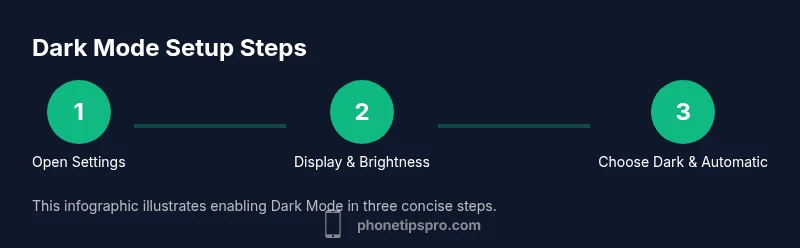
In just a few taps, you can put iphone in dark mode. Go to Settings > Display & Brightness, choose Dark under Appearance, and decide whether to enable Automatic scheduling (Sunset to Sunrise or a custom schedule). This changes the system UI and many compatible apps for a softer, night-friendly interface.
What Dark Mode Does on iPhone
Dark Mode changes the system UI to darker colors, providing a softer visual experience in low-light conditions. When you learn how to put iphone in dark mode, you are enabling a global appearance that affects the iOS user interface, including the Lock Screen, Control Center, notification banners, and supported apps. The goal is to reduce glare, improve readability at night, and align your device with a sleeker aesthetic. This approach is particularly beneficial on OLED screens, where darker pixels use less power. In this section, we explore how it works, what you can expect, and how to enable it quickly.
To start, consider a few core ideas. First, Dark Mode is not merely a color swap; it changes how UI elements render, using dark backgrounds and light text. Second, not every app automatically adopts the system setting; some developers implement their own themes, which may require you to adjust app-specific settings. Finally, you can control when and how Dark Mode activates, including automatic scheduling based on the time of day or sunset, which makes the feature effortless to maintain.
If you’re wondering how to put iphone in dark mode, the simplest path is to use Settings. From the home screen, open Settings, select Display & Brightness, and choose the Dark option under Appearance. You can then decide whether to turn on automatically or leave it manual. In most situations, this single change delivers a consistent, comfortable viewing experience across the system and a growing list of apps.
How Dark Mode Interacts with iOS Accessibility Features
Dark Mode interacts with several accessibility options that help users with different vision needs. For example, while Dark Mode provides a low-glare interface, Apple also offers Smart Invert and Classic Invert as separate accessibility tools that can affect how colors appear across the screen. If you enable these alternatives, some images or apps may look different, so you might need to adjust one or two settings to keep your preferred look. When considering how to put iphone in dark mode, keep in mind that accessibility features can complement or conflict with the system appearance, depending on the app and content. The key is to test your most-used apps after enabling Dark Mode and adjust per-app settings if available. This ensures you get a consistent reading experience without sacrificing critical visuals such as maps or photo previews. Practically, you can enable Dark Mode first, then review accessibility combinations under Settings > Accessibility to see what works best for you.
Tools & Materials
- iPhone with iOS 13 or later(Dark Mode is supported starting with iOS 13; ensure your device is updated.)
- Settings app access(Used to toggle Dark Mode and adjust automatic scheduling.)
- Optional: Control Center access(Quick toggle for on-the-fly changes without leaving the current app.)
- Stable internet connection (optional)(Needed for some app updates to ensure theme consistency in the store apps.)
Steps
Estimated time: 6-12 minutes
- 1
Open Settings
Unlock your iPhone and locate the Settings app. Tap to open it and prepare to adjust system appearance. This is the first, essential step in changing how your screen looks.
Tip: If you can’t find Settings, use Spotlight search by pulling down from the home screen and typing “Settings.” - 2
Go to Display & Brightness
In Settings, find Display & Brightness to access the appearance options. This section controls the global theme and how it affects most apps.
Tip: Use the search bar at the top of Settings if you’re having trouble locating Display & Brightness. - 3
Select Dark under Appearance
Tap Dark to switch the system theme to dark mode. You’ll immediately notice a darker UI across iOS features like the Lock Screen and menus.
Tip: If you don’t want a full switch yet, try Light first to compare both looks. - 4
Enable Automatic (Optional)
Turn on Automatic to let the device switch between Light and Dark modes automatically. Choose Sunset to Sunrise or a Custom schedule to match your routine.
Tip: Automatic mode is especially convenient for night-time browsing and reduces manual toggling. - 5
Choose a Schedule (Sunset to Sunrise or Custom)
If you selected Automatic, pick Sunset to Sunrise or set a Custom Schedule. This ensures the theme changes at predictable times.
Tip: Consider your local sunset time to maximize comfort in evening use. - 6
Test in Control Center
Swipe to open Control Center and confirm the theme change is reflected there as well. This quick check helps ensure the global appearance is active.
Tip: If you don’t see the change, exit and re-enter Settings, then recheck the option. - 7
Review App-Specific Settings
Some apps implement their own themes. Open a few frequently used apps to confirm they respect the system setting, and adjust if needed.
Tip: If a favorite app remains light, check its in-app settings for a theme option.
FAQ
What is Dark Mode on iPhone and how does it help?
Dark Mode uses darker colors for the system UI, reducing glare and making content easier to read in low-light environments. It can also save energy on OLED screens. The change applies to the iOS interface and many compatible apps.
Dark Mode uses darker colors for easier reading in low light and can save energy on OLED screens.
Will enabling Dark Mode save battery life?
On OLED screens, darker pixels use less power, which can help with battery life during prolonged use in dark themes. The overall impact varies by content and app activity.
Dark Mode can save a bit of battery on OLED displays, depending on how dark the app content is.
Can I schedule automatic Dark Mode?
Yes. In Display & Brightness, enable Automatic and choose Sunset to Sunrise or a Custom Schedule to match your daily routine.
Yes, you can automatically switch Dark Mode on and off based on time.
Can I force Dark Mode for individual apps?
Most apps follow the system theme, but some offer their own in-app theme options. If an app stays light, check its Settings for a dedicated theme toggle.
Most apps follow the system, but some have their own theme options.
What if my iPhone won't turn on Dark Mode after an update?
Verify iOS is updated, restart the device, and re-check the Dark Mode settings. If problems persist, reset settings as a last resort.
If Dark Mode doesn’t activate after an update, update iOS, restart, and review settings.
Is Dark Mode available on all iPhone models?
Dark Mode requires iOS 13 or later; most iPhone models support it, but check your device’s iOS version to be sure.
Dark Mode needs iOS 13 or newer; most iPhones support it.
Watch Video
Quick Summary
- Enable Dark Mode in Settings > Display & Brightness.
- Use Automatic for hands-free scheduling.
- Check app-specific themes for full consistency.
- Test Dark Mode in daily apps for best results.
- Customize a schedule that fits your routine.