How to Stop iPhone from Dimming: A Practical Guide
Learn practical steps to stop your iPhone from dimming, including Auto-Brightness, True Tone, Night Shift, and Low Power Mode. This expert guide provides clear, safe tweaks for a consistently bright display.


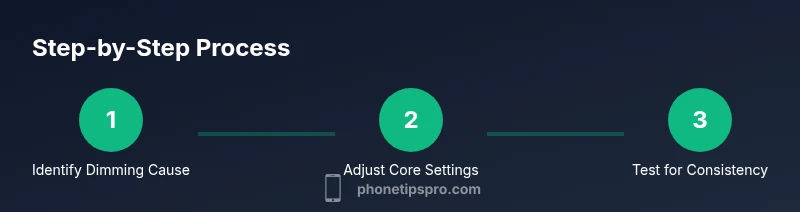
To stop your iPhone from dimming, disable Auto-Brightness under Settings > Accessibility > Display & Text Size, and optionally turn off True Tone and Night Shift under Settings > Display & Brightness. Make sure Low Power Mode is off and set a fixed brightness using the brightness slider in Control Center. If dimming happens in specific apps, check per-app display settings.
Why iPhone dims and what triggers dimming
Dimming on an iPhone isn’t random—it’s a built-in power-saving feature. Auto-Brightness adapts screen luminance to ambient light, while True Tone adjusts color temperature to match your environment. Night Shift shifts display to warmer tones after sunset. Low Power Mode can reduce brightness to extend battery life. According to Phone Tips Pro, understanding these levers helps you decide which ones to adjust without sacrificing readability. In practice, most dimming is user-controlled or caused by a recent software update, battery health, or a temporary system state. If you notice unusual dimming that persists, it’s worth testing each setting in isolation to identify the culprit.
Key takeaway: identify which feature or state correlates with dimming to apply a precise fix rather than a blanket comparison of brightness levels.
Turn off Auto-Brightness: the primary fix
Auto-Brightness is frequently the root cause of unexpected dimming. Disable it to keep brightness constant, then verify your manual brightness level. Navigate to Settings > Accessibility > Display & Text Size > Auto-Brightness and toggle off. After turning it off, use the brightness slider in Control Center to set your preferred level. This change remains effective across apps and home screens unless you re-enable Auto-Brightness.
Pro tip: if you don’t see Auto-Brightness in Accessibility, use the search bar in Settings and type Auto-Brightness to jump directly to the toggle.
Watch for edge cases: some third-party apps may override brightness in full-screen video or game modes; test with different apps to ensure consistency.
Manage True Tone and Night Shift for stable brightness
True Tone and Night Shift alter color temperature and can indirectly affect perceived brightness. If you want a fixed white point and consistent brightness, consider disabling these features temporarily. Go to Settings > Display & Brightness and toggle off True Tone, then adjust Night Shift off or on a manual schedule. Remember that True Tone is color-focused, not brightness-only, so color accuracy may change when you switch it off.
Why this helps: a stable color balance often coincides with predictable brightness and reduces eye strain during long sessions.
Note: re-enable them temporarily if you work in varied lighting environments to maintain natural colors.
Check Low Power Mode and battery health impact
Low Power Mode reduces background activity and can affect screen brightness as part of its energy-saving strategy. If you notice dimming when battery is low, turn off Low Power Mode and reassess brightness. Check Battery Health in Settings > Battery > Battery Health to understand if your device consistently drops performance due to aging components. If battery health is poor, dimming could occur more frequently during tasks requiring higher illumination.
Tip: keep your device charged above 20% during important tasks to minimize automatic dimming caused by power conservation.
Manual brightness control: when and how to use it
Manual brightness gives you predictable display levels even on variable lighting. Use the brightness slider in Settings > Display & Brightness, or swipe to Control Center and drag the brightness control. This method is essential when Auto-Brightness is off but you still experience occasional dimming due to ambient swings. Establish a baseline brightness that remains comfortable in most lighting conditions and reserve adjustments for those rare changes.
Caution: extreme brightness levels can strain your eyes; aim for a balance between visibility and comfort.
App-specific considerations and accessibility tweaks
Some apps have their own brightness-like adjustments (video players or games). In such cases, rely on system-level brightness and check the app’s internal settings for anything that might override display brightness. Accessibility options like Reduce White Point can dull the screen further if enabled. Review Settings > Accessibility > Accessibility Shortcut and confirm you haven’t enabled an option that dims the display unintentionally.
Practical tip: test dimming behavior while using a single app and then switch to another to confirm whether the issue is app-specific or system-wide.
Rebooting, updates, and periodic checks
Software updates can reset or reintroduce dimming behavior. After applying an update, review Auto-Brightness, True Tone, Night Shift, and Low Power Mode again. Rebooting the iPhone is a simple step that can clear temporary glitches causing dimming. Schedule periodic checks (monthly or after updates) to ensure your preferred brightness remains in effect.
When in doubt, a fresh check of the core settings often resolves most dimming issues.
Tools & Materials
- iPhone with current iOS(Any model supports display settings.)
- Settings app access(No specialized tools needed.)
- Control Center access(For quick brightness adjustments.)
- Stable internet connection(For iOS updates if needed.)
Steps
Estimated time: 5-10 minutes
- 1
Open Settings and find display options
Launch the Settings app and locate Display & Brightness and Accessibility sections. This is where brightness controls and related features live. Take a moment to note where Auto-Brightness, True Tone, Night Shift, and Low Power Mode reside so you can toggle them later.
Tip: Familiarize the exact menu paths before making changes. - 2
Disable Auto-Brightness
Navigate to Settings > Accessibility > Display & Text Size and turn off Auto-Brightness. This locks your current brightness level and prevents automatic changes in response to ambient light.
Tip: If you don’t see Auto-Brightness, use Settings search to locate it quickly. - 3
Turn off True Tone
Go to Settings > Display & Brightness and switch off True Tone. This ensures color temperature remains consistent and avoids automatic adjustments that can affect perceived brightness.
Tip: Test brightness with a white screen after turning off True Tone. - 4
Disable Night Shift or schedule adjustments
In Display & Brightness, toggle Night Shift off or adjust its schedule. Night Shift can contribute to warmer tones that feel dimmer in some lighting.
Tip: Test in both day and night lighting to confirm stability. - 5
Check Low Power Mode
Open Settings > Battery and ensure Low Power Mode is off. This helps preserve brightness as the device won’t compromise on screen luminance to save power.
Tip: If you rely on Low Power Mode, consider keeping it off when brightness consistency matters. - 6
Set a fixed brightness
Use the brightness slider in Display & Brightness or Control Center to set a comfortable, consistent level. This becomes your baseline whenever Auto-Brightness is off.
Tip: Aim for a level that’s easy on the eyes in most environments. - 7
Reboot and verify
Restart your iPhone after adjusting these settings to clear any lingering state that may cause dimming. Re-check Auto-Brightness and other toggles after the reboot.
Tip: A quick reboot can resolve stubborn dimming issues.
FAQ
What causes iPhone screen dimming automatically?
Auto-Brightness is the primary culprit, adjusting brightness to ambient light. True Tone, Night Shift, and Low Power Mode can also contribute. After updates, defaults may reset, causing temporary dimming.
Auto-Brightness is usually the culprit, with True Tone or Low Power Mode as secondary causes.
Is Auto-Brightness the only setting to adjust?
No. You should also review True Tone, Night Shift, and Low Power Mode. Adjustments to these settings, along with manual brightness control, provide the most stable results.
No — also check True Tone, Night Shift, and Low Power Mode.
Will turning off Low Power Mode stop the dimming?
Turning off Low Power Mode can restore brightness consistency, but you may lose some battery-saving benefits. Balance brightness needs with battery health.
Yes, turning it off can help brightness stay steady.
Why does brightness change after iOS updates?
Updates can reset brightness-related features or introduce new defaults. After an update, re-check Auto-Brightness, True Tone, and Night Shift.
Updates can reset some settings, so re-check them after installation.
How can I keep brightness consistent while using apps?
Use system-level brightness with Auto-Brightness off and test across apps to ensure no app override occurs. If needed, adjust per-app settings.
Set a fixed brightness and test across apps.
Watch Video
Quick Summary
- Disable Auto-Brightness to lock brightness.
- Turn off True Tone and Night Shift for color stability.
- Avoid Low Power Mode when you need consistent brightness.
- Manual brightness gives predictable results across apps.
- Reboot after changes to clear any glitches.