How to Schedule Text Messages on iPhone: Step-by-Step
Learn how to schedule text messages on iPhone using Shortcuts and reminders. This educational guide covers setup, testing, limitations, and troubleshooting for iMessage and SMS.


You can schedule a text on iPhone by using the Shortcuts app to automate sending a message at a specific time, or by using Reminders to prompt you to send it manually. This guide shows both methods, plus tips to test the setup and handle edge cases safely. This approach works across iMessage and SMS, with caveats.
Why schedule text messages on iPhone matters
In fast-paced life and work, sending the right message at the right moment matters. Scheduling a text on iPhone lets you compose messages in advance and have them released automatically at a set time or in response to a trigger. This can preserve relationships by avoiding late-night or early-morning pings and helps with cross-time-zone coordination. According to Phone Tips Pro, automation for everyday texting is easier to set up than many users expect, and a well-configured schedule can save minutes each day while keeping tone and timing consistent with your intentions. It also reduces forgetfulness when you need timely follow-ups for birthdays, confirmations, or appointment reminders. Phone Tips Pro's team notes that thoughtful timing is a key part of effective communication.
When scheduling makes sense and when not to
Not every message should be scheduled. For time-sensitive or sensitive topics, manual sending is safer. Scheduling works best for routine follow-ups, reminders, and plan-based communication like “I’ll be there at 3 PM.” Cross-time-zone messaging can be tricky; schedule messages to avoid late-night disturbances. Consider recipients' schedules and privacy expectations: some people may not appreciate receiving scheduled updates if plans change suddenly. By mapping your communication calendar, you can maintain reliability without micromanagement. In this section we discuss practical contexts and guardrails to maximize effectiveness while minimizing miscommunication.
Built-in options: Shortcuts for scheduled messages
Apple’s Shortcuts app enables automation for iPhone by tying triggers to actions. The core idea is to create a personal automation that runs at a defined time (or when a condition is met) and uses a Send Message action to deliver your text. In practice, you set the trigger, choose the recipient, compose the message, and configure whether the automation requires confirmation. The major caveat is that some iOS versions require confirmation before sending, especially when the phone is locked or in sleep. Testing the automation is essential to ensure it behaves as intended. Shortcuts also works with iMessage and standard SMS, though delivery times may vary by carrier.
Step-by-step overview (high-level) of the process
Before you dive into the hands-on steps, here is an overview of the flow:
- Define the message's purpose and audience.
- Decide the exact time or event that should trigger the send.
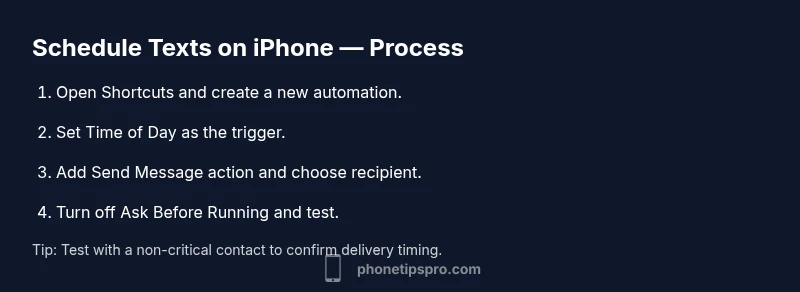
- Create a new personal automation in Shortcuts with the Time of Day trigger.
- Add a Send Message action, selecting the recipient and typing the content.
- Turn off Ask Before Running to allow automatic sending, and test with a dummy recipient.
- Save and monitor the automation for the first week to catch quirks. This overview helps you understand the logic so you can customize for workdays, vacation periods, or time-zone shifts.
Testing, validation, and edge cases
Test with a benign message first to confirm the trigger and sending flow. Check that the recipient receives the message at the anticipated time and that the timezone is correctly respected. If you use multiple recipients, duplicate the automation or create a separate one per recipient. Consider edge cases like daylight saving time changes, device reboot, or when the phone is offline. In some cases you may not want automated messages to fire if the battery is very low or network conditions degrade reliability. Keep a manual backup plan in mind.
Reminders as fallback and alternatives
If you prefer not to automate, you can set a Reminder at a specific time with a link to draft the message in your Notes or Messages. You can then copy-paste and send when you’re ready. This approach ensures you still follow a schedule without granting automation access to your messages. Reminders also allow you to adjust the text on the fly if plans change, preserving flexibility while maintaining timing discipline.
Limitations, privacy, and security considerations
Automation in iPhone is powerful, but there are caveats. Shortcuts automations may require permission and can fail if the device is locked, asleep, or offline. The message's content is stored in the Shortcuts workflow and may be visible to the device owner; be mindful about sensitive information. Also, be aware that some carriers or messaging formats may add latency or delay. Privacy-conscious users should review automation permissions regularly and avoid including sensitive data in scheduled messages. Phone Tips Pro recommends testing across scenarios to minimize surprises.
Real-world use cases and best practices
Communicate across teams by scheduling status updates every Friday at 5 PM. For personal life, schedule birthday well-wishes or reminders for important dates. Maintain a consistent cadence with family chat by planning messages for holidays or travel. The best practice is to keep the text concise, use clear timelines, and always include a call to action if needed. Over time, you’ll learn what timing yields the best responsiveness and can refine your automation rules accordingly. Phone Tips Pro believes that thoughtful timing is as important as the message content itself.
Common mistakes to avoid and how to fix them
Avoid drafting messages with last-minute edits after automation is scheduled. Always review your content in the Send Message action and keep a copy of templates elsewhere. Do not rely on automation for highly confidential information. If a recipient changes contact details, update the automation promptly. Finally, run quarterly audits of your automation rules to ensure they align with your current communication goals.
Tools & Materials
- iPhone with iOS 16 or later(Ensure Shortcuts is installed (built-in) and you are signed in.)
- Shortcuts app(Built-in app for automation; enable required permissions.)
- A recipient contact(Confirm the correct phone number or iMessage contact.)
- Stable internet connection(Needed for iMessage; SMS may work on carrier.)
- Draft message template(Optional if you want to reuse voice or templates.)
Steps
Estimated time: 15-25 minutes
- 1
Open Shortcuts and create a new automation
Launch the Shortcuts app, switch to the Automations tab, and tap Create Personal Automation. This starts the process of scheduling a message using a time-based trigger.
Tip: Choose a clear, non-ambiguous name for the automation to avoid confusion later. - 2
Select Time of Day as the trigger
Choose the exact time and set the days you want the message to send. This defines when the automation will run and deliver your text.
Tip: If you need a recurring schedule, enable multiple days or create separate automations for weekdays and weekends. - 3
Add the Send Message action
Add an action to Send Message, then select the recipient and type the message content. This is where you draft the exact text you want delivered.
Tip: Keep messages concise to ensure readability on mobile screens. - 4
Configure the content and recipient
Review the recipient field and message body, and make any adjustments needed for timing or person-specific notes.
Tip: Use placeholders if you plan to reuse templates with different recipients. - 5
Turn off Ask Before Running
Disable Ask Before Running to allow automatic sending at the scheduled time. Confirm the prompt if required the first time.
Tip: Test with a dummy contact before relying on real recipients. - 6
Test and verify
Run the automation manually to confirm delivery occurs as expected and that time zones are respected. Make adjustments if needed.
Tip: Note any delays caused by carrier latency and plan around it. - 7
Save and monitor
Save the automation and monitor its behavior for the first week. Keep a log of successes and any failed sends.
Tip: Set a backup reminder to review the automation monthly.
FAQ
Can I schedule multiple messages to different recipients?
Yes. Create separate automations for each recipient or duplicate the automation and modify the recipient field. This keeps timelines distinct and reduces confusion.
Yes. You can run separate automations for each person you want to message.
Does scheduling messages work with iMessage and SMS?
Scheduling works with both iMessage and standard SMS when using Shortcuts. Carrier latency and network conditions can affect actual delivery times.
It works for both iMessage and SMS, though delivery times may vary.
Will a scheduled message send if my iPhone is offline?
No. The automation requires the device to be online when the scheduled time arrives. If offline, the message will send when connectivity returns, if supported.
No, it needs an active connection when the time comes.
Can I edit or cancel a scheduled message after it’s set?
Yes. Open Shortcuts, locate the automation, and adjust the time, recipient, or content. To cancel, delete the automation or disable it.
Yes, you can edit or disable it as needed.
Are there privacy considerations with scheduled messages?
Be mindful of the data included in scheduled messages, especially sensitive details. Review permissions and avoid storing sensitive drafts in automations.
Yes, be careful with sensitive content and permissions.
What are practical alternatives if I don’t want automation?
Use Reminders to draft messages and paste them at the scheduled time, or manually send at the designated moment. This keeps timing while preserving control.
Reminders or manual sending are solid alternatives.
Watch Video
Quick Summary
- Plan message timing to respect recipients' schedules.
- Use Shortcuts to automate sending; test before relying on it.
- Keep a manual backup plan for edge cases and changes.
- Review automation settings periodically to stay aligned with goals.