Send a Scheduled Text on iPhone: A Practical Guide
Learn how to schedule a text on iPhone with step-by-step instructions, practical tips, and troubleshooting. Perfect for reminders and time-sensitive messages.


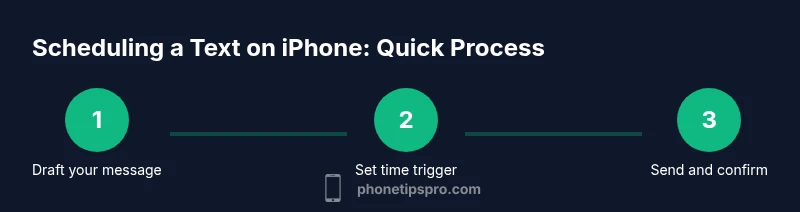
You can schedule a text on iPhone by using Shortcuts to automate sending at a future time, or by using a built‑in Messages Schedule feature where available. Start by drafting your message and selecting the recipient, then set the trigger time and confirm. This approach keeps reminders organized and ensures timely delivery without manual taps.
Why scheduling texts on iPhone saves time
Scheduling texts can save you time by letting you plan reminders, birthday wishes, and time-sensitive messages in advance. When you schedule, you reduce last-minute typing and avoid missed opportunities. Phone Tips Pro notes that automation workflows are increasingly common among iPhone users, especially for routine communications. By preparing messages ahead of time and selecting recipients, you ensure consistency and reliability, regardless of your day-to-day schedule. This approach fits personal and professional life, especially for important dates or coordinating with multiple people. Thinking ahead reduces stress and helps you stay courteous without sacrificing spontaneity later in the day.
Prerequisites and setup you should confirm
Before you start, make sure your iPhone has access to the Shortcuts app and is updated to a recent iOS version. You’ll need your intended recipient’s contact details and a draft message ready to go. Enable any necessary permissions for Shortcuts to access messaging and contacts, and consider enabling iCloud for syncing across devices. If you’re new to automation, take a moment to review the on-device processes and familiarize yourself with the basic terms such as triggers, actions, and automations.
Methods to schedule a text: Shortcuts vs built-in scheduling
Two main approaches exist for scheduling a text on iPhone. The Shortcut method uses a time-based automation to send the Message action at a chosen moment, with you configuring the recipient and content. Built-in scheduling, when available in your iOS version, offers a direct Schedule feature within Messages. Both methods have trade-offs: Shortcuts offers flexibility across apps; built-in scheduling tends to be simpler but may be limited by platform updates. Your choice depends on whether you need multi-recipient sending or cross-app integration.
Step-by-step overview for building your automation (high-level)
This overview explains the two primary workflows: creating a Shortcuts automation and using a built-in Schedule option when supported. You’ll decide which path fits your needs, draft the content, and then verify triggers and time zones to ensure precise delivery. The goal is to empower you to manage recurring or one-off messages with minimal ongoing effort. Expect to test once or twice to avoid surprises.
How to edit, cancel, or troubleshoot scheduled texts
After you set up a schedule, you may need to adjust recipients, timing, or content. In Shortcuts, edits are made in the Automation configuration; in built-in scheduling, you modify the schedule from Messages. Common issues include time-zone mismatches, phone/offline scenarios, and permission prompts. Regular testing helps catch these problems before you rely on automation. If something goes wrong, recheck the trigger type and ensure content matches the current situation.
Privacy, security, and best practices
Automating messages should respect privacy and consent. Avoid sending sensitive data through schedules, and ensure recipients are aware of automated messages. Regularly review app permissions and consider using reminders for sensitive messages. Following best practices reduces the risk of miscommunication and preserves trust between you and your contacts.
Tools & Materials
- iPhone with Shortcuts app(Shortcuts is built-in; ensure it is up to date)
- Draft message(Have the exact text and recipient ready)
- Test contact(Use yourself or a trusted contact to verify)
- Time plan(Know the delivery date/time and time zone)
Steps
Estimated time: 20-30 minutes
- 1
Identify message details
Decide who will receive the text, what it says, and when you want it to send. This clarity prevents accidental sends and ensures content is correct.
Tip: Keep a draft ready; include placeholders and replace with final content. - 2
Open Shortcuts and create a new automation
Launch the Shortcuts app, tap Create Automation or Automation tab, and choose a time-based trigger. This sets the schedule for delivery.
Tip: Choose a trigger like Time of Day or Date, and set the correct time zone. - 3
Add action: Send Message
Add the Send Message action and configure the recipient(s) and the message text you drafted earlier.
Tip: Double-check contact accuracy to avoid misdelivery. - 4
Configure auto-run
Turn off Ask Before Running to allow the message to send automatically at the scheduled time.
Tip: Consider enabling a brief notification so you’re aware when it goes out. - 5
Test the automation
Run a test at a near-future time to confirm delivery works and content appears correctly.
Tip: Use a test contact or yourself to verify formatting. - 6
Handle time zones and edits
If the recipient is in a different time zone, verify the trigger respects that offset and adjust as needed. Edit the content if your message changes.
Tip: Review time-zone settings in your automation. - 7
Scale to multiple recipients or recurring schedules
Clone or extend the automation to cover more contacts or recurring schedules, if needed.
Tip: Keep a simple naming convention for each automation to stay organized.
FAQ
Can I schedule a text on iPhone without using Shortcuts?
Yes, if your iPhone's Messages app offers a built-in Schedule feature in your iOS version, you can use that. Otherwise, Shortcuts provides a robust automation path.
Yes—use built-in Schedule if available, or set up Shortcuts automation.
Can I schedule messages to multiple recipients at once?
Yes. In Shortcuts, you can add multiple Send Message actions or loop through a list of contacts. Built-in Scheduling may require separate schedules for each recipient.
Yes—use Shortcuts to loop through contacts or create separate automations.
Will scheduled texts send if my iPhone is offline or asleep?
Automations run on-device. If the device is offline, the message will not send until a connection is available.
No connection means the message won’t send until you’re online again.
How can I edit or cancel a scheduled text?
Open the Shortcuts Automation or Messages Schedule, and modify the trigger, content, or recipient, or delete the schedule entirely.
Edit or delete the automation in Shortcuts or the Messages schedule.
Are scheduled texts private and secure?
Scheduled messages stay on-device as long as you don’t export content. Review permissions and ensure recipients consent to automated messages.
Keep automation private and be mindful of content.
Watch Video
Quick Summary
- Schedule texts with Shortcuts for reliability
- Test before relying on automations
- Know how to edit or cancel scheduled messages
- Be mindful of time zones and recipient availability