Can You Schedule a Text on iPhone? A Practical How-To Guide
Learn how to schedule texts on iPhone using built-in Shortcuts, reminders, and trusted apps. Step-by-step instructions, tips, and privacy notes for 2026.


Yes—you can simulate scheduled texting on iPhone using Shortcuts automations or trusted third‑party options. In practice, you’ll set a time trigger, compose the message once, and let the automation prompt or send when the clock hits. Native, fully automatic sending may require confirmation on some iOS versions. This guide covers reliable, privacy‑aware methods that work across recent iPhone models.
Can you schedule a text on iPhone? A practical introduction
In today's mobile environment, can you schedule a text on iPhone? The short answer is yes, but the approach is nuanced. The Phones Tips Pro team emphasizes that you won’t find a single “Send Later” button in Messages. Instead, you leverage built‑in automation with Shortcuts, reminders as prompts, or trusted third‑party apps. This flexibility lets you prepare content ahead of time and trigger sending at a precise moment. The goal is reliability without compromising privacy or requiring constant manual intervention. By understanding the available methods, you can pick a workflow that fits your routines and your device's iOS version. This section sets the stage for practical, actionable steps you can implement with minimal friction, keeping the user experience smooth and predictable. Remember to align your approach with your privacy preferences and the sensitivity of the content you send.
bold:null,
Tools & Materials
- iPhone with iOS 14 or later(Ensure the device is updated to the latest iOS for optimal Shortcuts support.)
- Shortcuts app(Pre-installed on most devices; if removed, reinstall from the App Store.)
- Apple ID logged into iCloud(Needed for iCloud-enabled automation features.)
- Message template ready to send(Keep your copy concise and testable.)
- Recipient contact or group(Have the exact contact or group name handy to avoid send errors.)
- Stable internet or cellular connection(Helpful but not strictly required for on-device automation.)
Steps
Estimated time: 15-25 minutes
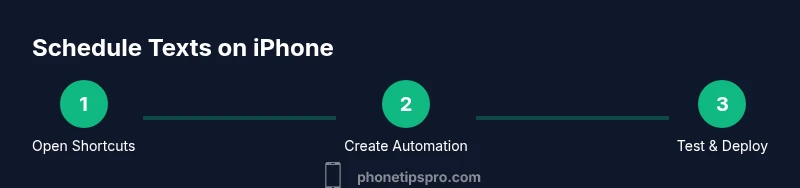
- 1
Open Shortcuts
Launch the Shortcuts app and tap Create Shortcut or Automation. This is the central hub for building an upcoming message flow. You’ll define what triggers the send and what content goes with it.
Tip: If Shortcuts isn’t visible, re-download from the App Store and sign in with your Apple ID. - 2
Choose a trigger
Select a trigger such as Time of Day or Location. The trigger determines when the text task will start. You can set a precise time window for delivery.
Tip: For consistent results, pick a fixed time that matches your recipient’s time zone. - 3
Add the Send Message action
In the action list, add Send Message, choose the recipient, and paste or craft the message content. This step is where you define exactly what gets sent.
Tip: Keep the message concise; long texts can be truncated on some devices. - 4
Enter the message
Type the exact text you want to send or use variables for dynamic content (like the date). This creates a stable template you won’t have to rewrite later.
Tip: If you plan to personalize, consider using variables like CurrentDate or RecipientName. - 5
Configure running behavior
Decide whether to prompt before sending or allow automatic sending. Most iOS setups require a prompt unless your automation is configured to run without confirmation.
Tip: Be aware that auto‑sending may increase risk of accidental messages. - 6
Test the automation
Run a test at a nearby time to verify the message appears in the correct thread and reaches the intended recipient.
Tip: Check delivery status in Messages and adjust the automation if needed. - 7
Save and monitor
Save the automation and monitor its performance over the next days. If it misfires, tweak the trigger time or content.
Tip: Keep a simple version history to revert changes quickly. - 8
Optional: add a fallback reminder
If you’re uneasy about automation, set a calendar or Reminders alert as a fallback so you send manually at the target time.
Tip: Use Reminders as a safety net if device constraints change.
FAQ
Can I schedule a text automatically on iPhone without any prompts?
You can set up Shortcuts automation to send, but many iOS configurations require a prompt or confirmation before sending.
Shortcuts can schedule, but you often need to confirm the send.
Is scheduling text messages available natively in Messages app?
There isn’t a true native 'send later' in Messages; use Shortcuts or reminders as workarounds.
Messages doesn’t include a direct send-later feature.
Which iOS versions support scheduling texts using Shortcuts?
Scheduling via Shortcuts works on recent iOS versions with automation features; keep your device updated.
You’ll want the latest iOS to access the automation options.
Will scheduled texts send if my phone is offline?
Automations run when the device is online; if offline at trigger time, the send may occur when the device reconnects.
If you’re offline, the automation will wait until your phone is online again.
Can I schedule texts to a group chat?
Yes, you can target a group chat by selecting the group in Shortcuts’ Send Message action.
Group messages can be scheduled the same way as individual texts.
Are there privacy concerns when using Shortcuts to send messages?
Automations can expose your content if someone accesses your device; review permissions and secure your device.
Be mindful of who can trigger automations and see the messages.
Watch Video
Quick Summary
- Schedule text with Shortcuts for reliable timing.
- Understand iOS automation limits and confirm requirements.
- Test thoroughly before relying on automation.
- Keep messages concise and permissions clear.