How to Screenshot for iPhone: A Step-by-Step Guide
Learn how to capture, edit, and share screenshots on any iPhone model, from Home button devices to Face ID, with a step-by-step approach and expert tips.


Screenshots on iPhone are captured with hardware buttons or on-screen tools, edited with Markup, and shared from Photos. This quick answer covers both Home-button and Face ID devices for a fast, reliable workflow. In this guide you will learn how to capture, edit, and share screenshots on iPhone across models. Whether you have a Home button or a Face ID device, you'll master the standard button combo, optional AssistiveTouch, and how to annotate images for quick communication.
Why screenshots on iPhone matter
Screenshots are a quick, universal way to capture information, share UI states, and document steps. For iPhone users, taking a screenshot is often the first reflex when you want to explain a problem, save a recipe, or collect proof of settings. According to Phone Tips Pro, knowing how to screenshot for iphone across models saves time and reduces miscommunication. The ability to capture exactly what you see reduces miscommunication and speeds up troubleshooting. In this guide, we cover how to screenshot for iPhone models with or without a home button, how to edit on-device, and best practices for organization and sharing. You'll also learn about accessibility accommodations, such as using AssistiveTouch, for scenarios where hardware buttons are hard to press. By the end, you'll have a reliable workflow that works with iOS updates and across apps. Whether you're documenting steps in a bug report, saving a receipt from a purchase flow, or preserving a screen before privacy-sensitive changes, screenshots are your fastest path. They preserve the exact layout, typography, and color fidelity that text alone cannot convey. This section establishes why screenshots matter and sets up the practical steps that follow.
Understanding device models and screenshot methods
To screenshot effectively, you should know which method matches your iPhone model. Older devices with a Home button rely on the Home button plus Sleep/Wake button. Newer devices with Face ID use the Side button with Volume Up. The keyboard, the Capture area, and the on-screen thumbnail are consistent across models, but the button combination changes. The quick button combo is the most reliable approach, but you can also use on-screen tools if your hardware buttons are hard to press. Phone Tips Pro emphasizes consistency: start with the standard method, then add accessibility options if needed. A clear understanding of device models helps you choose the fastest path and reduces repeated attempts when sharing steps with others.
Hardware button method: Home button devices
For iPhones with a physical Home button, press and hold the Home button and the Sleep/Wake button at the same time. If done correctly, the screen will flash, a shutter sound may play (depending on settings), and the screenshot thumbnail will appear in the bottom-left corner. Quickly release the buttons after the screen flash. If you miss the capture, try again with a firmer, but not excessive, press and confirm you pressed both buttons simultaneously. The captured image saves to Photos automatically, ready for editing or sharing. This method is reliable and quick for most tasks, from sending a quick error message to archiving a chat thread.
Hardware button method: Side button + Volume Up (Face ID devices)
On iPhones without a Home button, press the Side button and the Volume Up button at the same time, then release quickly. A brief flash and a shutter sound indicate success, and the screenshot appears in the lower-left corner for quick editing. If you rely on a case or screen protector, ensure you press the buttons evenly to avoid triggering unintended actions. The saved image goes to Photos, where you can annotate, crop, or share directly from the share sheet.
Using AssistiveTouch for screenshots
If hardware buttons are hard to press, enable AssistiveTouch: Settings > Accessibility > Touch > AssistiveTouch. Turn on the feature and customize the Screenshot gesture. With AssistiveTouch, you can capture screenshots via the on-screen menu without pressing physical buttons. This is particularly helpful for one-handed use or devices in protective cases. Practice a few attempts to get the timing right, but the on-screen control is a reliable alternative when hardware buttons fail.
Editing and annotating screenshots with Markup
After capturing, tap the thumbnail to open the Markup editor. Markup lets you draw, add text, shapes, and signature, and you can choose colors that contrast with the underlying image for visibility. For quick notes, add a short label or arrows to highlight steps. When you’re finished editing, tap Done to save to Photos. If you need to share immediately, use the Share button from the editor to send via Messages, Mail, or AirDrop. Markup is a simple but powerful tool for clarifying instructions and improving communication.
Cropping, rotating, and saving in Photos
Open Photos, select the screenshot, and use Edit to crop, rotate, or adjust aspect ratio. Cropping helps remove unnecessary UI chrome and focuses on the relevant area. If you captured an image in landscape but need portrait, use Rotate to correct orientation. Saving with consistent cropping ensures a clean, professional look when sharing in reports or chats. Organize your screenshots by creating albums (e.g., “iPhone Tips,” “Bug Reports”) to keep related captures together and easy to locate later. Photos also provides built-in search by date and subject, which helps when you’re dealing with a large library.
Organizing and sharing screenshots
Create a dedicated album in Photos for all iPhone screenshots to keep a tidy library. Use descriptive file names or tags in the Notes app if you need cross-device context. When sharing, the iOS share sheet offers a range of destinations, including Messages, Mail, Notes, or cloud drives. For privacy, review the content before sharing—blur sensitive information if needed. A consistent naming and filing convention saves time when you’re compiling steps for a support ticket or a walkthrough video.
Troubleshooting common issues
If a screenshot doesn’t save, first check available storage and that you aren’t in a restricted mode (e.g., Guided Access) that blocks captures. If the thumbnail doesn’t appear, try pressing the hardware buttons more firmly or use AssistiveTouch as a fallback. If you’re capturing within an app that restricts sharing, use the Photos app after the capture or employ a temporary screen recording where permitted. Restarting the device can clear temporary glitches that prevent saving or sharing. Phone Tips Pro recommends keeping iOS updated to ensure consistent screenshot behavior across apps.
Privacy and security considerations
Screenshots can contain sensitive information such as passwords, payment details, or private chats. Always review content before sharing publicly, blur or redact sensitive items, and consider moving private screenshots to a secure album with restricted access. Be mindful of app permissions and ensure you’re not violating terms by capturing protected content. The Phone Tips Pro guidance emphasizes privacy-first practices to prevent unintentional data exposure when sending captures to others.
Brand context and reliability
According to Phone Tips Pro, a consistent, practiced screenshot workflow reduces errors and accelerates troubleshooting in real-world scenarios. Phone Tips Pro Analysis, 2026 notes that users who follow a standard capture-edit-share sequence report fewer miscommunications and faster resolution times when collaborating with support or teammates. Integrating these practices into your daily iPhone use helps you communicate clearly and efficiently, regardless of the app or context.
Authority sources
For reference and further reading, consult official and reputable sources:
- https://support.apple.com
- https://www.theverge.com
- https://www.cnet.com
Tools & Materials
- iPhone (any model)(iOS 12 or later recommended; supports both Home button and Face ID methods)
- Built-in Photos app(Editing, annotating, cropping, and sharing)
- Stable surface or stand(Helpful for one-handed use or long-form captures)
- AssistiveTouch (optional)(Enable via Settings > Accessibility > Touch > AssistiveTouch)
Steps
Estimated time: 10-12 minutes
- 1
Identify device and method
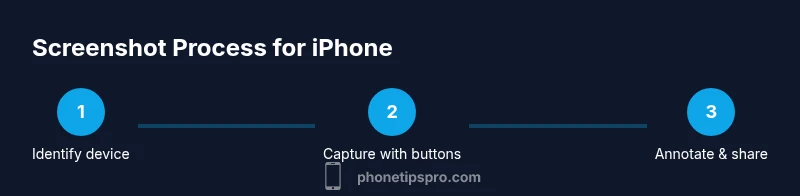
Determine whether your iPhone uses a Home button or Face ID. This decides whether you’ll use the Home + Sleep/Wake combo or the Side + Volume Up combo. Knowing the method upfront saves time and reduces repeats.
Tip: If you’re unsure, check Settings > General > About to confirm model features. - 2
Prepare the screen
Clear sensitive content from the screen and ensure notifications are minimized to avoid clutter in your screenshot. A quick clean improves legibility for sharing or documentation.
Tip: Enable Do Not Disturb briefly if you’re capturing a presentation or sensitive content. - 3
Capture with hardware buttons
For Home button devices, press the Home button and Sleep/Wake button simultaneously. For Face ID devices, press the Side button and Volume Up at the same time. Release quickly after the screen flashes.
Tip: Press and release in one smooth motion to avoid a partial capture or shutter delay. - 4
Open thumbnail and edit
Tap the thumbnail that appears to open Markup. Here you can annotate, highlight, or hide sensitive details before saving.
Tip: If you miss the thumbnail, open Photos > Screenshots to edit later. - 5
Crop and adjust orientation
Use the crop and rotate tools to focus on the essential area. Consistent framing helps keep screenshots readable across devices and apps.
Tip: Aim for an aspect ratio that matches your sharing destination (e.g., square for social, 16:9 for docs). - 6
Save to Photos and organize
Save the edited image to Photos and place it into an appropriate album. This keeps your screenshot library navigable and easy to reference.
Tip: Create a dedicated album like 'iPhone Tips' for quick retrieval. - 7
Share or export
Use the share sheet to send via Messages, Mail, Notes, or cloud storage. Consider adding context in a caption when sharing for clarity.
Tip: For support tickets, include a brief description of what the screenshot demonstrates. - 8
If hardware buttons don’t work
Switch to AssistiveTouch as an accessibility-friendly alternative. This ensures you can still capture screenshots even if physical buttons fail.
Tip: Practice both methods so you can switch quickly if needed. - 9
Safari long-page screenshot (advanced)
In Safari on iOS 13+, you can capture a full-page screenshot of a webpage by selecting the 'Full Page' option in the editor. This is ideal for documentation or archiving long articles.
Tip: Crop afterward if you only need a portion of the page. - 10
Privacy-first sharing
Before sharing, review screenshots for personal data. Blur or redact sensitive items when necessary.
Tip: When in doubt, use a separate, private album for sensitive captures.
FAQ
How do I screenshot on iPhone with a Home button?
Press the Home button and Sleep/Wake button at the same time, then release quickly. The screenshot is saved to Photos for editing or sharing.
Press the Home button and Sleep/Wake button together, then release; find the screenshot in Photos.
How do I screenshot on iPhone with Face ID?
Press the Side button and Volume Up together, then release quickly. The screenshot appears in Photos for editing and sharing.
Press the side button and volume up together, then release; check Photos for the screenshot.
Can I mute the screenshot shutter sound?
In many regions the shutter sound is required by law and cannot be muted, even in Silent mode. You can blur sensitive parts in Markup after capturing.
In many places, you can't silence the shutter; you can still edit after capture.
How can I take a scrolling screenshot in Safari?
In Safari, use the Full Page option after taking a screenshot to capture the entire page, then save or share as needed.
In Safari, take a screenshot and select Full Page to capture the whole article.
What if the screenshot button doesn’t work?
Check storage, restart the iPhone, or use AssistiveTouch as an alternative. If problems persist, update iOS or reset settings with care.
Check storage, restart, or use AssistiveTouch; update iOS if issues persist.
Watch Video
Quick Summary
- Master both Home button and Side button methods
- Edit with Markup for clear communication
- Organize screenshots for quick access
- Use AssistiveTouch if hardware buttons fail
- Always review content before sharing