How to Screen Record on iPhone: A Complete Guide
Learn how to screen record on iPhone using built-in tools. This step-by-step guide covers enabling Recording in Control Center, capturing audio, editing, and sharing videos for tutorials and troubleshooting.


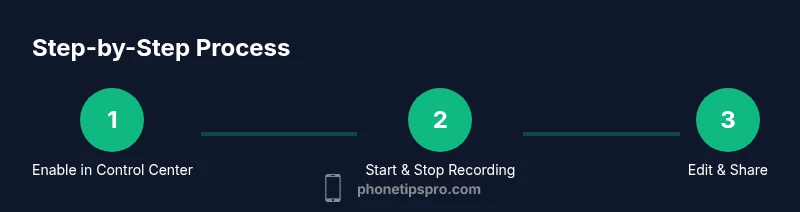
Screen recording on iPhone is built into iOS and easy to use. This guide shows you how to start, stop, and configure audio, then save or share your video. By the end, you’ll be ready to create tutorials, bug reproductions, or troubleshooting demos with confidence.
What is screen recording on
How the screen recording feature works on
Step 1: Prepare your
Step 2: Start recording and choose audio options
Swipe down from the upper-right corner (or up from the bottom on older models) to open Control Center. Press and hold the Screen Recording button to reveal microphone options. Turn Microphone On if you want your narration or ambient sound captured along with the screen. Tap Start Recording and perform the actions you want to demonstrate. If you need a brief countdown, let it run before you begin.
Step 3: Navigate and capture your content without surprises
As you navigate apps, settings, or demonstrations, try to keep actions smooth and predictable. If a notification appears, you can dismiss it or temporarily enable Focus modes to minimize interruptions. This helps ensure your video remains clean and professional. It’s also useful to plan on-screen annotations or callouts to emphasize key steps.
Step 4: Stop recording and locate your video
When you’re finished, open Control Center again and tap the red recording badge to stop, or tap the status bar and confirm stop. The video is automatically saved to Photos. Open Photos to preview, trim unwanted sections, and adjust the start and end points. This quick check helps you ensure the recording is ready for editing or sharing.
Step 5: Edit, trim, and share your screen recording
Photos offers basic editing tools to trim, crop, or rotate the video. For tutorials, you might want to add captions, highlight certain UI elements, or blur sensitive information. Export the final version and share via Messages, email, or cloud storage. If you need more advanced editing, consider a dedicated editor, but most common needs are covered by the built-in options.
Tips for privacy, storage, and performance
Pro tip: Clear any sensitive content from the screen before recording, and use Do Not Disturb to minimize interruptions. Regularly manage storage—long recordings can take up substantial space. If you frequently create videos, consider organizing exports in a dedicated folder and naming conventions that make retrieval easy. For creators, this workflow enables rapid, repeatable results without external tools.
Common issues and quick-workarounds (edge cases)
If Screen Recording isn’t appearing in Control Center, recheck Settings > Control Center and ensure Screen Recording is included. If the recording is grainy or laggy, close unused apps, free storage space, and retry with a shorter video. For
Tools & Materials
- iPhone with iOS 11 or later(Ensure you have a recent iPhone model with the latest iOS for best results.)
- Sufficient storage space(Long recordings need more space; aim for at least a few hundred MB free.)
- Control Center access(Customize Controls to include Screen Recording.)
- Microphone (optional)(Turn on if you want to capture narration or ambient sound.)
- Editing app (Photos or alternative)(Optional for trimming, captions, or enhancements.)
Steps
Estimated time: 15-25 minutes
- 1
Open Control Center and add Screen Recording
Go to Settings > Control Center > Customize Controls. Add Screen Recording so the button is available in Control Center for quick access.
Tip: Confirm the button appears in the Control Center before starting a project. - 2
Access recording controls and decide on audio
Press and hold the Screen Recording button to reveal the Microphone option. Turn Microphone On if you want narration or environmental sound.
Tip: Test audio levels briefly before recording the full session. - 3
Start recording and perform your content
Tap Start Recording and navigate to the app screen or workflow you want to capture. Speak clearly if using audio; keep the UI actions steady.
Tip: Use a short script or outline to stay on track. - 4
Stop recording when finished
Open Control Center and tap the red status indicator, or tap the status bar to stop. The video saves to Photos automatically.
Tip: Verify the capture before moving to editing. - 5
Edit the video if needed
Open Photos,trim the start and end, and add captions or annotations if useful for viewers.
Tip: Keep edits minimal to preserve natural pacing. - 6
Share or archive the final version
Export the clip, share it via message or cloud storage, and archive the original for future edits.
Tip: Use consistent naming for easy retrieval later.
FAQ
How do I enable Screen Recording on iPhone?
Open Settings > Control Center > Customize Controls, then add Screen Recording. Swipe to open Control Center and tap the Screen Recording button to start.
Add Screen Recording to Control Center, then tap to start.
Can I record screen with audio?
Yes. Tap and hold the Screen Recording button in Control Center to enable Microphone, then start the recording.
Yes—turn on the mic before you start.
Where are screen recordings saved?
Screen recordings are saved to the Photos app automatically after you stop recording.
They go to Photos by default.
How long can I record a screen recording?
There is no fixed limit beyond available storage and memory; your recording lasts as long as you record.
As long as you have storage, it can be long.
Can I edit screen recordings on iPhone?
Yes. The Photos app offers trimming and basic enhancements; for more advanced editing, you can use third-party apps.
Yes, you can edit directly in Photos or with other apps.
Watch Video
Quick Summary
- Enable Screen Recording in Control Center before use
- Choose whether to capture microphone audio
- Edit, trim, and annotate for clarity
- Share videos responsibly with privacy in mind