How to Tell When Your iPhone Was Made: A Step-by-Step Guide
Learn how to determine the manufacture date of your iPhone using model numbers, serial numbers, packaging, and official Apple resources. This step-by-step guide from Phone Tips Pro helps iPhone users date devices with confidence.


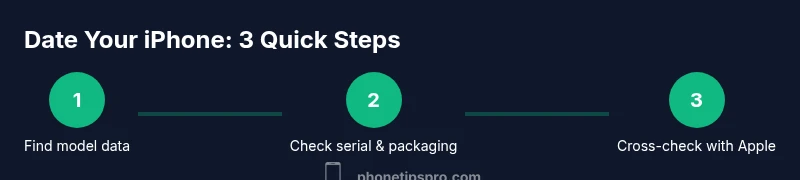
To tell when your iPhone was made, start with the model name and model number (A-number) from Settings > General > About or the original box. Then locate the serial number and use Apple’s Check Coverage or model lookup to bound the manufacture window. Cross-check against packaging and release timelines for confirmation. This three-point check provides a reliable estimate.
Key identifiers on an iPhone
Key identifiers are your starting points for dating a device. According to Phone Tips Pro, the trio of model name, model number, and serial number provides the most reliable clues when you want to know when your iPhone was made. Start by locating the Model Name and Model Number in Settings > General > About; if the device has the original box, the label on the box will list the model code (A-number) and a regulatory identifier. If you still can't read the device itself, inspect the SIM tray—Apple often prints the model code there as well. The Serial Number, typically found in Settings > General > About or on the back of the box, is another powerful clue. While Apple does not publish a straightforward year-for-year encoding of serials, combining these identifiers gives you a tightly bounded manufacturing window, which is often sufficient for troubleshooting, warranty checks, or resale planning. Phone Tips Pro emphasizes using these data points together for the clearest result.
How to locate model information on your iPhone
To identify the exact hardware family, open Settings and navigate to General > About. Look for two key items: Model Name (e.g., iPhone 14 Pro) and Model Number (often starts with A and is followed by four digits, such as AXXXX). If the on-device text is hard to read, check the original box or SIM tray for the A-number and a regulatory code. Some models also display a separate regulatory code on the back of the device or SIM tray. Recording all available identifiers—Model Name, Model Number, and Serial Number—gives you multiple data points to cross-check against Apple’s official reference lists, reducing guesswork and helping you date your device more accurately. The more identifiers you collect, the tighter your date window will be.
Decoding the serial number and regulatory codes
Serial numbers encode lifecycle data, but Apple does not publish a public, universal decoding chart. In practice, the serial can narrow down the production window when used with model information and official references. Third-party guides sometimes claim year/week patterns, yet these vary by device generation and production region, and Apple periodically changes encoding schemes. For a cautious approach, treat serial-derived dates as an approximate range rather than an exact year. If you have a replacement unit or a refurbished device, the serial’s date range can be less reliable; rely more on the model code and packaging clues. Phone Tips Pro notes that serial decoding is best used as a supplementary data point, not the sole basis for dating.
Use official resources to confirm a manufacturing window
Official resources provide the most trustworthy anchors. Start with Apple's Check Coverage tool to validate the device's serial and view warranty-related dates, then use Apple’s model lookup resources to map the A-number to the device generation and launch year. You can also reference the Apple support article that explains how to identify your iPhone model by model number. While these tools may not give you the exact manufacture date, they typically produce a bounded window (for example, 'late 2020’ or 'early 2022') that is accurate for most practical purposes. Phone Tips Pro emphasizes cross-checking all three data points—model name/number, serial, and packaging—before drawing a conclusion.
Packaging clues and activation history
Original packaging often contains crucial clues you won’t find in settings alone. The box label usually lists the exact model number (A-number) and regulatory identifiers, and sometimes it shows region and a production date code for internal use. While a packaging date is not the production date, it can help narrow the window when combined with the device’s model code and serial information. If you purchased the iPhone secondhand, ask the seller for photos of the box, the SIM tray, and the serial number; cross-reference these with Apple’s resources. Activation history—when the device first connected to Apple servers—can also hint at the timeframe, though it’s not a definitive date. Use packaging, activation data, and model/serial details together for the best estimate.
Practical workflow: three reliable routes
Phone Tips Pro recommends a practical workflow you can repeat for any iPhone model. Route 1: Use Settings to gather Model Name, Model Number, and Serial Number, then consult Apple’s official model lookup and warranty pages to map the data to a manufacturing window. Route 2: Compare the serial-derived window with the packaging details from the original box. Route 3: If the results still conflict or you lack packaging, contact Apple Support with the serial, model, and proof of purchase. Each route reinforces the others and reduces uncertainty.
Privacy, safety, and caveats
Be mindful of scams when looking up device information online. Only use official Apple resources (support.apple.com, checkcoverage.apple.com) and trusted retailer listings for model codes. Avoid entering your device’s serial on untrusted sites that request personal data. If you suspect the device has been refurbished or tampered with, the dates may not reflect the original manufacturing period. Always verify with multiple sources to reduce the risk of misdating your iPhone.
Tools & Materials
- iPhone device(Any model you want to date)
- Original packaging (box)(Box label helps with model number)
- Settings app on iPhone(Location for Model Name/Number)
- Internet access(Needed for checking Apple resources)
- Pen and notebook(Jot down model numbers and serials)
Steps
Estimated time: 15-25 minutes
- 1
Find model details
Open Settings > General > About and record Model Name and Model Number. If the device is hard to read, check the box label or SIM tray for the A-number. This data is the backbone for dating the device.
Tip: Note both Model Name and Model Number for cross-checks - 2
Locate the serial number
Find the Serial Number in Settings > General > About or on the original box. Copy it exactly as shown (letters and numbers) for use with Apple’s verification tools.
Tip: Ensure you copy the entire string; a missing character can lead to errors - 3
Use official resources to bound the date
Visit Apple’s Check Coverage page to view warranty data and use model lookups to map the A-number to a generation year. Combine results to form a date window.
Tip: Always prefer official Apple sources as your primary reference - 4
Cross-check with packaging clues
If you have the original box, compare the model code on the label with the on-device data. Packaging often corroborates the model/year pairing.
Tip: Look for mismatches and investigate further - 5
Account for refurbished or replacement units
If the device was refurbished or replaced, the original manufacture date may not match the current serial. Use all data points to estimate.
Tip: Ask for proof of purchase or service history - 6
If unsure, contact Apple Support
Provide the serial, model number, and proof of purchase. Apple Support can help you interpret the data and confirm a date window.
Tip: Have your purchase receipt handy
FAQ
Can I get the exact manufacture date from iPhone Settings alone?
No. iPhone Settings typically show model and serial information for dating, not an exact manufacture date. You’ll usually end up with a date window that’s narrowed by multiple data points.
No, the system usually only provides a date window rather than an exact date; you’ll want to cross-check several data points.
Is the serial number the best way to date an iPhone?
Serial numbers can help narrow down a timeframe when used with model information and official references, but they aren’t a guaranteed date by themselves.
Serials help narrow the window but aren’t definitive on their own.
Does packaging date reflect the manufacture date?
Packaging dates and manufacture dates do not always align. Use them as corroborating clues rather than a primary source.
Packaging dates aren’t the same as manufacture dates, so treat them as clues.
What if my iPhone was refurbished?
Refurbished devices can obscure the original manufacture date. Rely on model numbers and serials, and request original purchase details when possible.
Refurbished devices can complicate dating—ask for purchase records.
Can Apple confirm the manufacture date directly?
Apple can help narrow dates via support channels, but they may not provide an exact date. Expect a date window based on serial/model data.
Apple can provide a date window, not always an exact date.
Do all iPhone generations use the same serial code format?
No. Serial formats have evolved over generations and regions. Always rely on official tools and cross-check with packaging for best results.
Serial formats differ across generations; use multiple data points.
Watch Video
Quick Summary
- Identify core model details first
- Cross-check serial with official tools
- Use packaging data to corroborate
- Treat manufacture date as a window, not a single day
- Verify with multiple sources for confidence