How to Tell When Your iPhone Was Purchased: A Practical Guide
Discover reliable methods to determine when your iPhone was purchased using settings, receipts, Check Coverage, and carrier data. A step-by-step approach from Phone Tips Pro to verify purchase dates and protect warranty eligibility.


According to Phone Tips Pro, you can determine when your iPhone was purchased by checking several sources: the device settings for serial number and purchase-related data, your original Apple order number or receipt, and any carrier activation records. You’ll need the iPhone itself, access to the Apple ID used at purchase, and any packaging or receipts you still have. This quick check points you to the most reliable date window.
How to tell when your iPhone was purchased
Knowing the precise purchase date of your iPhone can feel like a hidden breadcrumb, but several practical clues exist. According to Phone Tips Pro, the best starting point is to assemble concrete records: receipts, order confirmations, and the device's current identifiers. Since most hardware does not store an explicit purchase date in a readable format, you’ll rely on corroborating evidence from Apple’s ecosystem, carrier records, and retailer documentation. This section walks you through the core sources you should consult, and how each source can narrow the date window. Expect to invest a bit of time gathering materials, but you’ll end with a confident range rather than a single uncertain date.
Settings data you can pull from the iPhone
Your iPhone contains several data points that can help frame the purchase window. Open Settings > General > About to locate your device’s Serial Number, Model, and ICCID/SIM data. While the About screen does not always list a purchase date, the serial number is essential to verify warranty start dates with Apple Support. If you can access the device, take a screenshot of this page for your records and keep it with any receipts. When combined with check coverage data and service history, these details quickly narrow the timeframe of purchase.
Apple Check Coverage and warranty timing
Apple’s Check Coverage tool is a primary resource for estimating when your device entered service. Enter the serial number or IMEI to see whether your iPhone is under warranty or AppleCare. The warranty period provides a rough anchor tied to the purchase date, especially if you know when AppleCare was activated. If Check Coverage shows a warranty start date, you can work backward to approximate the purchase. Remember that warranty timelines can differ by plan and region, so interpret results within that context. Phone Tips Pro recommends corroborating with other sources rather than relying on a single data point.
Receipts, invoices, and order numbers
Original receipts are the most direct evidence of purchase. Look for electronic invoices from Apple, a carrier, or an authorized retailer. If you don’t have the receipt, try searching your email for keywords like “iPhone,” “order,” “Apple Store,” or “invoice.” If you bought online, your Apple ID’s purchase history may link to the device, though hardware purchases sometimes appear as part of a larger order. If you still cannot locate a receipt, contact the seller with your device’s serial number for a duplicate invoice. Phone Tips Pro notes that keeping digital copies in a dedicated folder helps you retrieve purchase data quickly in the future.
Carrier activation data and activation date
If the iPhone was activated through a carrier, the activation date on your account is a strong purchase-date proxy. Log in to your carrier’s online account portal or contact support to obtain the activation timestamp associated with the device’s IMEI/MEID. If the activation date corresponds to a known price plan start or contract date, use that context to refine the purchase window. Carriers may provide additional details such as the original SIM card activation date, which can be useful when receipts are missing. For new devices, activation typically aligns with the purchase date.
Handling edge cases and data gaps
Sometimes no single source provides a precise date. In those cases, assemble all available clues and construct a purchase window rather than a single date. For example, if the serial checks show a warranty start in May 2024 and you possess a receipt indicating a purchase in May 2024, you can place the purchase date firmly in that month. When data conflicts, give priority to official records (receipts, order numbers, and carrier activation data) and document any assumptions. The goal is a credible window that you can defend if warranty or trade-in questions arise.
Practical steps you can take today
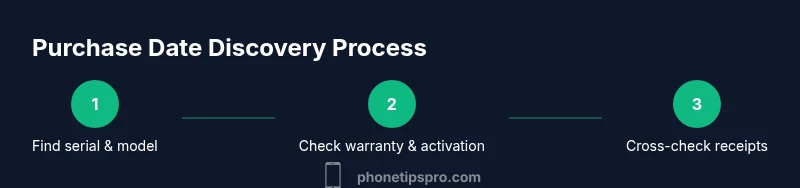
Start with Settings to capture the serial number, then check Apple’s Check Coverage tool to obtain a warranty anchor. Locate any receipts or emails about the Apple Store or retailer purchase. If possible, log in to your carrier account to retrieve the activation date. Finally, compare these data points and outline a purchase window. Maintaining a simple, organized archive of purchase records will make future checks straightforward and quicker.
Tools & Materials
- iPhone device(Keep device on hand to access Settings for serial/IMEI)
- Original purchase receipt or order confirmation(PDF or printed copy; include date and seller)
- Apple ID login credentials(Helpful for accessing purchase history)
- Carrier account login(Useful to view activation date if purchased with carrier)
- Box/packaging or product label(May show model, serial, or order number)
- Computer or smartphone to access emails(For searching receipts and order confirmations)
Steps
Estimated time: 30-60 minutes
- 1
Find the device serial number
Open Settings > General > About and locate the Serial Number. This unique identifier is essential for checking warranty status and cross-referencing with Apple support tools. If you cannot access Settings, check the SIM tray or packaging; some devices display the serial there. Capture a screenshot for your records.
Tip: Take a quick photo of the serial label on the device or box for backup. - 2
Check Apple Check Coverage
Visit Apple’s Check Coverage page and enter the serial number to retrieve the warranty status and coverage dates. Use this data point to anchor your purchase window. If the page shows a warranty start date, note it and plan to corroborate with receipts.
Tip: Use the exact serial number; a small mismatch can yield no results. - 3
Locate receipts and order numbers
Search your email and Apple account for the original purchase receipt or order confirmation. If you bought in-store, locate the printed receipt or contact the retailer for a duplicate invoice. Store digital copies in a dedicated folder for easy access in the future.
Tip: Use search terms like ‘iPhone,’ ‘order,’ ‘Apple Store,’ and ‘invoice’. - 4
Check Apple ID purchase history (where available)
Some Apple IDs show device registrations or order history that can hint at the purchase date. If you can access it, review the history for the device’s entry. If not visible, this data point may be less reliable for exact dates but can support your window.
Tip: If you see a hardware purchase entry, screenshot and save alongside receipts. - 5
Review carrier activation data
If the device was bought through a carrier, log in to your carrier’s account and check activation dates. This data often aligns with the purchase date and can be especially helpful if Apple receipts are missing. Record the activation timestamp and any plan details.
Tip: Activation date on the carrier portal is often the strongest secondary anchor. - 6
Synthesize data into a purchase window
Cross-reference all gathered data points (serial-based warranty date, receipts, carrier activation). If exact dates conflict, establish a credible window (e.g., May 2024–June 2024) and document any assumptions. This window helps with warranty claims or trade-in eligibility.
Tip: Document sources and dates in a notes file so you can reproduce the window later.
FAQ
Can I determine the exact purchase date from my iPhone alone?
Not always. The iPhone itself rarely stores the exact purchase date. You’ll typically rely on receipts, order confirmations, warranty data, and carrier activation records to create a purchase window.
The device doesn’t usually show the exact date, but receipts and activation records help you pinpoint a window.
Does Apple support provide the purchase date?
Apple Support can help verify purchase details if you provide the device serial number and proof of purchase. They may confirm the date or help you establish a plausible window based on warranty data.
Yes, with your serial and proof of purchase you can get guidance from Apple Support.
What if I bought a used iPhone?
Used devices may lack purchase data. Rely on the seller’s receipt or any activation history available via the carrier or Apple Check Coverage to infer a window.
Used devices often lack full data, so use seller records and activation dates for guidance.
Can I find purchase date using Check Coverage?
Check Coverage can provide a warranty start date, which helps anchor the purchase window. It does not always reveal the exact purchase date, so combine with receipts and activation data.
Check Coverage can help, but it may not show the exact date on its own.
What if I no longer have receipts or emails?
Contact Apple Support or the carrier with your device’s serial. They may be able to provide alternative evidence or confirm activation dates to establish a window.
If receipts are lost, reach out to support with the serial for guidance.
Is it safe to share my serial with support?
Only share your serial with official support channels. Do not post it publicly; use secure portals or direct customer service contacts.
Share your serial only with trusted support channels.
Watch Video
Quick Summary
- Gather receipts and serial to anchor the date
- Use Apple Check Coverage to verify warranty start
- Carrier activation data can confirm the purchase window
- Create a purchase window if exact date isn’t available
- Keep organized records for future reference