How to Tell When Your iPhone Was Activated
Learn how to determine when your iPhone was activated using Settings, Apple ID history, and carrier records. This step-by-step guide from Phone Tips Pro helps you verify the activation date accurately and safely.


Goal: determine when an iPhone was activated. You can verify activation timing by exploring Settings (General > About), reviewing your Apple ID purchase history, and confirming carrier activation records. For official proof, contact Apple Support with your device's IMEI and purchase data so they can provide an activation timestamp. Note that activation timestamps are subject to data availability from carriers and Apple.
Why activation date matters
Activation date is a key piece of device history. According to Phone Tips Pro, knowing when an iPhone was activated helps with warranty validation, device history checks during resale, and troubleshooting activation problems. If a phone won’t activate, or you’re verifying ownership after a trade-in, the activation timestamp is often the most reliable reference point. Activation marks the moment the device established its first connection to a cellular network or the internet, signaling when the device began its usable lifecycle. While some users assume activation happens at purchase time, carriers and Apple record the actual activation event, which can differ from the purchase date. Understanding this distinction helps you answer questions about prior ownership, repair eligibility, and eligibility for carrier support. In short: activation date is about when the device first went live, not merely when it was built or boxed.
Where activation date lives on iPhone
There is no single 'Activation Date' toggle in most iPhones. The activation event is logged both by Apple and by the carrier, and some devices may surface limited hints in Settings. Start by checking Settings > General > About for device identifiers (Model, IMEI, Serial Number) and any notes that indicate a first activation. If your device supports it, you may also see the warranty status tied to activation, or the initial setup date in the Setup Assistant logs. Rarely, you may find activation details in the iOS Diagnostics data accessible through Settings > Privacy > Analytics & Improvements; however, this data is anonymized and varies by iOS version. If you cannot locate activation details here, move to Apple ID records and carrier records for a complete picture.
Basic checks you can perform on the iPhone
Start with the simplest checks before contacting support. Open Settings, navigate to General > About, and note the model name, serial number, and IMEI. Then compare the Device's first activation era by reviewing the time stamps in the Setup Assistant logs and any initial configuration dates. If you see an activation banner or a message about cellular service activation, screenshot it for reference. Remember: iOS hides many system-level timestamps from users; you may need to rely on external records for an exact date. For clarity, collect all dates you find and organize them in a notes app or on paper before reaching out to support.
Using Apple ID purchase history
Your Apple ID account might help anchor a rough activation window. Visit appleid.apple.com and sign in, then go to Buy or View Purchases to review your device list and purchase dates. While this won’t always show an activation timestamp, it gives a purchase-context anchor that helps you narrow the activation window. If you recently bought the device, the purchase date can closely approximate the activation date, especially when combined with the carrier activation timeline. Save any relevant screenshots for future reference. If you no longer have access to the Apple ID, try the device's original purchaser information or receipts.
Checking carrier activation records
Carriers keep activation logs tied to your SIM and account. Log in to your carrier's online account portal or contact customer support to request activation date information for your device, referencing its IMEI and/or SIM IMSI. In many cases, the carrier can confirm the exact activation date and the initial service activation status. If you purchased the phone outright and this data is not visible, ask for the earliest date the device connected to the network. Remember that carrier records are typically time-sensitive and may require identity verification for security purposes.
When activation date is not visible
Sometimes activation data is not exposed via consumer-facing interfaces. In those cases, your best options are: contact Apple Support with your device identifiers, request an official activation timestamp, and provide proof of purchase. If the device was refurbished or re-sold, the original activation can be obscured; you may need to rely on carrier records or Apple verification. Document every attempt and keep a log of who you talked to and when.
How to request official activation timestamp from Apple
Prepare these inputs before you call or chat with Apple Support: your iPhone's serial number and IMEI, the original purchase date (if available), and proof of ownership. Explain your purpose (e.g., warranty validation, resale, or security audit) and ask for an activation timestamp or the activation event log associated with your device. If Apple cannot disclose a precise timestamp, ask for the nearest available data point and the date range. Always use official channels and avoid sharing sensitive identifiers in public forums.
Practical steps you can take today
- Gather identifiers (IMEI, serial number)
- Check Settings > General > About for initial clues
- Review your Apple ID purchase history for purchase context
- Check your carrier account for activation timestamps
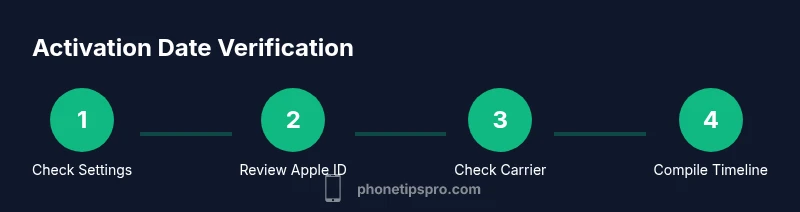
- Record all findings with dates and sources. For visual guidance, see the accompanying diagram below.

Privacy considerations and data accuracy
Activation data is sensitive. Handle it with care and rely on official channels. Do not share device identifiers in public spaces or untrusted apps. Time zone differences can affect activation timestamps; ensure you interpret dates in the correct locale. When in doubt, request multiple data points (timestamp, start of service, and any related activation logs) to triangulate the actual activation date.
Real-world scenarios
Imagine you just bought a used iPhone and want to confirm it hasn’t been activated under another owner’s account. By cross-checking Apple ID purchase history, carrier logs, and activation prompts, you can build a credible activation timeline. In another scenario, you’re filing a warranty claim and need to prove the device was activated within a specific window. Gather all sources promptly, then present a clear activation timeline to the support team.
Quick cross-check workflow
- Open Settings > General > About to collect device identifiers. 2) Check Apple ID purchase history for purchase dates. 3) Log in to or contact your carrier for activation timestamps. 4) If needed, contact Apple Support with proof of ownership to obtain an official timestamp. 5) Compile a concise activation timeline with dates and sources for future reference.
What to do next
With activation-dating knowledge, you’re better prepared for warranty claims, resale, and troubleshooting. Use the activation clues to verify device history and confirm ownership. If you still face uncertainty, rely on official support channels and keep a documented record of every step taken.
Tools & Materials
- iPhone device(Any model running a supported iOS version for reliability)
- Apple ID credentials(Access to review purchase history and devices linked to your account)
- Stable internet connection(Wi-Fi or cellular data to access Apple/Carrier services)
- Carriers account access(Optional for direct activation timestamps from the carrier)
- IMEI and Serial Number(Found in Settings > General > About or on the device box)
- Notepad or note app(Record findings with dates for future reference)
Steps
Estimated time: 20-40 minutes
- 1
Open device details
Open Settings > General > About to locate the device identifiers (IMEI, Serial Number). Note the exact strings and take a screenshot if possible. This establishes the data points you will compare against records.
Tip: Use screenshots to preserve exact numbers and avoid transcription errors. - 2
Check the Apple ID purchase history
Sign in at appleid.apple.com and review your device purchases. Record the purchase date and any device name listed. This helps anchor a rough activation window when direct activation data isn’t visible.
Tip: If you can’t access the account, request purchase receipts from the original seller. - 3
Review carrier activation records
Log in to your carrier account or contact support to request the activation date tied to your SIM/IMEI. Provide the device identifiers and explain your goal (warranty, resale, security).
Tip: Carrier records are time-sensitive; ask for the activation timestamp in the same time zone as it occurred. - 4
Compare data across sources
Match any activation-related dates from Settings, Apple ID, and the carrier. Look for a common window and note discrepancies. Use the most conservative date range as the activation estimate.
Tip: Document the rationale for choosing the final date range. - 5
Request official timestamp from Apple (if needed)
If you still need a definitive timestamp, contact Apple Support with your IMEI/Serial Number and proof of ownership. Ask for the activation timestamp or the activation event log associated with your device.
Tip: Be prepared to provide purchase proof and a brief explanation of your request. - 6
Record and secure your findings
Create a concise activation timeline with dates, sources, and screenshots. Save this in a secure location for future reference, especially if you plan to sell or exchange the device.
Tip: Organize by source and date to simplify future auditing.
FAQ
Can I see the activation date directly on my iPhone?
Not always. Some devices show hints in Settings, but official activation timestamps are typically recorded by Apple or the carrier.
You may see some activation hints in Settings, but official timestamps usually come from Apple or your carrier.
Is activation date different from purchase date?
Yes. Activation date is when the device first connected to a network; purchase date is when you bought it.
Activation date is when the device first connected to a network; purchase date is when you bought it.
How can I verify activation date with Apple?
You can contact Apple Support and provide your device's IMEI/serial number and proof of purchase to obtain an activation timestamp.
Contact Apple Support with your device info to verify activation timestamp.
What about factory resets?
Factory reset does not change the original activation date; it resets data but not activation history.
Factory reset won't change the activation date.
Can a carrier provide activation date?
Yes. Your carrier can confirm activation date on file, especially for SIM-based activations.
Your carrier can confirm the activation date on file.
What steps if activation date is missing?
If activation date isn't visible, use Apple Support or carrier records and preserve other device information for verification.
If you can't see activation date, contact Apple Support or your carrier.
Watch Video
Quick Summary
- Check activation date in Settings and Apple ID history
- Cross-check with carrier records for accuracy
- Activation data may not be visible on all devices
- Contact Apple Support for official verification if needed
- Document findings for future reference