How to use AI on iPhone 16: Practical Guide for Daily Tasks
Learn practical, step-by-step ways to leverage AI on your iPhone 16. From enabling Siri AI features to using AI in apps, shortcuts, and privacy-friendly tips.


On iPhone 16, you can practically use AI by enabling on-device intelligence via Siri, Shortcuts, and AI-powered features in apps. Start by updating iOS to the latest build, turning on Siri & Search recommendations, and using Shortcuts to automate tasks. This quick guide shows the simplest path to leverage AI while preserving privacy and battery life.
Why AI on iPhone 16 matters
The iPhone 16 brings more capable AI features that can streamline everyday tasks. With improved on-device processing, the phone can handle natural language prompts, smarter photo tagging, and timely suggestions across apps without always uploading data to the cloud. According to Phone Tips Pro, embracing these AI advances makes routine interactions faster and more intuitive, without sacrificing privacy.
In practical terms, AI on iPhone 16 translates into three core advantages: convenience, speed, and personalization. Convenience comes from context-aware suggestions in Messages, keyboard predictions, and proactive app actions that appear at the right moment. Speed arises from on-device processing that reduces latency and keeps results local when possible. Personalization emerges as AI learns your habits through approved app data and your interactions, tailoring recommendations across Photos, Notes, and Reminders.
As you begin exploring, keep two ideas in mind: on-device AI vs cloud-assisted AI, and the settings you control. On-device AI runs entirely on the iPhone, delivering fast results and stronger privacy since data may not need to leave the device. Cloud-assisted AI can unlock more complex capabilities by sending data to remote servers, which may provide richer models but with privacy considerations. On iPhone 16, you’ll likely notice smoother performance, better offline functionality, and smarter app suggestions. The goal is practical, private, and context-aware assistance that fits naturally into daily routines.
Quick-start: Set up AI on iPhone 16
Getting started with AI on iPhone 16 is straightforward if you approach it as a small series of steps. First, ensure your device is on the latest iOS build, since AI features rely on the most recent algorithms and bug fixes. Next, enable Siri & Search recommendations in Settings > Siri & Search so the system can surface AI-augmented results across apps. Then open Settings > Privacy & Security to review which apps have access to mic, camera, and data used by AI features. Finally, open the Shortcuts app and try a basic automation, such as “Ask AI for weather” or “Summarize today’s notes.” This initial setup gives you a taste of on-device AI with a safety net of privacy controls. As you experiment, keep your expectations aligned with your current needs: you don’t need every feature at once—start small and scale up. If you rely on cloud-assisted AI, consider enabling it only for specific apps where you trust the provider and understand the data flow. By following these steps, you’ll be able to begin using how to use ai on iphone 16 in practice, with a foundation you can expand later.
Use AI in Messages and Apps
AI-enhanced features really shine when integrated into daily communication and app usage. In Messages, you can receive smarter suggestions for quick replies and tone-aware drafting. Keyboard predictions adapt as you type, helping you compose longer messages faster. In compatible apps, AI can summarize long documents, extract key points from emails, or translate text on the fly. You’ll notice these improvements as you interact with friends and colleagues, making conversations more efficient. When you want more control, open the specific app’s AI settings to tailor how aggressively it suggests content or processes data. Remember to balance convenience with privacy by reviewing app permissions and disabling AI features for apps you don’t fully trust.
Automate with Shortcuts and AI
Shortcuts remains the central tool for weaving AI into your workflows. Start with a simple prompt, like “Summarize today’s notes,” and then save it as a Shortcut. You can extend this by combining AI prompts with other actions, such as saving a summary to Notes or sharing a brief digest via Messages. The beauty of Shortcuts is that you can build multi-step automations that run with a single tap or a voice command. As you get comfortable, create more personalized prompts—e.g., “Draft a reply to this email” or “Create a task from a message.” Always test new shortcuts on non-sensitive content first and refine prompts to reduce errors.
AI in Photos and Camera
AI-powered photo features help you organize memories and improve image quality. Visual Look Up can identify objects in your photos, making it easier to search for specific moments later. Live Text lets you copy and paste text from photos, which is handy for saving directions or quotes. The camera itself benefits from AI-driven scene detection and exposure adjustments, giving you better results with minimal effort. Use AI to automatically crop and enhance images for social sharing, then fine-tune manually if you want a consistent look across your gallery. If you frequently shoot videos, experiment with AI-based stabilization and color corrections available in your camera app.
Privacy, Security, and Battery considerations
AI on the iPhone 16 is designed to respect user privacy, especially when on-device processing is possible. To maximize privacy, prefer on-device AI when available and limit data sharing with cloud services. Review Settings > Privacy to control how apps use your microphone, camera, location, and contacts in AI features. Battery life can be impacted by AI tasks, particularly those running in the background or processing heavy prompts. Use Low Power Mode during demanding AI activities if you notice battery drain, and disable AI features you don’t regularly use. Regularly check iOS privacy notices and app permissions so you stay in control of what AI can access.
Troubleshooting common AI issues on iPhone 16
If AI features feel slow or unresponsive, start with a simple round of reboots and app updates. Ensure you are on the latest iOS build, then revisit Settings > Siri & Search to reset suggestions. If Shortcuts aren’t running as expected, open the Shortcuts app and reauthorize any required permissions. Check per-app AI settings to confirm features are enabled, and disable those you don’t trust. For persistent issues, consult Apple Support or the system status page to see if there are ongoing outages affecting AI services. If privacy prompts seem overly aggressive, adjust permissions gradually rather than turning everything off at once.
Authority sources
- https://nist.gov/itl/ai-risk-management (NIST AI Risk Management Framework)
- https://ai.stanford.edu/ (Stanford AI Lab)
- https://news.mit.edu/ (MIT News)
Real-world use cases and keeping AI sharp
People use AI on iPhone 16 to save time on routine tasks, craft clearer messages, and organize information more effectively. A common pattern is to create a Shortcuts workflow that fetches today’s calendar, summarizes phone notes, and posts a concise update to a team channel. With repeated use, the AI models learn your preferences and you’ll see more accurate suggestions. However, you should stay mindful of data privacy, limit cloud-based prompts to trusted services, and keep your iPhone updated to benefit from the latest improvements. The Phone Tips Pro team suggests regular practice with AI prompts to maximize efficiency while maintaining control over your data. This approach makes AI a reliable companion rather than a background gadget.
mainTopicQueryRequiredForWikiLookup?):null
Tools & Materials
- iPhone 16(With latest iOS update installed)
- Apple ID(Needed for iCloud features and app syncing)
- Stable internet connection(Essential for cloud-based AI features)
- Shortcuts app(For creating automation tasks)
- Privacy settings awareness(Review app permissions and adjust as needed)
Steps
Estimated time: 30-45 minutes
- 1
Update iPhone and prep AI basics
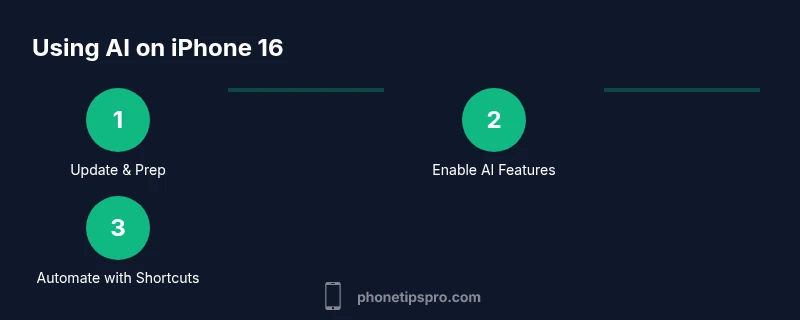
Open Settings > General > Software Update and install the latest update. Then go to Settings > Siri & Search and enable suggestions. This lays the foundation for reliable AI across apps.
Tip: Check battery and storage before updating to prevent failures. - 2
Enable AI features and permissions
Review app-specific AI features in Settings > Apps and enable on-device AI where possible. Grant camera, mic, and Location access only to trusted apps.
Tip: Limit data shared with AI services by preferring on-device processing. - 3
Create your first Shortcut
Open Shortcuts, create a simple automation like ‘Ask AI for weather’ and save it. Run it to see AI respond and take action.
Tip: Start with a single prompt to learn syntax before combining actions. - 4
Experiment in Messages and Photos
Use AI-driven suggestions in Messages to draft replies and try Live Text to extract info from photos.
Tip: Disable AI prompts if they become distracting. - 5
Tune privacy and battery
Review Settings > Privacy and adjust AI data flows. Enable Low Power Mode if AI tasks affect battery life.
Tip: Regularly audit permission grants for AI features. - 6
Measure impact and refine
Track time saved and adjust shortcuts and prompts to match your workflow. Periodically update prompts for better results.
Tip: Document successful prompts to reuse later.
FAQ
What AI features are built into iPhone 16?
iPhone 16 includes on-device AI capabilities, Siri intelligence, Smart Suggestions, and AI-enhanced apps that help with messaging, photos, and automation. These features aim to improve convenience while prioritizing user privacy.
iPhone 16 offers built-in AI features like Siri intelligence and AI-enabled apps to help with messages, photos, and automations.
Do AI features require internet access?
Some AI features run entirely on-device and work offline, while others may rely on cloud processing and an internet connection for more complex tasks. You can choose which AI features to enable based on your privacy and connectivity needs.
Some AI works offline on-device, others need internet for bigger tasks.
How can I protect my privacy when using AI on iPhone 16?
Prioritize on-device AI when possible, review per-app AI permissions, and disable cloud-based prompts for apps you don’t trust. Regularly update iOS to benefit from the latest privacy protections.
Use on-device AI, check app permissions, and keep iOS up to date to stay protected.
Can AI automate my daily routines on iPhone 16?
Yes. You can create Shortcuts that use AI prompts to summarize notes, draft messages, or fetch information. Start with simple automations and progressively add complex chains.
You can automate tasks with Shortcuts that use AI prompts to save time.
What should I do if AI features aren’t working as expected?
Restart the device, ensure iOS is up to date, check AI-related permissions, and re-enable features. If problems persist, consult Apple Support or the device status page.
Restart, update, and check permissions; contact support if it continues.
Will AI drain my battery more on iPhone 16?
AI tasks can impact battery life, especially if used heavily in the background. Use Low Power Mode during intensive AI use and review which features run continuously.
AI can affect battery life; manage settings and use Low Power Mode when needed.
Watch Video
Quick Summary
- Enable on-device AI for privacy and speed
- Leverage Shortcuts to automate repetitive tasks
- Explore AI features in Photos/Camera for quick wins
- Regularly review privacy settings and app permissions