How to Use Siri on iPhone 16: Complete Guide
Learn how to use Siri on iPhone 16 with a practical, step-by-step guide. Activate Siri, customize voice and language, control apps, and troubleshoot common issues for hands-free efficiency.


Learn how to use Siri on iPhone 16: activate with Hey Siri or the side button, ask natural language questions, and control messages, reminders, maps, and apps. The guide covers setup, privacy, shortcuts, and troubleshooting so you can complete tasks hands-free and efficiently.
What Siri on iPhone 16 Can Do
Siri on iPhone 16 helps you perform most day-to-day tasks using natural language. You can place calls, send messages, set reminders, add events, and navigate with spoken commands. Siri can also operate music playback, adjust timers, translate phrases, search the web, and interact with compatible apps. For smart-home setups, Siri can control lights, thermostats, and accessories supported by Apple HomeKit or third‑party integrations. According to Phone Tips Pro, the latest iteration emphasizes faster responses, better voice recognition, and more reliable activation in noisy environments.
This version of Siri is designed for hands-free use, whether you’re cooking, driving, or multi-tasking. You can ask for directions, check weather, convert measurements, or pull up photos by describing what you want. Siri’s integration with Messages and Mail makes it easy to read, compose, and send messages without touching your device, improving safety and efficiency. Advanced features like context awareness help Siri understand follow-up questions without repeating every detail.
noteNotePlaceholderVeryLongNeededForMarkdownCompliance
Tools & Materials
- iPhone 16 with latest iOS(Ensure your software is up to date for best Siri performance.)
- Stable internet connection(Most Siri features require online access; Wi‑Fi is preferred.)
- Apple ID signed in(Needed for iCloud features and app integrations.)
- Optional headset or AirPods(Can improve microphone pickup in noisy environments.)
Steps
Estimated time: 15-25 minutes
- 1
Prepare your iPhone and settings
Make sure your iPhone 16 is up to date and connected to the internet. Open Settings, confirm your iCloud/Apple ID is signed in, and note which apps you want Siri to access. This helps Siri provide accurate results from the start.
Tip: Check for a fresh iOS update (Settings > General > Software Update) to ensure you have the latest Siri improvements. - 2
Enable Siri in Settings
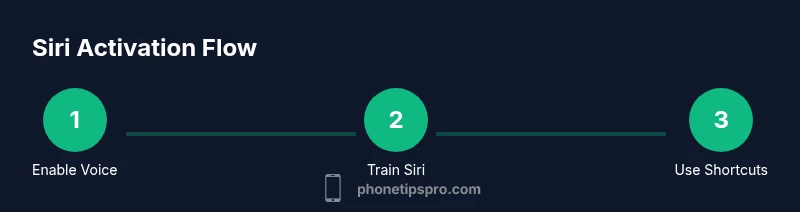
Go to Settings > Siri & Search. Turn on Listen for 'Hey Siri', and enable Press Side Button for Siri. Also toggle Allow Siri When Locked if you want hands-free use while the device is locked.
Tip: If you’re in a quiet room, starting with 'Hey Siri' is usually faster than pressing the button. - 3
Train Siri to recognize your voice
Follow the on-screen prompts to train Siri to your voice. This improves accuracy for wake phrases and follow-up questions.
Tip: During training, speak clearly and at a natural pace; avoid noisy environments. - 4
Test a basic command
Try a simple request like 'Hey Siri, send a message to Alex' or 'Hey Siri, set a reminder for 2 PM.' Observe how Siri handles the instruction and responds.
Tip: If Siri mishears, rephrase using explicit nouns (name, date, time) and short phrases. - 5
Use Siri with apps
Ask Siri to interact with Messages, Maps, Music, Notes, and Calendar. For example, 'Hey Siri, navigate to work,' or 'Hey Siri, add meeting to calendar for tomorrow at 10.'
Tip: Grant apps permission when prompted to unlock richer Siri interactions. - 6
Create Shortcuts for common tasks
Open the Shortcuts app and create a simple workflow triggered by a phrase. Shortcuts allow multi‑step actions with a single command.
Tip: Start with a small shortcut, like 'Good morning' that reads weather, calendar events, and commute time. - 7
Review privacy and security settings
In Settings > Siri & Search, review options for Voice Feedback, Language, and privacy controls. Consider whether to enable or disable 'Improve Siri & Dictation' based on your privacy preferences.
Tip: Limit sensitive data Siri can access by turning off certain app integrations. - 8
Troubleshooting quick issues
If Siri isn’t responding, check your internet, restart the iPhone, and verify the 'Hey Siri' wake words. Re‑train voice if needed and ensure the microphone isn’t obstructed.
Tip: Sometimes toggling Siri off and back on (Settings > Siri & Search) resolves odd behavior.
FAQ
Which iPhone models support Siri on iPhone 16?
Siri is available on iPhone 16 and works with the latest iOS. Some features may vary by device capabilities and app integrations. Always ensure your device runs the latest software for best results.
Siri works on iPhone 16 with the latest iOS, and updating ensures you have the newest features.
Can Siri work when the iPhone is locked?
Yes, you can enable Siri when the device is locked. This lets you perform hands-free tasks without unlocking, but can raise privacy concerns for sensitive data.
If you enable it, Siri can work while the phone is locked, so consider what information you allow on the lock screen.
Does Siri support translation and multi-language use?
Yes, Siri supports multiple languages and can translate phrases between supported languages. You can switch languages in Settings > Siri & Search > Language.
Siri can translate phrases across languages when you change the language setting.
How do I train Siri to recognize my voice?
Run the voice training in Settings to teach Siri your voice patterns. Speak clearly and follow on‑screen prompts for best results.
Use the voice training in Settings to improve Siri recognition for your voice.
Is Siri usable offline on iPhone 16?
Most Siri features rely on internet access, but some offline capabilities exist. For full functionality, keep an active connection.
Most tasks need an internet connection, though some features work offline.
How can I create custom shortcuts for Siri?
Open Shortcuts, create a new shortcut, and set a trigger phrase. You can chain actions like weather, reminders, and calendar events.
Create a shortcut in the Shortcuts app and link it to a Siri phrase.
What should I do if Siri mishears me often?
retrain Hey Siri, check microphone cleanliness, and reduce background noise. Rephrase commands using specific nouns.
If Siri mishears a lot, retrain voice, clean the mic, and speak more clearly.
Can I customize Siri’s voice and accent?
Yes, you can change Siri’s voice and language in Settings > Siri & Search > Siri Voice and Language.
You can tailor Siri's voice and language in Settings for a more personalized experience.
Watch Video
Quick Summary
- Enable both Hey Siri and side button access for speed.
- Train Siri for better accuracy with your voice.
- Explore Shortcuts to automate everyday tasks.
- Review privacy settings to balance convenience and security.