How to Use Siri on iPhone: Step-by-Step Guide
Learn how to use Siri on iPhone with setup, voice commands, Shortcuts, and privacy tips. A practical, expert guide from Phone Tips Pro to master hands-free control and efficiency.


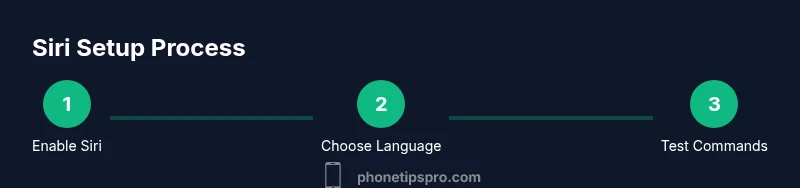
You’ll learn how to use Siri on iPhone by enabling Hey Siri, choosing a language and voice, and practicing common commands. This guide covers setup, hands-free use, app integration, shortcuts, and privacy tips to help you get the most from Siri on your iPhone.
Getting Siri Ready on iPhone
If you’re asking how to use Siri on iPhone, start by ensuring your device is up to date and Siri is enabled. According to Phone Tips Pro, a quick setup makes a big difference in accuracy and responsiveness. Begin by opening Settings > Siri & Search, then turn on Listen for “Hey Siri” and Press Side Button for Siri. Choose your language and a voice you like. Also enable Allow Siri When Locked so you can access Siri even when your iPhone is locked. A quick mic test in Voice Memos helps confirm Siri can hear you clearly. Finally, confirm that your iPhone has a stable internet connection, as many Siri features rely on network access for real-time results.
Why this matters: A proper setup reduces misinterpretations and speeds up everyday tasks, from sending messages to fetching directions. For best results, train your voice by repeating prompts a few times during setup and periodically reviewing Siri’s responses in Settings > Siri & Search.
Activating Siri: Hands-Free and Quick Access
Siri can help you without touching your phone, using either “Hey Siri” or the side button. To activate hands-free, ensure the Hey Siri option is enabled and set up Voice Feedback according to your preference. If you prefer tactile activation, press and hold the side button, then speak your request. Use Hey Siri for quick reminders, calls, or weather checks while your hands are busy. If your environment is noisy, consider enabling “Always Listen” only when plugged in to save battery while maintaining responsiveness. Practically, you can open an app, ask for a message draft, or place a call just by speaking. This section shows you how to switch between modes smoothly, so you don’t miss important prompts.
Why this matters: Knowing when to use Hey Siri versus the side button helps you stay productive in different contexts, whether you’re cooking, driving, or exercising.
Mastering Basic Commands: What Siri Can Do
Siri excels at handling everyday tasks with simple, natural language. Try asking for weather updates, setting timers, sending messages, placing calls, or getting directions. You can also ask for quick facts, conversions, or unit calculations. A few starter prompts:
- "What’s the weather like today?"
- "Remind me to call mom at 6 PM."
- "Text Alex I’m on my way."
- "Show me directions to the nearest coffee shop."
- "Convert 20 dollars to euros."
Over time, Siri learns your preferences and can offer proactive suggestions—like reminding you of meetings when you arrive at a location or suggesting reminders based on your daily routine. To maximize accuracy, speak clearly in brief phrases and avoid multi-part questions in a single prompt.
Phone Tips Pro note: Practice with varied intents to build a robust set of Siri commands that fit your routine.
Using Siri with Apps and Shortcuts
Siri works with many built-in and third-party apps, enabling hands-free actions across Messages, Mail, Maps, Photos, and more. For example, say, “Hey Siri, remind me to call Dad at 7 PM,” or “Hey Siri, send a text to Maya.” You can also create Shortcuts to automate multi-step tasks. Shortcuts can combine actions from multiple apps, letting Siri perform a sequence like “Find my route home, then start playing my workout playlist.” Crafting Shortcuts takes a few minutes but pays off in long-term productivity.
Why this matters: Deep app integration unlocks powerful workflows. If you use Apple’s ecosystem, Shortcuts can save you significant time by chaining tasks together with a single command.
Personalization: Voice, Language, and Feedback
Customizing Siri to your voice, language, and feedback style improves recognition and satisfaction. In Settings > Siri & Search, you can:
- Change Siri’s language to match your locale or preferred dialect.
- Pick a voice and accent that you find natural.
- Adjust Voice Feedback for always-on, when using headphones, or hands-free only.
- Enable Series of Shortcuts that you frequently run.
Voice Training helps Siri better understand you, especially if you have a distinct accent or speak quickly. Regularly review responses and re-train as needed. If you use a non-English language at home, your iPhone can switch language on the fly for certain tasks while maintaining your primary language for system prompts.
Phone Tips Pro analysis shows that users who invest time in personalization often complete tasks faster and with fewer prompts.
Privacy and Security When Using Siri
Siri collects voice data to improve accuracy, but you control what’s shared. Review Settings > Siri & Search and Privacy settings to understand what Siri uses locally and what’s sent to Apple servers. Disable “Share Audio” if you’re uncomfortable with cloud processing, and consider turning off Siri on the Lock Screen if you’re concerned about privacy in public spaces. You can also review App Permissions to limit Siri’s access to sensitive apps. Periodically checking your privacy settings helps maintain a balance between convenience and security.
Phone Tips Pro recommends enabling occasional privacy audits and using screen recording or transcripts to monitor what Siri stores locally on your device.
Troubleshooting Common Siri Issues
If Siri isn’t responding, start with the basics: check that you’ve enabled Siri in Settings, ensure your microphone isn’t blocked, and confirm you have an active internet connection. If Hey Siri doesn’t respond, retrain your voice by going to Settings > Siri & Search > Listen for Hey Siri and re-running the setup. Ensure there are no Do Not Disturb rules restricting Siri from listening. If results are inconsistent, try restarting your iPhone or updating to the latest iOS version. For privacy-conscious users, consider temporarily disabling Siri when in sensitive environments.
Phone Tips Pro emphasizes keeping iOS updated, as software improvements often address recognition issues and expand Shortcuts capabilities.
Advanced Tips: Shortcuts, Automation, and Hidden Gems
Leverage Shortcuts to automate frequent tasks—like “Good morning” to display weather, calendar events, and commute time. You can also configure Siri to announce messages when you’re driving or when you start a particular workout. Experiment with phrases that work well for you, and keep a small library of reliable prompts. Siri can suggest actions proactively; if you want it to, tell Siri to learn from your routines. Consider using location-based triggers for reminders (e.g., “Remind me when I leave work”).
Tip: Use the Shortcuts app to build multi-step sequences that incorporate third-party apps. These typically offer a “Add to Siri” option for easy invocation.
Quick Start Checklist and Next Steps
- Ensure Siri is enabled and configured (Hey Siri, language, voice).
- Practice core commands: messages, reminders, calls, directions.
- Explore Shortcuts to automate common tasks.
- Review privacy settings and adjust them to your comfort level.
- Create a short list of reliable prompts you use daily.
- Maintain iOS updates to benefit from improvements.
Next steps: customize your Siri prompts, build a few Shortcuts, and schedule a privacy audit every few months to keep your setup secure and efficient. Phone Tips Pro’s verdict is to tailor Siri to your workflow for maximum efficiency.
Tools & Materials
- iPhone with iOS 15 or later(Ensure the latest iOS for optimal Siri features and Shortcuts support.)
- Stable internet connection(Most Siri tasks require network access for up-to-date results.)
- AirPods or earphones (optional)(Improves microphone isolation and hands-free use.)
- Access to Settings app(Needed to enable and customize Siri settings.)
Steps
Estimated time: 20-30 minutes
- 1
Open Siri settings
Open the Settings app, tap Siri & Search, and review the options. Turn on Listen for Hey Siri, Press Side Button for Siri, and Allow Siri When Locked. This establishes the core access method for Siri on your iPhone.
Tip: If Hey Siri doesn’t trigger, retrain your voice in the same screen. - 2
Choose language and voice
Select your preferred language and choose a Siri voice. This improves recognition and makes the voice more natural for you. You can also adjust the voice gender and accent.
Tip: Try a few voice options to find the most natural-sounding one for your region. - 3
Test basic commands
Ask simple questions like weather or timers to confirm Siri understands you correctly. Use short, clear prompts and note any misinterpretations.
Tip: If misinterpreted, rephrase the prompt and try different wordings. - 4
Enable app integrations
In Siri & Search, allow Siri to access Messages, Maps, Reminders, and other apps you use often. This unlocks hands-free actions across activities.
Tip: Limit permissions to only apps you use regularly to protect privacy. - 5
Create a basic Shortcut
Open Shortcuts and create a simple automation, like “Hey Siri, good morning” to fetch weather, calendar, and commute times. Use the Add to Siri option for quick invocation.
Tip: Start with a single-step shortcut and expand as you gain confidence. - 6
Personalize feedback
Adjust Siri’s voice feedback in Settings to match when and how you want responses announced. Consider enabling silent prompts in quiet environments.
Tip: Use Voice Feedback for hands-free convenience without startling others. - 7
Manage privacy settings
Review what Siri stores and shares in Privacy settings. Disable Share Audio if you prefer on-device processing, and review app permissions regularly.
Tip: Periodically audit to maintain the right balance between convenience and privacy. - 8
Troubleshoot common issues
If Siri isn’t responding, check network status, microphone cleanliness, and ensure Do Not Disturb isn’t blocking prompts. Update iOS if problems persist.
Tip: Reboot your iPhone after updates if issues remain.
FAQ
How do I enable Hey Siri on my iPhone?
Go to Settings > Siri & Search, toggle on Listen for Hey Siri, and complete the setup prompts. You may be asked to repeat phrases so Siri can recognize your voice.
Turn on Hey Siri in Settings and complete the prompts to train Siri to recognize your voice.
Can Siri work without an internet connection?
Some basic tasks may work offline, such as calculator or unit conversions, but most Siri features require an internet connection for up-to-date results.
Most Siri features need the internet; some basics can run offline, like a calculator.
How can I customize Siri’s voice and language?
In Settings > Siri & Search, choose Language and select a preferred Voice. Changing these affects all Siri interactions across apps.
You can switch Siri’s language and voice in Settings to fit your preferences.
What should I do if Siri misinterprets my request?
Restate the prompt more clearly, try a shorter version, or use a specific keyword to guide Siri. You can also train Siri with the Hey Siri setup again.
Try rephrasing your question or retraining Siri with the Hey Siri setup if misinterpretations persist.
Is Siri private, and can I limit data sharing?
Yes, you can adjust privacy settings in Settings > Siri & Search and Privacy. Disable Share Audio or limit app access to reduce data sharing.
You can limit data sharing in Siri’s privacy settings if you have privacy concerns.
How do I create a Shortcut for a multi-step task?
Open Shortcuts, tap Create Shortcut, add actions from your apps, and use Add to Siri to record a command that triggers the sequence.
Create a multi-step shortcut in Shortcuts and assign a voice command to trigger it.
Watch Video
Quick Summary
- Enable Siri and customize voice settings for accuracy.
- Use Hey Siri for hands-free tasks and the side button for quick access.
- Combine Siri with Shortcuts to automate routines.
- Review privacy settings to balance convenience with security.
- Practice prompts to improve response quality and speed.