How to Use iPhone 17 Pro Max: The Complete Guide
A comprehensive, expert-led guide to setting up and mastering iPhone 17 Pro Max, covering gestures, privacy, battery, and productivity with step-by-step instructions from Phone Tips Pro.


Learn how to use iphone 17 pro max with a clear, step-by-step approach. This guide covers initial setup, essential gestures, security, battery management, and productivity tips, plus quick troubleshooting. By following these steps, you’ll unlock full performance, privacy controls, and a smoother everyday experience with your new device. Whether you’re new or upgrading, this concise plan saves time.
Getting started with iphone 17 pro max
According to Phone Tips Pro, the quickest way to master your new device is to approach setup and initial customization with a clear plan. Start by powering on the iPhone 17 Pro Max, choosing your language and region, and connecting to a stable Wi‑Fi network. If you have an Apple ID, sign in to enable iCloud backups, Find My iPhone, and Continuity features. Before you dive into apps, update to the latest iOS version, review Privacy settings, and back up your data. A careful first setup sets the foundation for a smooth experience, better battery life, and stronger security. In this phase, keep your Apple ID credentials handy and decide whether you want to transfer data from an older iPhone or start fresh. Phone Tips Pro’s guidance emphasizes enabling two-factor authentication, configuring Face ID, and turning on essential services like iCloud Drive and Find My iPhone. This section answers how to use iphone 17 pro max in practical terms and sets expectations for what follows.
Core gestures and navigation
Modern iPhones rely on intuitive gestures rather than a physical home button. Learn to wake the screen with a tap, switch apps with a swipe, and access the App Library with a swipe-up gesture. The Dynamic Island provides live activity previews and quick actions without interrupting your current task. The Control Center is reached by swiping down from the top-right corner to manage connectivity, volume, brightness, and media controls. For first-time users, practice returning to the Home screen, opening the app switcher, and using Reachability if you have one-handed needs. These gestures create a fast, fluid workflow and reduce reliance on physical buttons over time.
Camera and Photos basics
The iPhone 17 Pro Max’s camera is a central feature for many users. Open the Camera app to explore Photo, Video, Portrait, and Night modes. Use Live Photos to capture moments with motion, and consider ProRAW for advanced editing if you need maximum latitude in post-processing. Photos Sync through iCloud Photos by default, so your library travels with you across devices. Learn to edit images in-place, apply consistent filters, and organize albums to keep memories accessible. This section helps you maximize photo quality and storage efficiency without complicated workflows.
Security and privacy basics
Security starts with a strong passcode and biometric unlock. Enable Face ID and two-factor authentication for your Apple ID, then review app permissions to protect location data, microphone, camera, and contacts. Turn on Find My iPhone and Activation Lock to deter theft and aid recovery. Regularly review privacy settings in Settings > Privacy & Security, and consider restricting ad tracking and background app refresh for sensitive apps. A mindful approach to privacy reduces data exposure while keeping the device convenient to use.
Personalization and accessibility options
Personalize the iPhone 17 Pro Max for your workflow. Adjust display brightness, text size, and color filters for readability. Create Home Screen pages and app folders to match your daily routines. Explore Focus modes to limit interruptions during work or study, and customize notifications so only important alerts surface during critical moments. Accessibility features, such as VoiceOver, spoken content, and larger UI controls, improve usability for many users. This section shows how small tweaks can dramatically improve daily productivity and comfort.
Battery life optimization and charging habits
Battery health benefits from proactive management. Use Optimized Battery Charging to reduce aging by learning your charging routine, and enable Low Power Mode when battery life is tight. Keep iOS updated to benefit from the latest energy efficiency improvements. Manage background activity by limiting app refresh and reviewing location services only for essential apps. Avoid extreme temperatures and full discharges; moderate usage patterns tend to preserve long-term battery capacity. These practices help you get through a full day without frequent recharges.
Connectivity, apps, and productivity tips
Stay connected with reliable 5G and Wi‑Fi performance by keeping software up to date and using strong network settings. Utilize iCloud for seamless document and photo access across devices, and take advantage of built‑in apps like Notes, Reminders, and Mail for productivity. Install essential tools, but keep security in mind by limiting app permissions and enabling automatic updates. Screen recording, Quick Note, and drag-and-drop between apps can streamline workflows while keeping data organized and accessible.
Troubleshooting common issues and quick fixes
If the phone feels slow, restart the device and check for software updates. Connectivity problems are often solved by toggling Airplane Mode or rejoining the desired network. If apps crash, close and relaunch or reinstall. For privacy concerns or misconfigured settings, reset privacy options and review permissions again. Always have a recent backup ready in case you need to restore data after a major fix. This section helps you handle typical hiccups without frustration.
Quick-start checklist
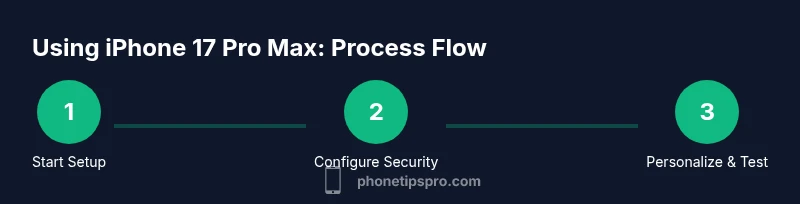
- Power on, choose language, connect to Wi‑Fi, sign in with Apple ID. - Update iOS to the latest version and enable Find My iPhone. - Enable Face ID and a strong passcode. - Restore from backup or set up as new, then install essential apps. - Configure Focus modes and notifications for your daily routine. - Enable Optimized Battery Charging and review privacy settings. - Test camera, speakers, microphone, and connectivity to confirm everything works.
Tools & Materials
- iPhone 17 Pro Max device(New device or after a factory reset; ensure battery is around 50% before setup)
- Charger and USB-C cable(Original or certified third-party cable; keep for initial charging and backups)
- Apple ID and password(Needed for iCloud, Find My, and app purchases)
- Stable Wi‑Fi network(Required for iCloud backups, app downloads, and updates)
- Recent data backup (optional but recommended)(iCloud or computer backup to simplify data transfer)
- Privacy preferences list(Notes on preferred app permissions and location usage)
Steps
Estimated time: 30-40 minutes
- 1
Power on and start setup
Press and hold the side button to turn on the iPhone 17 Pro Max. Follow the on-screen prompts to select language, region, and a Wi‑Fi network. Sign in with your Apple ID or create one if you don’t have one, then enable necessary security features during setup.
Tip: Have your Apple ID credentials ready; enabling two-factor authentication improves security. - 2
Choose data setup option
Decide whether to restore from a backup or set up as a new device. If restoring, pick the correct backup source and wait as data transfers in the background.
Tip: If upgrading from an older iPhone, restoring from the most recent backup preserves apps and settings. - 3
Enable essential services
Sign in to iCloud, enable Find My iPhone, set up iMessage and FaceTime, and review location services and system services during setup.
Tip: Turn on Find My iPhone and location services to aid security and emergency features. - 4
Configure privacy and security
Set a strong passcode, enable Face ID, review app permissions, and adjust restrictions based on your needs.
Tip: Use a passcode that isn’t easily guessable; enable two-factor authentication for Apple ID. - 5
Personalize the experience
Adjust display settings, set up accessibility features, and tailor notifications to your workflow.
Tip: Use Focus modes to minimize distractions during work or study. - 6
Install essential apps and test
Download must-have apps, test camera, battery, and connectivity, and initalize essential services like Mail and Notes.
Tip: Test cellular signal, Wi‑Fi, and Bluetooth connections before finishing setup.
FAQ
What are the first steps after unboxing the iPhone 17 Pro Max?
Unbox and charge, connect to Wi‑Fi, sign in with Apple ID, and enable Face ID. Restore from backup if upgrading from an older iPhone.
Start by charging, connecting to Wi‑Fi, signing in with your Apple ID, and enabling Face ID.
How do I improve battery life on iPhone 17 Pro Max?
Use Optimized Battery Charging, reduce background activity, and enable Low Power Mode when needed. Review battery usage in Settings.
Turn on optimized charging and Low Power Mode when you need extra endurance.
How can I protect my data if the phone is lost?
Enable Find My iPhone and ensure iCloud backup is on. Use a passcode and turn on Activation Lock.
Turn on Find My iPhone and Activation Lock for security.
Can I migrate data from an older iPhone automatically?
Yes, during setup you can restore from an iCloud or iTunes backup, or transfer directly from your old iPhone.
You can restore from a backup or transfer directly from your old device.
What is Dynamic Island and how do I use it?
Dynamic Island provides live activity and quick controls. Interact by tapping, swiping, or long-pressing to access actions.
Use it to preview apps and manage ongoing tasks.
Where can I customize Focus modes?
Go to Settings > Focus to create and manage Focus profiles that filter notifications by activity.
Set Focus profiles to stay focused during work or rest.
Watch Video
Quick Summary
- Complete setup securely to unlock features
- Master core gestures for faster navigation
- Protect data with strong security settings
- Optimize battery life with smart charging
- Leverage Focus and accessibility for productivity