How to Use SD Card Reader on iPhone
Learn how to use an SD card reader on iPhone with a step-by-step setup, compatible adapters, and Files app tips from Phone Tips Pro. Perfect for quick transfers and backups.


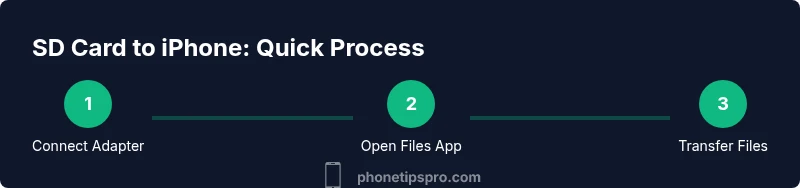
By the end of this guide, you will confidently connect an SD card reader to your iPhone, transfer photos and documents, and manage files with the Files app. You'll need a compatible adapter (Lightning to SD or USB-C hub) and a supported SD card. This step-by-step guide covers compatibility, setup, and common pitfalls. **how to use sd card reader on iphone**
how to use sd card reader on iphone
Transferring content from an SD card to your iPhone is a handy way to back up media, share photos with friends, or move documents on the go. According to Phone Tips Pro, the core idea is to connect a compatible SD card reader to your iPhone and access files using the Files app. Different iPhone models use different ports, so compatibility and the right adapter are your first checkpoints. Expect smooth transfers when the card is formatted for compatibility with iOS reader devices, and remember that some readers require power from the iPhone or an external battery for larger cards. This section lays the foundation: what you can move, what to expect from the Files app, and how to avoid common hiccups during initial setup.
Adapters and compatibility you should know
Your first decision is choosing the right adapter for your iPhone. If you still have a Lightning port (older iPhone models), use a Lightning-to-SD reader or a Lightning-to-USB hub with an SD card slot. For modern iPhones (like iPhone 15 and later), USB-C readers are typically more compact and faster. Look for MFi-certified adapters to ensure reliable operation and avoid non-certified models that can fail to mount or corrupt data. A good rule is to pick an adapter that explicitly states compatibility with iOS and supports hot-swapping—so you can plug in or remove cards without restarting the phone. Phone Tips Pro Team notes that adapters with a built-in power channel help when transferring large files.
What you can transfer to iPhone
The Files app on iPhone is the primary interface for viewing and moving files from an SD card. You can typically copy photos, videos, and documents to your iPhone, then organize them within folders in the Files app. You might also be able to save new files from apps back to the SD card, depending on app permissions. Keep in mind that some media formats (like certain RAW files) may require compatible apps to view or edit before saving back to the card. Always verify that the file types you need are supported by the reader and iOS.
Formatting and file systems
SD cards are formatted in layouts that readers understand. iOS devices differ in compatibility across devices and adapters, so format the card according to the reader’s instructions and the Files app prompts. If you format a card externally (on a computer), choose a file system supported by both the reader and iOS. In practice, many users find exFAT or FAT32 formats work broadly, but always confirm with your device’s documentation. If a card isn’t detected, reinsert it after a few seconds or try a different USB-C/Lightning port on the hub.
How to use SD reader with iPhone 15 and older models
With iPhone models that use USB-C, a USB-C SD card reader tends to work more directly, often with fewer adapters. For older iPhones with Lightning, you’ll rely on a Lightning-to-SD reader or a USB hub that includes an SD card slot. In both cases, ensure the reader is powered if needed and that the card is unlocked. When connected, the Files app should prompt you with a notification that the device is available for browsing. If not, check the connection, reseat the card, and verify that the reader is supported by iOS.
Managing files with the Files app
Open the Files app to view the SD card as a separate location. You can copy files to On My iPhone or iCloud Drive, create folders for organization, and use the Share option to export files to apps or other devices. Drag-and-drop works across locations if you’re using iPadOS, but iPhone users often rely on long-press actions and the Import option within the Files app. Regularly back up important media to cloud storage to avoid data loss.
Troubleshooting common issues
If your card isn’t detected, start with these quick checks: ensure the reader is firmly connected, verify the SD card is unlocked, and try a different card or adapter. If a card shows as unreadable, reformat using the reader’s recommended formats, but back up data first. Some readers require extra power; try a powered hub. For permission issues, ensure you’ve granted the Files app access to external storage and that the card isn’t write-protected.
Security, privacy, and best practices
Always eject the SD card safely before removing it from the reader to prevent data corruption. Disable automatic photo backups if you’re moving sensitive files and consider encrypting sensitive content before transferring. Use trusted adapters from reputable brands to minimize the risk of data loss or malware exposure. Keep your iPhone OS up to date to ensure compatibility with new readers and files app changes.
Authority sources
- Apple Support: https://support.apple.com
- CNET SD card tips: https://www.cnet.com
- Phone Tips Pro Analysis, 2026: https://www.phonetipspro.com/analysis-2026
- HowToGeek SD card reader: https://www.howtogeek.com/2021/05/using-sd-card-readers-with-iphone/
Additional tips and safe-use pointers
- Keep a small hub handy if you need extra ports; the SD reader might not supply power for large transfers.
- Test with a smaller file first to verify the connection before moving large batches.
Practical use cases and quick tips
Photographers often use SD card readers to offload RAW files in the field, then cull and edit on the iPhone before backing up to cloud storage. Students use SD readers to transfer documents from cameras and USB drives for quick study material access. For on-the-go sharing, move files to iCloud Drive directly from the Files app to keep devices in sync.
How to back up and manage your SD cards
After transferring data to the iPhone, back up critical content to a cloud service or a computer for redundancy. When you’re done, eject the card and detach the reader safely. Delete any temporary copies once you’ve secured backups to avoid clutter and free up space on your device.
Tools & Materials
- SD card reader (Lightning-to-SD or USB-C SD card reader)(Choose a model compatible with your iPhone port (Lightning for older iPhones, USB-C for newer ones). If using microSD cards, ensure you have the appropriate adapter.)
- SD card(Use a standard SD card in a supported capacity; keep the card unlocked during transfer.)
- iPhone with compatible port(Lightning port for older models; USB-C port for iPhone 15/16 series.)
- Optional USB-C hub or multiport adapter(Useful if you need extra ports while using the SD card reader.)
- Files app preinstalled on iPhone(Used to browse and manage files after transfer.)
Steps
Estimated time: 15-25 minutes
- 1
Check device and adapter compatibility
Verify your iPhone model and port type, then confirm your SD card reader is compatible with iOS. If the reader requires external power, connect it to a powered hub or supply before continuing.
Tip: If in doubt, choose an MFi-certified adapter to minimize compatibility issues. - 2
Insert the SD card correctly
Gently insert the card into the reader and ensure the card clicks into place. If the reader has a microSD slot, attach the microSD card adapter if needed.
Tip: Avoid forcing the card; misalignment can damage the contact pins. - 3
Connect the reader to iPhone
Plug the reader into the iPhone port (Lightning or USB-C). If using a hub, connect the hub first, then attach the reader.
Tip: For USB-C readers, try both USB-C ports if available as one may be more responsive. - 4
Open the Files app and locate the device
Open Files, select Browse, and find the SD card under Locations. If it doesn’t appear, unplug and reinsert the reader, then wait a moment.
Tip: If prompted, grant Files access to external storage. - 5
Copy or move files to iPhone
Tap and hold on a file to copy or move it to On My iPhone or iCloud Drive. Use drag-and-drop where supported to organize files into folders.
Tip: Move a small batch first to confirm successful transfers before larger batches. - 6
Eject and disconnect safely
Before removing the reader, use the Eject option in Files or simply disconnect gently after ensuring transfers are complete.
Tip: Never remove while a transfer is in progress to prevent data corruption. - 7
Handle larger transfers
For large media files, consider starting with a single folder transfer to monitor speed and reliability, then proceed with the rest.
Tip: Use a powered hub when transferring many large files to reduce read/write errors. - 8
Troubleshooting quick checks
If the card is not recognized, try a different reader or another SD card. Ensure the card is not locked and that the reader is kept clean.
Tip: Clean the contact pins with a soft brush if you notice poor connectivity. - 9
Keep software up to date
Update iOS and the Files app regularly to ensure compatibility with new readers and improved file management features.
Tip: Enable automatic updates to minimize manual maintenance.
FAQ
Do I need a special SD card to use with iPhone?
No special card is required, but using a standard SD card with a compatible reader and the Files app is typical. If you encounter compatibility issues, try a different reader or format as recommended by the reader's manufacturer.
You generally don't need a special card. Use a standard SD card with a compatible reader and the Files app, and switch readers if you hit issues.
Can I use USB-C readers on all iPhone models?
USB-C readers work on iPhones with USB-C ports (such as iPhone 15 and later). Older models use Lightning connectors. Check compatibility for your specific model and the adapter.
USB-C readers work on iPhone models with USB-C ports. Older models use Lightning; check your device.
Will photos transfer automatically to the Photos app?
Photos typically transfer through the Files app, not automatically. You can select photos to copy or move into Photos or another app as needed.
Photos don’t automatically transfer; you choose where to copy or move them in the Files app.
What should I do if the card isn’t detected?
First ensure the reader is properly connected and the card is unlocked. Try another port and reseat the card. If still not detected, test with another card or reader.
If the card isn’t detected, check connections, try a different port, and reseat the card.
Is it safe to format the SD card on the iPhone?
Formatting on the iPhone is possible if the reader and iOS support it. Always back up data first and follow the manufacturer’s formatting recommendations.
You can format if supported, but back up data first and follow the reader’s instructions.
Watch Video
Quick Summary
- Verify adapter compatibility before connect
- Use the Files app to manage transfers
- USB-C readers suit newer iPhones; Lightning for older models
- Eject safely to avoid data loss
- Keep software updated for best compatibility