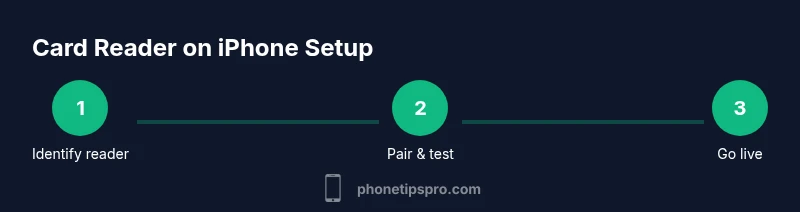
Card Reader on iPhone: A Practical Guide
Learn how to connect a card reader to your iPhone, choose the right hardware, and securely process payments on the go. This Phone Tips Pro guide covers setup and best practices for mobile selling.


A card reader on iphone lets you accept credit and debit card payments directly from your iPhone using a Bluetooth-connected reader and a compatible app. You’ll need a reader, a supported iPhone model, an internet connection, and an approved payments app. This guide covers setup, security, compatibility, and best practices for smooth, on‑the‑go transactions.
What a card reader on iphone enables for you
A card reader on iphone is a portable payment solution that turns your iPhone into a mobile checkout terminal. This enables entrepreneurs, freelancers, and small teams to accept card payments in person, whether at a popup, market stall, or client site. The setup is typically simple: you pair a compact, reader device with an iPhone, install a compatible payments app, and configure your merchant account. Because most readers support EMV chip, NFC/contactless, and magstripe, you can handle a wide range of cards. The convenience is paired with a need for responsible handling of card data and secure connections. Expect faster checkouts, reduced cash handling, and improved receipts for customers, especially when you combine a reader with a reliable app and good network access.
For iPhone users, the ecosystem is designed to be user-friendly. The reader itself is just one piece of the puzzle; the software you choose determines the checkout flow, receipts, refunds, and settlement reports. In a typical setup, you’ll pair the device via Bluetooth, confirm the merchant profile in the app, and then run tests before taking real payments. This combination of hardware and software makes on‑the‑go selling practical and scalable for many small businesses, from food trucks to service calls.
How iPhone compatibility works with card readers
iPhone compatibility hinges on three pillars: the hardware interface, the operating system, and the payments app. Most readers use Bluetooth to connect to iPhone, while a few rely on the device’s Lightning or USB-C port for power or data. iOS version requirements vary by reader and app, but keeping your iPhone updated minimizes pairing issues and security flaws. The security model typically relies on tokenization and encrypted channels between the reader, the app, and the payment processor. This means card data is not stored on the iPhone and is transmitted securely to the processor. Also, ensure your iPhone has a stable internet connection during transactions, as interruptions can lead to incomplete payments or failed authorizations.
From a user perspective, the payoff is straightforward: a single tap to begin a sale, quick card reading, and a digital receipt. For businesses, there’s the added layer of settlement timing and reconciliation. When choosing a reader, consider compatibility with your preferred processor, support for EMV and contactless, battery life, and ease of pairing with your iPhone.
Setup prerequisites: hardware, software, and accounts
Before you begin, gather the essentials:
- An iPhone with a recent iOS version and adequate battery life.
- A card reader that supports EMV, NFC, and magstripe as needed for your market.
- A payments app or software that partners with a processor you trust.
- A merchant account or payment processor account to enable settlements and refunds.
- A reliable internet connection (cellular or Wi‑Fi).
- Optional: a receipt printer or label printer for in-person transactions.
You’ll also want to verify firmware availability for the reader and check any app permissions the device requires (Bluetooth, notifications, and in some cases location). Finally, confirm you have a testing mode or sandbox environment to validate transactions without moving real money.
Note: Choose a reputable reader and processor with a clear privacy policy and PCI compliance documentation. This reduces risk and simplifies merchant reconciliation over time.
Choosing a card reader: features to consider
Key features to evaluate include:
- EMV, NFC, and magstripe support for flexible card types.
- Bluetooth range and pairing reliability with iPhone.
- Battery life and charging options for all-day use.
- Compatibility with your preferred payments app and processor.
- Receipt options (digital, printed) and integration with your invoicing workflow.
- Data security features like end-to-end encryption and tokenization.
Note that some readers require the official companion app, while others are platform-agnostic and can work with multiple apps. If you operate in a regulated space (e.g., healthcare or hospitality), verify any extra requirements from your processor.
Price varies with features and durability; plan a budget that balances value, support, and longevity. Look for readers with robust warranty and merchant support options to minimize downtime.
Connecting your reader: wireless vs wired
Most modern readers are wireless and pair with iPhone via Bluetooth. To connect, turn on the reader, enable Bluetooth on the iPhone, and select the reader from the app’s pairing list. Some readers can also attach via USB-C or Lightning while charging, offering a wired fallback. If your reader supports both, you can switch between modes depending on the venue and network conditions. Ensure the reader firmware is current and the app is granted required permissions. For best results, test pairing in advance of customer transactions and keep both devices within a short distance during setup.
If you experience dropouts, try re-pairing, restarting the reader, or moving to a location with stronger signal. Avoid walls or metal surfaces that interfere with Bluetooth signaling.
Using apps and processing payments securely
Payments apps built for card readers handle authorizations, settlements, refunds, and receipts. When you pair a reader with an app, your card data is tokenized and transmitted to your processor through encrypted channels. This keeps sensitive information off the iPhone and reduces PCI scope for your business. Make sure the app has up-to-date terms of service, privacy policy, and merchant agreement. Enable automatic receipts and settle reports to streamline accounting. Practice good device hygiene: log out when not in use, enable screen lock, and avoid saving card data in the app unless the merchant truly needs it. Regularly review settlement summaries for discrepancies.
Troubleshooting common issues
Common problems include pairing failures, reader not found, or transactions failing mid-process. Start with basic steps: restart the iPhone, restart the reader, and re-pair via Bluetooth. Check that the app has the latest version and that the reader’s firmware is up to date. Ensure the payment processor’s service status is operational. If offline mode is supported, verify how long you can accept payments without connectivity and how those payments batch once online again. Finally, confirm you are using the correct test mode credentials during trials.
For persistent issues, consult the processor’s support article and re-run a test transaction with a known-good card.
Security and privacy considerations
Security should be front and center when accepting card payments on a mobile device. Do not store raw card numbers on the iPhone; prefer tokenization and encrypted storage if needed. Ensure that the reader and app are from reputable providers with PCI DSS compliance. Limit access to the iPhone by using a strong passcode and biometric unlock. Regularly update iOS, the reader firmware, and the payment app. When possible, enable fraud protections and monitor daily settlements for any anomalies. Educate staff on phishing attempts and how to recognize spoofed apps or fake readers.
Following these practices helps preserve customer trust and reduces the risk of data breaches.
Best practices for reliable checkout
To maintain steady checkout experiences, keep devices charged, maintain stable network connectivity, and perform routine end-of-day reconciliations. Create a simple onboarding script for new staff to verify pairing, test transactions, and issue receipts. Consider running periodic audits on device usage and app permissions. Maintain an updated contact point with your processor and reader vendor for firmware and security updates. Document refund and void workflows so you can resolve issues quickly without impacting customer trust.
Real-world setup checklist and next steps
- Verify iPhone compatibility with your chosen reader and processor.
- Subscribe to a trusted merchant account and set up the necessary tax and receipt preferences.
- Charge the reader and ensure it’s within Bluetooth range of the iPhone.
- Install and configure the payments app; log in with your merchant account.
- Pair the reader via Bluetooth and run a live test transaction.
- Enable receipts, refunds, and reconciliation workflows; schedule regular device checks.
- Review security settings: passcodes, app permissions, and device encryption.
- Keep firmware and software up to date and note any changes to your checkout flow.
This practical checklist helps you get from unboxing to a reliable, customer-friendly checkout in a single business day.
Authority sources
For security and compliance guidance, consult authoritative references:
- https://www.pcisecuritystandards.org
- https://www.ftc.gov
- https://www.nist.gov/publications
Tools & Materials
- Card reader (EMV/NFC capable)(Choose a reader that supports EMV and contactless payments; confirm compatibility with your processor.)
- iPhone with recent iOS(Keep the device updated to minimize compatibility issues.)
- Payments app(Install the official app from your processor or merchant provider.)
- Stable internet connection(Wi‑Fi or cellular data; essential for real-time processing.)
- Power options(Charger or power bank for extended use.)
Steps
Estimated time: 30-45 minutes
- 1
Identify and prep the reader
Confirm the exact reader model and firmware version. Charge the reader fully and ensure the iPhone is ready with the latest iOS. Open the payments app to prepare for pairing.
Tip: Charge the reader before first use to prevent mid-transaction power loss. - 2
Install or update the payments app
Download or update the merchant/payment app you will use. Sign in with your merchant account and configure basic settings (receipts, tax, and currency).
Tip: Use the official app from your processor to guarantee security and support. - 3
Enable pairing
Turn on the reader, enable Bluetooth on the iPhone, and place the reader in pairing mode. Select the reader from the app’s pairing list and confirm any prompts.
Tip: If pairing fails, toggle Bluetooth off/on on the iPhone and retry. - 4
Connect and grant permissions
Allow the app to access Bluetooth and any required permissions. Ensure you have internet connectivity and the correct processor settings active.
Tip: Avoid VPNs or network proxies during setup to prevent connection issues. - 5
Run a test transaction
Use a test card or sandbox mode to verify that the reader processes a payment, issues a receipt, and settles correctly.
Tip: Document the test results and save any receipts for reconciliation. - 6
Go live and monitor
Start accepting real payments. Monitor successful authorizations, failed attempts, and daily settlements. Reconcile receipts with your merchant account regularly.
Tip: Schedule daily end-of-day reconciliation to catch issues early.
FAQ
What is required to use a card reader on iPhone?
You need a compatible card reader, an iPhone with a supported iOS version, a merchant account or payment processor, a stable internet connection, and a payments app that handles transactions.
To use a card reader on iPhone, pair a compatible reader with a supported iPhone, set up a processor account, and run through a test transaction in your payments app.
Can I use a card reader on iPhone without internet?
Many readers work offline for certain operations, but most payments require an online authorization. Check your processor’s offline mode policy and ensure you know how settlements occur once you reconnect.
Some readers offer offline mode, but most transactions need online authorization. Verify offline capabilities with your processor.
Will readers work with all iPhone models?
Most modern readers work with a broad range of iPhone models, especially when running recent iOS versions. Always confirm compatibility with the reader’s manufacturer and your payment processor.
Most readers work on newer iPhones with current iOS, but check compatibility for your specific model and iOS version.
Is it secure to use a card reader on iPhone for customers?
Yes, when you use a PCI-compliant reader and app with proper encryption and tokenization. Do not store card data on the device, and keep your iPhone protected with a strong passcode and updated software.
Yes—use PCI-compliant devices and apps, encrypt data, and keep your phone secure.
Do I need a merchant account or payment processor?
Yes. A merchant account or a payment processor is required to authorize transactions and settle funds. Your chosen reader will link to that account through its app.
You’ll need a merchant account or processor to authorize and settle payments.
What should I do if the reader won’t pair?
First, restart the fan of devices, re-enable Bluetooth, and retry pairing from the app. If the problem persists, check for firmware updates or contact the processor’s support.
Restart devices, re-enable Bluetooth, and retry. If it still fails, look for firmware updates or contact support.
Watch Video
Quick Summary
- Choose a reader with EMV and NFC support for broad card compatibility.
- Keep iPhone and reader firmware up to date to minimize issues.
- Use tokenization and PCI-compliant apps to protect customer data.
- Test thoroughly, reconcile daily, and monitor settlements for accuracy.
- Prepare a simple live-transaction checklist before going live.