Saved Cards on iPhone: A Practical Management Guide
Learn how saved cards on iPhone work with Apple Pay, how to add, manage, and secure them. Practical steps, privacy tips, and troubleshooting for iPhone users.


According to Phone Tips Pro, this guide helps you confidently manage saved cards on iPhone using Apple Wallet and Apple Pay. You’ll learn how to add, view, edit, and remove cards, plus key security steps to protect payment data. By the end, you’ll know how to keep your cards secure and ready for fast, contactless payments.
What saved cards on iPhone are and where they live
Saved cards on iPhone refer to payment cards registered with Apple Pay through the Wallet app. When you add a card to Wallet, it becomes a saved credential that you can use for contactless payments, in-app purchases, and Safari autofill. On iPhone, these cards are stored securely in a tokenized form and are not transmitted with every transaction; instead a device-unique token is used during payment requests. You can access and manage these saved cards by opening Wallet, or by going to Settings > Wallet & Apple Pay. For many users, saved cards on iPhone are the central hub for payment cards, loyalty cards, and transit passes. By design, Apple uses device-level protections such as Face ID, Touch ID, or a strong passcode to authorize payments, and the real card numbers never leave your device. Understanding where these cards live helps you control what data is shared with merchants and apps. This storage is tied to your Apple ID and can sync across devices if you enable iCloud, with privacy safeguards built into Apple Pay but still requiring you to stay vigilant with device security.
How Apple Pay and Wallet protect your saved cards
Apple Pay uses tokenization: your actual card numbers are never transmitted; instead a token is used for each payment. The Wallet app stores the token and a dynamic security code on the device. Payment requests are signed with your device's secure elements and require biometric authentication or a passcode. Apple also enforces device-level encryption and strong privacy controls, so merchants never receive your full card details. You control when saved cards are used by enabling Face ID/Touch ID, and you can turn off payment permission for particular apps. This combination of hardware-backed security and software controls makes saved cards on iPhone safer than storing card numbers in plain text.
When to use saved cards: privacy and security basics
Saved cards on iPhone are convenient for fast checkout, but it’s important to balance convenience with security. Use a strong device passcode and enable biometric authentication for Wallet and Safari autofill. Be mindful of apps requesting payment data and review permissions regularly. Phone Tips Pro analysis shows that using a strong device passcode and biometric unlock reduces unauthorized payments, and keeping iCloud in sync only when you trust the devices linked to your account.
How to add a new card to Wallet for Apple Pay
Adding a card to Wallet for Apple Pay is straightforward and secure. Open Wallet, tap the + button, and follow the on-screen instructions to scan or enter your card details. Your bank will verify the card through a quick authorization process, which may involve a verification code, a bank app, or a call. Once verified, the card becomes a saved card on iPhone and can be used for contactless payments, in-app purchases, and Safari autofill. If you previously added a card, you can set a default payment method and reorder cards in Wallet for faster access.
How to remove or manage cards already saved
Managing saved cards on iPhone is essential for privacy and control. Open Wallet, tap the card you want to manage, and choose Remove This Card or Edit Details. You can also reorder cards to place your preferred one at the front. If you remove a card, it will no longer be usable for Apple Pay from that device unless re-added. For privacy, regularly audit your saved cards and remove any you no longer use. If you rely on peer devices, ensure you’ve signed out on shared devices and review iCloud settings.
Troubleshooting common issues with saved cards
If a card doesn’t appear in Wallet or Apple Pay after verification, ensure your device is up to date, your region supports Apple Pay, and your bank is enabled for Apple Pay services. Retry verification, restart the iPhone, or sign out and back into your Apple ID. If a card shows as suspended by the bank, contact your bank to resolve the status. Some merchants may not support Apple Pay for certain transactions; in those cases, use the physical card or a secondary saved card. Regularly checking the Wallet settings helps prevent payment delays.
Privacy controls and data sharing with saved cards
Saved cards on iPhone are designed with privacy in mind. Card numbers are never stored on the device or shared with merchants; a token and a dynamic cryptogram are used for transactions. iCloud can sync Wallet data across devices, but you can disable Wallet syncing if you prefer. Review app permissions to minimize data sharing and enable two-factor authentication for your Apple ID. Phone Tips Pro analysis shows that strong authentication reduces risk, and keeping software updated is critical for security.
Using saved cards in apps and Safari autofill
Saved cards on iPhone can autofill payment details in apps and Safari, speeding up checkout. When you encounter a form, tap the field and choose the card from Wallet; authentication via Face ID or Touch ID will be required. This process helps prevent accidental charges and protects your card details by not exposing the full number to the merchant. Always confirm the merchant and the total amount before authorizing a payment.
Real-world scenarios and best practices
In everyday use, saved cards on iPhone work best when you keep a small, up-to-date set of cards in Wallet, with a clearly defined default card for most purchases. Use the Wallet notification settings to monitor payments and verify unfamiliar activity. Enable Find My iPhone and regularly back up Wallet data to iCloud. Consider adding a backup card from a different issuer to mitigate any single-bank issues. This approach supports both speed and resilience in daily shopping.
Phone Tips Pro's verdict and best practices
Phone Tips Pro recommends adopting a disciplined approach to saved cards on iPhone: keep only the cards you truly use, enable biometric and passcode protections, and review Wallet settings monthly. For added security, use two-factor authentication on your Apple ID, keep the device firmware up to date, and be cautious with shared devices. The Phone Tips Pro team’s verdict is that thoughtful management of saved cards on iPhone enhances both convenience and security.
Tools & Materials
- iPhone with latest iOS(Ensure Wallet & Apple Pay features are up to date.)
- Wallet app(Built-in on iPhone; accessible from home screen or Control Center.)
- Internet connection(Needed for verification and syncing with banks.)
- Apple ID with two-factor authentication(Accounts for Wallet syncing and security checks.)
- Card details (number, expiry, CVV) or ability to scan(Required to add a new card; scanning is supported.)
- Biometric data or passcode(Face ID / Touch ID or device passcode to authorize payments.)
Steps
Estimated time: 20-30 minutes
- 1
Review current saved cards
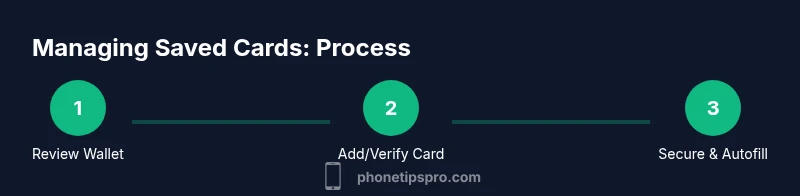
Open Wallet and scan the list of saved cards. Confirm which cards are active and which are outdated or rarely used. This helps you decide which cards to keep, remove, or relocate to a different device.
Tip: If you notice unfamiliar cards, stop and verify with the issuing bank before proceeding. - 2
Add a new card to Wallet
Tap the + button in Wallet, then follow prompts to add by scanning or entering card details. Complete verification with your bank’s method. Once verified, the card appears in Wallet as a saved card on iPhone.
Tip: Use the camera to capture the card to minimize errors; verify the last four digits after entry. - 3
Set a default payment card
In Wallet, drag your preferred card to the top or set it as default for Apple Pay. This speeds up checkout for most purchases and helps you avoid accidental charges.
Tip: Change default only if you frequently use the same card for most payments. - 4
Verify security settings
Enable Face ID or Touch ID for Wallet and disable auto-fill for sensitive fields where needed. Review Settings > Wallet & Apple Pay to ensure Passcode and biometric requirements are active.
Tip: Keep your device locked when not in use and avoid sharing devices with others. - 5
Remove unused saved cards
From Wallet, select a card and choose Remove This Card. Removing unused cards reduces exposure and minimizes clutter in Wallet.
Tip: If you occasionally need a card, re-add it later rather than keeping it automatically active. - 6
Test a small payment
Make a low-value test payment to confirm the card works with Apple Pay and that biometrics are functioning as expected.
Tip: If the test fails, contact your bank or card issuer for troubleshooting steps. - 7
Review iCloud and Find My settings
If you rely on cross-device use, ensure Wallet data syncing is intentional. Enable Find My iPhone for device protection and to locate a lost device.
Tip: Disable Wallet syncing on devices you don’t own or trust. - 8
Protect your privacy
Limit data shared with apps and merchants by reviewing app permissions and using privacy controls. Regularly update iOS and wallet apps.
Tip: Turn off unnecessary approvals for apps you don’t trust. - 9
Keep a backup card handy
Maintain at least one backup saved card on iPhone or a physical card as a fallback in case Apple Pay is temporarily unavailable.
Tip: Verify backup card accessibility before you travel or shop offline.
FAQ
Can I add more than one card to Apple Pay on iPhone?
Yes. You can add multiple cards to Wallet and choose a default card for most payments. Each saved card can be used for in-store, in-app, and online purchases as supported by your issuer.
Yes, you can add multiple cards to Wallet and set a default for easier payments.
Are saved cards on iPhone stored on-device or on Apple's servers?
Card numbers are not stored in plain form. Apple Pay uses tokens and dynamic codes, with data protected by device security and, if enabled, iCloud. Real card numbers are never shared with merchants.
Card data is tokenized and protected; real numbers aren’t shared with merchants.
What should I do if a card isn’t showing in Wallet after verification?
First, ensure iOS and Wallet are up to date and the card issuer supports Apple Pay. Retry verification, restart the iPhone, or remove and re-add the card if needed.
Check updates, retry verification, or re-add the card if it doesn’t appear.
Is it safe to store cards on iPhone versus carrying physical cards?
Storing cards in Wallet is generally safe due to tokenization and device protections. Always use a strong passcode and biometric authentication, and keep your device secure.
It’s generally safe, but protect your device with a strong passcode and biometrics.
Can I view the full card number after adding it to Wallet?
No. For security, the full card number isn’t shown in Wallet. You’ll see only the last four digits and the tokenized reference used for payments.
No, you won’t see the full card number; you’ll see the last four digits.
How do I remove saved cards from iPhone Wallet?
Open Wallet, select the card, and choose Remove This Card. Confirm the removal, and the card will no longer be usable for Apple Pay on that device.
Open Wallet, pick the card, and remove it to stop using it on the device.
Watch Video
Quick Summary
- Saved cards on iPhone are tokenized for security.
- Add, view, and remove cards easily in Wallet.
- Enable biometrics to secure every payment.
- Regularly review privacy and card settings.