How to Use Apple Pay on iPhone: Practical Steps
Learn how to set up and use Apple Pay on your iPhone, paying in stores, apps, and websites securely. Includes setup tips, troubleshooting, and best practices from Phone Tips Pro.


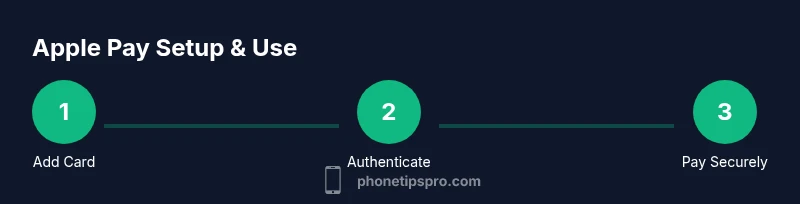
Using Apple Pay on your iPhone is simple: add a card to Wallet, then use it at contactless terminals, in apps, or on websites that support Apple Pay. Make sure your iPhone runs iOS 12 or newer, you’ve enabled Face ID or Touch ID, and your card is issued by a participating bank. You’re ready to pay securely.
What Apple Pay is and why it's secure
Apple Pay is a digital wallet technology that lets you pay with your
Tools & Materials
- iPhone with iOS 12+(Wallet app available; Face ID/Touch ID supported)
- Wallet app access(Add supported cards from major banks)
- Internet connection(Needed for card verification and updates)
- Card from a participating bank(Check issuer compatibility with Apple Pay)
Steps
Estimated time: 15-25 minutes
- 1
Open Wallet and add a card
Open the Wallet app, tap +, and follow prompts to add your debit or credit card. The system will verify the card with your bank, which may require a short online check or a call to confirm ownership.
Tip: Have your card details handy and be ready for quick verification. - 2
Verify and activate the card
Complete the verification step required by your bank. This could be via SMS, email, a phone call, or a banking app. Once verified, your card appears in Wallet and is ready for Apple Pay.
Tip: Verification times vary by issuer; a few minutes is common. - 3
Set a default card
In Wallet, press and hold a card, then drag to the front or use the triangle menu to set it as the default payment method. This speeds up in-store payments.
Tip: Choose the card you use most often as default to minimize taps. - 4
Enable Face ID/Touch ID for security
Ensure Face ID or Touch ID is enabled in Settings > Face ID & Passcode or Touch ID & Passcode. This enables quick, secure authentication for payments.
Tip: For big purchases, you may be prompted for additional verification. - 5
Pay in stores
To pay, double-click the side button (Face ID models) or double-press the Home button (Touch ID models) and authenticate. Hold the iPhone near the reader until you see Done or a checkmark.
Tip: Keep the screen on and near the reader for best results. - 6
Pay in apps and on websites
At checkout, select Apple Pay and authenticate with Face ID/Touch ID. The merchant receives a tokenized device account number instead of your card details.
Tip: Some apps require Wallet access; ensure your cards are up to date for a smooth checkout.
FAQ
Do I need an internet connection to use Apple Pay?
Apple Pay works offline for in-store payments once your device is authorized and the card is tokenized. Internet is required for initial verification and occasional updates.
Apple Pay can work offline for purchases once set up, but initial verification needs the internet.
Is Apple Pay available in all countries?
Availability depends on country and bank. Check Apple's official support pages for the current list of supported regions and cards.
Availability varies by country and bank; check Apple’s support pages for your region.
Can I use Apple Pay with loyalty programs?
Many apps support loyalty through Apple Pay, but availability varies by merchant. You may need to link loyalty cards in Wallet or at checkout.
Many apps support loyalty with Apple Pay, but it depends on the merchant.
What if Apple Pay isn’t working at a terminal?
Check that the card is active, the device is updated, and the reader supports Apple Pay. Try another card if needed and contact your issuer if issues persist.
First check the card and the reader compatibility; try another card if needed.
How do I remove a card from Wallet?
Open Wallet, select the card, tap the menu, and choose Remove. Confirm when prompted.
Open Wallet, pick the card, and choose Remove; confirm.
Does Apple Pay track my purchases?
Apple Pay minimizes data sharing; merchants may see a device token instead of actual card details. Apple does not track purchases by default.
Apple Pay keeps purchases private; merchants see a device token, not your card info.
Quick Summary
- Add a card to Wallet to enable Apple Pay
- Use Face ID/Touch ID to authorize payments
- Apple Pay uses tokenization for security
- Default card speeds up in-store payments
- Update iOS regularly for best protection