How to Schedule a Text on iPhone: A Practical Guide
Learn how to schedule a text iphone using Shortcuts automation or trusted apps. This step-by-step guide covers prerequisites, setup, testing, tips, and privacy considerations for reliable automated messaging.


Yes—it's possible to schedule a text on iPhone. Use Shortcuts to create a personal automation that sends a message at a chosen time, or rely on trusted third‑party apps for additional options. This guide walks you through setup, testing, and best practices. We'll cover prerequisites, step-by-step instructions, troubleshooting tips, and privacy considerations to help you automate routine texts safely.
What scheduling a text on iPhone means
For many iPhone users, scheduling a text means writing a message now but sending it at a later time. It’s useful for reminders, coordinating across time zones, or sending messages when you’re unavailable. In this guide we’ll show you how to schedule a text iphone, using built-in automation and trusted apps. While the feature isn’t labeled as a single “Send Later” button in Messages, iPhone users can get the same result by combining Shortcuts with careful planning. You’ll learn about limitations, best practices, and practical examples that apply to personal and small-business use.
First, understand what you’re scheduling: a one-off message to a single contact, or a recurring message to keep your team in sync. The Shortcuts app on iPhone makes this possible through a Personal Automation: Time of Day. When you set this up, your iPhone can trigger a Send Message action at the moment you specify. This not only saves mental bandwidth but also reduces the risk of forgetting important reminders. If you use a third-party app, you’ll typically gain additional scheduling options, such as multiple recipients or more flexible sending windows. In either case, always test your automation with a dummy message to confirm that delivery occurs as expected, especially across time zones. The rest of this article walks you through prerequisites, step-by-step setup, and real-world tips so you can schedule a text iphone confidently and safely.
(Brand note: This section introduces core concepts thatPhone Tips Pro emphasizes for reliable messaging automation.)
Built-in method: Schedule with Shortcuts
The most reliable way to schedule a text on iPhone without a separate app is via Shortcuts. Shortcuts is a powerful automation tool that comes preinstalled on modern iPhones. You’ll create a Personal Automation triggered at a specific time, then add an action that sends a Message. This approach works for iMessage or SMS depending on the recipient and your carrier settings. The key is to configure the automation to run automatically, without requiring you to approve each send. Before you begin, make sure you know the exact contact you want to message, and craft the desired text in advance so you can copy/paste into the Send Message action. Additionally, consider whether you want the automation to repeat daily or run only once. Because iOS respects user privacy and device state, you may encounter prompts or conditions depending on whether the device is unlocked or connected to power. In practice, this method gives you precise control over timing and recipients, and can be edited or disabled at any time from the Shortcuts app. We’ll cover the full step-by-step process in the next section, including tips to test and troubleshoot.
Note: If your goal is to schedule a message to multiple people, you’ll either create separate automations or modify the action to loop through a contact list. Looping requires more complex shortcuts; for most users, one automation per recipient is simpler and less error-prone. Finally, if you need more flexibility (like scheduling based on calendar events), explore third-party apps that offer more granular windows and recipient management.
Alternative method: Third-party apps
If you prefer a turnkey solution or need features beyond Shortcuts, explore third‑party apps that specialize in scheduled messaging. Look for apps that offer calendar-based sends, multi-recipient options, and reliable delivery logs. When choosing a third‑party tool, verify it has a privacy policy that clearly describes data use and retention, since messaging involves personal content. These apps can supplement Shortcuts by handling edge cases like time zone changes, recurring messages, or when your device is locked. Always check reviews for reliability and test the app with a short message before relying on it for important updates.
Prerequisites and safety considerations
Before you begin, ensure your iPhone is updated to a recent iOS version that supports Shortcuts automations (ideally iOS 17 or later). You’ll need to know the exact contact or group you want to message and have the text ready. If you plan to run automation automatically, understand that iOS sometimes requires the device to be unlocked or connected to power at the scheduled time. Keep your messages concise to minimize sending errors, and consider adding a fallback reminder if the automation fails. Finally, if you share your device with others, review who can trigger automations and what data is sent.
Authority sources
For further reading on Shortcuts and iPhone automations, consult official sources from Apple and reputable tech publishers. Apple Support – Shortcuts guide provides foundational instructions, while the broader iPhone automation overview is available on Apple’s Shortcuts page. These resources explain how Personal Automations are created, managed, and tested to ensure reliable delivery.
Troubleshooting common issues
If your scheduled text doesn’t send, start with common culprits: verify the automation is enabled, recheck the contact details, and confirm there are no conflicting Do Not Disturb rules. Ensure the device has internet access at the scheduled time, and test the automation with a short, non-critical message. If the message fails to send when the phone is locked, adjust the automation settings to run only when the device is unlocked or powered. Finally, consider alternatives such as a quick reminder or rescheduling via Shortcuts if you encounter repeated failures.
Real-world examples
Consider a sales rep who schedules a daily 9:00 AM follow-up text to a client list using Shortcuts. Another example is a parent who uses a one-off automation to remind a teen about a curfew at 10:00 PM. For both scenarios, keep messages concise and action-oriented and verify that the recipient is reachable via SMS or iMessage. You can also use multiple automations, each with its own time, to stagger messages across the week. These practical uses illustrate how scheduling texts can save time and improve coordination without requiring manual reminders.
What’s next: automating more texting tasks
Once you’ve mastered scheduled texts, explore expanding automation to routine reminders, birthday greetings, or seasonal prompts. Pair text scheduling with calendar events, location-based reminders, or integration with notes and reminders for a richer automation workflow. Remember to review privacy settings and periodically audit your automations to ensure they still align with your needs. The more you automate, the more consistent your communications become.
Tools & Materials
- iPhone with iOS 17 or later(Ensure Shortcuts is available (built-in))
- Contact list (recipient)(Phone number or contact in Contacts)
- Stable internet connection(Wi-Fi or cellular data)
- Shortcuts app(Built-in app on iPhone)
- Test message copy(Optional but recommended for testing)
Steps
Estimated time: 15-25 minutes
- 1
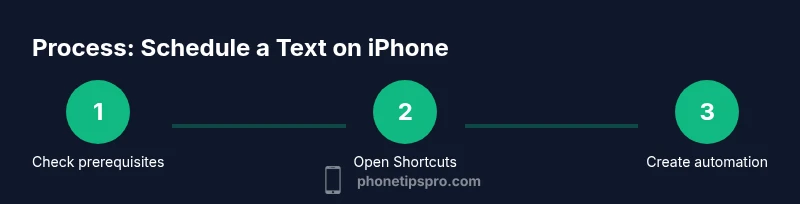
Check prerequisites
Verify your iPhone is on iOS 17 or later and that you know the exact contact you want to message. Prepare the text you plan to send and decide whether this will be a one-off send or a recurring schedule. This step ensures you have everything at hand before opening Shortcuts.
Tip: Have the recipient’s contact saved and the exact message ready to copy/paste. - 2
Open Shortcuts
Launch the Shortcuts app and switch to the Automation tab. This is where you’ll create a Personal Automation that triggers at a specific time to send your text.
Tip: If you don’t see Automation, update the Shortcuts app or iOS version. - 3
Create a Personal Automation: Time of Day
Choose Time of Day as the trigger and set your desired time and recurrence (one-time or daily). This defines when the automation will run.
Tip: Choose a time when your iPhone is typically awake and connected to power for reliability. - 4
Add action: Send Message
Add the action Send Message and select the recipient and the message content. Double-check the recipient and ensure there are no typos in the text.
Tip: Use a short, clear message to avoid sending errors. - 5
Configure automatic run
In the automation’s settings, disable Ask Before Running so the message sends automatically at the scheduled time. If you want to review before sending, leave this on.
Tip: Note that some devices require the phone to be unlocked at run time. - 6
Test and verify
Run a test at a nearby time to confirm delivery. If it fails, review contact data, message text, and internet connectivity. Adjust settings as needed.
Tip: Test with a non-critical recipient first.
FAQ
Can I schedule a text on iPhone without using Shortcuts?
Native scheduling in Messages isn’t presented as a Send Later feature. You can schedule via Shortcuts or third‑party apps designed for messaging, but there isn’t a single built-in “Send Later” button in Messages.
You’ll need Shortcuts or a third‑party app to schedule messages; Messages itself doesn’t include a direct Send Later option.
Will scheduled messages send if my iPhone is locked or asleep?
Most automations in Shortcuts require the device to be unlocked at run time. If the phone is locked, the automation may wait for unlock or fail to send until you manually run it.
Automation usually runs when your device is unlocked; if it’s locked, you may need to unlock or adjust settings.
Can I schedule a text to multiple recipients at once?
You can schedule multiple messages by creating separate automations for each recipient. Shortcuts can loop through a list, but that requires more advanced setup.
To keep it simple, use one automation per recipient; for many recipients, separate automations are more reliable.
Are there privacy concerns with scheduled messages?
Scheduled texts involve your message content and recipient data. Use trusted apps, review app privacy policies, and avoid sending sensitive data through automation without safeguards.
Yes, review privacy settings and choose reputable apps to minimize risk.
What iOS version is needed to schedule texts with Shortcuts?
A recent iOS version (ideally iOS 17 or later) supports Personal Automations in Shortcuts. Update if you don’t see the automation options.
Keep your iPhone updated to enable the full Shortcuts automation features.
Watch Video
Quick Summary
- Schedule texts with Shortcuts Automation
- Device state (unlocked/power) impacts sending
- Test thoroughly with non-critical messages
- Third-party apps offer extra options for multi-recipient sends