Where Is iPhone Control Center: A Practical Guide
Learn where to find the iPhone Control Center on every model, how to open it quickly, and how to customize it for faster access. This Phone Tips Pro guide covers gestures, settings, and best practices for efficient iPhone use.


On iPhone X and newer (Face ID), swipe down from the top-right corner to open the Control Center. On models with a Home button, swipe up from the bottom edge. You can customize its contents in Settings > Control Center to tailor toggles and shortcuts, and you can enable access from the lock screen if desired.
What is the iPhone Control Center?
If you’ve ever asked where is iphone control center, you’re not alone. The Control Center is a purpose-built panel that gives you fast access to essential settings and tools without leaving the app you’re using. Typical toggles include Wi‑Fi, Bluetooth, Brightness, Volume, Flashlight, Timer, and Screen Recording. It’s designed for quick actions, not deep configuration, so you can stay productive while staying in the moment. In this Phone Tips Pro guide, we’ll demystify the Control Center, explain how to open it on different iPhone models, and show practical customization techniques you can apply today.
Design and placement have evolved across iOS versions, but the core idea remains consistent: a swipeable hub for immediate control. Understanding its role helps you craft a workflow that minimizes taps and interruptions. By the end, you’ll know exactly how to access, tailor, and use the Control Center to suit your daily routines on an iPhone.
Accessing the Control Center on iPhone models with Face ID (no Home button)
For iPhone models that use Face ID, the Control Center is summoned by a deliberate swipe from the top-right corner of the screen. This gesture works from any app and even on the Lock Screen if you’ve enabled that access. If your swipe is too broad, you may trigger Notification Center instead, so aim for a confident pinch from the notch area. If you wear a bulky case, practice from the edge near the front camera to ensure consistency. This section helps you build muscle memory so opening Control Center becomes second nature.
Tip: If you’re wearing gloves or using a screen protector, tweak your swipe angle slightly and practice a few taps to confirm the gesture consistently registers.
Accessing the Control Center on iPhone models with a Home Button (Touch ID)
Older iPhone models with a Home button open Control Center by swiping up from the bottom edge of the screen. This gesture is slightly different from the Face ID variant and may feel more intuitive if you’re used to the physical home button. You can access Control Center from within apps or on the Home Screen, and you can still perform the same quick actions once it’s open. If you’ve changed the display settings, confirm there’s no screen safeguard interrupting the gesture.
Pro tip: If you notice a lag, ensure your iPhone isn’t overwhelmed with background tasks and that you’re running the latest iOS compatible with your device.
Customizing the controls in the Control Center
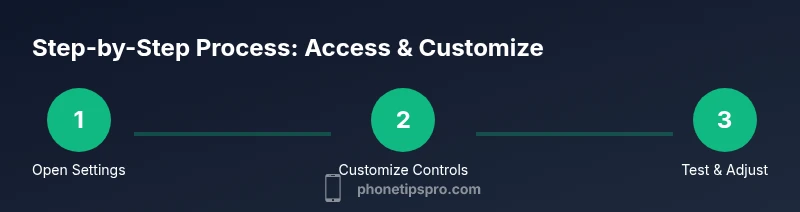
Customization is the key to making Control Center work for you. Go to Settings > Control Center to begin. Tap “Customize Controls” to add or remove items. The green plus adds a control; the red minus removes one; and the hamburger grip lets you drag items to reorder. Choose frequently used functions like Screen Recording, Low Power Mode, Wallet, or a preferred accessibility option so you don’t waste taps searching for them.
If you’re unsure which controls to add, start with 4–6 essentials and expand as you become comfortable. Remember, fewer items often means faster access and fewer mistakes in high-pressure moments.
Rearranging controls for quick access
After adding controls, you can rearrange their order to reflect your priorities. In the same Customize screen, drag the handles next to each item to place the most important toggles at the top. A good rule of thumb is to position the items you use most frequently near the center of the list so you can access them without scrolling or hunting. This small adjustment can dramatically improve your interaction speed with iPhone controls throughout the day.
Pro tip: Review your Control Center layout after a few days of use and shift items if your routines change (e.g., more focus on Screen Recording during presentations).
Using Control Center on the Lock Screen and security considerations
Control Center behavior can vary by device settings. By default, you can access Control Center from the Lock Screen on many iPhone models, but you can disable this for privacy or security reasons. Go to Settings > Face ID & Passcode (or Passcode on Touch ID devices) and toggle “Control Center” under Allow Access When Locked. If you disable it, you’ll need to unlock the device before you can use those quick actions.
In daily use, balancing accessibility with privacy is important. If you often handle sensitive information in public, consider limiting what appears in Control Center or restricting access from the lock screen to maintain security while keeping essential utilities handy.
Common uses and best practices for day-to-day iPhone control
Control Center shines when you can reach the sliders and toggles you need most in a flash. Use it to toggle Wi‑Fi and cellular data, adjust brightness, and launch Screen Recording for quick demos. Set Low Power Mode before long trips, quickly access Timer for time-bound tasks, or turn on the flashlight in emergencies. If you rely on screenshot functionality, ensure Screen Recording is placed where you can reach it with one hand. These best practices help you get more done with fewer interruptions.
Key takeaway: tailor Control Center to your actual workflow, not what looks best in a stock layout. Your iPhone will feel faster and more responsive when the controls align with how you work.
Troubleshooting: when Control Center won’t open or behaves oddly
If Control Center isn’t opening as expected, start with simple checks: ensure you’re using the correct gesture for your device, and verify that the required toggles are enabled under Settings > Control Center. If you’ve restricted access, recheck Settings > Screen Time or any focused modes that may block gestures. A soft reset (restart) can often resolve minor glitches that affect gesture recognition.
If the issue persists, back up data and consider updating to the latest compatible iOS. Persistent problems could indicate a broader software issue or a hardware constraint with the touchscreen; in those cases, visit an Apple Store or an authorized service provider for a check.
Advanced tips to maximize Control Center efficiency
Beyond the basics, you can experiment with alternative workflows, such as using AssistiveTouch to simulate Control Center actions when the screen is unresponsive. Consider creating a daily routine that leverages a specific Control Center layout for workdays and a lighter setup for weekends. If you frequently present, keep Screen Recording ready and practice a one-handed swipe for faster demos. By integrating these small adjustments, you’ll gain a noticeable uplift in speed and ease of use.
Tools & Materials
- iPhone with latest iOS or compatible version(Any model supports Control Center; ensure you can access Settings.)
- Settings app access(Needed to customize Control Center (Settings > Control Center).)
- Spotlight search (optional)(Helpful to quickly locate Control Center settings if needed.)
Steps
Estimated time: 12-18 minutes
- 1
Open the Settings app
From your Home Screen, tap the Settings icon to begin configuring Control Center. This action unlocks the customization options you will use to tailor quick-access controls.
Tip: If you can’t find Settings, use Spotlight search by pulling down on the home screen and typing 'Control Center'. - 2
Open Control Center settings
Within Settings, scroll to Control Center and tap it to access the customization screen where you can add, remove, and rearrange controls.
Tip: Make sure you’re on the main iPhone settings screen to avoid misclicks. - 3
Add essential controls
Tap the green plus button next to items you want in Control Center to add them to your quick-access panel.
Tip: Add only a few frequently used controls to keep the panel clean. - 4
Remove unused controls
Tap the red minus icon to remove items you don’t regularly use, reducing clutter and improving speed.
Tip: Removing rarely used controls can improve gesture reliability. - 5
Reorder for quick access
Drag the handle icons to reposition controls so the most-used items appear near the top of the list.
Tip: Place your most-used controls within easy reach for one-handed use. - 6
Enable access on lock screen
If you want to use Control Center from the lock screen, toggle 'Access on Lock Screen' in the same settings area.
Tip: Enabling access from the lock screen speeds up urgent actions but may affect privacy. - 7
Test the gesture
Exit Settings and swipe to open Control Center to verify that the changes work as intended.
Tip: If the gesture misses, adjust your swipe start point near the notch or bottom edge depending on model. - 8
Fine-tune after daily usage
Review how you use Control Center after a few days and tweak the order or added controls as needed.
Tip: A quick weekly review keeps Control Center aligned with evolving routines.
FAQ
Where is the Control Center on iPhone X and newer models?
On iPhone X and newer (Face ID), swipe down from the top-right corner to open Control Center. It works from any app and from the lock screen if enabled. If you don’t see it, verify the gesture and that Access on Lock Screen is turned on if you want lock-screen access.
On iPhone X and newer, swipe down from the top-right corner to open Control Center. You can also access it from the lock screen if enabled.
How do I customize which controls appear in Control Center?
Go to Settings > Control Center, then tap Customize Controls. Use the plus to add items and the minus to remove them. Drag to reorder so your most-used controls are easiest to reach.
In Settings, customize the controls by adding what's useful and removing what isn’t.
Can I access Control Center from the lock screen?
Yes, you can enable access from the lock screen in Settings > Face ID & Passcode (or Passcode). If disabled, Control Center won’t appear until you unlock the device.
Yes, you can access it from the lock screen if you turn on that option in settings.
Why won’t Control Center open even after swiping correctly?
Check that the feature isn’t restricted by Screen Time or Focus modes. Ensure the correct gesture for your model (top-right for Face ID, bottom edge for Touch ID) and consider restarting the device if the gesture seems unregistered.
If it’s not opening, check restrictions and try a restart to fix gesture issues.
What controls can I add to Control Center besides basics?
Common additions include Screen Recording, Low Power Mode, Wallet/Card, Home, Alarms, and accessibility shortcuts. You can add any controls supported by iOS in Settings > Control Center.
You can add a range of useful controls like Screen Recording, Wallet, and Low Power Mode.
How do I reset Control Center settings without losing data?
There isn’t a standalone reset for Control Center. You can reset all settings via Settings > General > Transfer or Reset iPhone > Reset All Settings. This preserves data but resets system preferences.
There isn’t a dedicated reset for Control Center alone; reset all settings if needed.
Watch Video
Quick Summary
- Tailor Control Center to your daily workflow.
- Use model-appropriate gestures for fastest access.
- Customize, rearrange, and test regularly for optimal speed.
- Lock Screen access is optional and can be disabled for privacy.
- Regularly review and adjust controls to match changing needs.