How to Bring iPhone Screen Down: A Practical Guide
Learn how to bring iPhone screen down with quick methods and deeper settings. This educational guide covers Control Center, Display & Brightness, Night Shift, True Tone, accessibility tweaks, and practical tips for eye comfort and battery life.


To bring the iPhone screen down, lower brightness via Control Center or Settings. Open Control Center (swipe down from the top-right on iPhone X and later, or swipe up on older models) and drag the brightness knob down. For more control, disable Auto-Brightness and True Tone in Settings > Display & Brightness, then fine-tune.
Understanding Screen Brightness on iPhone
Brightness controls determine how bright the display appears. On iPhone, brightness interacts with True Tone and Auto-Brightness to adjust color and light levels based on ambient lighting. According to Phone Tips Pro, mastering these basics helps you reduce eye strain and extend battery life. If you want to bring the screen down, you’ll need to understand where these controls live and how they interact with system features like Night Shift and Color Temperature. The most important concept is that brightness can be set in two places: Control Center for quick tweaks and Settings for fixed preferences. Auto-Brightness adapts to your surroundings, while True Tone adjusts color temperature for comfort.
Quick methods: Control Center, Settings, and Auto-Brightness
Most iPhone users dim the screen through Control Center for speed, and through Settings for consistency. In Control Center, the brightness slider is a quick tap away, and on older devices you access it by swiping up from the bottom. In Settings > Display & Brightness you can tune the brightness level, toggle Auto-Brightness off, and control True Tone. Phone Tips Pro Analysis, 2026 notes that Control Center remains the fastest method for on-the-fly adjustments, while Settings offers stability when ambient lighting changes are less frequent.
True Tone, Night Shift, and the impact on perceived brightness
True Tone automatically adjusts color balance to match ambient light, which can affect how bright a scene looks even if the numeric brightness setting is unchanged. Night Shift shifts the screen toward warmer colors in the evening, reducing blue light exposure. Understanding these features helps you decide whether to dim the brightness itself or rely on color adjustments for comfort. According to Phone Tips Pro Team, turning off True Tone can reveal the true brightness level you’ve set, particularly in dim environments.
Step-by-step overview of where to adjust brightness in iOS
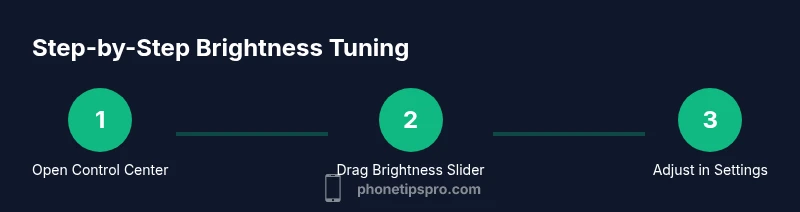
To tailor brightness precisely, use both Quick Center and the Settings menu. In iOS, go to Settings > Display & Brightness to set a fixed brightness level, then optionally disable Auto-Brightness to prevent automatic changes. This section summarizes where each control lives and how to toggle related features like True Tone and Night Shift for consistent results.
How brightness affects battery life and display health
Lower brightness reduces current draw, extending battery life on iPhone. However, too dim a screen in bright outdoor settings can cause eye strain and increase screen glare. You’ll improve battery efficiency by selecting a comfortable brightness level for your typical environment and using features like Night Shift or Reduce White Point when appropriate. Phone Tips Pro Analysis, 2026 highlights the practical balance between legibility and power savings.
Troubleshooting: why your screen won't stay dim
If brightness seems to jump back up, Auto-Brightness may be re-enabling itself due to ambient light changes. Check System Settings to ensure Auto-Brightness is off and that Night Shift or True Tone aren’t altering perceived brightness. Some apps also override brightness while playing a video or game; close or adjust app-specific settings to fix this behavior.
Accessibility considerations: Reduce White Point and color temperature
For additional dimming, explore Accessibility options. Go to Settings > Accessibility > Display & Text Size > Reduce White Point and lower the intensity, then adjust Color Temperature to a warmer tone if you prefer. These tweaks help users who need extra dimming without sacrificing readability.
Quick tip comparisons: brightness vs color temperature vs auto adjustments
Brightness is not the only lever. Color temperature and automatic adjustments influence perceived brightness; turning off Auto-Brightness allows fixed brightness, but Night Shift or Warm colors can make content easier on the eyes. When deciding what to change, test each control separately to understand its impact.
Real-world scenarios: nighttime reading, outdoors, streaming
In dim bedrooms, low brightness with Night Shift yields comfortable reading without eye strain. Outdoors, you’ll need higher brightness to combat glare, possibly disabling Night Shift for true legibility. For streaming, balance brightness with color settings to maintain accurate visuals while keeping the screen easy on the eyes.
Tools & Materials
- iPhone with latest iOS(Supports all brightness controls and features.)
- Control Center access(Swipe from top-right (iPhone X and newer) or swipe up (older models).)
- Settings app(Used for fixed brightness and feature toggles.)
- Optional: comfortable ambient lighting(Helps you judge readability when dimming.)
Steps
Estimated time: 15-25 minutes
- 1
Open Control Center
Access the brightness slider quickly: on iPhone X and newer, swipe down from the top-right corner; on older models, swipe up from the bottom. The brightness control is the sun icon. This step is essential for rapid on-the-fly adjustments.
Tip: Familiarize the gesture for your model; practice a light, deliberate swipe. - 2
Drag the brightness slider down
Move the slider toward the bottom of the control to reduce brightness. Stop where you can comfortably read text in your current environment.
Tip: If the level shifts after you release, Auto-Brightness may re-engage; proceed to the next step to lock it. - 3
Open Settings for precise control
Go to Settings > Display & Brightness to see a precise numeric slider and related options like True Tone and Night Shift. This gives you a stable baseline.
Tip: Use Settings when you want a fixed level across lighting changes. - 4
Disable Auto-Brightness and True Tone
Turn off Auto-Brightness and True Tone if you want a fixed brightness level and color balance. This prevents automatic changes as you move between light conditions.
Tip: Re-enable if you rely on color balance adjustments rather than raw brightness. - 5
Enable Night Shift for evening use
In Display & Brightness or via Control Center, enable Night Shift to reduce blue light. It warms the display and can make the screen feel dimmer without changing the brightness setting.
Tip: Schedule Night Shift to turn on automatically at sunset or bedtime. - 6
Adjust Color Temperature if available
Some iOS versions offer a Color Temperature control. Slide toward Warm to reduce perceived brightness and eye strain in low-light environments.
Tip: Test both Cool and Warm to see which is easier on your eyes. - 7
Create quick brightness presets
Use Shortcuts or Accessibility Shortcuts to switch between a dim mode and a normal mode. This saves time in daily routines.
Tip: Assign a Back Tap shortcut to toggle a dim preset if available. - 8
Test in real-world lighting
Spend a few minutes in different environments (indoors, outdoors, low light) to ensure your chosen brightness level remains legible and comfortable.
Tip: Ask a friend to confirm readability under bright sun.
FAQ
What is the quickest way to lower iPhone brightness?
Open Control Center and drag the brightness slider down. For a fixed level, also adjust Settings > Display & Brightness and disable Auto-Brightness.
Open Control Center and drag the brightness slider down.
Does Auto-Brightness affect battery life?
Auto-Brightness adapts to ambient light; it can help save power if it reduces unnecessary brightness. If you fix brightness by turning Auto-Brightness off, you control energy use more predictably.
Auto-Brightness adapts to light and can save power when dimming is intentional.
Will Night Shift change brightness or color?
Night Shift changes color temperature, making the screen warmer. It does not lower brightness numerically, but it can make content easier to view at night.
Night Shift makes the screen warmer, not necessarily dimmer.
Can accessibility settings help me dim further?
Yes. Use Reduce White Point and Color Temperature in Settings > Accessibility to dim the screen while preserving readability.
You can dim further with accessibility settings.
Why does brightness reset after a reboot?
If Auto-Brightness is enabled, iOS may recalibrate on startup. Disable Auto-Brightness or set a fixed level to prevent automatic changes.
Auto-Brightness can reset after reboot.
Is there a shortcut to adjust brightness quickly?
Yes. Use Control Center for quick dimming, or set up Shortcuts/Back Tap to toggle a preferred brightness preset.
You can set a quick shortcut to dim the screen.
Watch Video
Quick Summary
- Dim brightness quickly with Control Center
- Disable Auto-Brightness for fixed levels
- Night Shift can help at night
- Test brightness in various lighting scenarios
- Use shortcuts to toggle dim modes