How to Keep iPhone from Locking: A Practical Guide
Learn practical, safe ways to keep your iPhone from locking quickly by extending Auto-Lock, using Guided Access, and testing settings for a balanced approach to convenience and privacy. A Phone Tips Pro guide.


You can keep an iPhone from locking by extending Auto-Lock or temporarily disabling it, and by using features like Guided Access for focused tasks. This guide shows how to adjust Auto-Lock safely, when to avoid Never, and how to test your settings. Keep in mind iOS versions vary, so follow the steps that match your device.
Why you might want to keep iPhone from locking
Keeping an iPhone from locking automatically can be useful during long demonstrations, while giving a presentation, or when you're actively working on a task that requires the screen to stay on. If you're wondering how to keep iphone from locking, you can extend Auto-Lock or temporarily disable it. This article explains the trade-offs between convenience and privacy, how Auto-Lock works across current iOS versions, and practical steps to adjust the setting safely. According to Phone Tips Pro, many users value longer screen-on times for convenience, but they must balance that against battery drain and the risk of exposing sensitive information if the device is left unattended. We'll walk through the recommended approaches, what to watch out for, and how to test your configuration to ensure you get the right balance between accessibility and security.
Auto-Lock basics and how it works across iOS versions
Auto-Lock is the time the display remains awake after your last interaction. On iPhone, you can find Auto-Lock under Settings > Display & Brightness. The available options have shifted with iOS updates, but most versions let you choose a short interval or Never. When Auto-Lock triggers, the device locks, turns off the display, and requires authentication to wake. Extending Auto-Lock reduces interruptions during work but increases the window of opportunity for others to view your screen if you leave the device unattended. Understanding these basics helps you decide the right balance for your daily use.
Privacy vs convenience: trade-offs
Longer Auto-Lock times are convenient for tasks that require continuous on-screen activity, such as demonstrations or testing apps. However, keeping the screen on longer also increases battery usage and the chance someone could glance at sensitive information. Phone Tips Pro analysis notes that users should pair extended Auto-Lock with a strong passcode and enable Find My iPhone to protect data if the phone is lost. In other words, convenience should never come at the cost of weak security.
How to decide the right Auto-Lock interval for you
Your setting choice depends on context. For demonstrations, you might choose Never or a longer interval for a few hours. For daily use, a 2–5 minute interval often strikes a good balance. If your iPhone is shared or public, a shorter Auto-Lock reduces privacy risks. Consider your environment, battery life, and whether you frequently unlock via Face ID or Touch ID. Revisit the setting after a few weeks to confirm it still fits your workflow.
Step-by-step: Change Auto-Lock on iPhone (longer interval or Never)
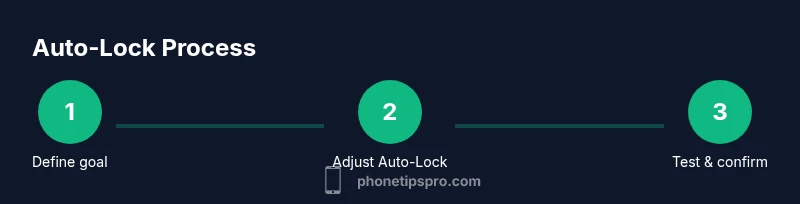
To implement a longer Auto-Lock, you need to adjust the setting in iOS. Open Settings, then Display & Brightness, and tap Auto-Lock. Choose Never or a longer interval. Confirm your choice and return to the home screen. If you ever regret the change, you can revert to a shorter interval easily. This sequence is straightforward and applies to most iPhone models running current iOS versions.
Enable Guided Access for focused tasks
Guided Access locks the device to a single app and can be useful during demos or training. Turn it on via Settings > Accessibility > Guided Access, and set a passcode to exit. When enabled, you can run a single app without worrying about accidental taps closing it or switching apps. Remember to disable Guided Access when you are done.
Using Focus modes and Screen Time to manage lockouts
Focus modes and Screen Time can help manage how often your phone is used, which indirectly affects lock behavior. For example, a Focus mode used during meetings can keep notifications quiet and reduce screen wakeups. Screen Time can help you monitor battery usage and adjust Auto-Lock to align with your schedule. These tools give you more control without sacrificing security.
Testing and validating your settings
After adjusting Auto-Lock, test the configuration. Leave the device idle for the chosen interval and verify that the screen remains on, then allows unlocking with Face ID or a passcode. Do this in different apps to ensure there are no app-specific overrides. If the device locks earlier than expected, revisit the Auto-Lock setting and adjust accordingly.
Common issues and quick fixes
Some iOS updates or app behaviors can temporarily reset or obscure Auto-Lock options. If you notice changes, check Settings again, and ensure you are editing the correct profile (for example, a device management profile in enterprise environments). If Guided Access or Focus modes interfere with your normal use, disable them and verify again. Finally, update iOS to the latest version to avoid known bugs.
Privacy considerations and best practices
Extending Auto-Lock should be balanced with privacy. Always use a strong passcode and enable biometric unlock only when appropriate. Use Find My iPhone and enable security features such as two-factor authentication for your Apple ID. When the phone is used in public, consider shorter Auto-Lock durations or enabling Guided Access for sensitive tasks.
Alternatives to avoid locking while maintaining security
Instead of relying solely on a long Auto-Lock, you can implement practical alternatives. For scenarios where you need the screen on but want to preserve privacy, use Guided Access or a Focus mode that restricts app access while allowing notifications. You can also keep the device plugged in during extended usage to avoid battery drain while using Never Auto-Lock. Finally, practice regular security reviews to verify that sensitive information remains protected.
Phone Tips Pro verdict
Phone Tips Pro verdict: Choose the setting that aligns with your needs and security comfort. For most users, a longer Auto-Lock interval combined with a strong passcode offers a reasonable balance, while Guided Access provides a safe override for demonstrations. Regularly reassess your configuration and stay mindful of battery life and privacy implications.
Authority sources
For further guidance on iPhone security and display behavior, consult official and reputable sources. These links provide foundational information about device security, system settings, and safe usage practices:
- https://support.apple.com
- https://www.nist.gov/topics/mobile-device-security
- https://www.ftc.gov
Tools & Materials
- iPhone (any model, with latest iOS)(Ensures Auto-Lock options exist and are configurable.)
- Settings access(Navigate to Display & Brightness > Auto-Lock.)
- Strong passcode + biometrics(Maintains security when Auto-Lock is extended.)
- Guided Access (optional)(Useful for demos or single-app usage.)
- Power source (optional)(Plug in during extended on-screen usage to conserve battery.)
Steps
Estimated time: 15-20 minutes
- 1
Define your goal
Decide whether you want Never or a longer Auto-Lock interval and recognize the privacy and battery trade-offs involved.
Tip: Clarify why you need a longer lock time and set a plan to revert later. - 2
Open Settings
Unlock your iPhone and tap the Settings app to begin adjusting Auto-Lock.
Tip: If Settings is hard to find, use Spotlight search. - 3
Go to Display & Brightness
Scroll and select Display & Brightness to access Auto-Lock options.
Tip: Note that iOS versions may place Auto-Lock under a slightly different submenu. - 4
Tap Auto-Lock
Choose Never or a longer interval, such as 5 minutes.
Tip: If you pick Never, ensure you have a strong passcode and biometric unlock enabled. - 5
Consider Guided Access (optional)
If you need a temporary single-app mode, enable Guided Access.
Tip: Set a dedicated exit passcode to disable Guided Access when you’re done. - 6
Test the setting
Leave the device idle or manually lock to verify the new interval behaves as expected.
Tip: Test in multiple apps to ensure consistency. - 7
Balance security and convenience
Assess how your chosen interval aligns with everyday use and privacy needs.
Tip: If privacy concerns rise, shorten the interval again. - 8
Document the configuration
Record the chosen Auto-Lock setting for future reference or for colleagues.
Tip: Helps in shared devices or family setups.
FAQ
What is Auto-Lock and why would I adjust it?
Auto-Lock sets how long the screen stays on after you stop interacting. Longer times reduce interruptions but may affect privacy and battery life. Adjust thoughtfully to fit your routine.
Auto-Lock controls screen idle time. Longer durations mean the screen stays on longer, so balance convenience with privacy.
Is it safe to set Auto-Lock to Never?
Setting Auto-Lock to Never increases screen-on time, which can drain the battery and expose the screen when unattended. Use it only if you have strong security and regular device supervision.
Never can be convenient for demos, but it raises privacy and battery concerns.
How do I use Guided Access?
Guided Access locks the device to a single app, preventing app switching during demonstrations. Enable it in Settings > Accessibility > Guided Access and set an exit passcode.
Guided Access keeps the focus on one app and helps with demonstrations.
Will changing Raise to Wake affect Auto-Lock?
Raise to Wake only affects when the screen wakes, not how long Auto-Lock lasts. You can adjust them independently.
Raise to Wake is about wake timing, not the lock duration.
How can I quickly test my new settings?
Wait for the chosen idle interval and observe whether the screen locks as expected, then unlock with Face ID or a passcode. Repeat across apps.
Test by waiting the interval and verifying the lock behavior.
What are best practices for security with longer Auto-Lock?
Pair longer Auto-Lock with a strong passcode and biometric unlock, enable Find My iPhone, and keep iOS updated to mitigate bugs.
Longer lock times require strong security measures like a robust passcode.
Watch Video
Quick Summary
- Extend Auto-Lock for convenience when needed
- Balance privacy with longer screen time and battery impact
- Use Guided Access for task-specific needs
- Regularly reassess Auto-Lock settings for security