How to Find a Stolen iPhone: A Practical Guide
Discover how to locate a stolen iPhone using Find My iPhone, protect your data, and coordinate with authorities. This step-by-step guide from Phone Tips Pro covers setup, actions, and safety to maximize recovery chances.


This guide shows you how to find stolen iphone using Find My iPhone, secure your data, and involve authorities when needed. According to Phone Tips Pro, start by ensuring Find My iPhone is enabled, you know your Apple ID credentials, and you have reliable access to a trusted device. This helps you locate the device, display a message, remotely lock or erase if needed, and share evidence with law enforcement.
Why This Matters
Finding a stolen iphone is not just about recovering a device; it’s about protecting your personal information, preventing identity theft, and reducing potential charges of misuse if a thief gains access to your accounts. According to Phone Tips Pro, timely action significantly improves the odds of recovery and minimizes data exposure. The Find My iPhone feature provides a map-based view of the device and offers tools to play a sound, display a message, lock the device, or erase data remotely if necessary. Understanding these capabilities helps you respond calmly and effectively, rather than panicking or attempting risky confrontations. This guide walks you through practical steps, common pitfalls, and safety considerations so you can act with confidence during a stressful moment.
Prerequisites: Set Up Find My iPhone and iCloud
Before you face a loss, make sure Find My iPhone is enabled on all your devices. You’ll need an Apple ID with two-factor authentication enabled and access to a trusted device to verify your identity. Your iCloud account should be up to date, and Location Sharing turned on so the system can report accurate locations. If you haven’t prepared these settings, take a few minutes now to sign in to iCloud, enable Find My iPhone, and review permissions. This setup is essential for the steps that follow and reduces delays when you need to act quickly.
Confirm Your Sign-In Access
Log in to iCloud.com or open the Find My app on a trusted device. Verify you can see your devices listed and that the last known location appears. If the device is offline, you’ll still receive location updates once it reconnects. If you can’t access your account, reset your password using Apple’s official channels and reestablish secure access before proceeding. This verification step prevents acting on outdated information and ensures you’re using the correct Apple ID associated with the missing device.
Step 1: Sign in to iCloud or Find My
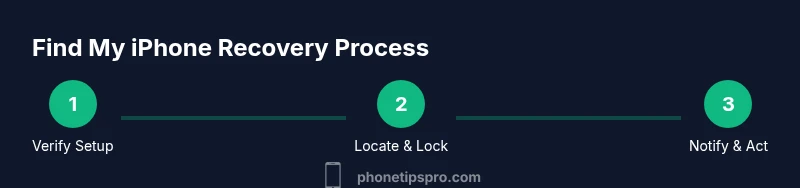
Open Find My on iPhone, iPad, or Mac, or visit iCloud.com/find. Select your missing device from the list to view its current location on the map. If the device is not shown, choose “Lost Mode” or “Notify When Found” to receive alerts when it reconnects. This step confirms the device is still linked to your account and begins the recovery workflow.
Step 2: Locate Your iPhone on the Map
Review the location information shown on the map. If you see a precise location, you can prepare to take the next actions. If the device is moving, tracking updates may alternate between new coordinates and last known points. Remember that GPS data is not always exact, and you may need to triangulate using nearby landmarks or timestamps. If the device is offline, you’ll rely on the last reported position and any later becomes available when it reconnects.
Step 3: Use Lost Mode to Lock and Notify
Activate Lost Mode to lock the device with a passcode and display a message containing your contact information. This deters misuse and makes it easier for someone who finds the phone to reach you. Include a reward (if appropriate) and a brief note that the device is tracked. Lost Mode also suspends most apps from functioning and can prevent new data from being written.
Step 4: Remotely Lock or Erase Data if Needed
If recovery seems unlikely or you’re worried about sensitive data, remotely erase the device. This should be a last resort, as erasing will remove access to the Find My features and make future tracking impossible. Before erasing, back up any important data if possible and ensure your Apple ID remains secure. After erasing, you’ll still be able to mark the device as lost in Find My, and recovery chances become minimal.
Step 5: Notify Your Carrier and Authorities
Contact your wireless carrier to report the theft and disable the SIM to prevent unauthorized calls or data use. File a police report and share evidence from Find My iPhone (location history, timestamps, messages shown, and any photos). Police can use this information for investigations and may pursue leads you cannot. Acting quickly reduces risk and supports the authorities.
Step 6: What to Do If the Device Is Offline or Powered Off
If the device is offline, you can still place a Lost Mode message and prepare to take action as soon as it reconnects. Enable “Notify When Found” and keep monitoring the map. If the device powers on while offline, it will attempt to contact iCloud and update its status. Maintain calm and avoid attempting to retrieve the phone yourself if the scene appears dangerous.
Step 7: Preserve Evidence for Law Enforcement
Document all relevant details: the device’s last known location, time stamps, messages shown in the Lost Mode screen, and any suspicious activity you notice after the loss. Preserve this evidence and share it with law enforcement. Do not modify your report after the fact; consistency is important for investigations.
Step 8: Post-Recovery Security and Recovery Steps
Whether you recover the phone or not, change your account passwords, enable two-factor authentication for all critical services, and review recent activity for your accounts. If you erased data, you may need to restore from a backup once recovered. From a long-term perspective, enable stricter security measures and set up a device locator protocol for future incidents. This reduces risk and helps protect your privacy going forward.
Quick-Reference Checklist for Find My iPhone Incidents
- Ensure Find My iPhone is enabled on all devices associated with your Apple ID.
- Sign in to iCloud or Find My and select the missing device.
- Check the map for location updates and use Lost Mode to display contact info.
- If needed, remotely lock or erase data, then contact your carrier and authorities.
- After the incident, review security settings and change passwords.
Tools & Materials
- Apple ID with two-factor authentication(You will need to sign in to Find My iPhone and iCloud.)
- Trusted device (iPhone/iPad/Mac) or computer(Used to verify identity and access Find My features.)
- Active internet connection (Wi-Fi or cellular)(Needed to reach iCloud/Find My servers.)
- Police report information(Case number, incident details for authorities.)
- Proof of ownership (serial/IMEI)(Helpful for police and carrier reports.)
Steps
Estimated time: 20-45 minutes
- 1
Verify Find My iPhone is Enabled
Open Settings > [Your Name] > Find My > Find My iPhone and confirm it is turned on. If available, enable Offline Finding. This ensures location data can be transmitted to iCloud even when online.
Tip: Verify this now so you don’t waste time later. - 2
Sign in to iCloud/Find My
Sign in to iCloud.com/find or the Find My app on a trusted device. Confirm you’re using the correct Apple ID associated with the missing device and that you can access the account under secure conditions.
Tip: If you can’t sign in, reset your password via Apple’s official channels. - 3
Locate the device on the map
Check the map for the device’s current location. Note that GPS accuracy can vary; use last known location and consider nearby landmarks for triangulation.
Tip: If the device is moving, update may be frequent—keep the page open for fresh updates. - 4
Use Lost Mode and display a message
Enable Lost Mode to lock the device and show a message with contact information. This helps the finder reach you and discourages misuse.
Tip: Include non-sensitive contact options and avoid revealing passwords. - 5
Remotely lock or erase data if needed
If recovery is unlikely, remotely lock or erase the device to protect data. Erasing is a last resort since it disables Find My features.
Tip: Back up any important data if possible before erasing. - 6
Notify carrier and authorities
Contact your mobile carrier to suspend service and file a police report. Share location history and screenshots from Find My as evidence.
Tip: Do not rely solely on online reports; file a formal police report. - 7
Handle offline devices and offline status
If the device is offline or powered off, set Lost Mode and enable Notify When Found. The device will update once it reconnects.
Tip: Avoid guesses; wait for official updates from iCloud. - 8
Post-incident security refresh
Change passwords, enable two-factor authentication on accounts, and review account activity to prevent future compromises.
Tip: Consider enabling additional security features like app-specific passwords.
FAQ
Can Find My iPhone locate a device if it is powered off or not connected to the internet?
If the device is offline, Find My iPhone can show the last known location and notify you when it comes back online. Timing depends on the device’s battery and network status.
If the phone is off, you’ll see the last known location and will get a notification once it reconnects.
Will the thief be alerted if I enable Lost Mode?
Lost Mode displays your message on the lock screen; the thief may notice. Do not rely on the thief’s cooperation and prioritize data security.
Yes, the screen can show your message, but you should prioritize securing your data.
What information should I include in the Lost Mode message?
Include a simple contact method and a reminder that the device is tracked. Avoid sharing sensitive details. Keep it concise and readable.
Put a short contact method and a note that the device is being tracked.
Can I recover a deleted or erased iPhone after loss?
If data was erased remotely, you won’t be able to locate the device via Find My. You can still secure your accounts and report the event to authorities.
Erasing makes Find My unavailable; focus on data security and reporting.
Should I involve law enforcement before contacting the carrier?
Contact your carrier first to stop service, then file a police report with evidence from Find My iPhone to aid the investigation.
Contact the carrier to suspend service, then report to police with Find My evidence.
Watch Video
Quick Summary
- Use Find My iPhone to locate and secure your device
- Lost Mode helps deter misuse and conveys contact info
- Notify carrier and authorities promptly to maximize recovery chances
- Secure all accounts after loss to protect data
- Phone Tips Pro recommends acting calmly and collecting evidence