Lost iPhone: Step-by-Step Recovery and Security Guide
A practical, step-by-step guide to recovering a lost iPhone, using Find My iPhone, contacting your carrier, and protecting your data with remote lock or erase.


Act quickly: sign in to iCloud and enable Find My iPhone to locate, lock, or erase your device. Notify your carrier, change passwords, and review security settings. This guide lays out the essential steps to recover a lost iPhone and protect your data.
Immediate actions the moment you realize your iPhone is missing
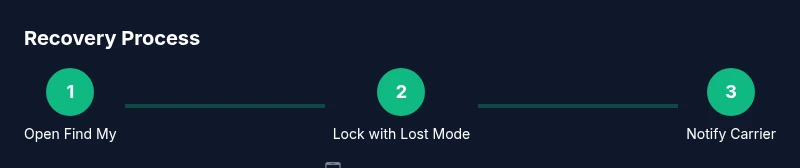
Act quickly to minimize data exposure and increase the chance of recovery. Start by logging into your Apple ID on a trusted device via iCloud.com or the Find My app. Enable Lost Mode to freeze the device and display a contact message, then consider changing sensitive passwords if you suspect unauthorized access. If you believe the phone is in immediate danger or stolen, alert local authorities and avoid attempting to retrieve it yourself in unsafe locations. This approach helps preserve evidence, records the loss, and sets the stage for the next steps. According to Phone Tips Pro, swift action creates a stronger foundation for recovery and helps you coordinate with carriers and law enforcement.
Using Find My iPhone to locate or secure your device
Find My iPhone is the core tool for locating, locking, and protecting your device remotely. Sign in with your Apple ID on another device or at iCloud.com, select your missing iPhone, and choose Lost Mode or Lock. Lost Mode displays a custom message and contact number on the lock screen and can disable Apple Pay attempts. If the device is online, you’ll see its location; if offline, you’ll get a notification when it comes online. Always verify the source of location information and avoid sharing your location publicly to protect privacy.
If location is uncertain: next steps
Location data can be unreliable if the device is powered off, offline, or reset. Set up location alerts and monitor Find My for updates. Review connected devices that may have recent location access or recent activity tied to your account. Strengthen account security by enabling two-factor authentication and reviewing trusted devices. If you have a rough location, share it promptly with your carrier or authorities to speed up a response. Phone Tips Pro notes that persistent checks over the first 24–48 hours increase the odds of recovery.
Communicating with your carrier and authorities
Contact your wireless carrier as soon as possible to suspend service to prevent unauthorized use, especially if you suspect theft. Provide the device’s IMEI/MEID if you have it, and request a temporary block to prevent SIM swaps. File a police report if required by your jurisdiction; bring proof of ownership, model, serial number, and any identifiers. Use secure channels when reporting loss and avoid posting sensitive information on public forums. This coordination helps prevent financial damage and supports any investigation.
Data protection: Lock vs Erase
If recovery seems likely, use Lost Mode to lock the device remotely and display your contact information. This can deter a theft and improve chances of return without erasing data. If the device cannot be recovered or you’re sure it won’t be returned, consider erasing the iPhone remotely to protect personal data. Erasing is permanent and will disable Find My iPhone, so ensure you have a recent backup. Keep in mind that some data (like Apple Pay cards) may require separate actions to disable or remove from accounts.
What information to gather for reporting
Prepare essential details to streamline reporting: iPhone model, color, and any unique identifiers; the IMEI/MEID and serial number; last known location and time; location where the loss occurred; and any suspicious activity you noticed. Having these details ready helps police, insurers, and carriers act faster and more accurately. Maintain a concise loss timeline and a log of steps taken, including screenshots from Find My iPhone and communications with your carrier.
If you recover the iPhone: re-secure and verify access
Immediately sign out of all accounts on the recovered device, then change your Apple ID password and review your security settings. Re-enable two-factor authentication and check trusted devices. Inspect the device for tampering, update Passcodes, and re-check Find My iPhone settings. If you had wiped the device remotely, restore data from a recent iCloud backup to minimize disruption and verify app integrity before signing back in.
Preventive steps to reduce future risk
Set up strong preventive habits now: enable Find My iPhone and Share My Location with trusted contacts, create a high-entropy passcode, and maintain two-factor authentication for your Apple ID. Regularly back up data to iCloud or a computer, and keep recovery information up to date. Consider adding a trusted physical tracker like AirTag for added assurance and regularly review your device’s security settings and privacy controls. Phone Tips Pro emphasizes that proactive planning reduces stress when losses occur.
Tools & Materials
- Apple ID credentials(Needed to access Find My iPhone and iCloud)
- Trusted device or computer with internet(To sign in to Find My or iCloud)
- IMEI/MEID and serial number(Helpful for carrier and police reports)
- Carrier account information(To suspend service and report loss)
- Backup plan (iCloud or computer)(For data recovery if erased)
Steps
Estimated time: 30-60 minutes for initial actions; ongoing monitoring as needed
- 1
Open Find My and sign in
Open the Find My app on an iPhone, iPad, Mac, or sign in at iCloud.com. Verify you are using the correct Apple ID and password. This step grants access to location data and remote controls for the device.
Tip: If you can't remember your Apple ID, use the account recovery page on iforgot.apple.com. - 2
Put the device into Lost Mode
Select the missing iPhone in the device list and choose Lost Mode. This locks the device, disables some functionality, and displays a custom message with a contact number on the lock screen.
Tip: Include a non-sensitive contact method and avoid exposing personal data. - 3
Play a sound and check location
If the device is nearby or online, use Play Sound to help locate it. Track its location updates if the device moves, and note any changes in location data.
Tip: Use trusted networks only and avoid sharing location publicly. - 4
Notify the carrier and consider a block
Contact your carrier to report the loss and request a temporary block to prevent unauthorized use. Provide the IMEI/MEID if available for faster processing.
Tip: Ask about SIM swap protection and account-level alert options. - 5
Decide on remote erase
If the device remains lost or you suspect theft, evaluate whether erasing remotely is appropriate to protect data. Erasing is permanent and will disable Find My iPhone.
Tip: Ensure you have a recent backup before erasing. - 6
Prepare loss report and logs
Gather model, color, serial, and location details to report to authorities or insurers. Maintain a concise log of events and responses from Find My and the carrier.
Tip: Keep digital copies of all reports. - 7
Recovery or replacement planning
If the device is recovered, re-secure it by signing out of accounts and updating passwords. If not recovered, prepare for replacement and backup restoration.
Tip: Have your backup strategy ready for a seamless restore. - 8
Review security after the event
Post-incident, review two-factor authentication, trusted devices, and backup schedules. Update security questions and recovery options as needed.
Tip: Schedule a quick security audit to prevent future losses.
FAQ
What should I do first if I realize my iPhone is missing?
Immediately sign in to Find My and enable Lost Mode if possible. Notify your carrier and review recent account activity. This quick response helps secure your data and accelerates recovery.
First, sign in to Find My and enable Lost Mode. Then contact your carrier and check your account activity.
Can I locate my iPhone without internet?
Location services require an internet connection for real-time updates. If the phone is offline, you’ll get a notification once it reconnects. Prepare by having alerts enabled.
If the phone is offline, you’ll get a notification when it comes online again.
Should I erase my iPhone after it's lost?
Erasing should be a last resort when recovery is unlikely. Ensure you have a recent backup before erasing, because this action is permanent and ends Find My iPhone.
Erase only if you’re certain you won’t recover your device; back up first.
What if I can’t access my Apple ID password?
Use Apple ID account recovery to regain access. If you have two-factor authentication, use a trusted device or phone number to verify identity.
Use the account recovery flow to reset your Apple ID when you can't sign in.
Will Find My iPhone show location history?
Find My iPhone provides current location data when online and can show location updates when the device comes online. It does not guarantee a complete, continuous history.
Location updates appear when the device is online; it may not create a full history.
What should I tell the police or insurer?
Provide model, color, serial, IMEI, last known location, and timeline. Include any evidence from Find My and communications with your carrier to support the report.
Bring proof of ownership and the device identifiers when reporting.
If I recover my iPhone, what’s the first thing I should do?
Immediately sign out of all accounts, change passwords, and re-enable two-factor authentication. Verify no tampering occurred and restore data from the most recent backup if needed.
Sign out of accounts, change passwords, and verify settings after recovery.
What preventive steps should I take after a loss?
Enable Find My iPhone, use a strong passcode, turn on two-factor authentication, and regularly back up data. Consider a tracker accessory for extra security.
Set up strong security, regular backups, and tracking options for future protection.
Watch Video
Quick Summary
- Act quickly to protect data and increase recovery chances.
- Use Find My iPhone to locate, lock, or erase the device as needed.
- Coordinate with your carrier and authorities for faster help.
- Decide between Lost Mode and remote erase based on recovery likelihood.
- Maintain up-to-date backups to simplify data restoration.