Free Virus Scan for iPhone: Safe Scanning Guide 2026
Learn how to perform a free virus scan on your iPhone, evaluate results, and protect your data. This expert guide covers built-in protections, trustworthy free tools, and best practices for privacy.


This guide helps you perform a free virus scan for iPhone safely, verify results, and avoid misleading apps. You’ll learn about built‑in iOS protections, reputable free tools, and practical steps to maintain privacy and device health. Follow the steps and stay alert to scams.
Why a free virus scan for iphone matters
In a landscape where iPhone malware is less common than on other platforms, a free virus scan for iphone can still help you detect shady apps, profile changes, or banner ads that indicate a compromised device. According to Phone Tips Pro, staying proactive with security checks reduces exposure to scams and data leaks. This guide explains what to look for, how to choose reputable scan options, and how to interpret results without panicking. A thoughtful approach to scanning also reduces anxiety about potential infections and helps you build healthier digital habits. By understanding what a scan can and cannot do, you empower yourself to make safer choices for your personal information and devices.
The Phone Tips Pro team emphasizes that no single scan guarantees a perfectly clean device. Instead, a combination of built-in protections, reputable free tools, and careful interpretation of findings provides the most reliable protection. Throughout this article you’ll see practical comparisons, concrete steps, and cautionary notes to help you navigate false positives and legitimate alerts alike.
What malware on iPhone looks like in practice
Viruses on iPhone tend to take the form of adware, profile changes, or apps behaving oddly rather than the traditional desktop malware model. Free virus scan for iphone can help surface suspicious activity like unexpected battery drain, sudden data usage spikes, or new device permissions. Real-world signs include unfamiliar popups, unfamiliar profiles in Settings, and apps that refuse standard updates. While iOS sandboxing limits some attack vectors, malicious configurations or misbehaving apps still merit attention. This section outlines common symptoms you should not ignore and how a scan can corroborate your observations with actionable data.
Built‑in protections you should leverage first
iPhone has several layers of built‑in security designed to block malware before it can do harm. These include rigorous app review, app sandboxing, and frequent security updates pushed through iOS. Before seeking a free virus scan, ensure you have automatic updates enabled, review app permissions, and turn on Find My iPhone for device tracking and remote locking. These native protections reduce the likelihood of malware establishing persistence and can often resolve suspicious behavior without any additional tools. This section details why these built‑ins matter, and how to verify they’re active.
Free scan options: what to trust and what to avoid
There are legitimate, reputable free virus scan options for iPhone, including free malware checks offered by well-known security developers and endorsements from security communities. When evaluating a free tool, prioritize vendors with clear privacy policies, transparent data handling, and independent reviews. Avoid apps with vague permissions requests, aggressive ads, or dubious endorsements. In this section we compare common free options, explain what features to expect (such as scan types and result explanations), and provide criteria to separate trustworthy scanners from risky imitators. This guidance helps you choose a safe, no-cost option without compromising data privacy.
How to evaluate scan results responsibly
A scan result is a data point, not a verdict. When a scan flags something, verify the finding by cross-checking with your device behavior, app list, and recent downloads. Look for corroborating indicators such as unfamiliar profiles, new background processes, or unexpected network activity. Cross-reference the result with the app’s source, recent iOS updates, and any known issues reported by reputable sources. If a scan detects a potential threat, don’t immediately panic. Instead, collect evidence, back up data, and follow a clear remediation plan that may include removing suspicious apps, clearing caches, or resetting certain settings. This section teaches you how to interpret results without overreacting.
Step-by-step overview of the scanning process
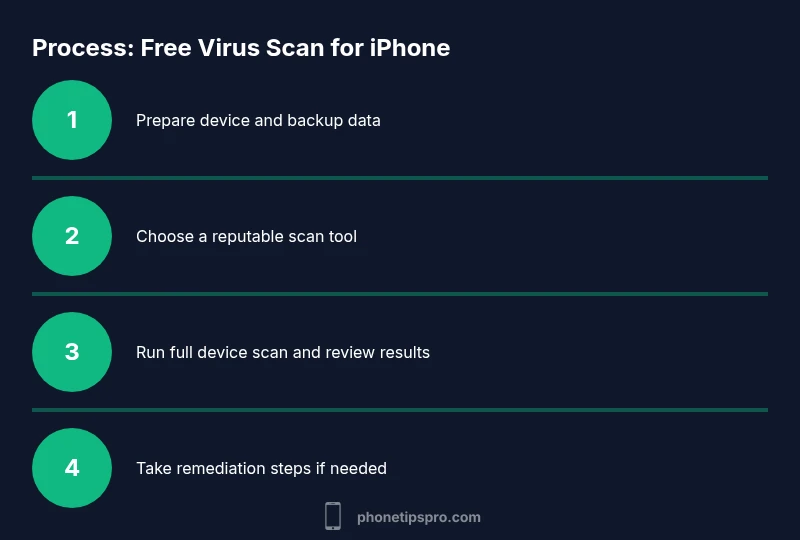
A structured approach helps you stay organized and avoid skipping important checks. First, prepare your device by backing up data and ensuring connectivity. Then, choose a reputable free scanner and run a full device check. Finally, review results carefully and decide on next steps based on the scan’s findings and your risk tolerance. In the spirit of practical learning, this section highlights a methodical workflow you can apply to future scans, including how to document outcomes for future reference.
How to protect yourself after a scan
Protection doesn’t end with a scan. If you encounter suspicious results, immediately remove any questionable apps, revoke unnecessary permissions, and consider a factory reset only if recommended by reputable sources. Keep iOS updated, enable account security features like two-factor authentication, and practice safe downloading habits. The goal is to minimize future exposure by combining scanning with ongoing best practices. This section lays out a practical, repeatable post-scan routine you can adopt to maintain long-term device health.
Addressing common scams and misinformation
Scammers love to mislabel their products as “free virus scans” for iPhone. Some free tools are legitimate, but others are designed to harvest data or push unwanted software. Always verify the source, read privacy policies, and avoid tools that request excessive permissions or instruct you to disable security features. This section helps you spot red flags, identify trustworthy vendors, and avoid common scams that prey on users’ fear of malware.
Privacy, data usage, and choosing a trustworthy scanner
Your privacy matters when you run any security tool. Reputable scanners minimize data collection, avoid transmitting personal information, and provide clear post-scan guidance. In this closing section we outline key privacy considerations, such as on-device scanning versus cloud-assisted checks, data minimization practices, and how to review a vendor’s privacy policy. By selecting tools with transparent data handling and strong privacy controls, you reduce risk while maintaining device health.
Tools & Materials
- iPhone with latest iOS version(Ensure automatic updates are enabled before scanning.)
- Stable Wi‑Fi or cellular data(Needed for app downloads and updates if required.)
- Trusted Apple ID and password(Use two-factor authentication where possible.)
- A reputable free virus scan app (from an official store)(Check reviews, privacy policy, and permissions.)
- Backup method (iCloud or computer)(Backup before making changes or removing apps.)
- Notes app or journal(Record findings and actions taken for future reference.)
Steps
Estimated time: 25-40 minutes
- 1
Prepare your device
Back up data and ensure your iPhone is updated to the latest iOS. This minimizes data loss if you need to perform remediation after a scan.
Tip: Backups are your safety net; ensure the backup completed successfully before scanning. - 2
Choose a reputable scanner
Select a well-reviewed, free virus scan app from the official App Store. Check privacy policy, permissions requested, and user feedback.
Tip: Avoid apps with excessive permissions or aggressive ads. - 3
Run the full device scan
Open the scanner and run a full device scan. If the app offers a quick scan option, start with that, then proceed to a deep scan if available.
Tip: Allocate 10–15 minutes for a thorough check. - 4
Review scan results
Carefully read the report. Look for confirmed threats, suspicious apps, or unusual permissions. Cross-check with installed apps list.
Tip: Don’t panic over a single alert; verify with further checks. - 5
Take appropriate action
Remove or quarantine suspicious apps, revoke dangerous permissions, and reset credentials if needed. If no clear threat exists, monitor device behavior for 24–72 hours.
Tip: Document actions and monitor for recurring issues. - 6
Verify safety after remediation
Re-run a quick scan to confirm issues are resolved and check for new alerts. Ensure all critical apps work as expected.
Tip: Keep iOS and apps updated to reduce recurrence. - 7
Maintain ongoing protection
Enable automatic security updates, review app permissions periodically, and stay vigilant against phishing and fraud attempts.
Tip: Set a periodic reminder to re-scan or check security settings.
FAQ
Can iPhones actually get viruses?
Yes, while rare, iPhones can be affected by malware and scams that manipulate apps or profiles. A free virus scan for iPhone can help surface suspicious behavior, but should be used alongside safe practices and iOS protections.
Yes, iPhones can get malware, though it's uncommon. A malware scan helps surface suspicious behavior alongside using iOS protections.
Are free virus scans safe for iPhone users?
Generally, trusted free scans from reputable developers are safe if they come from official stores and have a clear privacy policy. Avoid apps with vague terms or excessive permissions.
Free scans can be safe when they come from reputable sources and you check permissions.
What should I do if a scan finds a threat?
Quarantine or remove the offending app, revoke permissions, back up data, and consider professional guidance if needed. Do not ignore repeated alerts or suspicious activity.
If a threat is found, remove the app, back up data, and monitor for further signs.
Should I reset my iPhone after a malware detection?
Only reset if the scan indicates persistent compromise or if official guidance recommends it. Start with a secure reset of settings, then re‑install essential apps from trusted sources.
Only reset if advised by reliable sources; often a settings reset suffices before a full restore.
Can built-in iOS protections replace scans?
Built-in protections are essential, but they don’t catch every issue. A free virus scan for iphone complements iOS defenses by identifying suspicious signals that might slip past automatic protections.
iOS protections are key, but a scan adds an extra layer of safety.
What is the risk of using shady free scanners?
Shady scanners can expose you to data theft, phishing, or malware. Always verify the app’s source, privacy policy, and user reviews before installing.
Avoid shady scanners; check the source and reviews first.
Watch Video
Quick Summary
- Learn to distinguish between legitimate scans and scams
- Use built‑in iOS protections as your first line of defense
- Always back up before scanning or making changes
- Choose trusted scanners with transparent privacy policies
- Document findings and maintain a routine security check