How to Check iPhone for Virus: A Practical Guide
Learn a practical, step-by-step method to check your iPhone for a virus, identify suspicious activity, and protect your device with built-in Apple tools and best practices.


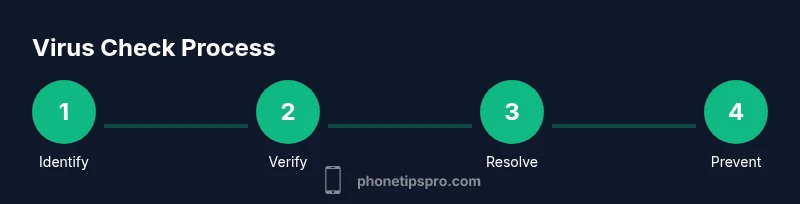
To check your iPhone for a virus, follow a structured, vendor-approved process. Start with behavior checks, ensure iOS is updated, review installed apps for legitimacy, and reset network settings if you notice odd connectivity. Use built-in diagnostics and Apple-provided tools to confirm there’s no malware present. This approach focuses on practical steps, minimizes risk, and helps preserve your data and privacy.
What a virus on
Quick health check: baseline
Prerequisites: update, backup, and prepare
Before you start a malware check, ensure your device is prepared. Update
Indicators and actions you can take
If you detect anomalies, focus on actions that improve security without compromising data. Review app permissions and revoke access that seems excessive. Look for unfamiliar configuration profiles in Settings > General > VPN & Device Management and remove any that you don’t recognize. Check Safari settings for redirects or dubious extensions, and reset network settings if connectivity behaves oddly. These steps address common attack vectors without needing third-party tools, aligning with Apple’s built-in protections and Phone Tips Pro’s recommended practices.
How to use built-in tools to scan and secure
Leverage
Checking for suspicious apps and profiles
Suspicious apps or profiles are common malware conduits on
Network and data usage as red flags
Unexplained spikes in data usage or unusual network behavior can indicate background activity associated with a threat. Open Settings > Cellular to review data consumption by app, and consider turning off background app refresh for any suspect apps. If a site or app pushes constant redirects or demands excessive permissions, treat it as a potential risk. Resetting network settings can clear stale configurations that attackers may exploit, but remember this will remove saved Wi‑Fi networks and passwords.
Reset options and data safety
If symptoms persist and you cannot identify the cause, consider a stronger action: erase all content and settings. Before doing this, ensure you have a current backup and have signed out of
Prevention and best practices
After checking or resetting, adopt security-focused habits to reduce future risk. Keep
Common myths and misconceptions
Some users assume
Tools & Materials
- iPhone with latest iOS(Ensure automatic updates are enabled when possible)
- Apple ID credentials(Have your sign-in details handy for reconfigurations)
- Stable internet connection(Wi‑Fi recommended for downloading updates)
- Recent backup(iCloud or computer backup before major actions)
- Find My iPhone enabled(Useful if remote erasure becomes necessary)
- Optional: computer with Finder/iTunes(Useful for a secure backup or device restore)
Steps
Estimated time: 25-40 minutes
- 1
Review recently installed apps
Open Settings > General > iPhone Storage and examine apps installed in the last few days. Identify any apps you don’t recognize or recall installing. If something seems off, note the name and consider uninstalling it.
Tip: Take screenshots of suspicious items for reference. - 2
Update iPhone to the latest iOS
Go to Settings > General > Software Update and install any available updates. Updates include security patches that close known malware exploits. Do not skip this step, as it reduces risk on every device.
Tip: If an update fails, retry on a stable Wi‑Fi connection. - 3
Check battery usage by app
Navigate to Settings > Battery and review per-app usage. Look for apps with unusually high energy consumption that you don’t recognize or didn’t install yourself. Investigate those apps and consider removing them if unexplained.
Tip: High usage without justification often signals background activity. - 4
Reset network settings
Resetting network settings clears rogue Wi‑Fi configurations that might be hijacked by malware. This action won’t delete your data but will remove saved networks and passwords, so be prepared to rejoin trusted networks.
Tip: Re-enter known Wi‑Fi credentials after the reset. - 5
Inspect profiles and device management
Go to Settings > General > VPN & Device Management and review any installed profiles. Remove any profiles you don’t recognize or didn’t authorize. Profiles can silently reconfigure device behavior if malicious.
Tip: Only keep profiles from trusted organizations or apps. - 6
Run built-in diagnostics and seek help if needed
If issues persist, use Apple Support resources and diagnostic tools to verify device health. Consider contacting Apple Support or visiting an Apple Store for hands-on assistance, especially if activation lock or data loss is a concern.
Tip: Document symptoms and steps taken to share with support.
FAQ
Can an iPhone have a virus?
Yes, iPhones can be infected, though it’s rare and typically involves jailbroken devices or malicious profiles. Regular software updates and careful app management significantly reduce risk.
Yes, iPhones can get malware, but it’s rare. It usually happens with jailbroken devices or shady profiles; keeping iOS updated helps a lot.
What should I do first if I suspect infection?
First, update iOS, review installed apps and profiles, and check battery usage for anomalies. If issues persist, reset network settings and consider a factory reset with a prior backup.
If you suspect infection, update iOS and check apps and profiles first; then reset network settings if needed.
Do antivirus apps protect iPhone?
Apple restricts third‑party antivirus apps. Rely on built‑in protections, avoid dubious tools, and use reputable privacy features instead.
Antivirus apps aren’t typically needed on iPhone; use Apple’s protections and avoid questionable tools.
Will a factory reset remove malware?
A factory reset erases personal data and resets settings, which often removes malware. Always back up data first and ensure you can restore safely.
A factory reset usually removes malware; back up first before doing it.
How can I verify if a profile is malicious?
Go to Settings > General > VPN & Device Management and remove any unfamiliar profiles. Profiles can control traffic and settings if malicious.
Check for unfamiliar profiles under General > VPN & Device Management and remove them.
Should I contact Apple Support?
If problems persist after checking and resetting, contact Apple Support or visit an Apple Store for professional guidance.
If issues continue, contact Apple Support for help.
Watch Video
Quick Summary
- Update iOS to close security gaps
- Review installed apps for legitimacy
- Use built-in tools before third-party scanners
- Back up before major actions
- Seek official support if in doubt