How to Clear Cookies on an iPhone: A Practical Guide
Learn how to clear cookies on an iPhone across Safari and third-party browsers. Step-by-step instructions, privacy tips, and practical guidance to keep your browsing private and fast.


If you're wondering how do you clear cookies on an iphone, this quick guide shows Safari and third-party browser steps to remove site data and cookies. You’ll learn how to clear cookie data without losing important settings, and how to re-login safely afterward. This covers Safari, Chrome on iPhone, and general privacy tips.
Why Clearing Cookies on an iPhone Matters
Cookies are tiny data files that websites store on your iPhone to remember preferences, login status, and tracking information. Over time, cookie data can accumulate, making Safari feel slower and sometimes causing login issues or personalized settings to behave oddly. According to Phone Tips Pro, regular cookie management is a simple, effective privacy habit that helps maintain a clean browsing experience and reduces cross-site tracking. In this section, we’ll explore what cookies do on iPhone, why they pile up, and when it’s wise to clear them to improve performance and privacy.
Understanding What Cookies Do on iPhone
Cookies enable websites to recognize you, remember your language preferences, recall items in a shopping cart, and keep you signed in across pages. On iPhone, cookies live in each browser app (Safari, Chrome, Firefox, etc.). Clearing cookies can fix stubborn login prompts, reset site-specific settings, and reduce cross-site tracking. However, clearing cookies also signs you out of websites and may remove saved preferences, so plan to re-enter passwords after clearing. Phone Tips Pro recommends balancing privacy with convenience by clearing cookies only when you notice issues or after using shared devices.
Safari: Clear Cookies and Website Data
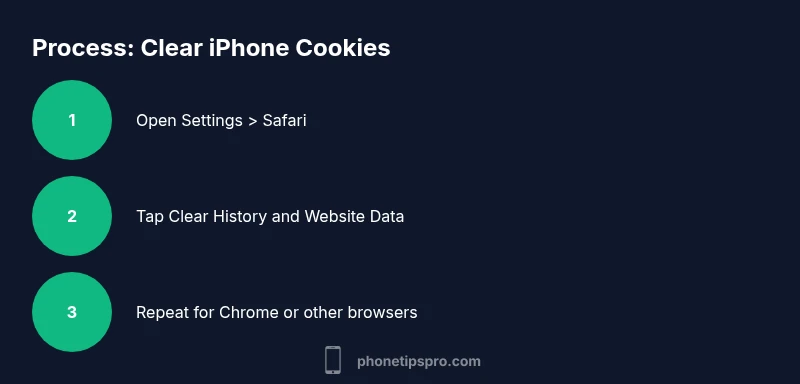
Safari is the default browser on iPhone, and clearing cookies there affects all websites visited in Safari. Open Settings, scroll to Safari, then tap Clear History and Website Data. Confirm the action; this will remove cookies and other stored website data. For more granular control, go to Settings > Safari > Advanced > Website Data to see which sites hold data and delete per-site data individually. A quick restart of Safari after clearing often helps ensure changes take effect.
Chrome on iPhone: Clearing Cookies
Chrome users on iPhone should clear cookies within the Chrome app to avoid affecting Safari data. Open Chrome, tap the three-dot menu, go to Settings > Privacy and security > Clear Browsing Data, and select Cookies and site data. Choose a time range (All time for a full reset) and confirm. This will sign you out of sites in Chrome but not necessarily Safari, so you may need to log back in there as well if you use both browsers.
Firefox, Edge, and Other Browsers on iPhone
Many third-party browsers follow similar privacy controls. In most cases, open the browser’s settings, locate Privacy or Data, and select Clear Cookies or Clear Browsing Data. If you want to preserve some login sessions, look for advanced options that let you clear cookies selectively instead of clearing all data. If the browser lacks per-cookie control, you may need to clear all data periodically to maintain privacy, especially on shared devices.
When to Clear Cookies vs Clearing Cache
Cookies and cache serve different purposes. Cookies store site-specific data, while the cache saves resources to load pages faster. If a site is misbehaving, start with clearing cookies first to reset login state and site preferences. If problems persist, you can clear cache or website data as a next step. Remember that clearing cache may not sign you out of sites, whereas cookies typically will.
Troubleshooting Persistent Cookies and Login Issues
If cookies keep reappearing or you’re still stuck at login prompts after clearing, check for app-specific data that may recreate cookies (e.g., automatic sign-in, autofill). Ensure you’re signed out from shared accounts on devices you don’t own, and review any password manager settings that might auto-fill credentials. If problems persist, consider temporarily using Private Browsing mode to test whether the issue is cookie-related without permanently removing data.
Privacy Tips to Minimize Tracking Without Losing Convenience
To reduce tracking without constantly clearing data, enable Private Browsing when needed, use a strong password manager, and adjust Safari’s Privacy settings (Prevent Cross-Site Tracking, Block All Cookies only as a last resort). Regularly review which sites have stored data and remove old or unused site entries. For added protection, consider additional privacy features offered by third-party browsers and ensure your iPhone is updated to the latest iOS version for improved privacy controls.
Keeping Your iPhone Clean: Regular Privacy Habits
Make cookie management part of a regular privacy routine. Schedule a quick review of website data every few weeks, especially after sharing your device or installing new apps. When you clear cookies, keep a note of which sites you log into most often to re-enter passwords efficiently. Phone Tips Pro suggests pairing cookie hygiene with general digital hygiene—keep apps updated, enable two-factor authentication where possible, and avoid saving credentials in browsers if you’re on shared devices.
Tools & Materials
- iPhone with internet connection(Needed to access Settings and browser data)
- Safari or installed third-party browsers (e.g., Chrome, Firefox)(At least one browser to manage cookies)
- Approved login credentials (passwords)(Will be needed after clearing cookies to sign back in)
- Optional: iCloud Keychain or password manager(Helps re-enter passwords quickly after sign-out)
Steps
Estimated time: 5-15 minutes
- 1
Open Settings and access Safari
From your iPhone home screen, open Settings and scroll to Safari. This is the central place to clear cookies for Safari-only data. You’ll see options related to history, website data, and privacy here.
Tip: If you don’t see Safari, ensure your iPhone is updated to a recent iOS version. - 2
Clear Safari history and website data
Tap Clear History and Website Data, then confirm. This removes cookies and website data from Safari across all websites you visited.
Tip: If you want to preserve some settings, review per-site data first via Advanced > Website Data. - 3
Optionally manage per-site data
Go to Settings > Safari > Advanced > Website Data to see specific sites with stored data. You can delete data for individual sites if you don’t want to wipe everything.
Tip: Deleting per-site data can fix stubborn login prompts without wiping all site data. - 4
Clear cookies in Chrome on iPhone
Open Chrome, tap the three-dot menu, choose Settings > Privacy and security > Clear Browsing Data. Select Cookies and site data and pick a time range (All time if you want a full reset).
Tip: Chrome’s data clearing won’t affect Safari data, so you can tailor per browser. - 5
Clear cookies in other browsers
For Firefox, Edge, or other browsers, locate Privacy or Data settings and choose Clear Cookies/Clear Browsing Data. Some apps offer per-site controls; use those if you only want to remove specific cookies.
Tip: If you don’t see cookie options, clear all data as a last resort and re-login where needed. - 6
Re-login and reconfigure preferences
After clearing cookies, reopen your favorite sites and sign back in. Re-enter saved login details, and reapply any site-specific preferences you use regularly.
Tip: Consider storing passwords in a password manager to simplify sign-ins after clearing cookies. - 7
Review privacy settings and enable protections
Check Safari Privacy settings and consider enabling Cross-Site Tracking prevention. This can reduce future cookie storage while keeping browsing convenient.
Tip: Keep your iOS and browser apps up to date to benefit from the latest privacy enhancements.
FAQ
Will clearing cookies sign me out of all websites on my iPhone?
Yes. Clearing cookies will sign you out of most websites because the login state is stored in cookies. You may need to re-enter your credentials on sites you regularly visit.
Yes. Clearing cookies will sign you out of most sites; you’ll need to log back in.
Does clearing cookies delete saved passwords?
Clearing cookies typically signs you out but does not delete passwords saved in a password manager. If you use the browser’s built-in password storage, you may need to re-enter or re-save passwords after clearing.
Clearing cookies signs you out but usually doesn’t erase passwords stored in a password manager.
How do I clear cookies for Chrome on iPhone?
Open Chrome, go to Settings > Privacy and security > Clear Browsing Data, select Cookies and site data, and confirm. This affects only Chrome data and won’t alter Safari cookies.
In Chrome, go to Privacy and Security, choose Clear Browsing Data, and select cookies.
Will clearing cookies improve my iPhone’s performance?
For many users, clearing cookies reduces clutter and can improve browser responsiveness. It also limits cross-site tracking. If pages load slowly due to cookies, this is a good first step.
Yes, clearing cookies can make browsers feel faster and more private.
Is clearing cookies the same as clearing the cache?
No. Cookies store site data like login states, while the cache stores website resources; you may want to clear both at different times for troubleshooting. Start with cookies to reset logins, then clear cache if needed.
Cookies reset login data; cache stores site resources. They’re related but separate.
How often should I clear cookies on my iPhone?
There’s no fixed schedule. Do it if you notice privacy concerns, persistent login issues, or slow browser performance. For privacy, consider regular, planned reviews rather than ad-hoc clearing.
Clear cookies when you notice issues or privacy concerns; use it as part of a regular privacy routine.
Watch Video
Quick Summary
- Clear cookies to protect privacy and improve performance.
- Safari and third-party browsers handle cookies differently; clear per browser as needed.
- Expect to re-login after clearing cookies; use a password manager to simplify this.
- Use targeted data removal (per-site) when possible to preserve useful settings.
- Regular privacy hygiene reduces tracking without sacrificing convenience.