How to Clear Search History on iPhone (Safari, Spotlight, Chrome)
Learn how to clear iPhone search history across Safari, Spotlight, and Chrome with a step-by-step guide. Includes data deletion, limiting future history, and troubleshooting tips for privacy and performance.


Clear your iPhone’s search history across Safari, Chrome, and Spotlight. This quick guide shows what gets deleted, where history is stored, and practical steps you can follow right away. Learn how to wipe past searches and reduce future suggestions with simple settings changes. We’ll cover Safari history, cookies, and cached data, how to reset search suggestions, and safety considerations.
Why clearing search history matters
According to Phone Tips Pro, clearing your iPhone search history can improve privacy and device performance by reducing on-device data that is used to power suggestions and auto-fill. When you clear history, you also reduce the chances that sites track your prior activity across sessions. This can help prevent targeted ads and reduce the amount of personal information visible to others who use your device. In addition, a clean slate can speed up search results and cut down clutter in your browser and system UI. Understanding what data counts as history on iPhone helps you decide what to clear and when to do it. Keep in mind that clearing data might sign you out of some sites, so plan accordingly.
What counts as search history on iPhone
On an iPhone, several data sources contribute to search history and related suggestions. Safari stores a local history of visited sites and a cache of cookies and data that can affect how pages load and how autofill behaves. Spotlight draws from app data and local indexing to surface results as you type, sometimes showing recently opened items or suggested apps. Chrome on iPhone maintains its own history and cookies within the app, separate from Safari. Finally, Siri and Look Up suggestions can reflect your recent activity even if you haven't explicitly opened a browser. Understanding these sources helps you target the exact area you want to clear.
Clearing Safari history and website data
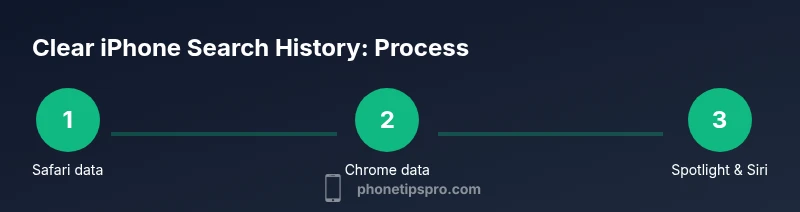
Safari is the main place where search history on iPhone is stored. To clean this data, open the Settings app and navigate to Safari. Here you will find the option Clear History and Website Data. Tapping this will remove your browsing history, cookies, and cached data for all time on that device. If you consistently want to reset this data without affecting app data, you can select an appropriate time range in some browser configurations, but on iOS, all time is the typical default. After clearing, you may need to re-sign into sites that you use regularly.
Clearing Chrome on iPhone
Chrome on iPhone maintains its own history and cookies within the Chrome app. To clear that data, open Chrome, tap the three-dot menu, go to Settings, then Privacy, and choose Clear Browsing Data. Select a time range (All time is common) and check Browsing history, Cookies and site data, and Cached images and files, then confirm. This will remove Chrome-specific history and data, but Safari data remains untouched unless you also clear Safari. If you use both browsers, repeat these steps in each app.
Managing Spotlight search results and Siri suggestions
Spotlight search and Siri suggestions are designed to help you find things quickly, but they can reveal recent activity. There isn't a single “clear Spotlight history” switch, but you can reduce future data collection by adjusting settings. Go to Settings > Siri & Search and review options like Suggestions in Search, Suggestions in Look Up, and Suggestions on Lock Screen. Turning these off minimizes proactive results. If you want to reset some learned data, you can toggle these options off and on again to refresh how data is gathered from your device.
Tips for limiting future history
To maintain a cleaner device, consider using Private Browsing in Safari when you don’t want any history recorded. Regularly review app permissions that allow search data to be indexed by Spotlight and Siri. Keeping iCloud Safari history off or limiting what is synced across devices can also help. Remember that some apps may reintroduce data into search results through autofill or site cookies, so periodic checks are wise. A routine approach to privacy is better than one-off cleanups.
Troubleshooting common issues
If you still see long-tail suggestions after clearing data, it may be due to residual cookies or app-level caches. Ensure you’ve cleared data in all relevant apps (Safari and Chrome) and sign back into essential sites as needed. If Spotlight or Siri suggestions persist, review Settings > Siri & Search and disable or re-enable prompts to reset learning. Some changes may take a few hours to reflect across devices if you use iCloud. If you notice signs of abnormal data retention, verify that your iPhone’s software is up to date and consider a device restart.
Privacy and security considerations
Clearing history enhances privacy on shared devices and reduces exposure to targeted content. However, be aware that clearing data can sign you out of websites and apps, requiring password re-entry. Review what data you truly want to erase versus what you rely on for convenience. If your device is linked to iCloud, decide whether to disable Safari sync to keep history local to this iPhone. Privacy-friendly practices include using private browsing when appropriate and limiting the scope of data shared with apps.
Tools & Materials
- iPhone with latest iOS(Ensure the device is connected to the internet for any sync-related changes.)
- Settings app(Required to access Safari, Chrome, and Siri & Search controls.)
- Chrome app (optional)(Needed if you want to clear Chrome history specifically.)
- Passwords stored securely(You may be signed out from sites after clearing data; have passwords handy.)
Steps
Estimated time: 25-40 minutes
- 1
Open Settings
Unlock your iPhone and open the Settings app to begin clearing history. This is the central hub for Safari, Chrome, and Spotlight adjustments.
Tip: If you’re handling sensitive data, consider backing up important passwords first. - 2
Clear Safari history and website data
In Settings, scroll to Safari and tap Clear History and Website Data. Confirm the action to erase your browsing history, cookies, and cached data. This removes traces from Safari across all time and resets site data.
Tip: After clearing, you may need to re-authenticate on sites you use frequently. - 3
Clear Chrome data on iPhone (optional)
If you use Chrome, open the Chrome app, go to Settings > Privacy > Clear Browsing Data, select All time, and check Browsing history, Cookies, and Cached images. Confirm to erase Chrome’s stored data.
Tip: Repeat this step only if you actively use Chrome; Safari data remains separate. - 4
Adjust Spotlight and Siri suggestions
Go to Settings > Siri & Search. Toggle off Suggestions in Search and Select Learn From This Device options to limit future history capture. This reduces on-device prompts without deleting existing data.
Tip: Turning off suggestions won’t erase past activity from other apps; it only changes future behavior. - 5
Limit future data collection
Consider using Private Browsing in Safari for sensitive sessions and review app permissions that allow indexing by Spotlight. If you rely on iCloud, decide whether to disable Safari data syncing across devices.
Tip: Private Browsing leaves no history, but it won’t stop history outside Safari, like app-level caches. - 6
Test and verify
Perform a few test searches in Safari, Chrome, and Spotlight to ensure data isn’t being carried over from previous sessions. Check if sign-ins are still intact and revisit any sites that required re-authentication.
Tip: If results look unchanged, refresh the devices or wait a few hours for changes to propagate (especially with iCloud).
FAQ
How do I clear Safari search history on iPhone?
Open Settings > Safari > Clear History and Website Data, then confirm. This removes browsing history, cookies, and cached data from Safari on that device.
Go to Settings, open Safari, choose Clear History and Website Data, and confirm. Safari history will be erased on your iPhone.
Will clearing search history delete saved passwords?
Clearing history also clears cookies and site data, which may sign you out of sites. Saved passwords stored in iCloud Keychain are not deleted by this action, but you may need to re-authenticate on sites.
Yes, you may be signed out of sites, but your saved passwords usually remain in iCloud Keychain.
Does Spotlight history clearing affect Siri suggestions?
There isn’t a single ‘clear Spotlight history’ switch. You can reduce future data by turning off Suggestions in Search and related options under Settings > Siri & Search.
You can limit future Spotlight and Siri suggestions by turning off relevant options in Settings > Siri & Search.
Is search history synced to iCloud?
If Safari is enabled in iCloud, history can sync across devices. To stop syncing, disable Safari in iCloud settings on your iPhone.
Yes, Safari history can sync via iCloud; turn off Safari in iCloud settings to stop it.
How often should I clear my history?
Frequency depends on privacy needs. If you share your device or use public networks, consider quarterly cleanups or after sensitive sessions.
Regular checks help—consider cleaning after shared device use or sensitive sessions.
Why might my search results keep showing after clearing?
Some data may come from apps or caches outside the browser. Re-check Chrome data, app caches, and disable persistent suggestions if needed.
If results persist, check other apps and disable persistent suggestions.
Watch Video
Quick Summary
- Clear Safari history and website data to reset local browsing traces.
- Clear Chrome data separately if you use Chrome on iOS.
- Disable or limit Spotlight/Siri suggestions to reduce future history.
- Expect to re-authenticate on some sites after erasing data.