Delete Browsing History on iPhone: A Step-by-Step Guide
Learn how to delete browsing history on iPhone across Safari and third-party browsers. Clear history, cookies, and data, disable syncing, and adopt private browsing to protect your privacy with practical, device-specific steps.


You can delete browsing history on iPhone by clearing Safari history and website data, removing cookies, and turning off Safari data syncing with iCloud. This step-by-step guide also covers third-party browsers and best privacy practices to help you reduce traces across apps and sites. You'll learn where data lives, what gets removed, and how to maintain a cleaner digital footprint over time.
Why deleting browsing history on iPhone matters for privacy
In today’s mobile-centric world, your iPhone holds a map of where you’ve been, what you viewed, and which sites you visited. Deleting browsing history on iPhone can help reduce your digital footprint and limit data that apps and advertisers can associate with you. When you hand your device to someone else, a cleared history helps protect confidential information like banking sessions, personal messages, and research. According to Phone Tips Pro, understanding how data persists on iPhone lets you tailor a privacy strategy that fits your needs. The most common data types involved are Safari history, cookies, cached files, and session tokens. If you want to delete browsing history on iPhone, you should distinguish what you want to remove: merely the history list, or all traces including cached files and cookies. This distinction matters because some data may be stored in separate places and require different steps. Knowing what gets cleared helps you minimize disruption while still protecting sensitive information.
What data is affected by clearing history
Clearing browsing history on iPhone affects several data categories: Safari history entries, cookies and site data, cached files, and sometimes sign-in sessions. History entries record pages you’ve visited; cookies remember login states and preferences; cached data speeds up reloading but can reveal user preferences. When you clear history, those Safari entries disappear from the history list on the device. Clearing cookies and site data logs you out of some sites and resets preferences for others. Note that not all data may be removed by a single action: some application caches or data stored in iCloud might still retain information if syncing is enabled. Private browsing sessions do not leave a history trail, but any content downloaded or saved in apps remains in other app storage. For iPhone users who rely on third‑party browsers, you will need to purge data within each app. Understanding these distinctions helps you target the exact data you want to remove without over-clearing and breaking essential logins.
How iPhone stores Safari data and where to find controls
Safari data on iPhone is stored locally and, if enabled, synced to iCloud. The primary controls live in Settings > Safari, where you can Clear History and Website Data, manage content blockers, and adjust website data. In iOS, you can also inspect Advanced > Website Data to see which sites hold data and remove entries. If you disable iCloud Safari syncing, your changes stay on this device and won’t propagate to other Apple devices. This distinction is crucial: clearing data on one device does not guarantee a complete purge from all devices if you have multiple iPhones, iPads, or Macs connected to the same iCloud account. If privacy matters most, consider turning off Safari syncing and using Private Browsing for new sessions on all devices.
Clear Safari history and website data
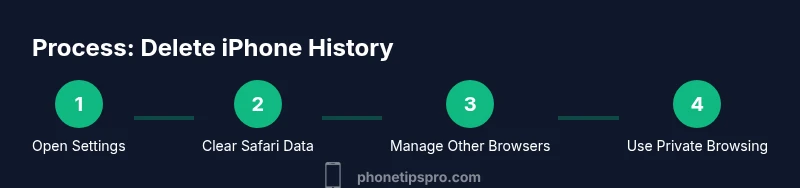
To clear Safari data on iPhone, open Settings, scroll to Safari, and tap Clear History and Website Data. Confirm the prompt; this removes Safari history, cookies, and cached data from the device. If you rely on iCloud, you may also turn off Safari syncing in Settings > [your name] > iCloud > Safari to stop syncing past clears across devices. After clearing, re-open Safari to verify the history is gone and consider testing a site to ensure you’ve been logged out. For more aggressive cleaning, go to Settings > Safari > Advanced > Website Data and select Remove All Website Data. Keep in mind that clearing data may sign you out of sites and reset preferences; ensure you have saved passwords or have them stored securely.
Manage other browsers on iPhone (Chrome, Firefox, Edge)
Third‑party browsers maintain their own histories, caches, and login tokens. Open each app and find its privacy or history settings to clear data. In Chrome, navigate to Settings > Privacy > Clear Browsing Data; in Firefox, Settings > Clear Private Data; in Edge, Privacy, Search, and Services > Clear Browsing Data. Steps vary by version, but goal is the same: remove history, cookies, and cache to limit traces. If you use multiple browsers across devices, perform routine purges every few weeks or enable private/incognito modes to minimize storage. Note that some data may persist in app caches; if needed, reinstalling the app can remove stubborn caches.
Turn off iCloud Safari syncing and use Private Browsing for ongoing privacy
To reduce cross‑device history leakage, disable Safari syncing: Settings > [your name] > iCloud > Safari, toggle off. Then adopt Private Browsing in Safari for new sessions. Private Browsing prevents Safari from saving history, cookies, and search records during that session. For ongoing privacy, clear history on a schedule and use Private Browsing for sensitive tasks. If you must log into sites across devices, rely on a password manager rather than saving credentials in the browser. Finally, review device storage regularly to identify lingering cached data and remove it as needed.
Tips for maintaining privacy and ongoing best practices
Maintenance matters. Use Private Browsing for sensitive sessions and disable Safari syncing if you don’t want to mirror history across devices. Regularly clear website data in Safari and examine Advanced Website Data to identify heavy hitters. Consider content blockers or anti‑tracking features to reduce cross‑site tracking, and keep iOS updated since updates often include privacy protections. Remember that clearing history on one app does not guarantee complete privacy if data exists in other apps or cloud backups. Adopt a privacy‑forward mindset: log out of accounts when finished, avoid saving passwords in browsers, and use a trusted password manager.
AUTHORITY SOURCES
- FTC privacy basics: https://www.ftc.gov/privacy
- NIST Privacy Framework: https://www.nist.gov/topics/privacy
- Apple Privacy and Safari privacy guide: https://www.apple.com/privacy/
Tools & Materials
- iPhone with latest iOS installed(Ensure you have an active internet connection)
- Access to Settings app(You will navigate to Safari controls)
- Third-party browsers on iPhone (Chrome, Firefox, Edge)(Optional for cross-browser cleaning)
- Apple ID credentials(Needed if you manage iCloud Safari syncing)
- Passwords stored securely (e.g., iCloud Keychain or password manager)(You may need them after clearing data)
Steps
Estimated time: 15-25 minutes
- 1
Open Settings
From your home screen, tap Settings to access privacy and browser controls. This prepares you to locate Safari options and manage data across devices.
Tip: If you’re pressed for time, use the Spotlight search in Settings to find Safari quickly. - 2
Access Safari controls
Scroll down and select Safari to reach the main privacy and history options. Here you’ll see the important data-clearing actions in one place.
Tip: Review both 'Clear History and Website Data' and 'Advanced > Website Data' for a thorough cleanup. - 3
Clear History and Website Data
Tap Clear History and Website Data, then confirm. This removes Safari history, cookies, and caches from the device.
Tip: Remember this will log you out of most sites, so have passwords handy or saved in a password manager. - 4
Optional: Manage Website Data
Go to Settings > Safari > Advanced > Website Data to see which sites hold data. Remove All Website Data if you want a deeper purge.
Tip: Selective deletion can help preserve data you don’t want to lose; use this if you rely on trusted sites. - 5
Disable iCloud Safari syncing (optional)
If privacy across devices matters, disable syncing in iCloud so past clears don’t reappear on other devices.
Tip: Re-check after changes—some devices may still sync until you sign out or disable on all devices. - 6
Private Browsing for future sessions
Open a new Private Browsing tab in Safari; this mode doesn’t save history, cookies, or search records for that session.
Tip: Use Private Browsing for sensitive tasks and consider a password manager for secure logins. - 7
Clear data in third-party browsers
Repeat data-clearing steps in Chrome, Firefox, or Edge if you also use those apps on your iPhone.
Tip: Each browser has its own history and data settings; check Privacy or History sections within each app. - 8
Verify and maintain
Reopen Safari and confirm history is cleared. Periodically audit settings and update iOS for fresh privacy protections.
Tip: Set a reminder to review browser data weekly or monthly depending on your usage.
FAQ
Will clearing history remove saved passwords?
Clearing history may sign you out of websites and delete some cookies, but saved passwords are typically stored in iCloud Keychain or a password manager. If you want to remove passwords, manage them in Settings > Passwords or your password manager directly.
Clearing history signs you out and removes site data, but passwords are usually kept in iCloud Keychain or your password manager. To remove them, use Settings > Passwords.
Does clearing history also clear cached data?
Yes, clearing history typically removes cached data for Safari, but some app caches may persist. For a deeper purge, use Website Data removal and consider re-installing apps with stubborn caches.
Clearing history removes most caches, but some app data may persist. For stubborn caches, you might reinstall the app.
Will history reappear after re-enabling Safari syncing?
If you re-enable iCloud Safari syncing, history can re-sync from other devices still hosting data. Ensure you’ve cleared history on all devices if you want a clean slate.
Re-enabling syncing may bring history back from other devices that still hold it.
How do I delete history for Chrome on iPhone?
Open Chrome, go to Settings > Privacy > Clear Browsing Data, and choose what to remove (history, cookies, cached data). Steps differ by version, but the goal is to purge browser data.
In Chrome, use Privacy settings to Clear Browsing Data and remove history and cookies.
Is private browsing enough for ongoing privacy?
Private Browsing reduces data saved on the device but doesn’t hide your activity from sites or networks. For stronger privacy, combine private mode with a password manager and avoid saving credentials in browsers.
Private Browsing helps with local history, but it isn’t a complete privacy shield; use it with other privacy practices.
Should I clear data regularly even if I don’t notice issues?
Regular maintenance helps limit traces and reduce cross-device syncing. Set a routine (monthly or quarterly) to review Safari and third-party browsers.
Regular cleans help keep your privacy in check without waiting for problems to appear.
Watch Video
Quick Summary
- Delete Safari history and website data to remove traces on iPhone
- Disable iCloud Safari syncing if you want device-local cleans only
- Use Private Browsing for new sessions to minimize future history
- Repeat data purge within third-party browsers if used regularly