How to Hard iPhone: A Practical Guide to Locking Down Your Device
Learn how to hard iphone with practical steps to tighten security, guard against malware, and protect data. This guide covers strong passcodes, 2FA, app permissions, profiles, updates, and safe networking.


Learn how to hard iphone by tightening security, defending against malware, and reducing attack surfaces. This quick answer summarizes the essential steps: enable a strong passcode, use Face ID, turn on two-factor authentication, review app permissions and device profiles, keep iOS up to date, and practice safe network habits. No specialized tools required.
Why hardening matters on iPhone
For the average user, hardening an iPhone means reducing the device's exposure to threats by addressing common attack vectors such as weak credentials, outdated software, insecure network activity, and overly permissive app permissions. If you’re asking how to hard iphone, the cornerstone is layering defenses so a single failure won’t compromise your data. According to Phone Tips Pro, comprehensive protection starts with small, repeatable habits that fit into daily usage. This approach aligns with best practices outlined by security researchers and consumer safety guides, emphasizing that human factors—like password hygiene and safe browsing—often determine security outcomes more than any single feature. By understanding the threat model you face (phishing, public Wi‑Fi risks, out-of-date software), you can tailor a minimal, effective hardening plan that preserves usability while reducing risk.
Key idea: hardening is a continuous process, not a one-off configuration. You’ll want to combine device settings, account safeguards, and safe behaviors to create multiple independent barriers against attackers.
importanceForYouParagraphsNotSpeciallyMarked
Tools & Materials
- iPhone with latest iOS installed(Update to the latest iOS version before starting to ensure security patches are applied.)
- Apple ID access(You’ll need to sign in to manage 2FA and review device security settings.)
- Charged battery or charger(Some steps require restarting or keeping the device awake during updates.)
- Authenticator app or security key (optional)(Strong 2FA options are recommended for higher security.)
Steps
Estimated time: 25-40 minutes
- 1
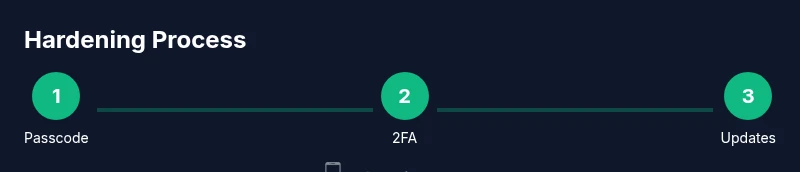
Set a strong passcode
Open Settings > Passcode, then choose a custom alphanumeric passcode. Avoid simple 4–digit codes and common phrases. This creates a longer, unpredictable credential that’s harder to guess or guess-crack. After setting, ensure Auto-Lock is enabled for quick lock after inactivity.
Tip: Use at least 12 characters with a mix of letters, numbers, and symbols. - 2
Enable Face ID/Touch ID and ensure reliability
Verify that biometric authentication works consistently for unlocking, App Store purchases, and autofill prompts. Re-train if needed and enable attention awareness if available. This reduces dependence on a single factor while maintaining convenience.
Tip: Test it in bright and low-light environments to ensure reliability. - 3
Turn on two-factor authentication for your Apple ID
Go to Settings > [your name] > Password & Security and enable Two-Factor Authentication. This adds a critical second layer of defense beyond your device. If you already have 2FA, review trusted devices and backup options.
Tip: Keep your trusted phone numbers up to date and add at least one trusted recovery method. - 4
Review app permissions and revoke unnecessary access
In Settings, audit permissions granted to each app (location, microphone, photos, etc.). Revoke any permissions that aren’t essential. This limits data exposure and helps prevent apps from collecting sensitive information without you realizing it.
Tip: Disable background location when not needed. - 5
Check device management profiles and remove unknown ones
If you see a configuration profile you don’t recognize, remove it from Settings > General > Profiles & Device Management. Unknown profiles can redirect traffic, capture data, or alter device settings. Only remove profiles you trust.
Tip: If unsure, consult Apple Support before removing a profile. - 6
Keep iOS and apps updated; enable automatic updates
Regular updates patch security flaws. Turn on automatic updates for iOS and installed apps to reduce exposure to known exploits. After updating, reboot if prompted to complete the installation.
Tip: Schedule updates during a low-use window to avoid interruptions.
FAQ
What does it mean to harden an iPhone?
Hardening an iPhone means implementing a layered set of security measures to reduce vulnerability. This includes strong authentication, regular updates, limited app permissions, and safe network practices. It’s about making each component harder for an attacker to exploit.
Hardening means adding multiple defensive layers—strong passwords, 2FA, limited permissions, and timely updates—to reduce risk.
Why is two-factor authentication important for Apple ID?
Two-factor authentication adds a second barrier beyond your password, making it much harder for attackers to access your account, even if your password is compromised. It’s especially important for protecting iCloud data and device recovery options.
2FA adds a second layer of security; it’s essential for protecting your Apple ID and data.
How often should I update iOS and apps for security?
Regular updates are the best defense against emerging threats. Enable automatic updates for iOS and apps, and review pending updates weekly to ensure you’re protected against known vulnerabilities.
Keep iOS and apps up to date; automatic updates simplify this and reduce risk.
How can I safely review app permissions?
Go through each installed app’s permissions in Settings and revoke anything unnecessary. Limiting access to location, microphone, and photos reduces data exposure and potential misuse.
Check each app’s permissions and remove what isn’t needed.
Do antivirus apps help on iPhone?
Traditional antivirus apps offer limited benefits on iPhone due to the platform’s security model. Focus on enabling built-in protections, updating software, and avoiding risky downloads for best results.
iPhones don’t rely on traditional antivirus; focus on updates and safe behavior.
What should I do if I suspect a malware or suspicious profile?
If you suspect malware or an unknown profile, back up your data, remove the profile, run a fresh antivirus check where available, and contact Apple Support for guidance if issues persist.
Back up, remove any unknown profiles, and seek official support if problems continue.
Watch Video
Quick Summary
- Lock in a strong passcode and risk-adjust biometric use.
- Enable 2FA for Apple ID and review trusted devices.
- Audit and restrict app permissions to minimize data exposure.
- Keep iOS and apps updated to receive critical security patches.
- Regularly review device profiles and network practices to maintain a secure baseline.