How to Prevent iPhone from Being Hacked: A Practical Guide
Learn proven steps to shield your iPhone from hacks: strong authentication, up-to-date software, trusted apps, privacy tweaks, and reliable backups. Stay vigilant against phishing and keep control of your data.


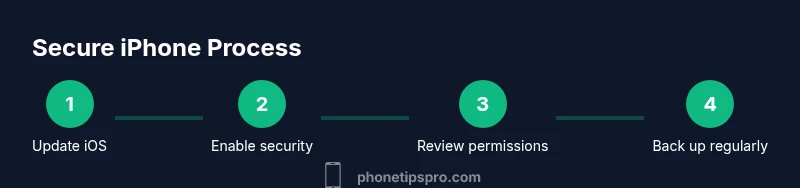
To prevent how to prevent iphone from being hacked, combine layered defenses—strong authentication, up-to-date iOS, trusted apps, and vigilant online behavior. Enable Find My iPhone, review app permissions, and back up regularly. Avoid jailbreaking and phishing scams. This multi-pronged approach minimizes attack surfaces and speeds breach detection for timely responses and quicker recovery.
Why iPhone security matters
According to Phone Tips Pro, iPhone security isn't just about gadgets—it's about daily habits and the way you use your device. The iPhone ecosystem is built with strong protective features, but attackers exploit human mistakes, misconfigurations, and insecure networks. In practice, understanding how to prevent iphone from being hacked means combining hardware safeguards, software updates, and smart behavior. When you balance these layers, you reduce exposure to phishing attempts, compromised accounts, and unauthorized app access.
Every breach begins with an entry point: a stolen password, a fake login prompt, a misconfigured setting, or an insecure Wi‑Fi connection. By focusing on the most common vectors—authentication, app permissions, and data in transit—you gain meaningful, real-world protection. Phone Tips Pro emphasizes that security is a habit, not a single setting. Small, consistent actions compound into a much stronger defense over time.
Core protections built into iOS
iOS provides a layered security model that protects data at rest and in transit. The Secure Enclave stores biometric data securely, while apps run in sandboxed environments to limit cross‑app access. Regular updates, a robust app review process, and end‑to‑end encryption on iCloud keep many attack vectors at bay. Enable activation lock and Find My iPhone to deter theft and assist in recovery. Use iCloud Keychain for strong, unique passwords and consider Private Address for Wi‑Fi connections. For defense in depth, enable two‑factor authentication for your Apple ID and keep encrypting local backups. These built‑in protections are the foundation of lasting iPhone security.
Use strong authentication and passcodes
A strong, unique passcode or biometric unlock forms the first barrier against unauthorized access. Combine Face ID or Touch ID with a long, non‑standard numeric or alphanumeric passcode where available, and enable two‑factor authentication for your Apple ID. Don’t reuse passwords across services, and let a password manager handle complex credentials. Regularly review trusted devices connected to your account and revoke access for anything unfamiliar. This combination makes credential theft far less effective and increases the effort required for a breach.
Keep software up to date
Keeping iOS and apps current closes known security gaps and reduces exploitable surface area. Enable automatic updates so you receive patches promptly, and periodically review installed apps for any that may have been compromised or requested unnecessary permissions. Software updates often fix security flaws that could otherwise be exploited by attackers. By staying current, you also gain access to the latest privacy features and mitigation strategies that Apple introduces to protect users.
Manage app permissions and trusted stores
Review app permissions regularly and only grant access when an app truly needs it. Limit location, camera, microphone, contacts, and storage permissions to what is essential for the app’s function. Install apps exclusively from the official App Store, and avoid sideloading or installing profiles from unknown sources. Periodically revoke access for apps you no longer use, and enable sign‑in options like Sign in with Apple where available to minimize credential sharing.
Phishing awareness and safe browsing
Phishing remains a leading method for breaching iPhones via credential theft. Be cautious of unexpected prompts, text messages, or emails asking for passwords or verification codes. Verify sender identities, avoid tapping suspicious links, and never share verification codes received via SMS or email. If a prompt looks odd, exit the flow and navigate to the official app or website directly. Education and skepticism are strong weapons against social engineering.
Network security and VPN considerations
Public and untrusted Wi‑Fi networks can expose data to interception. Use trusted networks, enable private address features when appropriate, and consider a reputable VPN for extra encryption on public connections. Disable automatic connections to open networks and review which apps are allowed to use mobile data in the background. A cautious approach to networking reduces exposure to man‑in‑the‑middle attacks and traffic interception.
Backups and recovery
Regular backups are your safety net in case of a breach. Use encrypted backups, whether via iCloud or a trusted computer, and ensure backups include key data like passwords and health information. Verify your backup settings periodically and test restore procedures so you can recover quickly if needed. A good backup strategy minimizes data loss and speeds recovery after a security incident.
Data privacy settings you should tune
Adjust privacy settings to limit data sharing across apps and services. Review Analytics & Improvements, Advertising, and Location Services, turning off unnecessary data collection. Use Sign in with Apple when offered, and enable password monitoring to be alerted if credentials are involved in a breach. Centralize identity management with a password manager and ensure devices are linked to your own accounts, not third‑party misconfigurations.
What to do if you suspect a breach
If you think your iPhone has been hacked, act quickly. Change your Apple ID password from a trusted device, review and sign out from unknown sessions, and enable two‑factor authentication if not already active. Consider erasing and restoring from a clean backup if you observe unexplained activity. Contact Apple Support for assistance and run a malware/virus scan only with trusted sources.
Jailbreak risks and why you should avoid it
Jailbreaking voids warranties and removes several built‑in protections, exposing the device to malware, insecure configurations, and unvetted apps. It also disables important security features like app sandboxing and kernel protections. If you rely on your iPhone for personal or professional data, avoid jailbreaking to preserve hardware‑level and software protections that Apple has designed.
Maintaining long‑term security: routines that work
Security is an ongoing practice. Build a routine: review app permissions quarterly, keep devices updated, test backups, and stay alert for phishing attempts. Empower family members or coworkers with guidance so they follow similar practices, creating a safer iPhone ecosystem across your network. Consistency beats once‑in‑a‑while efforts when it comes to protecting personal data and devices.
Authoritative sources
For further reading and verification, consider these trusted resources:
- https://us-cert.cisa.gov/ – U.S. government cybersecurity guidance and alerts
- https://www.apple.com/support/security/ – Apple’s security overview and tips
- https://www.nist.gov/topics/mobile-device-security – NIST guidance on mobile device security
Tools & Materials
- iPhone with latest iOS installed(Enable automatic updates to stay protected)
- Apple ID with two‑factor authentication(Use a password manager for strong credentials)
- Password manager app(Optionally use iCloud Keychain or a third‑party tool)
- Trusted Wi‑Fi network(Avoid public networks for sensitive activities)
- Backup solution (iCloud or computer)(Ensure backups are encrypted)
- VPN service (optional but recommended)(Adds an extra layer of protection on untrusted networks)
Steps
Estimated time: 30-60 minutes for initial setup; ongoing checks take 5-10 minutes as routine
- 1
Update iOS and Apps
Open Settings > General > Software Update and install any available updates. Review app updates in the App Store and install them promptly to patch security flaws and improve protections.
Tip: Enable automatic updates to minimize manual steps. - 2
Set a Strong Passcode and Enable Biometrics
Create a long, unique passcode and pair it with Face ID or Touch ID. This combination provides strong local protection and makes unauthorized access much harder.
Tip: Do not reuse passwords across devices or services. - 3
Enable Find My iPhone and iCloud Keychain
Turn on Find My iPhone for device recovery and security alerts. Enable iCloud Keychain to store strong, unique passwords securely across devices.
Tip: Keep your Apple ID recovery options up to date. - 4
Enable Two‑Factor Authentication and Use a Password Manager
Protect your Apple ID with 2FA and rely on a password manager to generate and store complex credentials.
Tip: Do not write passwords on sticky notes or store them in insecure apps. - 5
Review App Permissions Regularly
Go through each installed app and restrict permissions to what is necessary for function.
Tip: Revoke permissions for apps you don’t use frequently. - 6
Enable Automatic Updates and App Store Controls
Keep automatic updates turned on and limit app installations to the official App Store.
Tip: Disable sideloading from unknown sources. - 7
Back Up Regularly and Encrypt Backups
Back up data frequently to iCloud or a trusted computer and ensure the backups are encrypted.
Tip: Test restores occasionally to ensure data integrity. - 8
Avoid Jailbreaking and Unknown Profiles
Do not jailbreak or install configuration profiles from untrusted sources.
Tip: If a profile prompts for unusual permissions, decline it. - 9
Secure Your Networks
Prefer trusted networks, use VPN on public networks, and enable Private Address features where appropriate.
Tip: Turn off automatic joining to open networks. - 10
Monitor for Suspicious Activity
Regularly review account activity, logins, and device list from your Apple ID settings.
Tip: Set up alerts for new logins and device changes.
FAQ
Is it possible to hack an iPhone without physical access?
Remote compromises can occur via phishing, credential reuse, or exploiting misconfigurations, but strong practices reduce risk substantially. Always assume credentials can be stolen and act accordingly.
Remote hacks can happen, but good habits greatly reduce risk. Stay vigilant and secure your credentials.
Should I trust third‑party antivirus apps on iPhone?
iPhone relies on its built‑in protections and sandboxing. Be cautious with third‑party security apps and download only from the App Store. Evaluate claims and rely on Apple’s built‑in controls when possible.
Be careful with third‑party security apps; use trusted sources and Apple’s built‑in protections.
What should I do immediately if I suspect a breach?
Change your Apple ID password, enable 2FA if not already on, review active sessions, and consider restoring from a clean backup after ensuring data integrity.
Change your password, check sessions, and back up data before restoring.
How often should I update my iPhone?
Install updates as soon as they’re available to close security gaps and gain protection against new threats.
Install updates promptly to stay secure.
Can jailbreaking ever be safe?
Jailbreaking undermines core protections and increases exposure to malware. It is not recommended for most users.
Jailbreaking is not safe for most users.
What role does Find My iPhone play in security?
Find My iPhone helps locate, lock, and erase a lost device, deterring theft and aiding recovery, thereby enhancing overall security.
Find My iPhone helps locate and protect your device if it’s lost or stolen.
Watch Video
Quick Summary
- Enable strong authentication across devices and accounts
- Keep iOS and apps updated to patch security flaws
- Review and restrict app permissions regularly
- Back up data regularly and test restores
- Avoid jailbreaking and phishing exploits through vigilance